

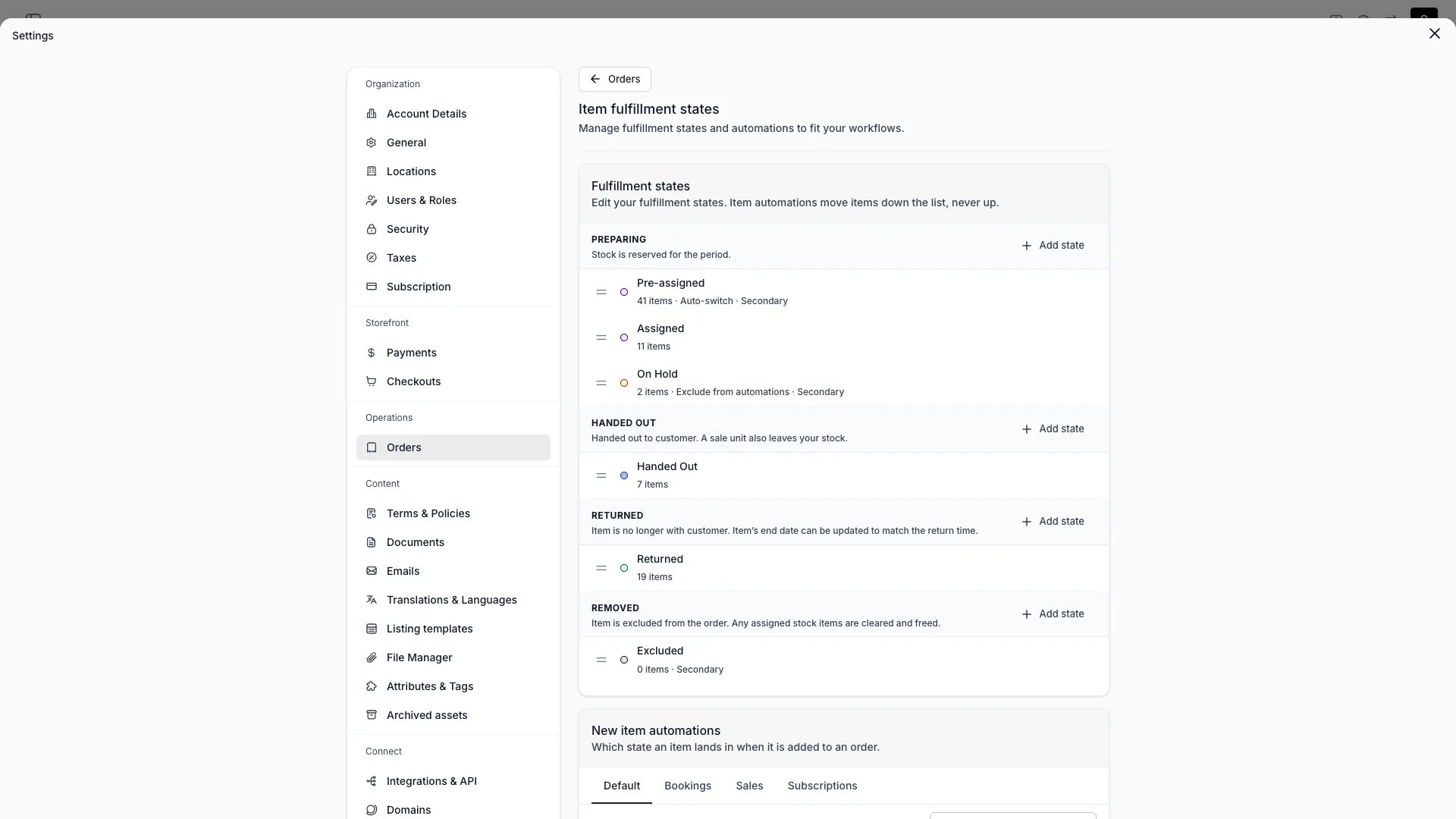
Settings > Operations > Orders > Fulfillment lifecycle
This view can look different dependent on your user role.
See Visibility and permissions for details.
See Visibility and permissions for details.
Primary purpose
Item states are yours to define. Open Settings → Orders → Fulfillment lifecycle to rename the six states your account starts with, add your own, recolour them, reorder them, and delete the ones your staff never use. Every state belongs to one of four fulfillment groups. The group is what the platform reads: which stock a state claims, whether the item counts as a return, whether an order automation may move it. The state is the name your staff see on the item.The four fulfillment groups
The four fulfillment groups
A state’s group is fixed when you create it, so decide the group first and the name second.
Order automations move items down this list and never back up it, which is why the Lifecycle states card lists the groups in this order.
The six states your account starts with
The six states your account starts with
These are the states the product carried before you could define your own, so a new account opens on a list your staff already know. Being a seeded state only fixes the name: rename one and it keeps your wording from then on, in every language.Nothing seeds a not-returned state. A merchant who writes items off adds one under Returned and sets its return condition.
What you set on a state
What you set on a state
Each state carries a Name, a Key, a Description and a colour. The key is what the API addresses the state by. Left empty it is built from the name, and it cannot change afterwards.Turn on Secondary state to keep a state out of the main picker, behind a More entry. Use it for states staff need now and then rather than on every item.The rest of the form depends on the group:
Only items in a returned-by-the-customer state count in return reports. The reports read the setting live, so switching it back corrects the figures again, items in the state or not.TWICE picks a unit for every new item whatever these say, and staff can always bind one by hand while the item is preparing. Hide the assigned unit changes what staff see, not what the engine does.
Mark where a line finishes
Mark where a line finishes
Two settings say how far along a line an item has got, and every state carries both. Set each per purchase type, because the end differs by kind of line.
A sold item is usually finished when it is handed over; a booked one only when it comes back. A terminal state is already done, so marking both says nothing extra.An order whose every item is done is an order with nothing left to do. Set the tint each of the two wears under Order view.Leave a state unmarked and it follows the default rule for its group. The seeded six come marked.
Where a new item lands
Where a new item lands
New item automations, below the states, answers one question per rule: which state an item lands in when it is added to an order.
Both rules are required and both may only target a Preparing or a Handed out state. A new item has to land somewhere, and it cannot arrive already returned or removed.Set an answer per purchase type on its own tab. A line whose purchase type has no tab of its own follows the shared answer.
Show fulfillment states in order
Show fulfillment states in order
The last card lists your locations. Untick the ones where staff never touch item states, and the order view there hides the state column, the state pickers and the fulfil actions.The platform behaves the same either way. Items still move in the background under your order lifecycle automations, and staff can always mark an item as removed.
Deleting a state
Deleting a state
A state that a rule points at cannot be deleted. Repoint the rule first, because retargeting it changes what happens to future orders. The dialog names the rule standing in the way, whether it is a new-item rule or an order automation.A state holding items asks you where those items go, and offers the other states of the same group. TWICE never guesses: moving a “Lost” state’s items into Returned would turn historical write-offs into returns, and past orders and reports read the new state from then on.Where a group has no other state to move them to, the items keep the group and lose the state. The dialog says what they will read as before you confirm.Removed keeps a minimum of one state, because taking an item off an order needs somewhere to put it.
Related concepts
Groups, not states, are what the platform reads
Groups, not states, are what the platform reads
Availability, utilisation reports, return counts and the order’s own fulfillment chip all read an item’s group. None of them reads a state’s name. So your states can say whatever your staff need them to say, and nothing downstream changes meaning.Read more: Order Lifecycle
What holds a stock item
What holds a stock item
An item in Preparing or Handed out claims its unit for the order’s period. A Returned or Removed item does not. The claim is bounded by the booked period, so a state can never keep a unit out of stock indefinitely. Take a lost unit out of use on the inventory side instead.Read more: Stock Item State
Order moves are what fire these states
Order moves are what fire these states
The rules on this page cover items arriving on an order. What happens to an order’s items when the order itself moves on is set under Order lifecycle.Read more: Order lifecycle
Visibility and permissions
This page is gated byaccount_settings:orders, in the four operations , , and .
Owner and Admin hold every operation. Manager and Member do not hold it at all. Every order screen reads the state list under orders:order:view instead, so staff who cannot open this page still see the states your account defines.
For what each operation means and the full role matrix, see Users & Roles.
Related articles
Orders settings
The three sections under Settings → Orders.
Order lifecycle
The states an order moves through, and what is checked along the way.
Order Lifecycle
How the order’s own chips are derived from its items.
Auto-Fulfillment
How the platform picks a unit for an incoming order.