

Settings > Users & Roles
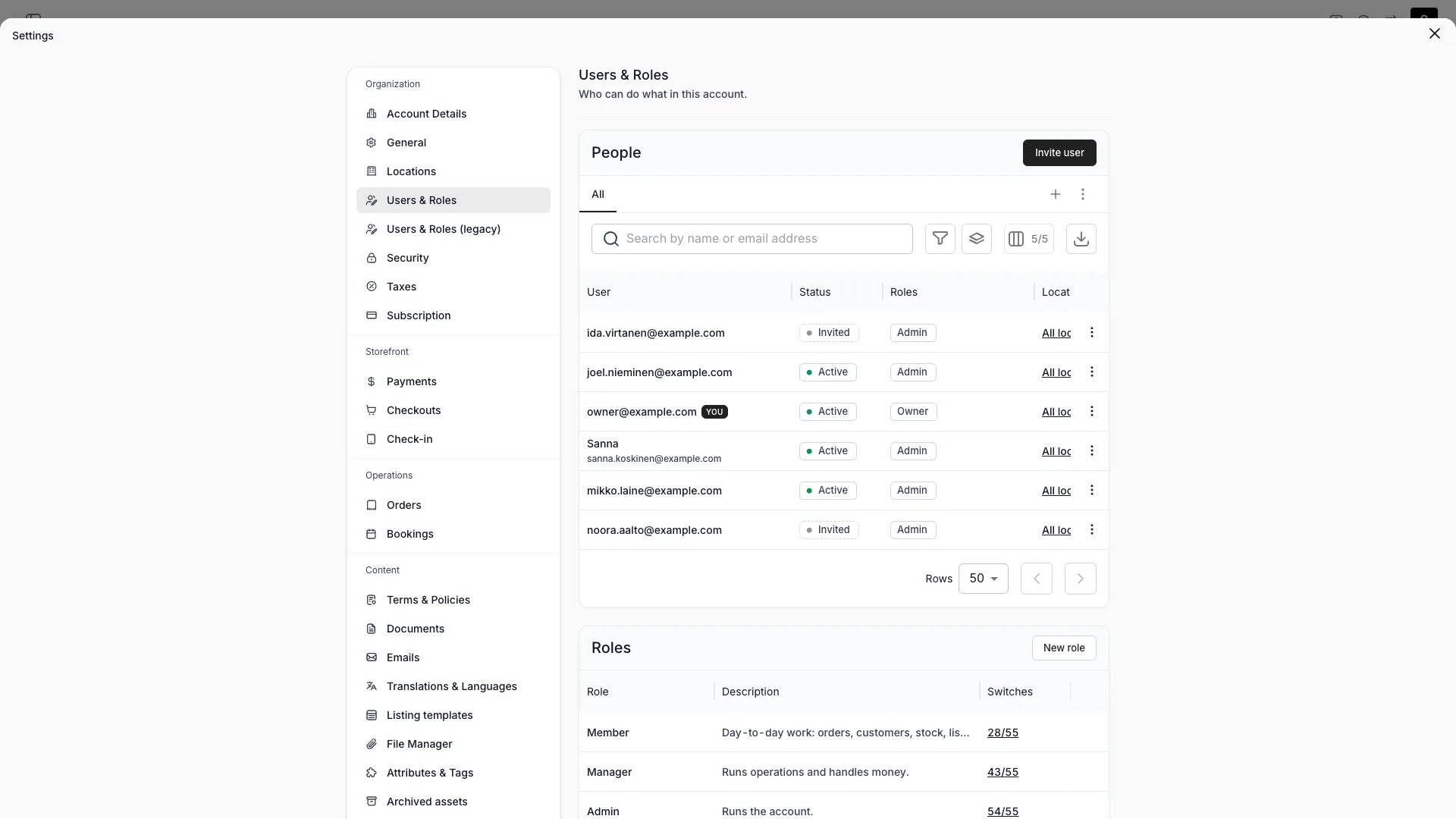
Two entries in the settings sidebar carry this name. This page describes Users & Roles, where a role is a list of named switches. Users & Roles (legacy) is the older permission matrix, which runs beside it until every environment has been backfilled.
This view can look different dependent on your user role. See Visibility and permissions for details.
Primary purpose
Invite people, give each of them one built-in role and any number of custom roles, and set what those roles can do. Access adds up: a second role can only widen what someone can do, never narrow it.Customisable user roles are available on the Standard and Enterprise plans. The Self-service plan includes the built-in roles (Owner, Admin, Manager and Member). See plans.
People
People
Invite people by email from the People list. An invited person shows as Invited until their first sign-in, then flips to Active (see Invite lifecycle). Active people can be suspended without losing their audit trail.
Roles
Roles
The Roles list holds four built-in roles and every custom role in the account, with the number of switches each one turns on and how many people hold it. Select New role to create one.
Built-in roles
Built-in roles
Owner, Admin, Manager and Member, in a ladder: each tier holds everything the tier below it holds, plus more. You cannot edit one, and you do not need to. A built-in role picks up new switches as TWICE Commerce ships them.
Custom roles
Custom roles
A custom role is a snapshot. It keeps the switches you gave it and does not pick up anything shipped afterwards until somebody edits it, so the role editor marks a person who holds custom roles only as Frozen. Give that person a built-in role alongside their custom ones when you want both.
A person's activity log
A person's activity log
Select a person to open their detail view. Next to General, an Activity log tab lists every request they made across the account: the Activity Log scoped to them as the actor, rather than to a record they touched. The tab appears only for people who have an email address, and only if your roles grant
account_settings:general:view.Activity Log history is available on the Standard plan (3 months) and the Enterprise plan (36 months). See plans.
Invite lifecycle
A person you invite by email appears in the People list as Invited. Their roles are already in effect at that point. The status records whether they have accepted, not whether they have access.From invited to active
An invited person becomes Active the first time they use the admin with your merchant account selected. Clicking the link in the invite email is one way to get there, and it is not required: signing in through SSO, or setting a password from the login page, also activates the membership. Two cases behave differently:- The invited email is new to TWICE Commerce. The invite creates their account pointed at your merchant account, so their first sign-in lands there and flips them to Active automatically.
- The invited email already belongs to another merchant account. Their sign-in lands on that account instead. To reach yours they open the invite link, or select Join next to the Invited merchant account in the admin’s merchant-account list. Switching merchant accounts is blocked while the invitation is unaccepted.
An Invited person who never signs in still holds every switch their roles grant. If you invited somebody by mistake, delete them from the People list rather than waiting for the invite to lapse.
Managing an open invite
- Resend: the invite link expires 7 days after it is sent. An invitee who opens an expired link gets a Send new invitation button on that page, which emails a fresh link and restarts the 7 days. There is no resend action in the admin.
- Revoke: delete the person from the People list. This removes their membership and their pending invite.
- Suspend: available for Active people only. You cannot suspend or reactivate an Invited person, and you cannot flip one to Active by hand.
How a role is built
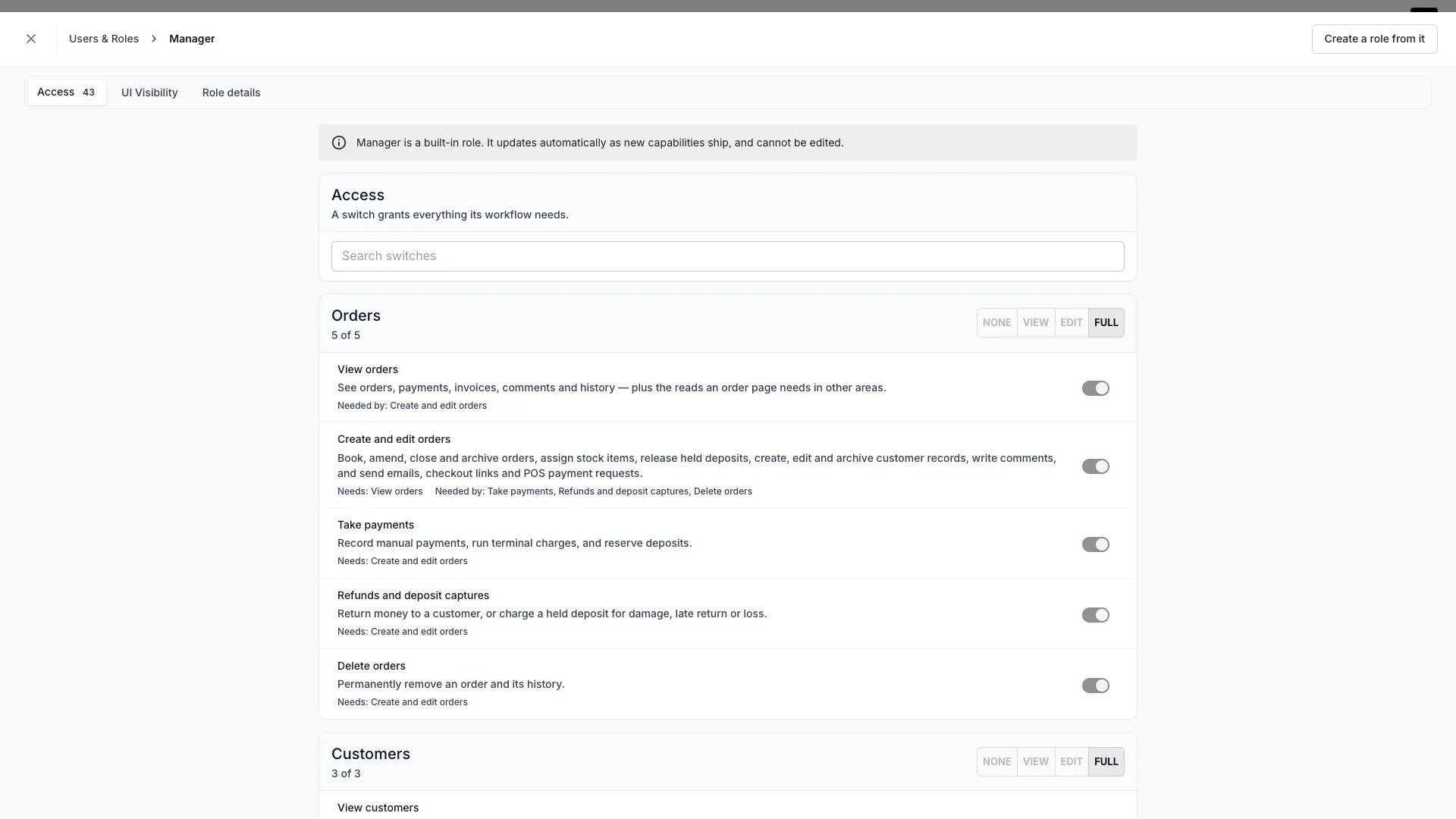
Open a role and you get three tabs, and the editor opens on the first of them.
All three tabs carry the same banners above their content: one when the role is built-in, one when you do not hold Manage roles yourself, and one naming the switches the role grants that you do not hold.
Settings > Users & Roles > [role] > Access
- Switches that depend on each other move together. Turning one on turns on what it needs. Turning one off turns off whatever needed it.
- You can only grant what you hold yourself. A switch you do not hold stays locked, and a quick set skips it rather than failing.
Permission keys of the form
resource:sub_resource:operation still exist underneath, and the server still enforces them. They are derived from the switches when a role resolves, so they are no longer what you set or what the editor shows. The API reference and the activity log still name them.
Holding more than one role
- Built-in role: one per person. It sets the baseline and follows the product as it grows.
- Custom roles: none or many per person. Each turns on further switches.
- What the person gets: the union. If any of their roles turns a switch on, they hold it.
Custom roles only ever add. Nothing subtracts a switch a built-in role already grants, so give somebody less than Member by picking a lower built-in role, not by writing a custom one.
Deleting a custom role requires removing it from everybody who holds it first. A role that is still assigned cannot be deleted.
What a role hides
Hiding is a separate axis from access, set on the role’s UI Visibility tab. A role hides pages, tabs, cards and figures from the people who hold it, and hiding changes the screen only. Nothing about what the server returns depends on it, and a role that hides the Payments tab still holds Take payments if that switch is on. Because hiding no longer follows access, restricting a role’s data leaves its sidebar alone: a page the role cannot read opens empty rather than disappearing. Tidying that up is your call, on the UI Visibility tab. Read more: UI visibilitySettings navigation
The Settings list shows every page except the ones a person’s roles hide. Data access no longer removes a page from the list, so a settings page somebody cannot read opens empty instead of vanishing. The Security page carries no key in the older per-tab list, so the legacy role editor cannot hide it. The element tree on the UI Visibility tab can.What each built-in role grants
The four tiers are a ladder. Each holds everything below it, so Manager holds every Member switch and Admin holds every Manager switch.
Open a role to see the switches it holds. One tier sits outside the ladder: Owner holds every permission in the product, whether or not a switch reaches it.
The practical shape is narrower than the role names suggest. A Member registers stock items, creates SKUs, builds listings and fulfils orders, and takes payment for them. What a Member cannot reach is the money behind them: purchase cost and margin, listing prices, price tables, discounts and refunds.
Visibility and permissions
The page appears in the Settings list unless one of the person’s roles hides it. What they can read and change on it is gated by , which the switches below resolve to.
Manage roles needs Manage users, which needs View settings, so the three arrive together. Somebody who reads the page without Manage roles gets it read-only, and a banner at the top says so.
A custom role can turn any of these on for somebody on any built-in role, as long as whoever writes the role holds the switch themselves.