

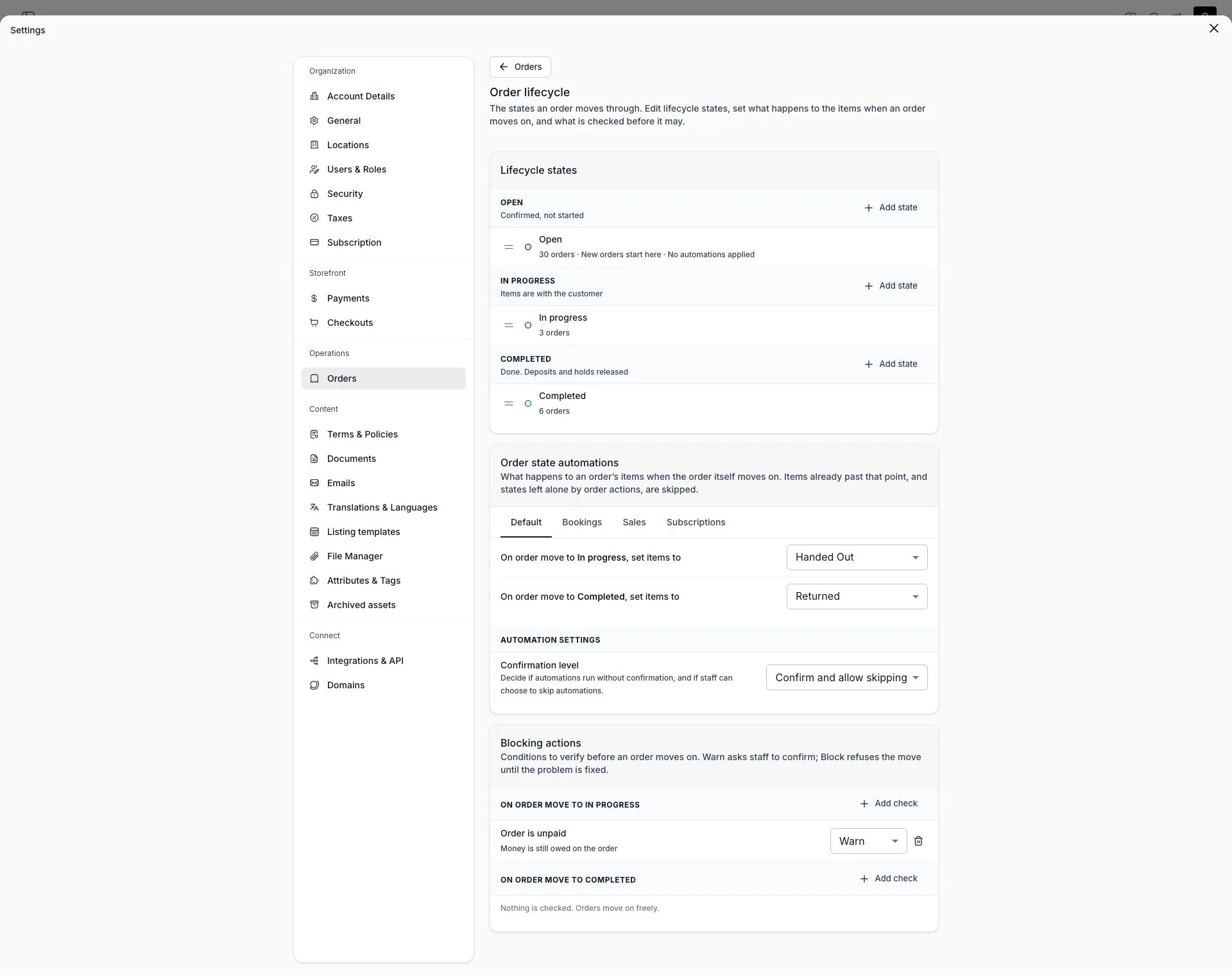
Settings > Operations > Orders > Order lifecycle
This view can look different dependent on your user role.
See Visibility and permissions for details.
See Visibility and permissions for details.
Primary purpose
Open Settings → Orders → Order lifecycle to name the points an order passes through, decide what each move does to the order’s items, and decide what has to be true before the order may move at all. An order travels one line of four statuses. The statuses are fixed and TWICE reads them for every side effect it owns. Inside each status sit your own states, which is what your staff pick from and what the Stage column shows.The four statuses
The four statuses
The side effects belong to the status, not to your state. Entering Open allocates the order number and makes the order visible to customers and reports. Entering In progress pushes to the point of sale. Entering Completed releases deposits, cancels subscriptions and revokes live checkout links.
States inside a status
States inside a status
Add as many states as a status needs and drag them into the order your staff work in. A state carries a Name, a Key, a Description and a colour, and its status is fixed once created.Line order decides two things. An order asked to move to a status lands on that status’s first state, and moving down the list is what counts as moving forward.New orders are created in the first state of the first status that has one, rather than entering it, so that state’s own rules never run. The form leaves them off and the row reads New orders start here.
Switching a status off
Switching a status off
A status with no states is a status you have switched off. Writes walk past it to the next status that has a state, so emptying Open means orders are born in progress.Deleting a state moves its orders to a sibling you name, inside the same status, so their status and their items stay where they are. Deleting the last state of a status is offered only once no order sits there.
What a move does to the items
What a move does to the items
Order state automations sets, per status, which item state the order’s items move to when the order enters it. Your account starts with two answers: entering In progress hands everything over, and entering Completed takes it back, except sale lines, which the customer keeps.An automation only moves items that have not got that far already. An item with the customer is never dragged back, an item in a state marked Exclude from automation flows stays put, and a removed item is never revived.Open carries no automation. An order is created there, so nothing ever enters it moving forward.Under the rules, Confirmation level decides what staff are asked: Run without confirmation, Always confirm, or Confirm and allow skipping. Every level runs the same rules.
What is checked before a move
What is checked before a move
Blocking actions holds three conditions, each set to Off, Warn or Block per status. Warn asks staff to confirm; Block refuses the move until the problem is fixed. Nothing is checked until you switch a check on.
There is no per-order override. Set the condition to Warn when your staff need a way past it.
Rules on a single state
Rules on a single state
A state’s own form carries the same two kinds of rule, and they apply on top of its status’s. Name an item state under Move items to and it replaces what the status does with the items. Set a check there and it replaces what the status says about that check, including switching it off.A state that says nothing follows its status. So a rule that should hold everywhere in a status is set once, on the status.This is how a “Ready” step is built with no help from us: an item state for prepared goods, an order state named Ready inside Open, an automation between them, and optionally the inventory check set to Block.
Related concepts
Status, state and stage
Status, state and stage
The four statuses are the platform’s. The states inside them are yours. Stage is what the orders table calls the column that shows your state, because your staff read the state and never the status behind it.Read more: Status vs State
The fulfillment chip is derived, not set
The fulfillment chip is derived, not set
The order’s fulfillment chip is computed from the fulfillment groups of its items, never from a state’s name. So renaming your states, or adding a dozen of them, never changes what the chip says.Read more: Order Lifecycle
The item states these rules point at
The item states these rules point at
Every automation on this page targets one item state. Define those under Fulfillment lifecycle, and note that a state a rule points at cannot be deleted until the rule is repointed.Read more: Fulfillment lifecycle
Rules reach the API too
Rules reach the API too
Your checks and automations run on the server, so an API caller, an import and the bulk close all get them. A refused move returns 400 and changes nothing on the order.Read more: Orders API
Visibility and permissions
This page is gated byaccount_settings:orders, in the four operations , , and .
Owner and Admin hold every operation. Manager and Member do not hold it at all. The lifecycle itself is read under orders:order:view, so staff who cannot open this page still see and move orders through the states you define.
Move orders to any state, a switch under Orders, gates every move except the button’s own target while Advance with a button is on. Every built-in role that edits orders holds it, and a custom role holds it only when you switch it on. With Pick from a menu, editing the order is enough.
For what each operation means and the full role matrix, see Users & Roles.
Related articles
Orders settings
The three sections under Settings → Orders.
Fulfillment lifecycle
The states your staff move order items through.
Order Lifecycle
The three dimensions an order is tracked along.
Take an order in admin
Moving a real order through the states.