

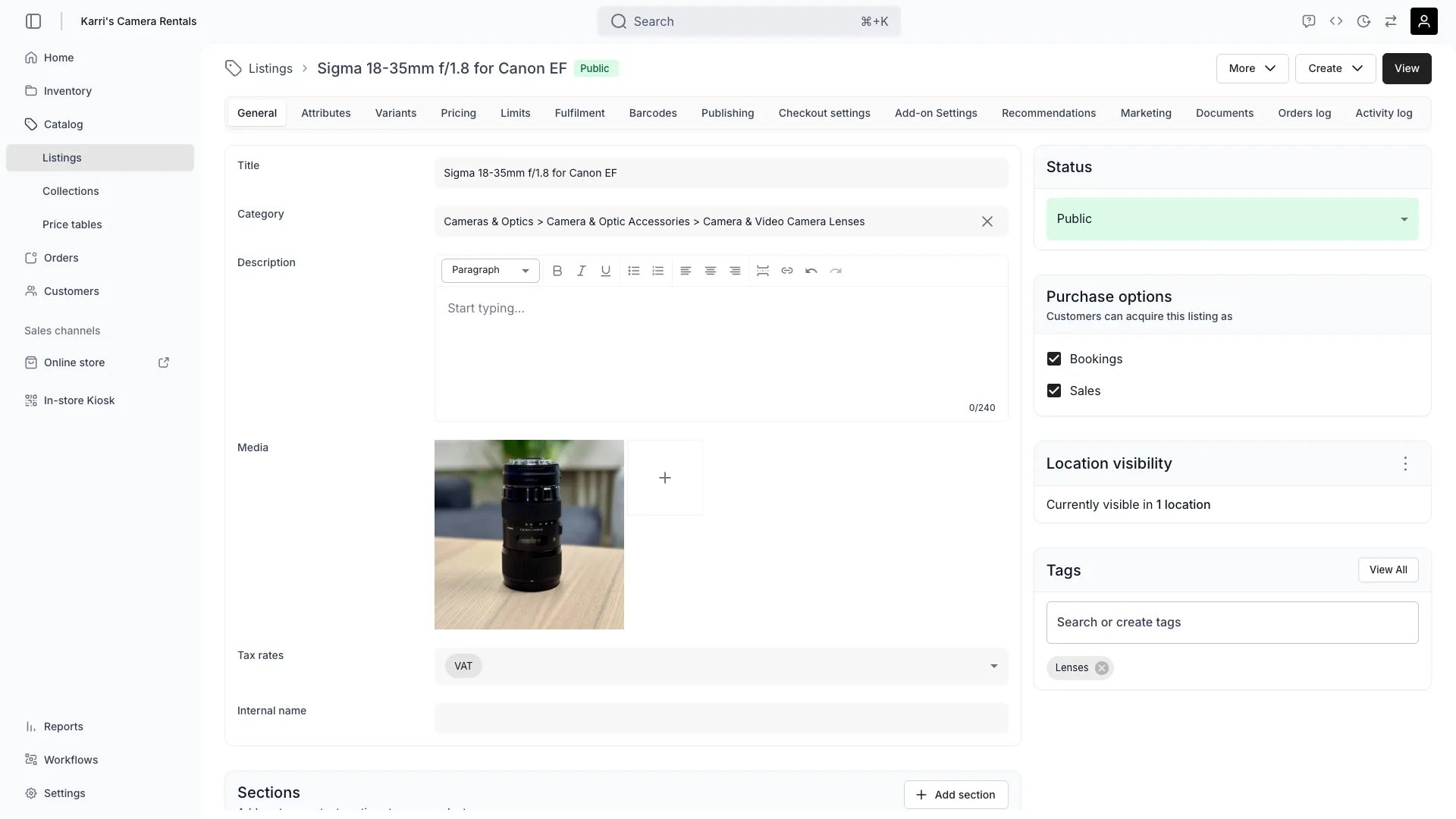
Catalog > Listings > [Listing] > General
Create date
The timestamp showing when the listing was created. Automatically generated and cannot be edited.Name
The internal name of your listing. Good internal naming helps you quickly identify for what purpose your listing have been created for.Example: Listing Names (1) Marketplace - eBike Rental Listing (2) Online Store - eBike Rental Listing Both of these listings might share the same Title: “eBike Rental”, but differ in channel visibility and pricing.
Title
The public title of your listing. Displayed across your channels and storefronts.Category
Defines how a listing is positioned within your taxonomy — the structured hierarchy that organizes your products or services. A clear taxonomy helps customers discover items faster and ensures consistency across your catalog.Example: Sporting Goods → Outdoor Recreation → Winter Sports & Activities → Skiing & Snowboarding
Main Description
A rich text field for communicating listing details — product highlights, usage info, or rental terms. You can use formatting tools (bold, bullet lists, links, etc.) to improve readability. You can also reference Listing Attributes in the text with variable declaration such as$attribute.model → renders the value in the listing’s “model” attribute.
Additional Descriptions
Optional description boxes with titles and rich text content. You can use these to create additional fields such as “Technical details” or “Manuals”. The same variable language works in these boxes as in the Main Description.In the Online Store that TWICE provides out of the box, the Additional Descriptions are rendered as Accordion style components in the Listing page.
Media
Upload images or videos to visually represent the listing. Media enhances visibility on your online store and within connected channels. You can add media in two ways:- Direct upload — drag and drop or select files from your computer.
- QR code upload — scan the QR code shown in the “Upload media from another device” card to upload photos directly from a phone or tablet. The listing’s media updates live — no page refresh needed.
Each QR scan appends new media to the listing. It does not replace existing media.
Status
Defines whether the listing is visible to customers.- Draft — visible only internally. Useful for preparing listings before publishing.
- Public — live and visible across all connected channels.