

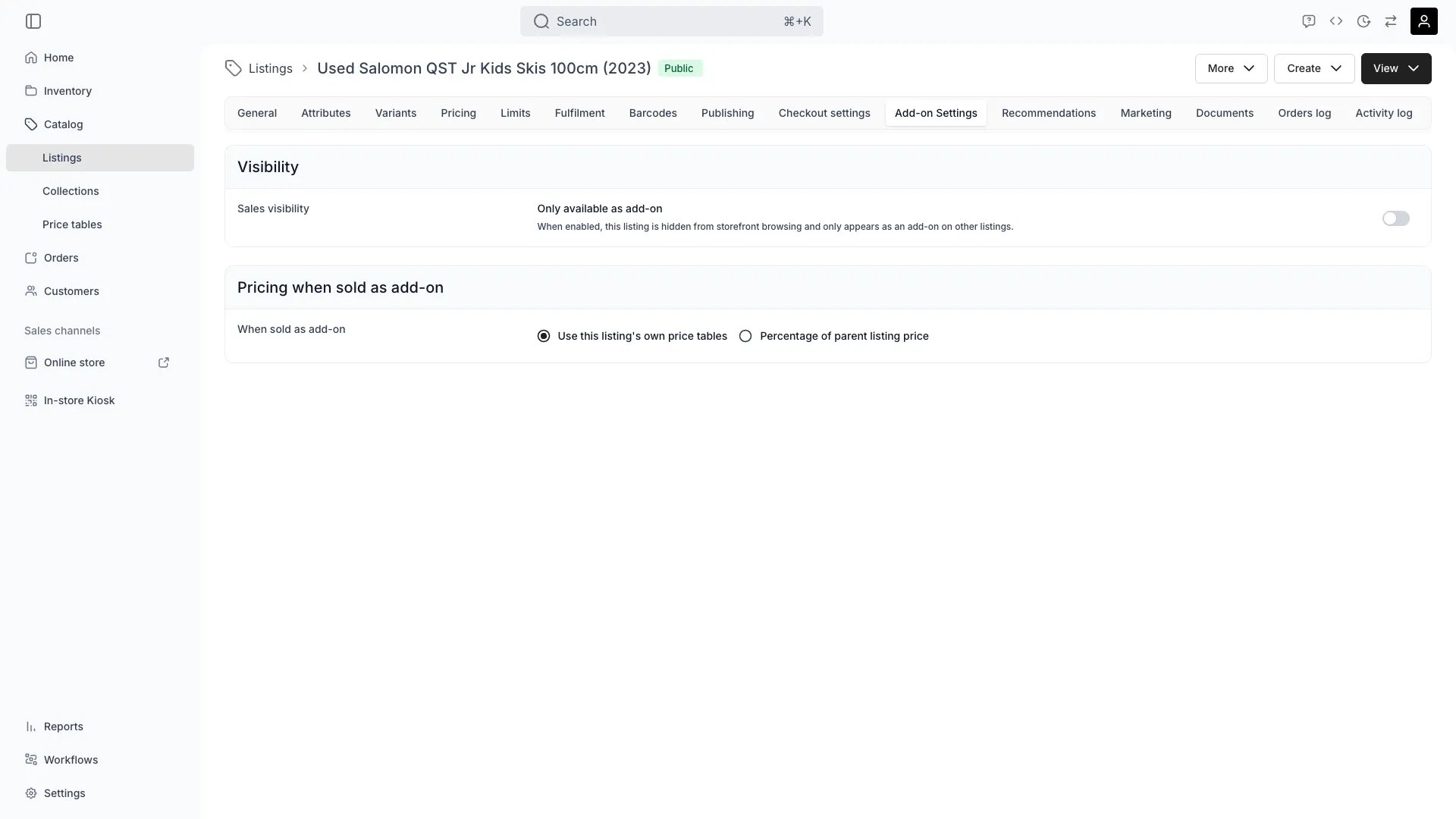
Catalog > Listings > [Listing] > Add-on Settings
This view can look different dependent on your user role.
See Visibility and permissions for details.
See Visibility and permissions for details.
Primary purpose
The Add-on Settings tab configures how this listing behaves when other listings offer it as an add-on, for example an insurance listing sold alongside bike rentals.Attaching add-ons to a listing happens on the Recommendations tab, not here. This tab only controls how this listing acts when it is the add-on.
Visibility — Only available as add-on
Visibility — Only available as add-on
The Only available as add-on switch (
addonOnly) hides this listing from storefront browsing. When enabled, customers can only get it as an add-on on other listings.Who the add-on is sold to
Who the add-on is sold to
An add-on can be sold to someone other than the buyer of the listing it hangs off. What decides is this listing’s own Checkout Settings tab:
- Always assign item to customer, or a customer attribute field on the listing: checkout asks who each unit is for on the Additional details step, and the answer lands on the add-on line.
- Neither of those set: every unit follows the customer on its parent line, and the shopper is never asked.
Pricing when sold as add-on
Pricing when sold as add-on
The When sold as add-on setting (
addonPricingMode) controls how the add-on price is computed:- Use this listing’s own price tables (
standalone): the add-on is priced from its own Price Tables, like any other listing. - Percentage of parent listing price (
percentage): the add-on price is a percentage (addonPricePercentage, a whole number from 1 to 200) applied to the parent listing’s subtotal. Percentage-priced add-ons are always sold as a purchase (Buy), not a booking.
Related concepts
Attaching add-ons
Attaching add-ons
To offer other listings as add-ons on this listing, including the per-link settings for quantity, pre-selection and required add-ons, use the Recommendations tab.
Add-ons on Existing Orders
Add-ons on Existing Orders
From an order’s Line Items tab, operators can attach add-ons after checkout, for example adding a helmet to a bike rental that was already placed. See Order Line Items.When you edit a parent line item’s dates, any add-on children that share the same purchase type (booking add-on on a booking parent, or sale add-on on a sale parent) automatically inherit the updated start and end dates. Add-ons with a different purchase type keep their original dates.
Visibility and permissions
This tab is gated bycatalog:listing, in the four operations: , , and .
All four system roles (Owner, Admin, Manager and Member) hold every operation on this.
For what each operation means and the full role matrix, see Users & Roles.
Related articles
Create an add-on listing
Building the insurance, delivery and service listings that use these settings.