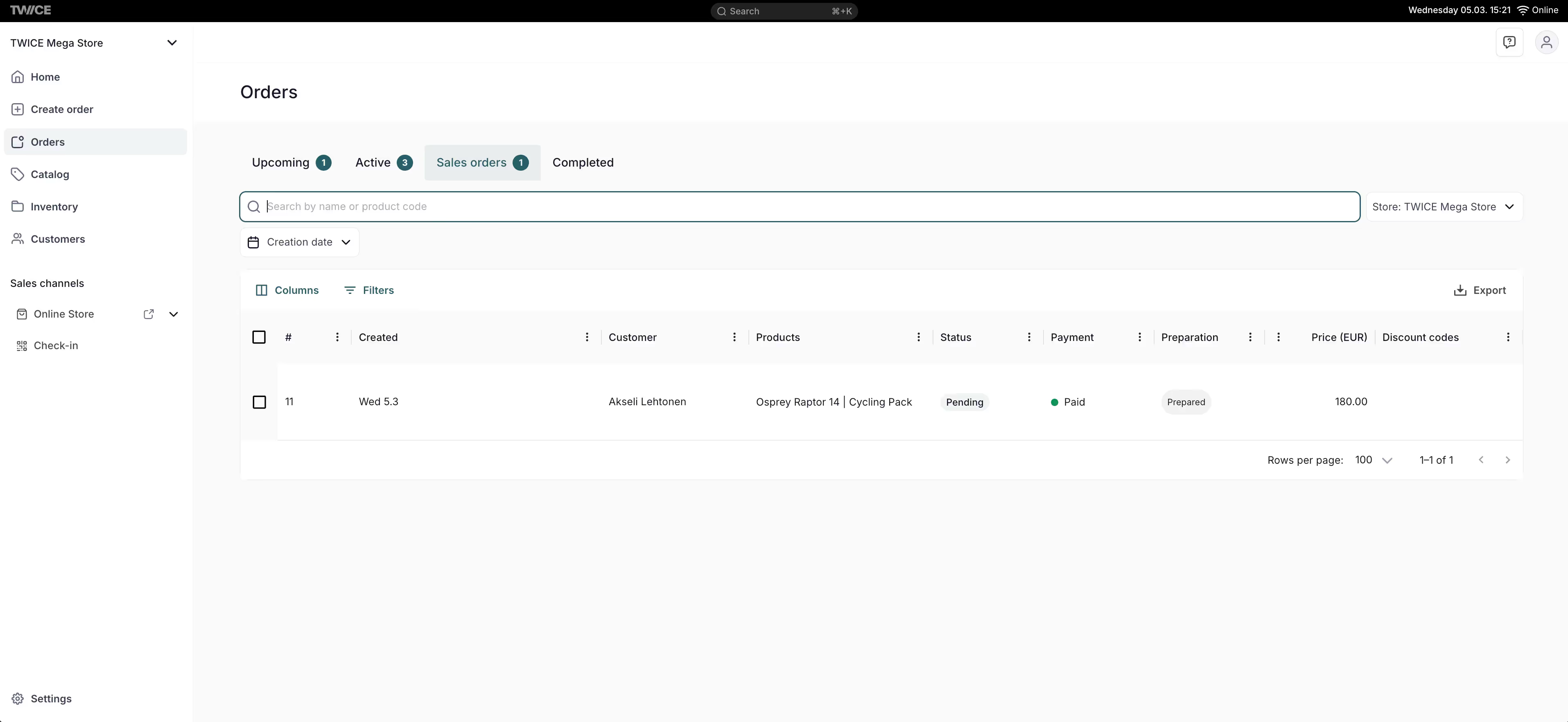
Orders overview table showing all order types

Orders > Overview

This view can look different dependent on your user role.
See Visibility & Permissions for details.

Open in TWICE Admin

orders

Primary Purpose

The Orders view provides a unified interface for managing all types of orders across your business, from sales and rentals to buybacks and services.
Browse and manage all in one place, regardless of type or channel.Read more: Order Lifecycle
The Purchase Types column shows which types of line items each order contains — Booking, Subscription, Sale, or Buyback — displayed as chips. Filter the column to find all orders that include a specific purchase type.Read more: Order Types
The Layout control to the left of the search box opens a menu of layouts — the grid, and a calendar of pickups and returns. It is disabled while the table is grouped, so clear the grouping to switch layouts.The calendar plots the orders currently loaded in the table, which means your filters and the page you are on decide what appears on it. It opens on Grid Week; Grid Month, Grid Day, List Day, List Week and List Month are the other views, and Today with the arrows beside it moves the range.Each event groups the pickups or returns falling in the same slot, and its title counts the orders and stock items behind it. Pickups carry a purple up arrow, returns a blue down arrow.Clicking an event opens a popup that lists one row per order and time:
  • Order reference · customer name on the top line. An order with no customer shows the reference alone.
  • Pickup or Return, the time, and the number of stock items on the second line.
  • A chevron marks the row as a link. Click it, or press Enter or Space, to open that order.
Scrolling the calendar or clicking outside the popup closes it.
Orders calendar with an event popup listing one row per order, each showing the reference and the pickup time and item count

Orders > calendar layout — an event popup

An order’s own Fulfillment & Return tab carries a second calendar, scoped to that one order.
Create orders directly in the admin for in-person sales, phone orders, or special cases. The order is saved the moment you press Create Order — there is no draft form to submit.Read more: Take an order in admin
Track and manage order fulfillment, including item preparation, pickup, delivery, and returns.
Handle payment processing, refunds, and manage checkout links for customers.
Archiving takes an order out of the table without deleting it, and is separate from closing. Archiving an open order closes it first — checkout links stop working, scheduled payment collections stop, subscriptions are cancelled, and the order becomes read-only — so the confirmation asks you to acknowledge that. A selection mixing open and closed orders lets you archive only the closed ones instead.Archiving also revokes the order’s still-active checkout links: they move to Revoked on the Payment tab and tell the customer the link has been cancelled. A link that had already expired or been used keeps that state. Unarchiving returns an order to closed, but does not restore its links — issue a new one to collect again.Nothing is archived automatically. Review and restore archived orders in Settings → Archived assets.Read more: Archiving and Deletion

Table Columns

The Orders table includes the following columns. All columns support standard table features such as column visibility, pinning, and reordering. The Date filter on Created, Start date, and End date offers the operators described in Tables, including the relative-day operators that need no date picker. Orders with custom attributes display additional columns — one per attribute — with filter and sort support matching the attribute type (text, number, date, or select). Here are a few key concepts of TWICE Commerce that relate to order management.
TWICE supports multiple including sales, rentals, resales, buybacks, and service orders.Read more: Order Types
Orders move through various stages from creation to fulfillment, with automated per inventory record.Read more: Order Lifecycle
Manage collective bookings while maintaining clear fulfillment responsibilities for each participant.
The orders table supports all standard for efficient order management.Read more: Data Tables

Visibility and Permissions

This view is gated by orders:order, in the four operations — , , and . All four system roles — Owner, Admin, Manager and Member — hold every operation on this. For what each operation means and the full role matrix, see Users & Roles.

Take an order in admin

From reservation to return — create, customer, items and dates, payment, handover, close.

Resolve stock item conflicts

Working the conflicts banner on this table down to zero.

The day's pickups and returns

Turning this table into the views your counter runs from.

Cancel or archive an order

Standing an order down, and what archiving takes out of this table.