

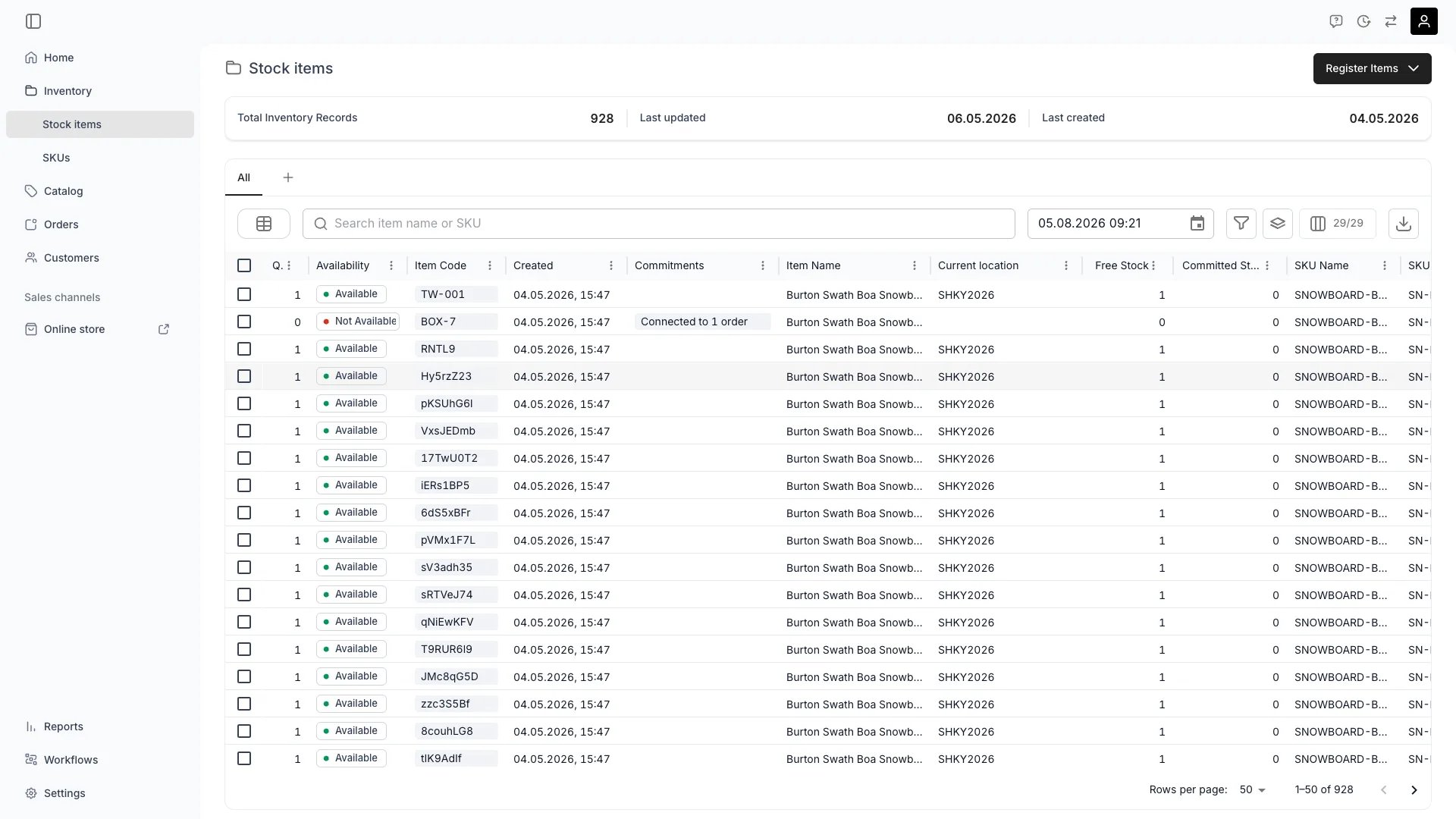
Core table features
Every table in TWICE Admin includes the following core features.Search
The search covers all (visible and hidden) columns.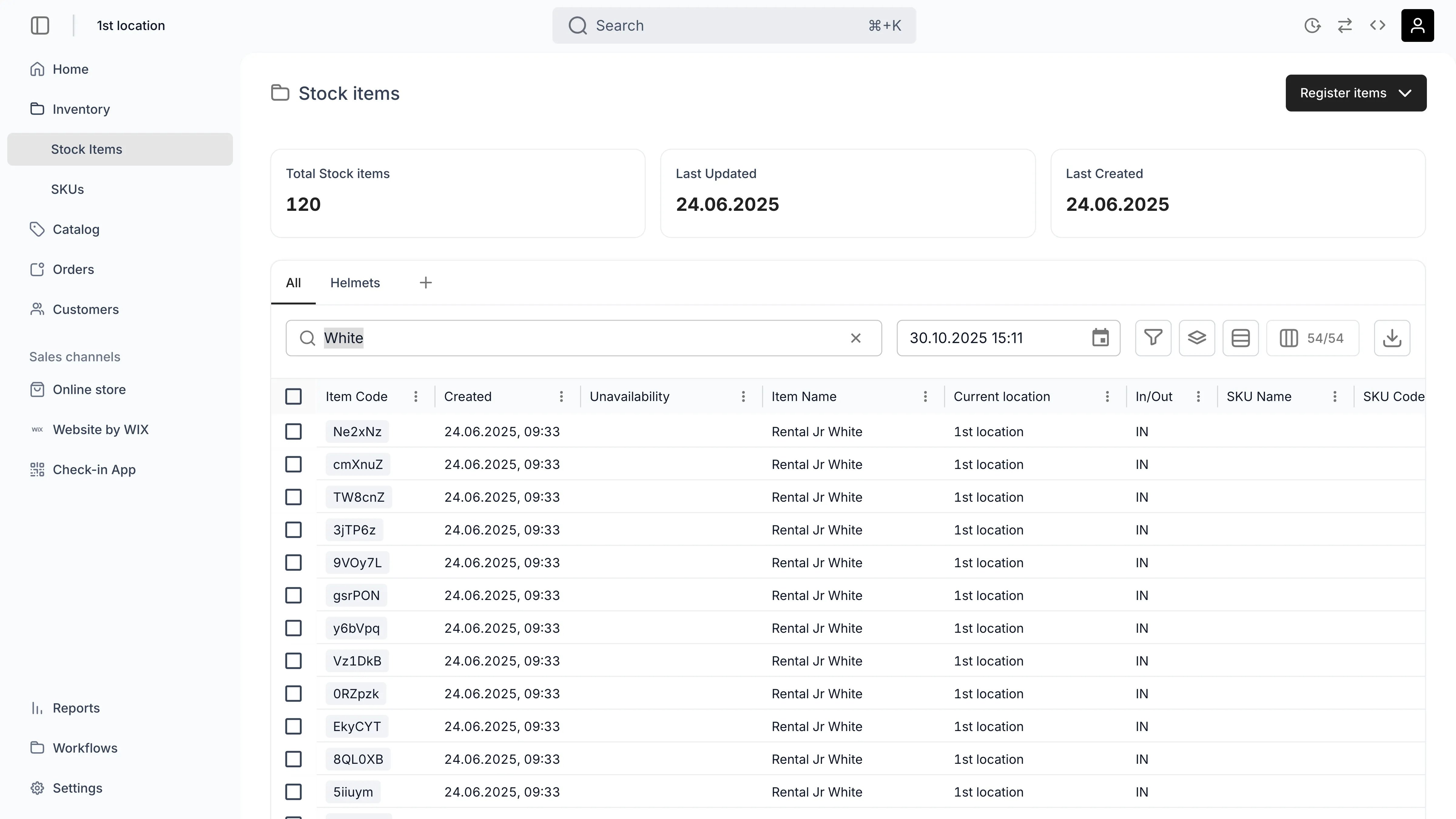
Sorting
You can sort by a column by clicking the arrow that appears next to the column title. A few columns cannot be sorted — those show no arrow and are absent from the sort menu. They are the columns whose value the table works out for the current view rather than reading from a stored field, such as Free Stock and Committed Stock on the stock items table.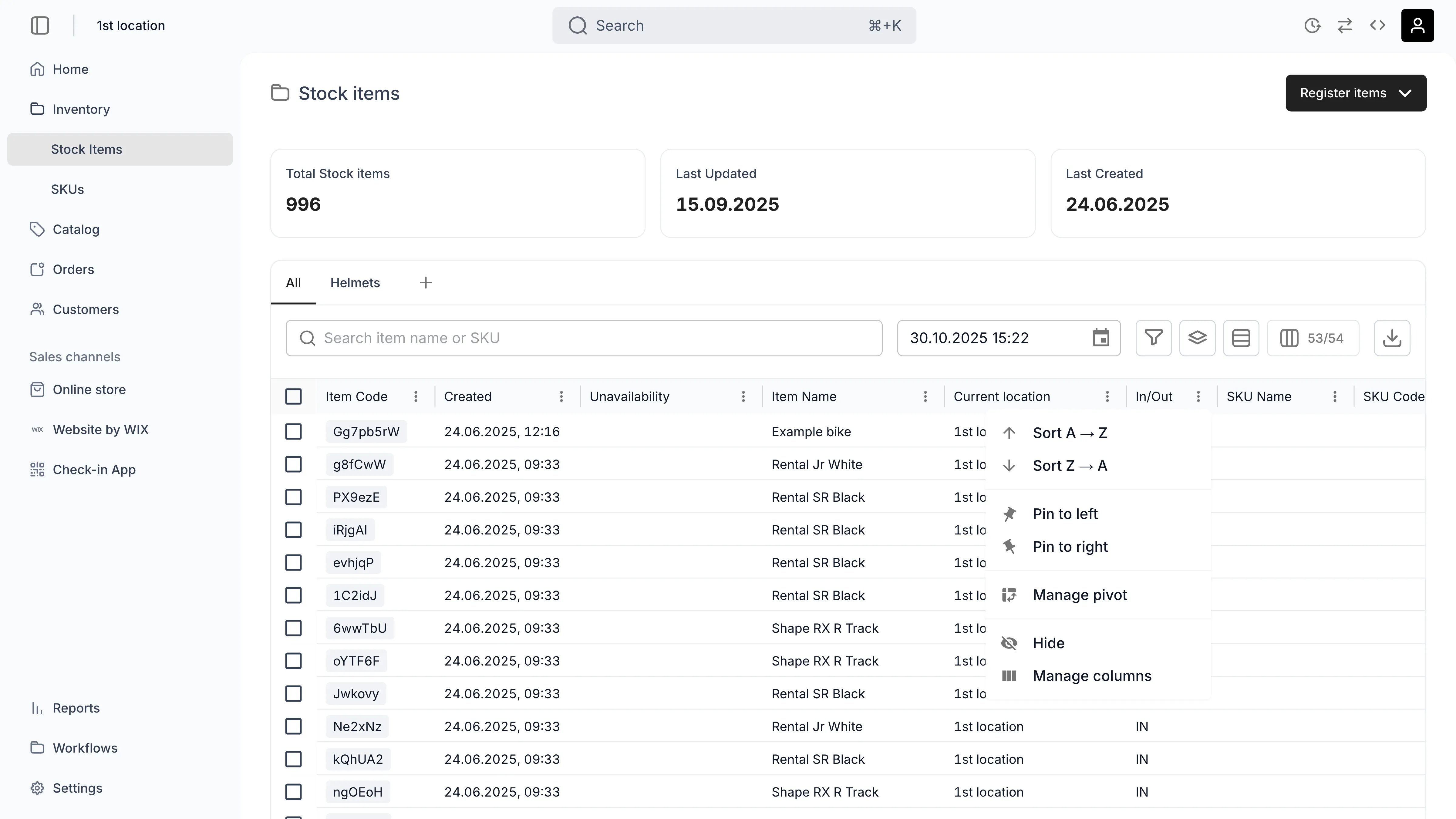
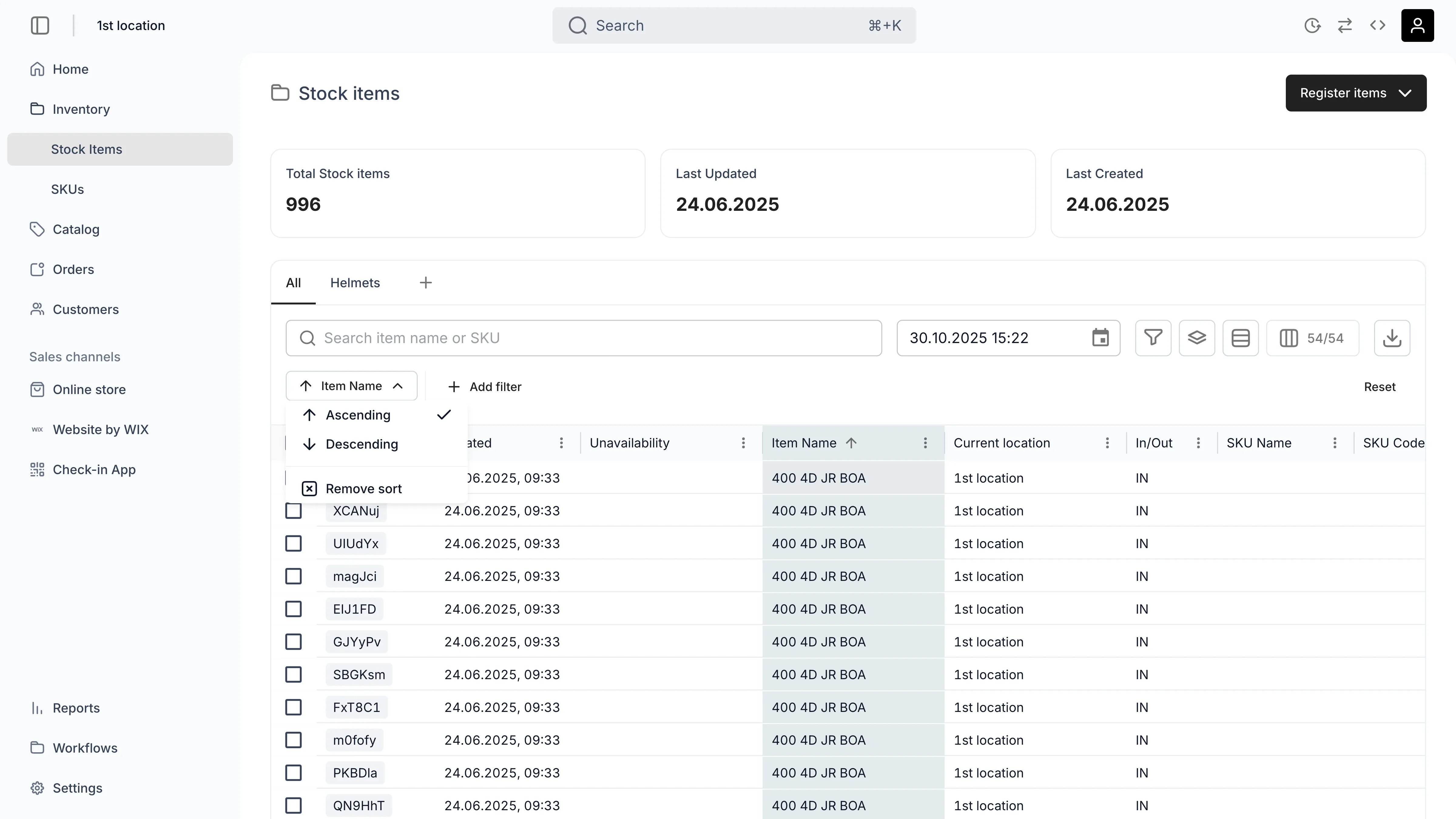
Filtering
You can filter by a column by clicking the filter icon next to the search bar. After a filter has been created you can define, remove, or add new filters from the dedicated section below the search bar. As with sorting, a column the table works out for the current view offers no filter and is absent from the menu.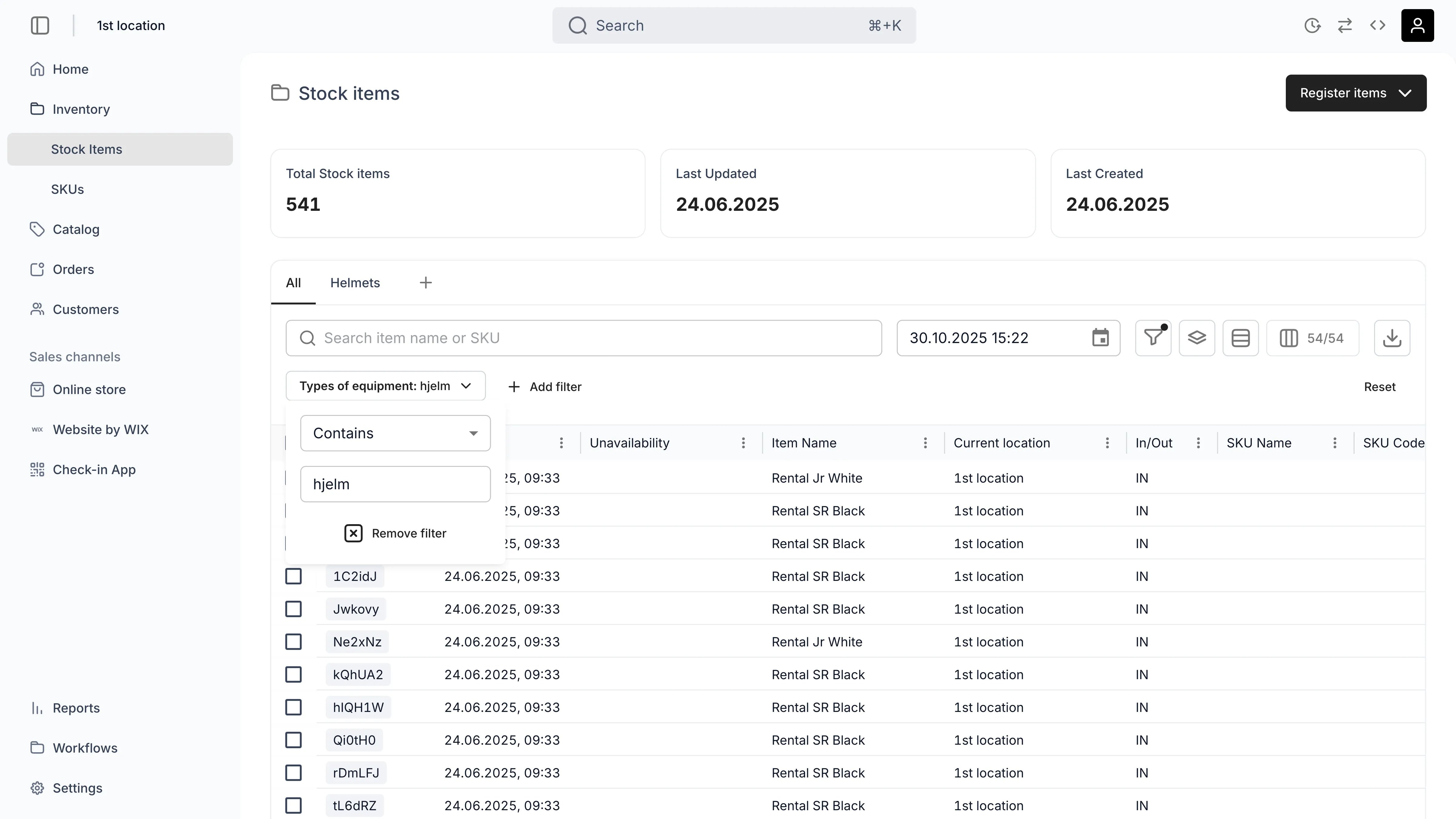
These three carry no value of their own, so no date picker appears — the operator is the whole filter.
They compare whole calendar days, not moments in time. An order created two hours ago still falls on today, so is before today excludes it.
“Today” means your account’s calendar day, resolved in the timezone you set in Settings → General rather than in UTC. Filters that take a date you pick resolve the same way.
Leave the tag picker empty to build a to-do view: Has not with nothing ticked lists the orders nobody has tagged yet.
Tags columns on the customers, stock items, catalog, and SKU tables take the plain select operators and offer no rule picker.
Grouping
You can group the table by a column by clicking the group symbol next to the search bar. Most columns group. A column that cannot is not offered in the group menu at all, so what the menu lists is what works. Once you have a created a group, you can see how many items it includes and toggle it open and closed.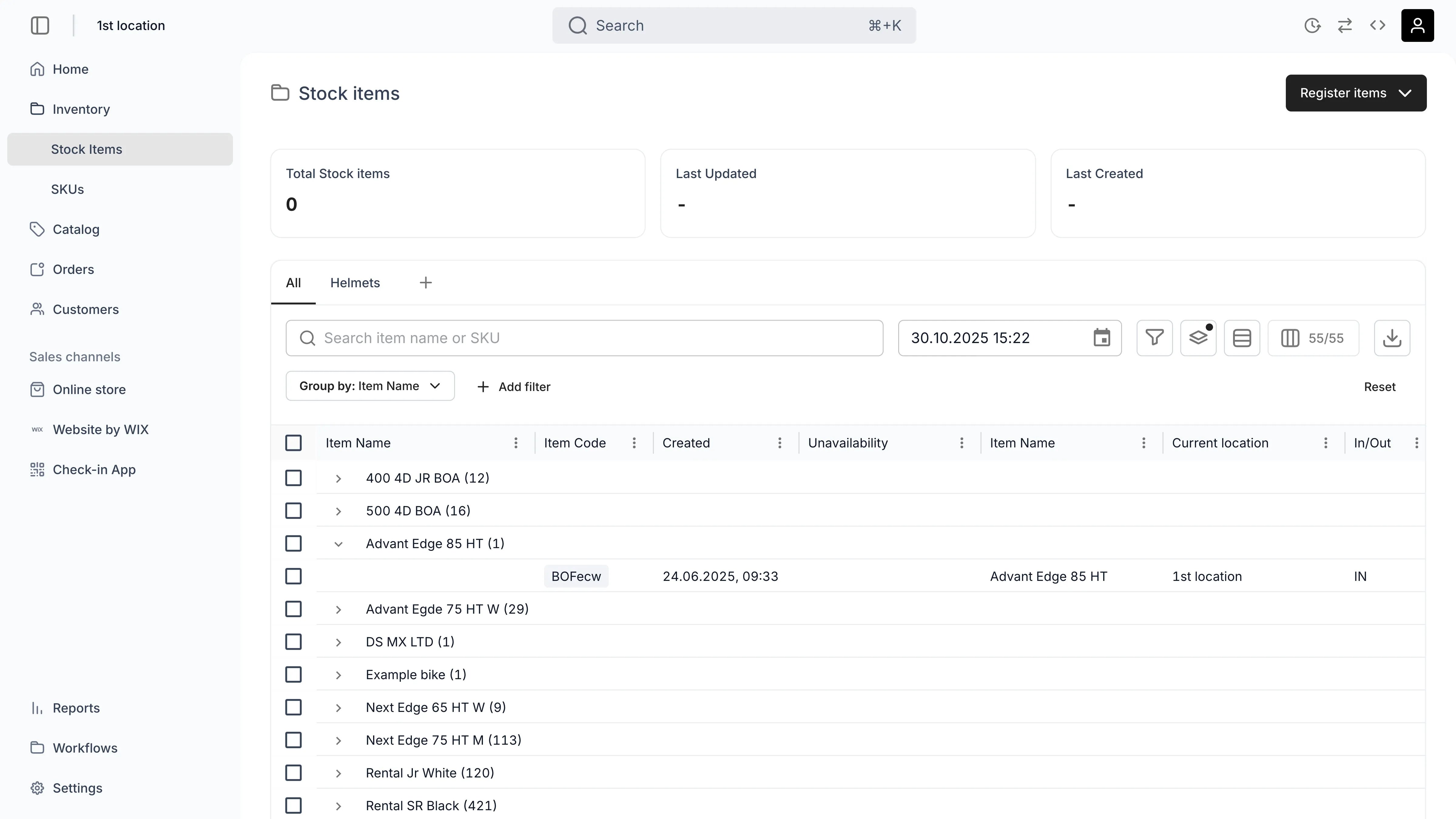
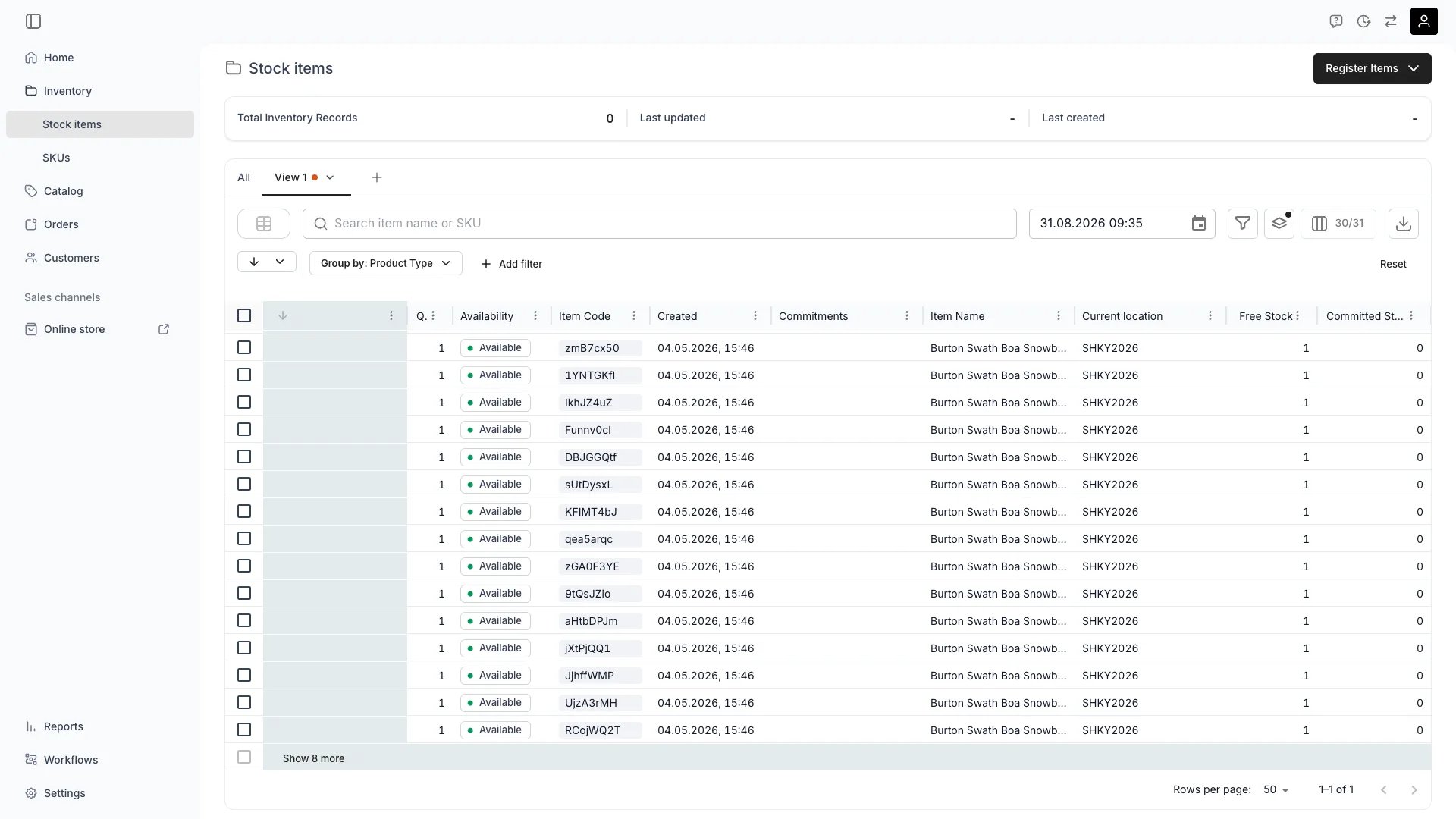
An expanded group larger than the page size — the last row loads the remainder
- A value that is unique to one record. Item Code identifies a single stock item, so every group would hold one row.
- A running total. Item Costs, Item Income, and Profitability are amounts the table works out per record, so you would get one group per distinct amount.
- A value that cannot be filtered back. The catalog’s Category column shows the category’s name, but the catalog filters categories by their id. The group would open onto the wrong rows, so the column does not offer grouping.
Column controls
You have multiple controls for the columns.Density
You have 3 levels of density which defines how much vertical space each row takes and so control the amount of rows visible in your viewport.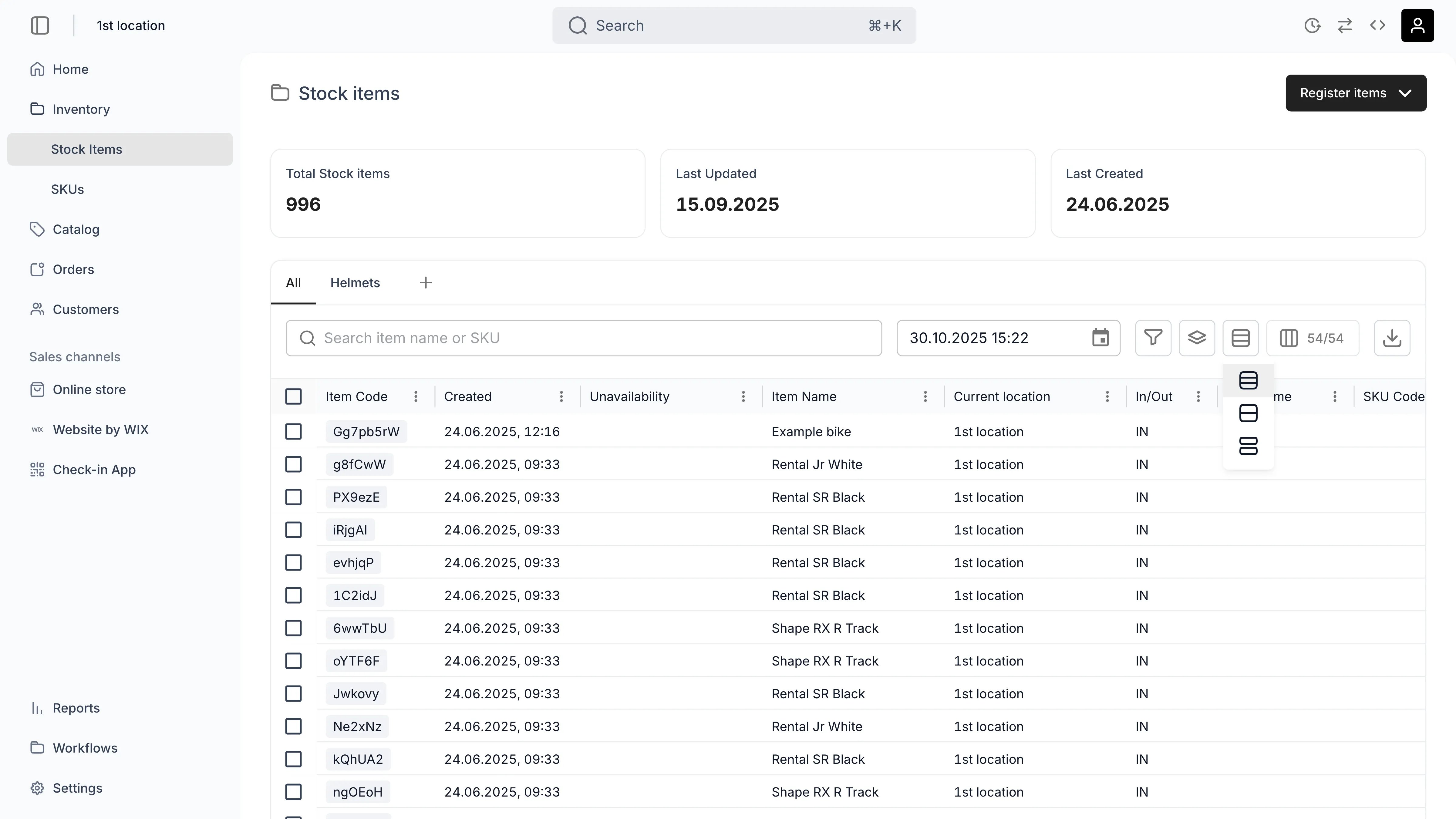
Visibility
You can control which columns are visible or hidden from the column symbol.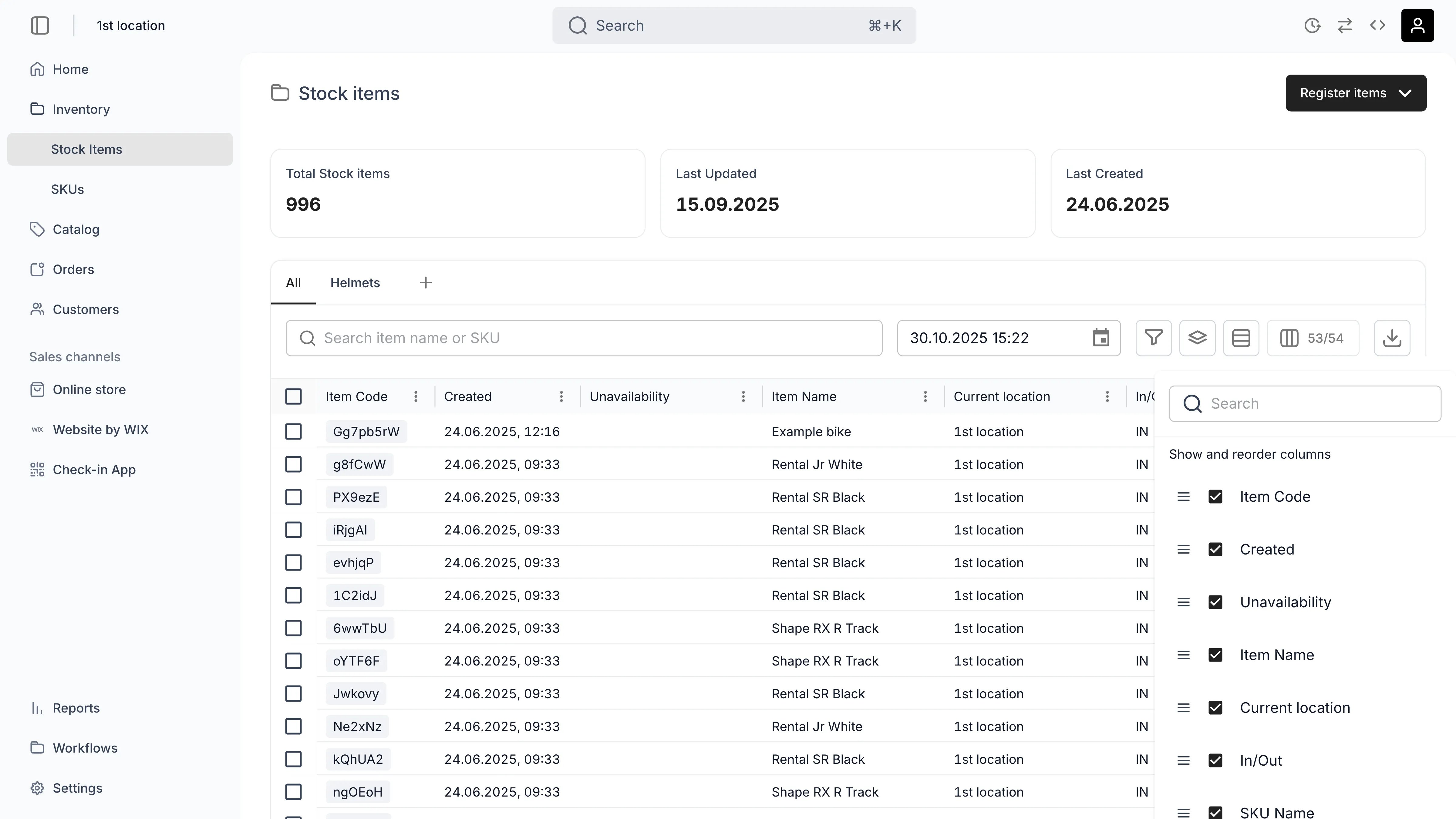
Column settings
You can control multiple settings for a column from the menu which opens from the three dotsExport
You can export the current view with a press of a button. The export respects all filters, sorts, groupings, and visible columns you have defined.Import
Depending on the table, you can import using dedicated tools, such as registering stock items or importing customers.Custom views
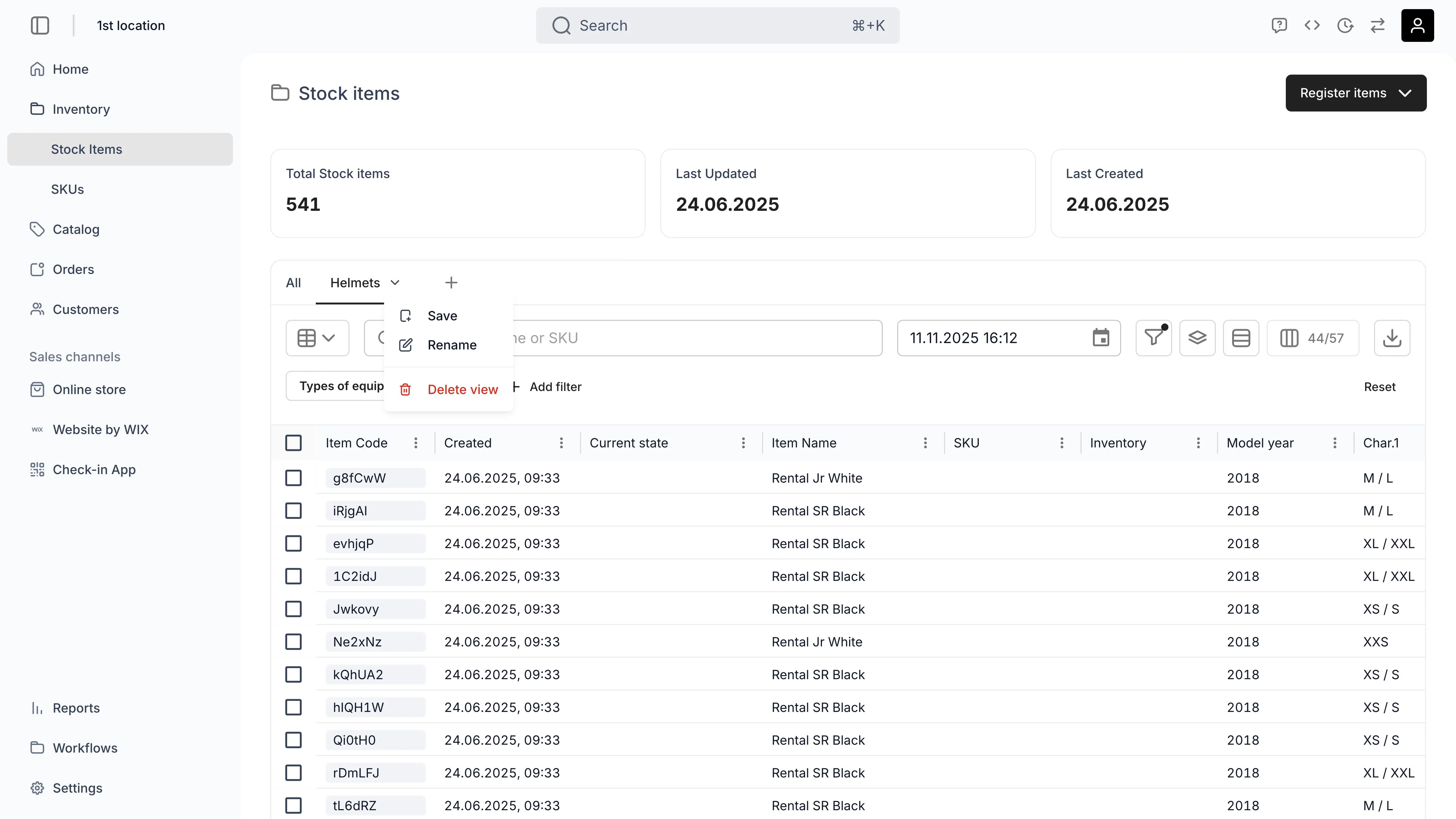
You can save any table configuration as a named view from the plus symbol. Saved views preserve all customizations — column visibility, filters, sorts, groupings, and density.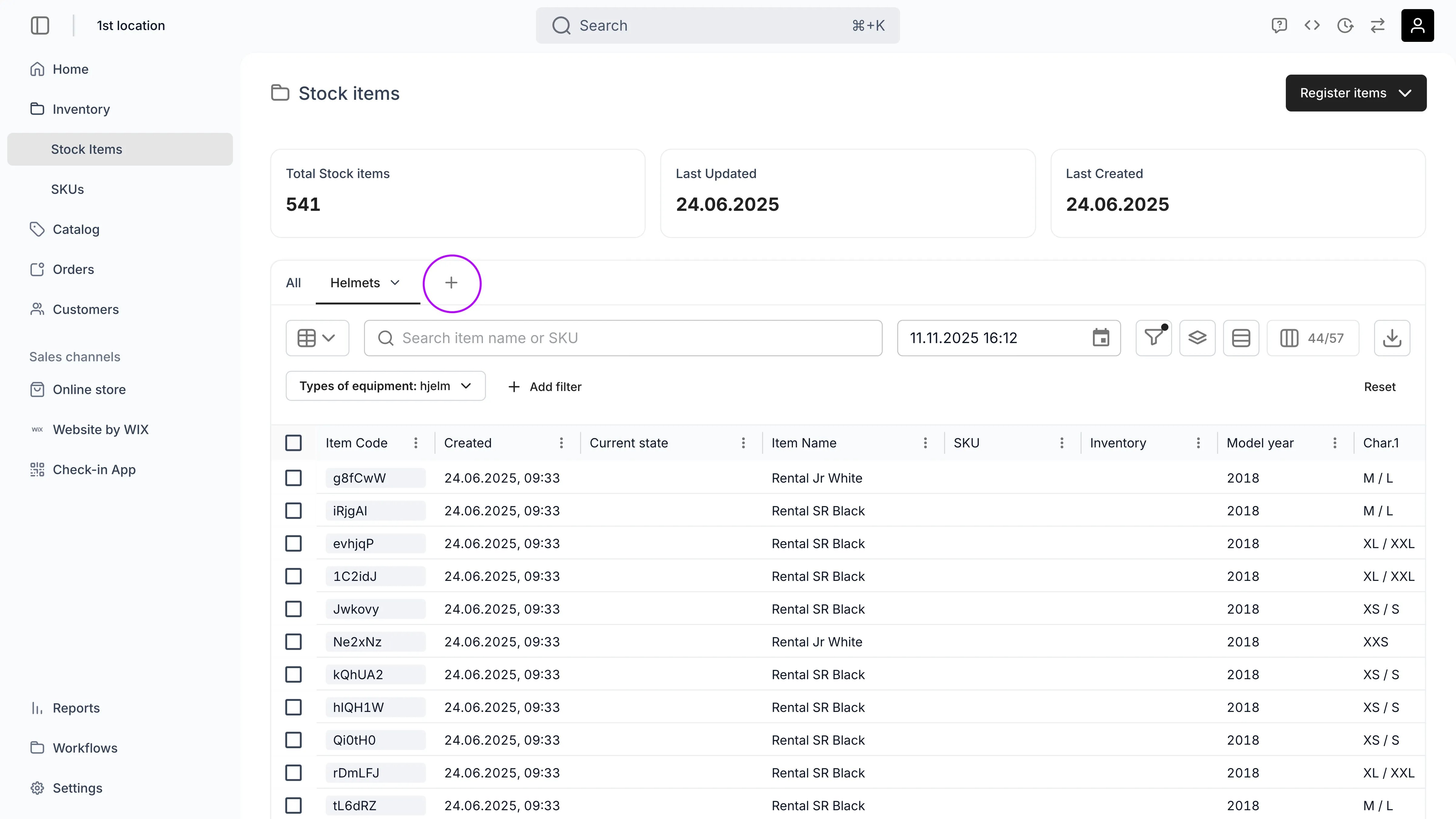
Showing and reordering view tabs
The three-dot button at the right end of the tab row opens Show and reorder views. It manages the tab row itself, the way the column panel manages columns.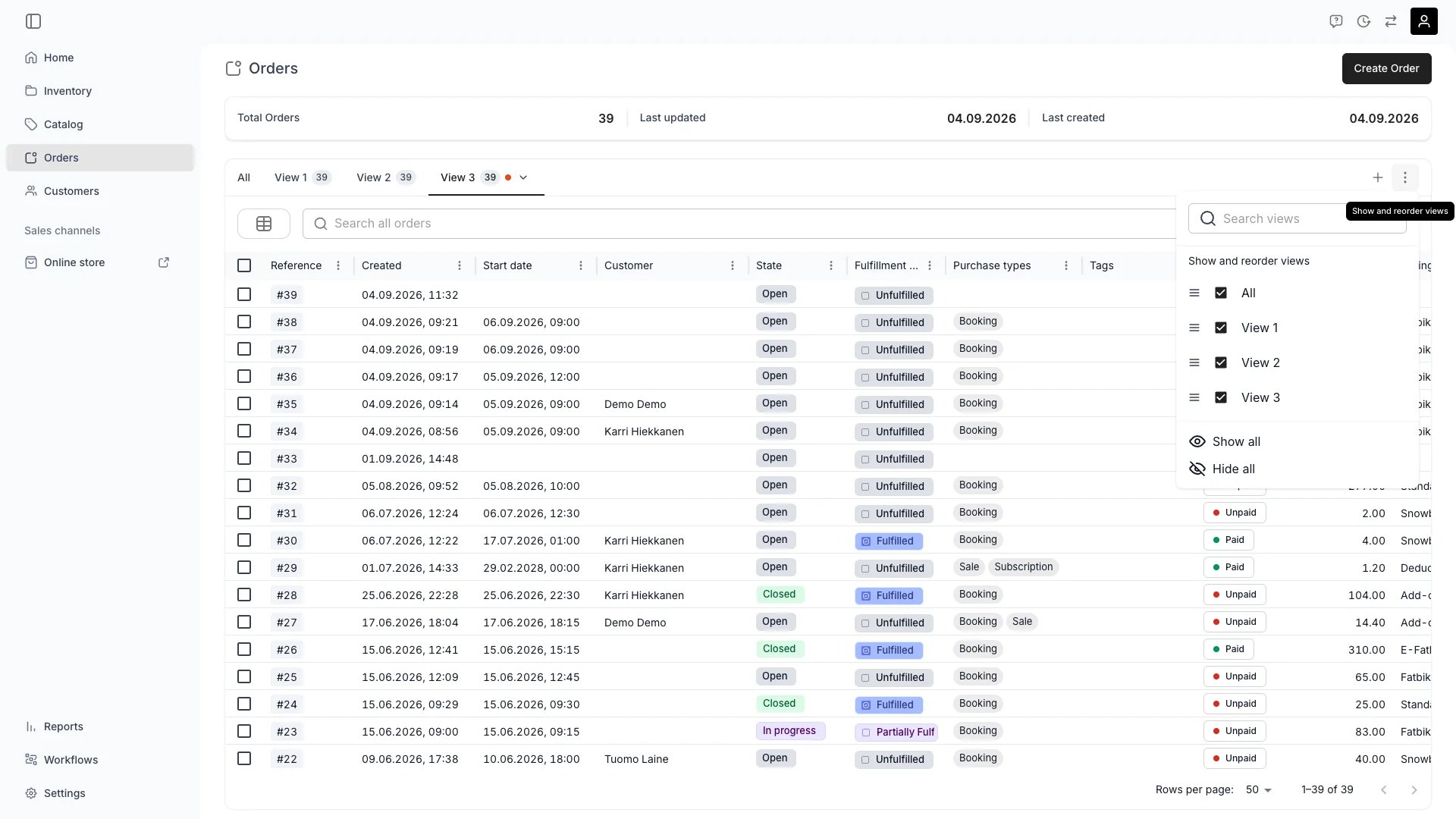
Orders > tab row > Show and reorder views
- Search views narrows the list by name.
- Drag the grip next to a name to move that tab in the row. Dragging is disabled while a search is active, so clear the search before reordering.
- Clear a checkbox to hide a tab, tick it to show the tab again.
- Hide all and Show all apply to the whole row at once.
Sharing views with your team
Managers and Admins can publish their saved views to the entire team. Shared views appear as tabs for all team members and display a share icon to distinguish them from personal views. To share a view, open the view’s submenu and select Share with team. To make it private again, select Make private from the same menu. Shared views follow these ownership rules:- Manager, Admin, and Owner roles can edit, rename, share/unshare, and delete any shared view — not just their own.
- Members see shared views as read-only — they can apply them but not modify them.
- Private (unshared) views are always creator-only, regardless of role.
- Any team member can create, edit, and delete their own personal views.
- Hiding a shared view, or dragging it elsewhere in the row, changes only your own tab row — see Showing and reordering view tabs.
Publishing a view to your team requires the Manager role or higher (
account_settings:shared_table_views:manage permission). Members can create and use personal views but cannot share them.Temporal table features
In commerce, especially in recommerce, most of your assets are temporal in nature. For example your stock items’ location and availability depend on the time and are constantly changing. We have added dedicated features to support the temporal world of recommerce.Time selection
On top of your inventory you can select what ever moment and see what your inventory looks then. This can be in the history or in the future.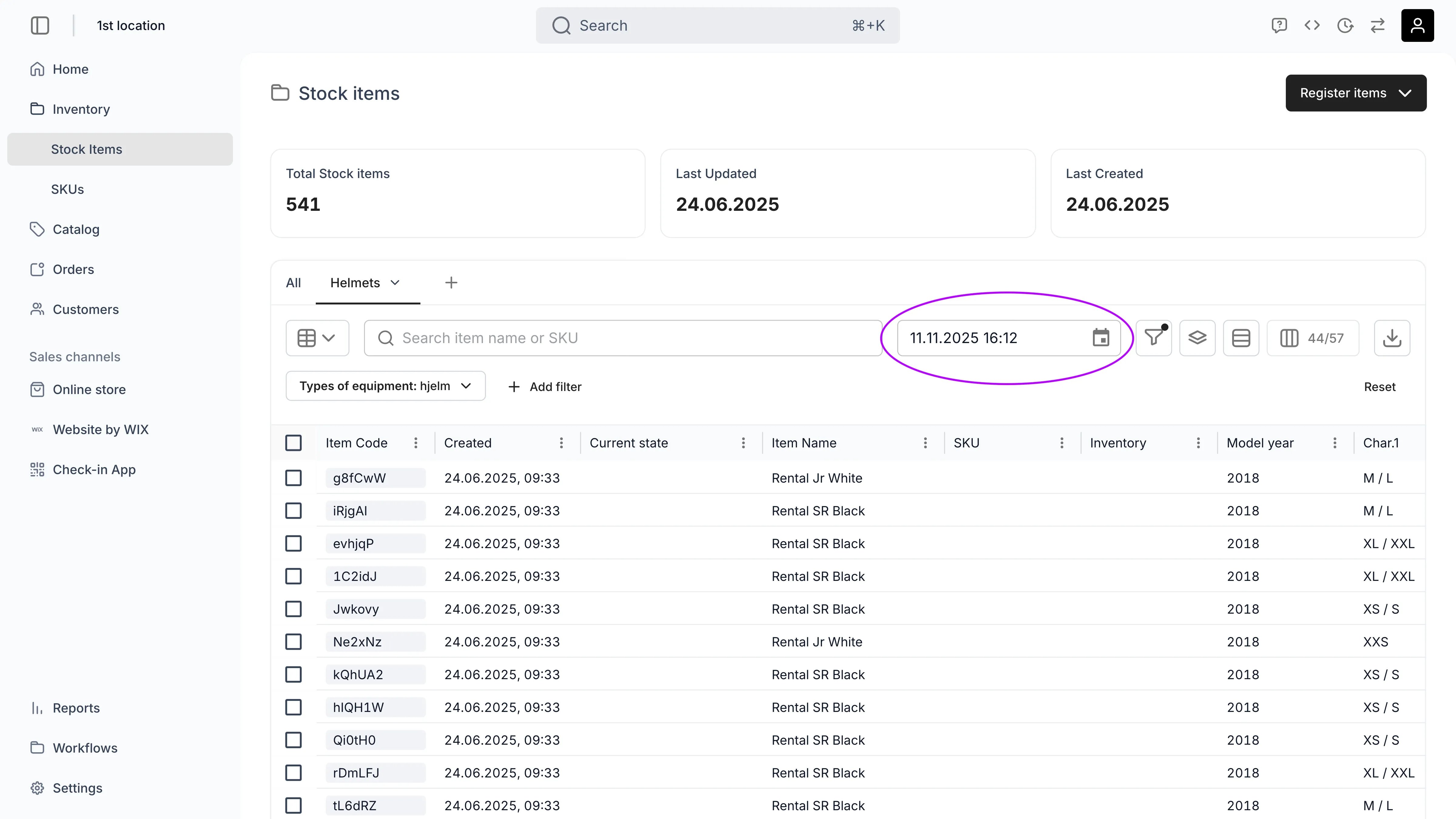
Timeline view
Timeline view provides easy visual way to see when your stock items are available or unavailable.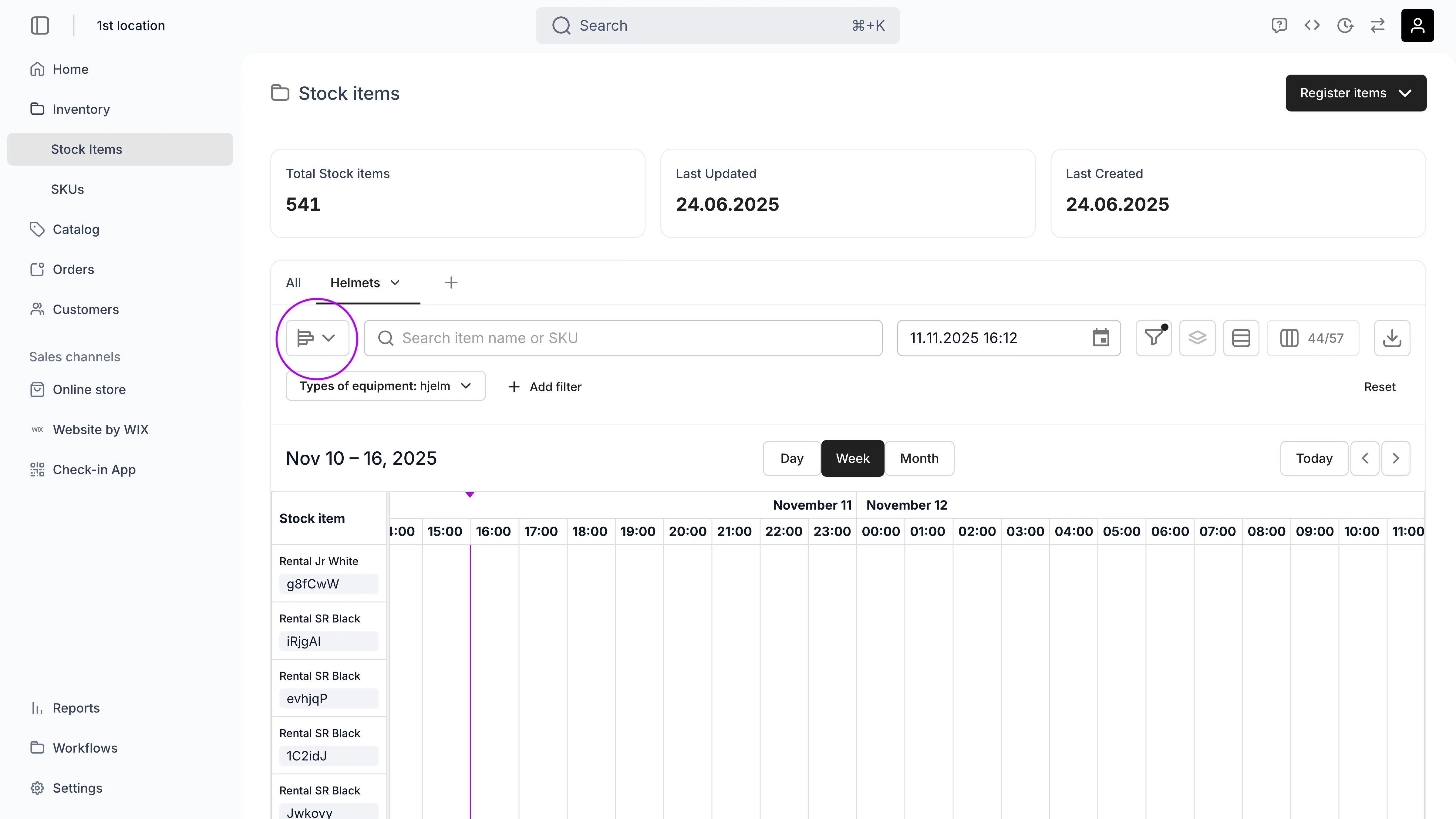
Visibility and permissions
All table features — searching, filtering, sorting, grouping, column controls, export, and personal saved views — are available to every team member who can access the underlying data table.Related articles
Users & Roles
Manage team members, assign roles, and configure permissions.
UI visibility
How hiding a part of the admin differs from restricting access to it.