

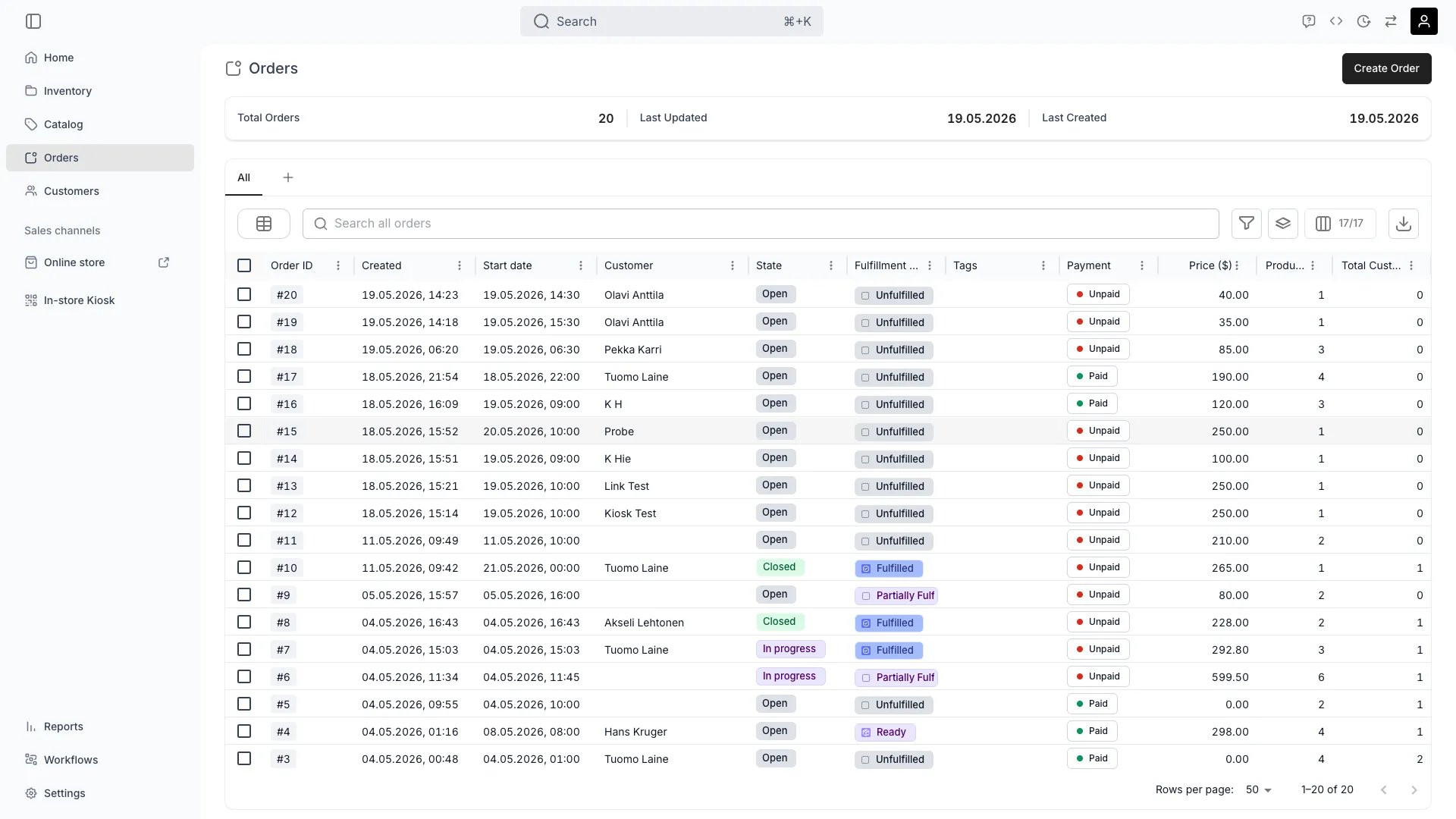
Orders
Open in TWICE Admin
orders
Prerequisites
Have ready before you start:
- A location selected in the location picker. The Create Order button reads the locations you have selected, and does nothing at all when that selection is empty.
- The customer, meaning their name and email if you intend to send them a checkout link, or the record already in Customers.
- What they are taking and when. Have the dates first, because availability is calculated for the dates you enter.
- How they are paying, with a payment provider connected for checkout links, or a manual payment method configured for cash and card at the counter. See Payments.
The walkthrough
1
Create the order
Press Create Order from Orders, or use the keyboard shortcut
a.Expect one of two things, depending on how many locations you have selected:Pick the right location, because it is the order’s pickup location and decides which stock the order can draw on and which fulfilment options apply. You land on the order page with a reference, an Open status chip, and nothing on it.
2
Put a customer on it
Press + Add and choose Customer, or work from the Customers tab. The drawer searches your existing customers as you type.Pick one and press Add selected, or press Create new customer to make the record here without leaving the order.Add several customers where a group is ordering together, and add the person paying separately as the billing contact with Add billing contact. For a straightforward counter sale, one customer is both.Do this first if the customer is paying online, because a checkout link needs an email address to go to.
3
Set the dates before you read the table
Press + Add and choose Listing to open the Add a listing dialog.Set the dates at the top before you look at the table. Reserve from and To drive the availability the table shows, so changing them afterwards leaves you reading stock figures for the wrong period.
4
Add what they are taking
Press Add on a row, or tick several and press Add selected.
5
Put named units on the order instead of a listing
Press + Add and choose Stock item when you know which physical units are going out, rather than what the catalog sells them as. The dialog lists the units at the order’s pickup location.Tick the units and press Add selected (n). Each ticked unit becomes its own line on the order. Create new leaves the dialog and opens Add Line Item for a line the catalog does not cover.
6
Fill the line in Add Line Item
The same Add Line Item dialog opens by two routes, with the same fields on both:
Set Name, Purchase Type, Purchase option, Start and End (a sale shows Sales date instead), Unit price, Unit deposit and Manual discount.
7
Set Purchase option before you press Add
Left empty it is highlighted yellow and Add stays disabled. On a listing with one option it is picked for you.Press Apply list price under the field to snap back to the catalog price, which the dialog shows where the two differ.
This Purchase option is a different field from the filter of the same name in the previous dialog. The filter narrows the table; this one picks the pricing row the line is priced from.
8
Let the rules assign the stock
Do not look for the physical units for a catalog listing, because the dialog will not offer them. Read its Fulfillment section for the listing’s Fulfilment criteria instead: each rule’s quantity, its label, and the conditions it matches on. The units are chosen against those criteria.Hand-picked stock items are for Create new lines only, which have no listing and therefore no criteria to follow.Hand-pick stock items for custom items only, which have no listing and therefore no rules to follow.
9
Read the fulfilment chip for this location
Read the chip on each item once assigned. Two of them are the same underlying state, rendered differently depending on the location’s auto-assign setting:
See Auto-fulfillment for which locations do which, and control what stock a listing draws from if a rule is matching the wrong units or none.
10
Take the money
Open Payment and pick the route the customer’s location decides:
11
Scope a manual payment to selected lines
Select line items first to scope Manual payment to those lines rather than the whole order, which is how one person in a group pays for their own items.Note that payment is tracked independently of status. Hand items over unpaid and close an order unpaid if you need to, and the order stays Unpaid.
12
Hand the items over
Select the items and use Mark as, which offers the item states your account defines, grouped by fulfillment group, with secondary states behind More.Expect Assigned, Handed Out and Returned on a fresh account, plus Pre-assigned, On Hold and Excluded under More. Rename them or add your own under Fulfillment lifecycle.Move the status chip from Open to In progress for a whole order at once. Confirming runs your account’s automation for that move, which by default hands everything eligible over.
13
Close it when the goods come back
Set the status chip to Completed, the last state a fresh account carries. Read the dialog, which names what closing does: checkout links stop working, payment collections stop, the order becomes read-only, and subscriptions are cancelled.Read what it says about the items too. By default booked items move to Returned and sale items stay handed out, and any check your account runs on this move is previewed here, where a warning asks you to confirm and a block refuses.Press Move to Completed. Reopen it later and it is editable again.
How do I know it worked?
- Status is Completed, or whatever your account calls its last state, or In progress while the goods are still out.
- Fulfillment state is Returned, and each returned unit reads Returned on the Stock Items tab. The order-level chip moves forward as units come back, through Partially returned to Returned.
- Payment is Paid, or knowingly Unpaid with an invoice outstanding.
- The units are free again for the dates after them, the order appears under the customer’s own Orders tab, and the Activity Log carries who did what.
Troubleshooting / common pitfalls
Create Order does nothing when I press it
Create Order does nothing when I press it
Cause: no location is selected in the location picker. The button reads your selected locations to decide where to create the order, and with none it has nowhere to put the order and silently does nothing.What to do: select at least one location, then press it again. Nothing is wrong with the order or your permissions.
Starting an order moved items I did not want moved
Starting an order moved items I did not want moved
Expect that. What a status move does to the items is your account’s automation for that move rather than a per-order choice.What to do: set Confirmation level to Confirm and allow skipping under Order lifecycle, and staff can leave kinds of line out at the dialog. Repoint the automation itself if the default is wrong for every order rather than this one.
The listing will not add: "Item is not available"
The listing will not add: "Item is not available"
Cause: nothing matching that listing is free for the dates in Reserve from and To. The Stock column shows the same thing, available over total, with a red dot at zero.What to do: change the dates, or work out what is holding the units. Work out what is available, and why something is not covers the usual causes: an overlapping order, buffer time, a maintenance reservation, or stock at another location.
The stock section says "No fulfillment rules configured"
The stock section says "No fulfillment rules configured"
Cause: the listing is not bound to any stock. It can be added to an order and priced, and nothing physical will ever be assigned to it.The message does not stop the line being added. Availability is unlimited without criteria, so you can sell the same goods twice without noticing.What to do: fix it on the listing rather than on the order. See control what stock a listing draws from. This is the single most common reason a listing looks finished in the catalog and cannot actually be fulfilled.
Every item shows an orange Unassigned chip
Every item shows an orange Unassigned chip
Expect that at a location with auto-assign switched off, where Unassigned is how the resting state renders. The same state renders as a blue Assigned where auto-assign is on, so the colour reads like a warning and is not one here.What to do: assign units when you pick the order, or turn auto-assign on for the location. See Auto-fulfillment.
I cannot edit the order any more
I cannot edit the order any more
Cause: it is closed, or archived. Closing makes an order read-only, and archiving closes it first and then takes it out of the table.What to do: reopen a completed order by setting its status back to Open or In progress. Reopening is a backward move, so none of your checks or automations fire on it.Unarchive an archived order from the banner on the order itself, because its status chip will not respond until then. Review and restore archived orders at Settings → Archived assets, and issue a new checkout link to collect again, because unarchiving does not revive the old ones.
I created an order by accident and it is cluttering the table
I created an order by accident and it is cluttering the table
Cause: the order was saved the moment you pressed the button, and there is no cancel that undoes creation.What to do: archive it. Archiving an open order closes it first, which is why the confirmation asks you to acknowledge that. See Archiving and Deletion.
Related articles
Order Lifecycle
How status, payment and fulfilment move independently of each other.
Order Summary tab
Reading a live order at a glance.
Control what stock a listing draws from
When the rules assign the wrong units, or none.
Work out what is available
When the dates you need come back empty.