

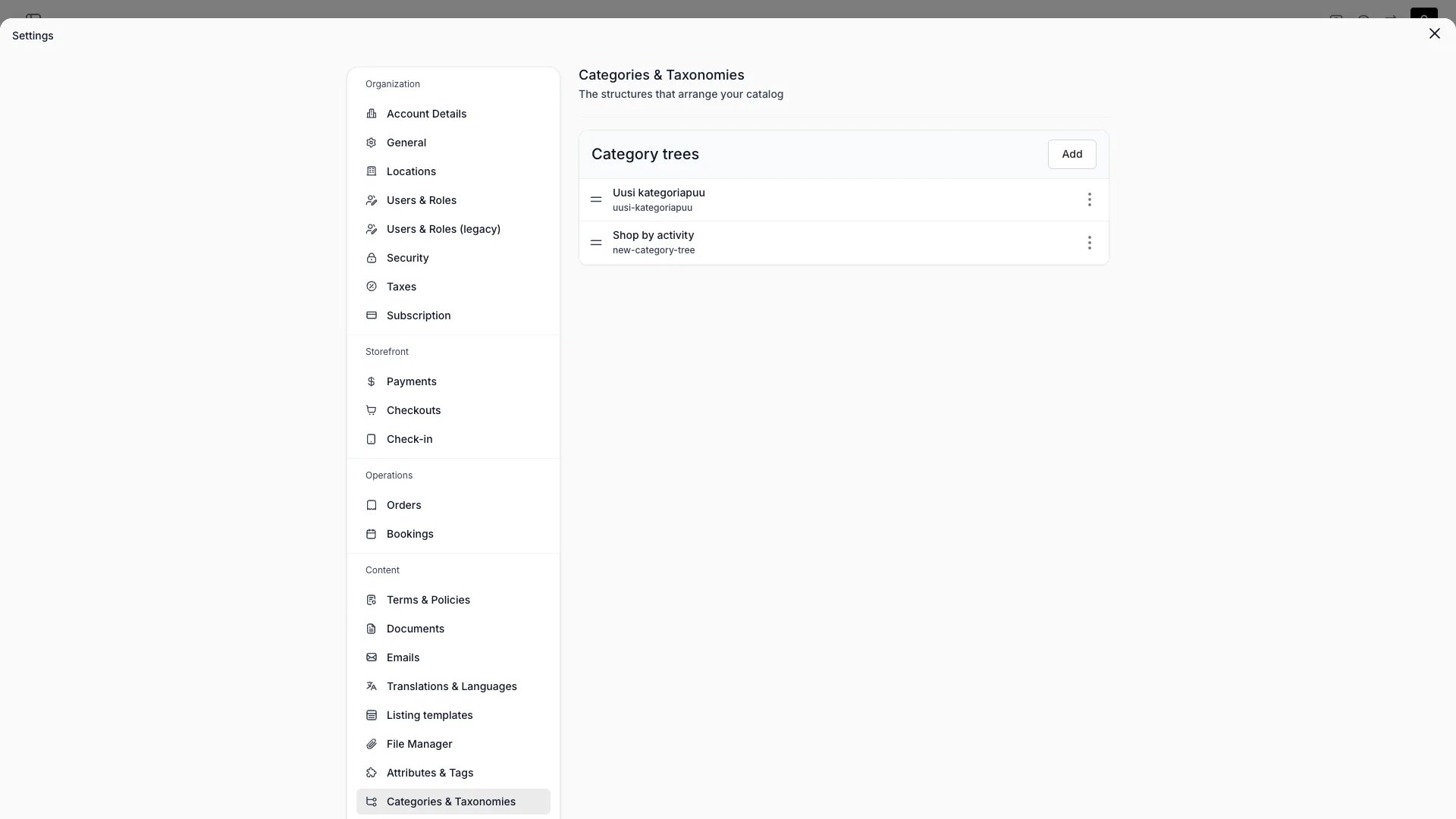
Settings > Categories & Taxonomies
This view can look different dependent on your user role.
See Visibility and permissions for details.
See Visibility and permissions for details.
Open in TWICE Admin
settings/content/categories-and-taxonomies
Primary purpose
Build the category trees your online store uses to arrange listings into browsable paths. The Category trees card lists every tree, with its title and slug.Create a tree
Create a tree
Select Add to create a tree named New category tree and open its editor. Two trees can share a title, so tell them apart by the slug under each title.Read more: Build a category tree
Edit a tree
Edit a tree
Select a row, or open its menu and select Edit, to open the editor. The editor has a Details card for the title and slug, a Levels card that creates groups from a source, and a Structure card that shows every group.Nothing is stored until you select Save.
Order the trees
Order the trees
Drag a row by its handle to reorder the list. The storefront shows trees in this order, and the first tree wins when a listing sits in more than one.
Delete a tree
Delete a tree
Open the row menu and select Delete, then confirm with Delete category tree. Only the tree is removed. Your listings and collections are not affected.If the store had picked only that tree, tree navigation switches off, and a Shop link that opened only that tree becomes Link only. Deleting a tree never puts other trees on the store.
Related concepts
Category tree
Category tree
A hierarchy of groups. Each group narrows the listings by a collection, an attribute value, a category or a tag, and shows the listings that match every group above it.Read more: Category tree
Category taxonomy
Category taxonomy
The fixed classification that says what a listing is. A tree can narrow by a taxonomy category, but the two are separate things.Read more: Category Taxonomy
Collections
Collections
Flat groups of listings. A tree can use a collection as a group.Read more: Collection
Visibility and permissions
This page is gated bycatalog:tree, in the four operations: , , and .
The role editor groups them with collections. View collections grants view, Create and edit collections grants create and manage, and Delete collections grants delete.
A user with view access sees the trees without the Add button, the drag handles or the delete action, and the editor opens read-only.
All four system roles hold every operation. The Member role has the Settings area hidden by default.
For what each operation means and the full role matrix, see Users & Roles.
Related articles
Build a category tree
Build a tree and show it in your storefront navigation.
Category tree
How a path narrows and why a collection can sit in several trees.
Theme editor: Collection page
The page where you switch tree navigation on.