

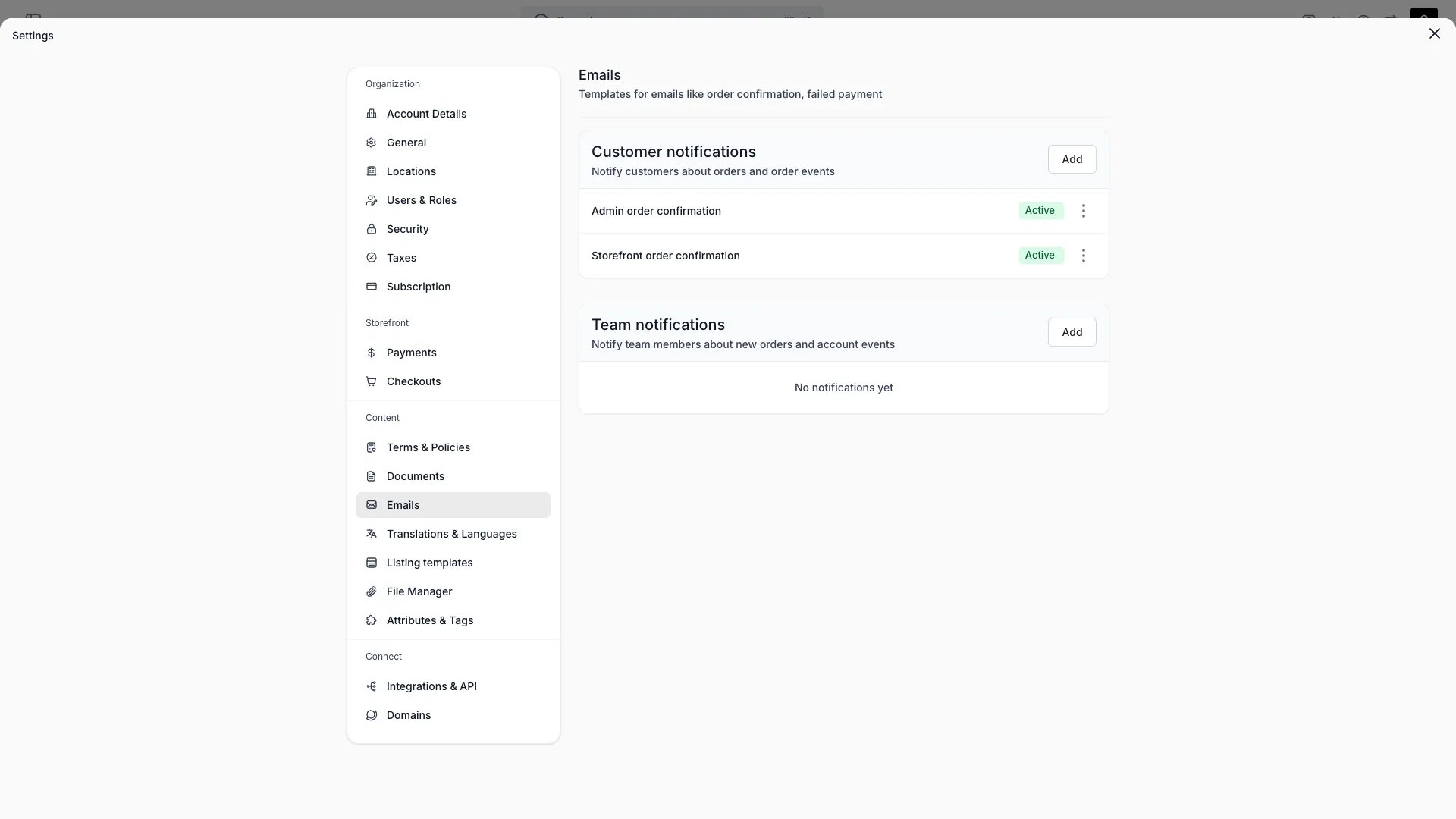
Settings > Emails
This view can look different dependent on your user role.
See Visibility and permissions for details.
See Visibility and permissions for details.
Primary purpose
Manage the transactional emails TWICE sends: order confirmations plus your own custom emails.System templates
System templates
Eight system email templates are built in. You can edit their subject and content but not delete them.
Templates in Draft status are not sent until you activate them.
Custom templates
Custom templates
Create additional emails to customers or your team, with a subject and HTML content.
Per-language templates
Per-language templates
Each email template, system or custom, can have per-language content. Select a language in the template editor to write a translated version of the subject and body.When you edit in a language other than the source language, the override is stored as a translation. The template resolves content in this order:
- Per-language override: the translated subject and body for the recipient’s language, if one exists.
- Template content: the subject and body saved on the template itself (your source language version).
- Code default: for system templates only, the built-in default in the requested language.
Attachments
Attachments
Attach document templates, policy documents, or uploaded files to an email.
Test & status
Test & status
Send a test email to yourself, and keep a template draft or active.
Emails are sent from your organisation’s contact email (set in Account details). There is no separate sender or SPF/DKIM configuration here.
Email Language
Order notification emails render in the customer’s language. The system determines the language as follows:- The storefront captures the customer’s browsing language during checkout.
- At order creation, the customer record stores this language.
- When sending the email, the system validates the customer’s language against your enabled languages. If the language is enabled, the email renders in that language. Otherwise, it falls back to your default language.
Related concepts
Documents
Document templates with the same per-language support
Multi-Language Content
How translations work across your catalog, locations, and templates
Translations Settings
Enable languages and manage translations for customer-facing content
Template Variables
Email templates use Handlebars syntax for dynamic content. Wrap a variable name in double curly braces,{{variable}}, to insert order data into the subject or body.
Helpers
Helpers format raw values before they appear in the email.
Standard Handlebars block helpers are available:
{{#each}}, {{#if}}, {{#unless}}, {{#with}}.
Order variables
Order email templates receive the full Order object. Commonly used fields:
Access line items with
{{#each lineItems}}. Each item exposes name, startDate, endDate, purchaseType, pricing, and variants.
Order attribute variables
Order email templates also receive the order attributes captured on the order, in two forms.
Address a single value through
attributes, not through the labelled list. Use the attribute’s Attribute key from Settings → Attributes & Tags, not its display name: a display name is renameable and differs per language, so only the key is stable.
attributes, so {{#if attributes.cost_centre}} is false on an order that never captured one. An attribute attached but left empty is still there, with value and formatted both null.
Some integrations also contribute a flat name for their own attribute, such as {{oviUrl}} for a door access link. Those keep working in the templates written against them. Address by key in new templates.
Subscription portal link
subscriptionPageUrl is the customer portal link behind an order email’s Manage subscriptions button. It is null on an order with no subscription, so wrap the button in {{#if subscriptionPageUrl}} to hide it where there is nothing to manage.
A real send carries a single-use link minted for that recipient. A preview or a test send carries the portal’s recovery page instead, so opening a preview never mints a live link. Templates written against {{subscriptionData.subscriptionPageUrl}} still resolve.
Timezone handling
Date and time helpers (formatDate, formatDateTime) render values in the pickup location’s timezone. If the location has no timezone set, the system falls back to your account’s default timezone.
This means customers see dates matching the location they are picking up from, not UTC.
Subject example
Use template variables in the subject line to create dynamic subjects:If a template variable or helper contains a syntax error, the email still sends with the raw text. No email is lost due to a template mistake.
Visibility and permissions
This page is gated byaccount_settings:notifications, in the four operations: , , and .
Owner and Admin hold every operation. Manager holds only create. Member does not hold it at all.
For what each operation means and the full role matrix, see Users & Roles.