

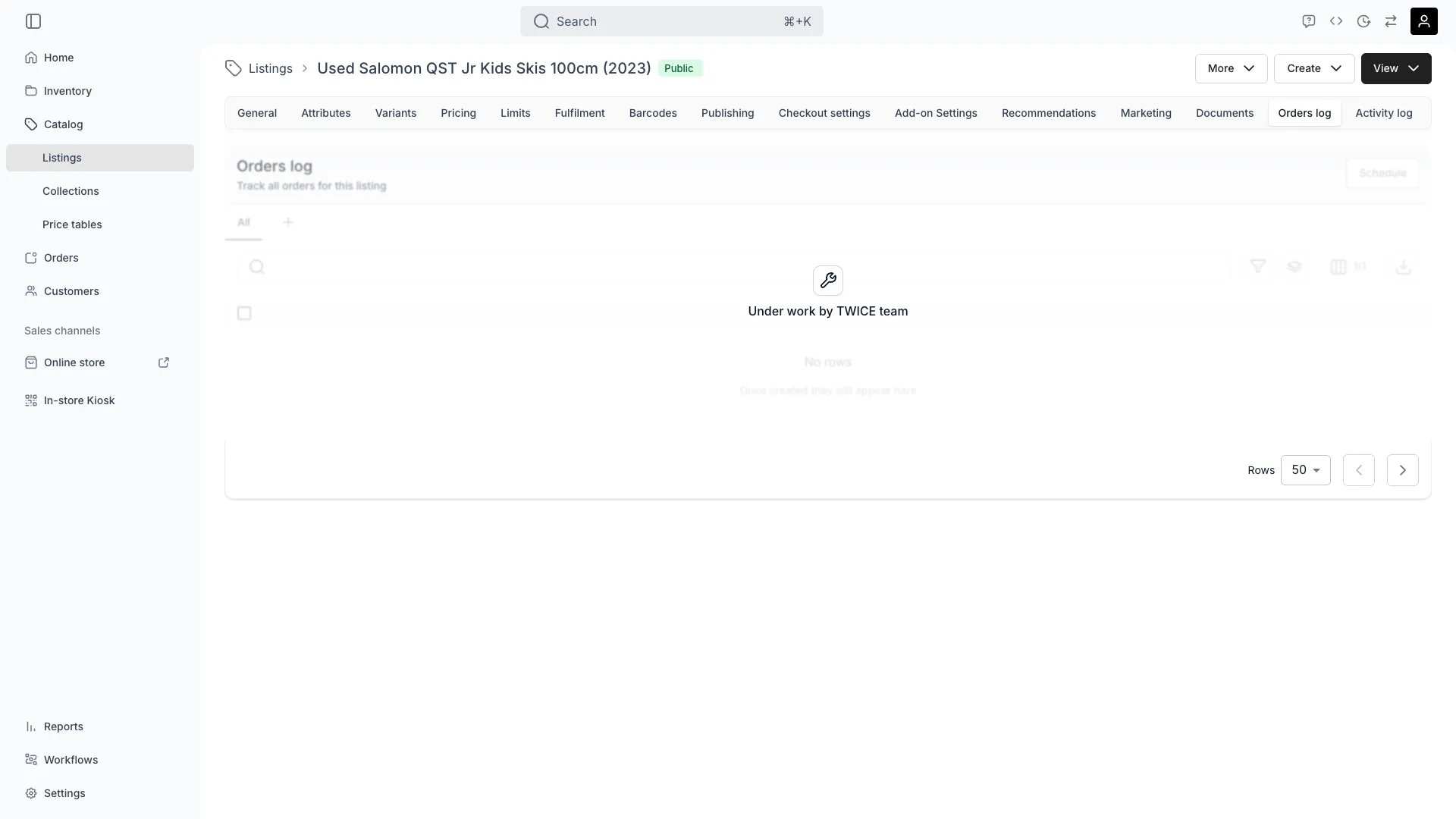
Catalog > Listings > [Listing] > Orders log
The Orders log is currently under active development. The table renders within the listing detail page but the column set and filters are still being finalized — what you see in this article reflects the intended shape of the feature.
Scope
The log is scoped to the listing you are viewing. An order appears here when:- The order contains a line item that references this Listing, or
- A line item resolves to a Stock Item that the listing’s fulfillment rules match (for variant-level or rule-based assignments)
Columns
Each row exposes the most useful fields for catalog-level analysis:Filters and sort
The orders log uses the same data table pattern as the main Orders view, so you can:- Filter by Order type, Status, State, Customer, and date range
- Sort by any column — defaults to newest first by Order date
- Save filter and column combinations as custom views
- Export the current view as CSV (respects filters and visible columns)
Use cases
- Review how many times a listing has been rented or sold over a given period
- Identify repeat customers for a specific listing
- Reconcile listing-level revenue against the main Orders view
- Spot operational patterns — for example a listing that’s frequently cancelled or returned
- Jump from the listing into the underlying order for troubleshooting or follow-up actions