

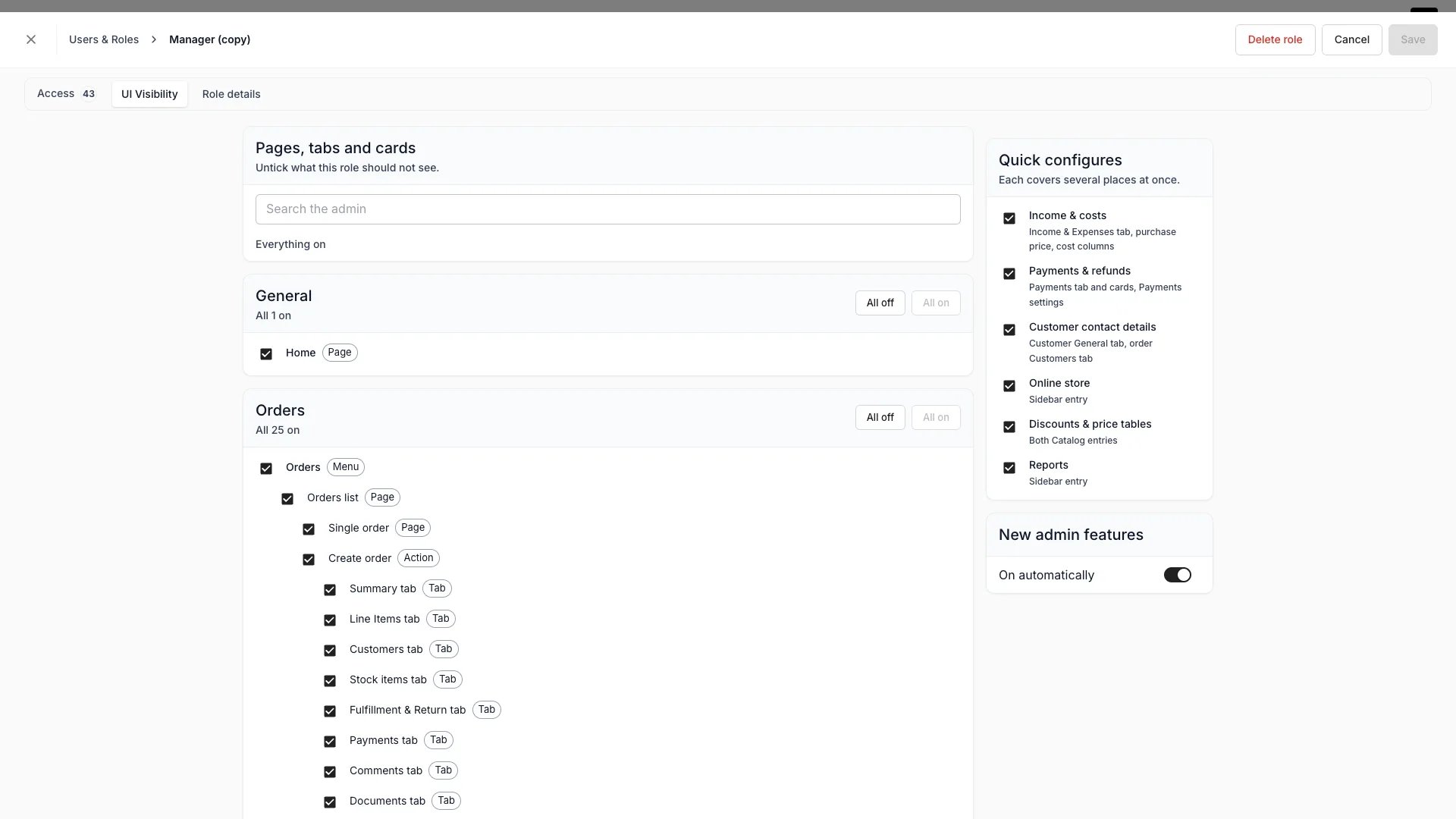
Settings > Users & Roles > [role] > UI Visibility
How it works
Every hideable part of the admin is an element in one catalog, and a role carries a list of the ones it hides. Elements come in six kinds:
A figure is the kind worth knowing about, because it is not a place. Hiding Cost figures takes purchase price out of the stock item page, out of the inventory table’s cost columns and out of what those views export, rather than hiding one screen.
Hiding a parent hides everything under it
Elements nest. Hiding the Orders menu entry hides the order list and every order page, tab and card below it, so you never tick a whole branch by hand. An area whose every child is hidden drops out of the sidebar. A parent whose first child is hidden opens the next one instead, so Catalog with Listings hidden opens Collections. Nesting reaches inside a single order too. In the element tree under Orders → Single order, Add button covers every entry point that opens the Add drawer: the header + Add, the Summary empty state’s Add items, and the + and Add on each customer card. The drawer’s four tabs sit under Add button, so hiding it hides them as well.
Hide one tab and the drawer opens on the first one the role still shows. Hide all four and Add custom item is what is left of it.
Two roles: the more generous one wins
A person’s hidden set is the intersection of what each of their roles hides. An element disappears only when every role they hold hides it, so adding a role never takes anything off their screen.What a role does with something it has never seen
Each role answers one more question: what happens to a part of the admin that did not exist when the role was saved. The New admin features card holds the answer as a single switch, On automatically.- On automatically turned on: anything TWICE Commerce ships becomes visible to the role as soon as it lands, and the role’s list names its exceptions, the things it hides.
- On automatically turned off: anything new stays hidden from the role until somebody ticks it, and the role’s list names the things it shows.
Built-in roles
A built-in role shows everything and picks up new parts of the admin as they ship. Member is the one exception: it hides Reports and Settings out of the box, because a Member works the floor. Manager, Admin and Owner hide nothing. You cannot edit a built-in role’s visibility. To hide something for one of those tiers, create a custom role from it and hide it there. Because hiding intersects across roles, a custom role that shows Reports brings them back for a Member.Usage
Hide something for a role
Open the role under Settings → Users & Roles, select the UI Visibility tab, and untick what the role should not see. Search the tree by name when you know what you are looking for. The header counts what is off for the role.Switch a group of places at once
Quick configures switches a named set of elements together, for the cases that span several places. Ticking one turns its whole set on, and it reads as on only while every element it names is on.Hiding is not access
Restricting what a role may read leaves its sidebar alone. A page the role can open but not read comes up empty rather than disappearing, and tidying that up is yours to do here. The reverse holds too. A role that hides an order’s Payments tab still takes payments if Take payments is on, and a role with no Customers entry in the sidebar still picks customers inside the order flow.The older per-tab list
Users & Roles (legacy), the older permission matrix, writes its own list of hidden tabs through a Show in UI column. Both lists are still read, and a tab is hidden when either one hides it. Roles saved in the legacy editor keep working until the account has been backfilled. A role edited on the UI Visibility tab moves to the element tree.Related articles
Users & Roles
Invite people, give them roles, and set what each role can do.
Sidebar navigation
How the admin sidebar is organized and what each section contains.