

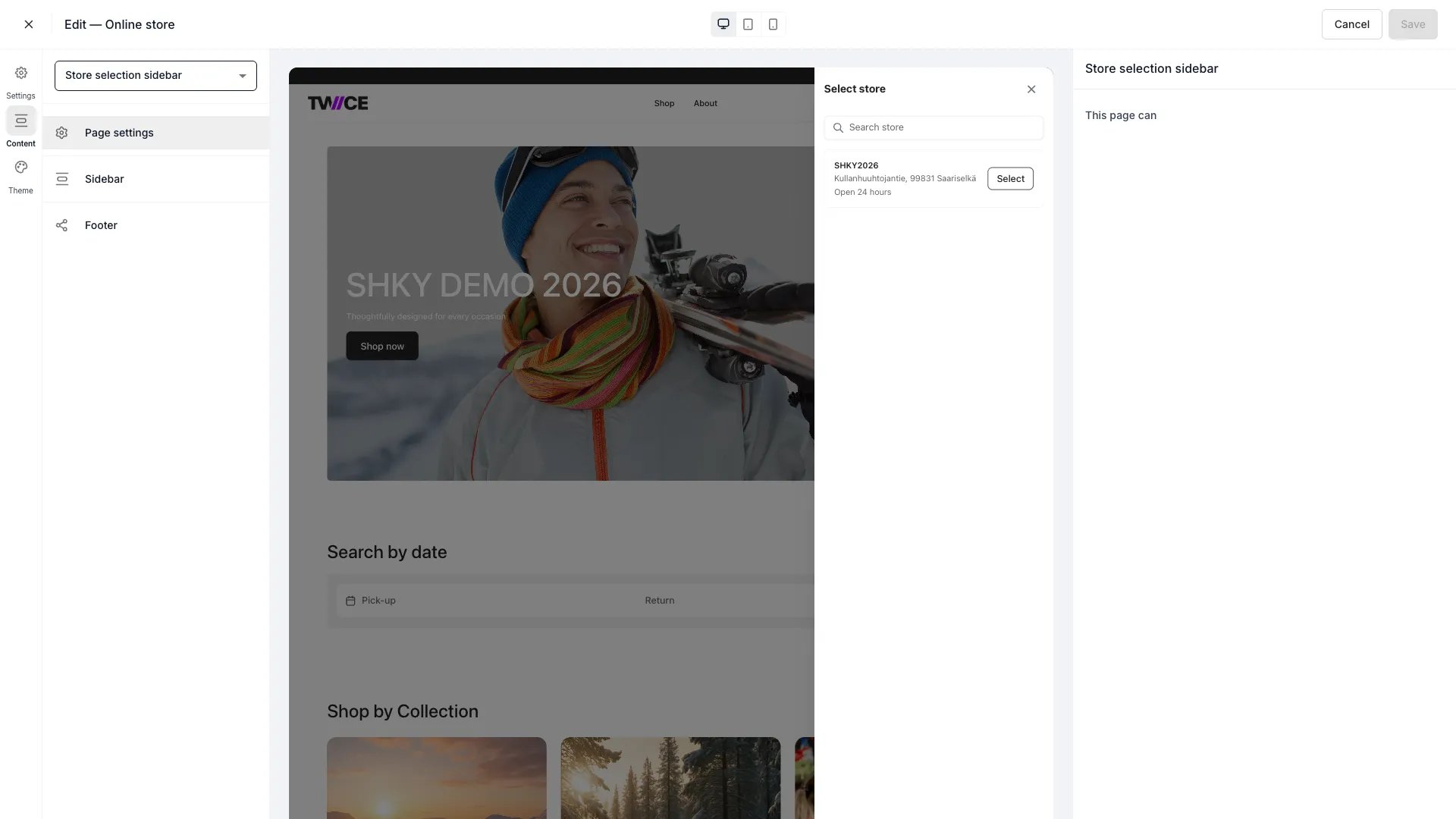
Theme Editor > Store selection sidebar
The store selector only appears on storefronts connected to more than one active store location. Single-store setups auto-select the only location and skip the selector entirely.
Settings
How store selection works
Store selection lets customers choose which Location they order from. It appears in two places: a button in the top bar and a dedicated selector on the cart page. Both open the same configurable sidebar.Top bar
The storefront top bar renders a store selector button on the right side. Clicking it opens the store selection sidebar where customers browse all active locations and pick one. The top bar is visible on all storefront pages except checkout and link pages. Once a customer selects a store, the button displays the store name. The selection persists across page navigations and browser sessions.Cart page
The cart page shows a store selector with per-store availability feedback. Before checkout, the selector indicates how many stores can fulfill the current cart contents:- “Available in N stores” — the cart’s items are in stock at N locations for the selected dates.
- “Not available in any store” — no location can fulfill the entire cart.
What store selection controls
Selecting a store scopes the customer’s experience:Sidebar content
When a customer opens the store selector, they see a list of all active locations. Each store entry shows the store’s name, address, and today’s opening hours — these fields are fixed and not configurable. The image, description, phone, email, and opening-hours toggles apply to the individual Store page, not to the sidebar. The sidebar title and description let you add context above the store list, such as “Choose your nearest location” or instructions for selecting a pickup point. Both the title and description are translatable — manage translations under Settings → Translations & Languages.Related articles
Locations
Location settings including fulfillment rules and sales channel toggles.
Availability
How location selection narrows availability from eligibility to real stock.
Stores page
The stores directory page listing all locations.
Checkouts
Per-location checkout assignment and configuration.