

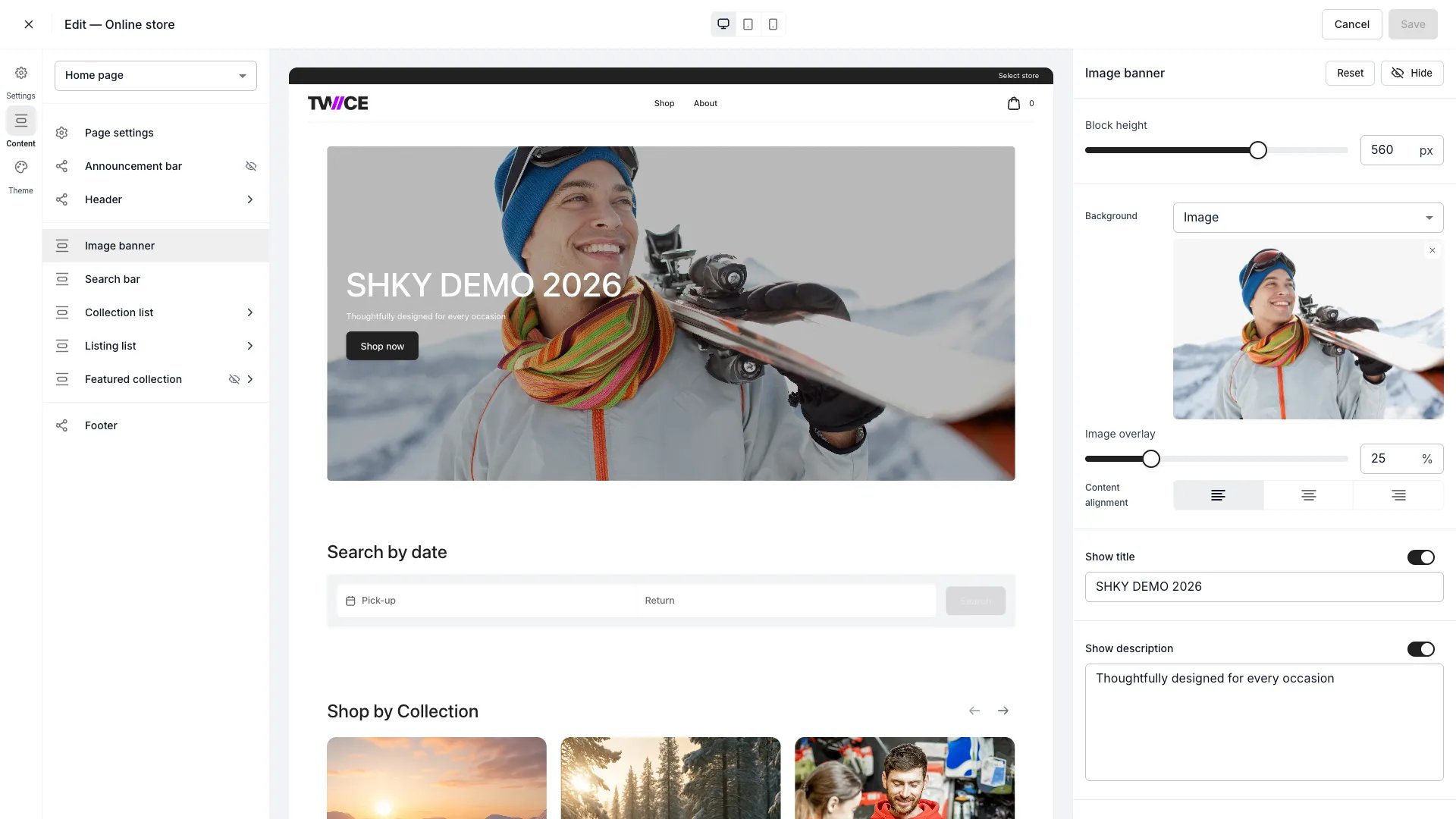
Sales Channels > Online Store > Theme Editor (Home page)
This view can look different dependent on your user role.
See Visibility and permissions for details.
See Visibility and permissions for details.
Primary purpose
The Theme Editor is a visual customisation tool for your storefront. It has four modes, accessible from the left sidebar: Settings, Content (page templates and sections), Theme (global design tokens), and Translations (multi-language content and system string overrides). Changes preview in real time across desktop, tablet, and mobile viewports.Edit by page
Edit by page
Switch between page templates with the page dropdown — Home, About, Collection, Listing, Stores, Bag, Checkout, and more. Each page has its own arrangement of sections.See Pages.
Tweak design tokens
Tweak design tokens
Use the right-hand settings panel to change colours, typography, layout, buttons, inputs, calendars, and listing cards. Changes apply across the entire storefront.See Settings.
Custom CSS
Custom CSS
For anything beyond what the visual editor exposes, drop in custom CSS. See Custom CSS.
Translate storefront content
Translate storefront content
Switch to the Translations mode to manage multi-language text for your online store. The editor has three scopes, selectable from a sidebar:
- Content — translate merchant-authored text: hero titles, descriptions, button labels, about page content, meta titles and descriptions, announcement bar text, sidebar text, footer copyright, and other storefront copy. These fields map to your default-language content and are stored as separate translations per language.
- System strings — override the built-in UI text on your storefront (navigation labels, product page elements, cart and search text, filter labels) in any language, including your default language. Each string ships with a TWICE-maintained default; you only override what you want to customise.
- Commerce — override shared commerce strings (product cards, availability labels, pricing display) that appear across all your sales channels.
Preview & save
Preview & save
Preview changes in any viewport before saving. Save writes your changes directly to the live storefront — there is no separate draft or publish step. If you close the editor with unsaved changes, a dialog asks whether to save or discard them.
Blocks on most pages
Most page templates share the same set of storewide blocks. Configure them once and they apply everywhere they appear:- Announcement bar — a slim message bar at the top (content and visibility here; colours in the Announcement bar settings).
- Header — logo, navigation items (links to internal pages or external URLs), logo and menu position, sticky behaviour, and the cart icon style.
- Footer — toggle the menu links, email signup, description, payment icons, policy links, and copyright text.
- Page settings — per page, set its visibility and SEO meta title and description. The URL handle is shown read-only — page paths are fixed; edit your domain under Settings > Domains.
Page Selector
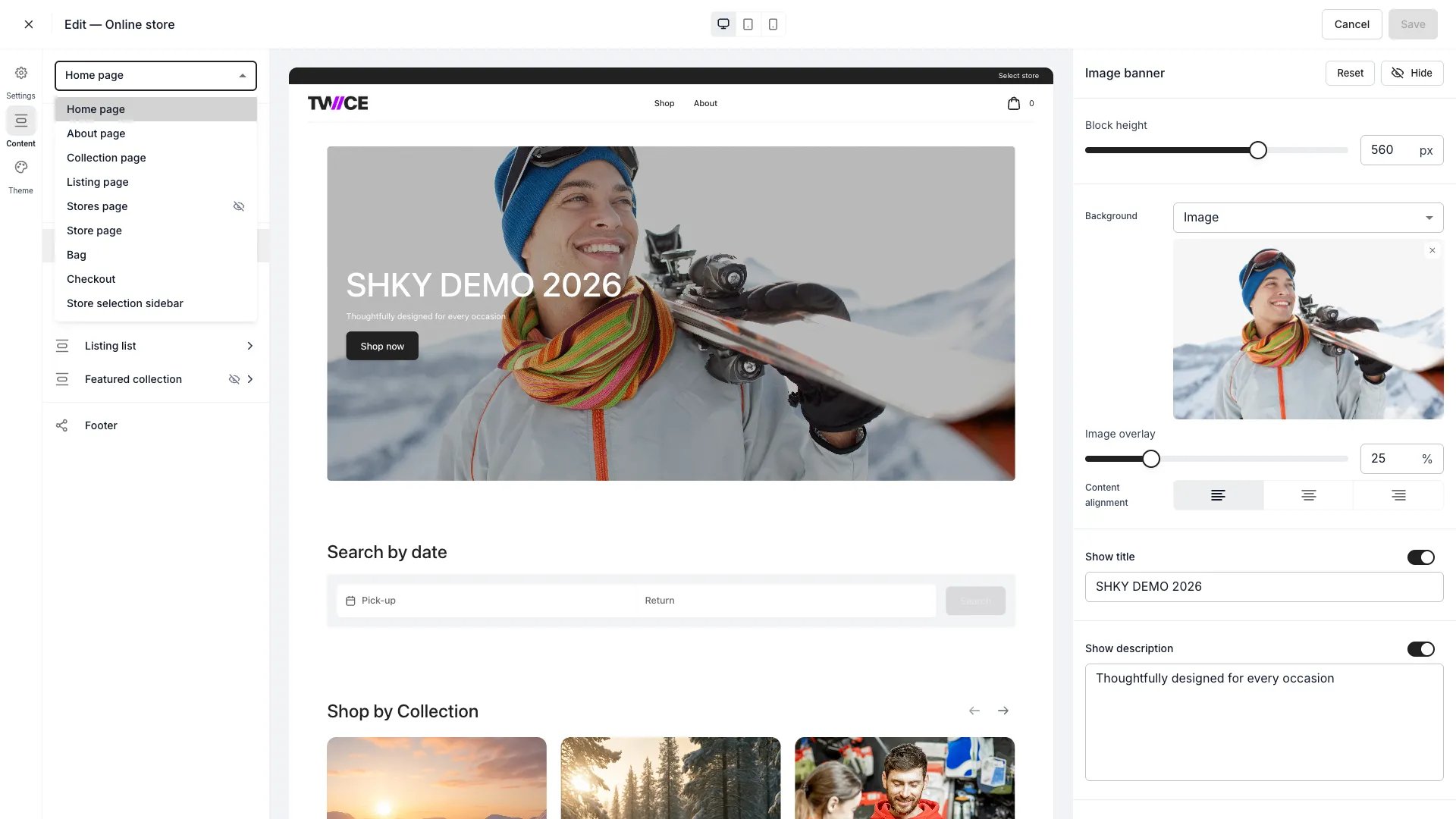
Page dropdown
Settings Panel
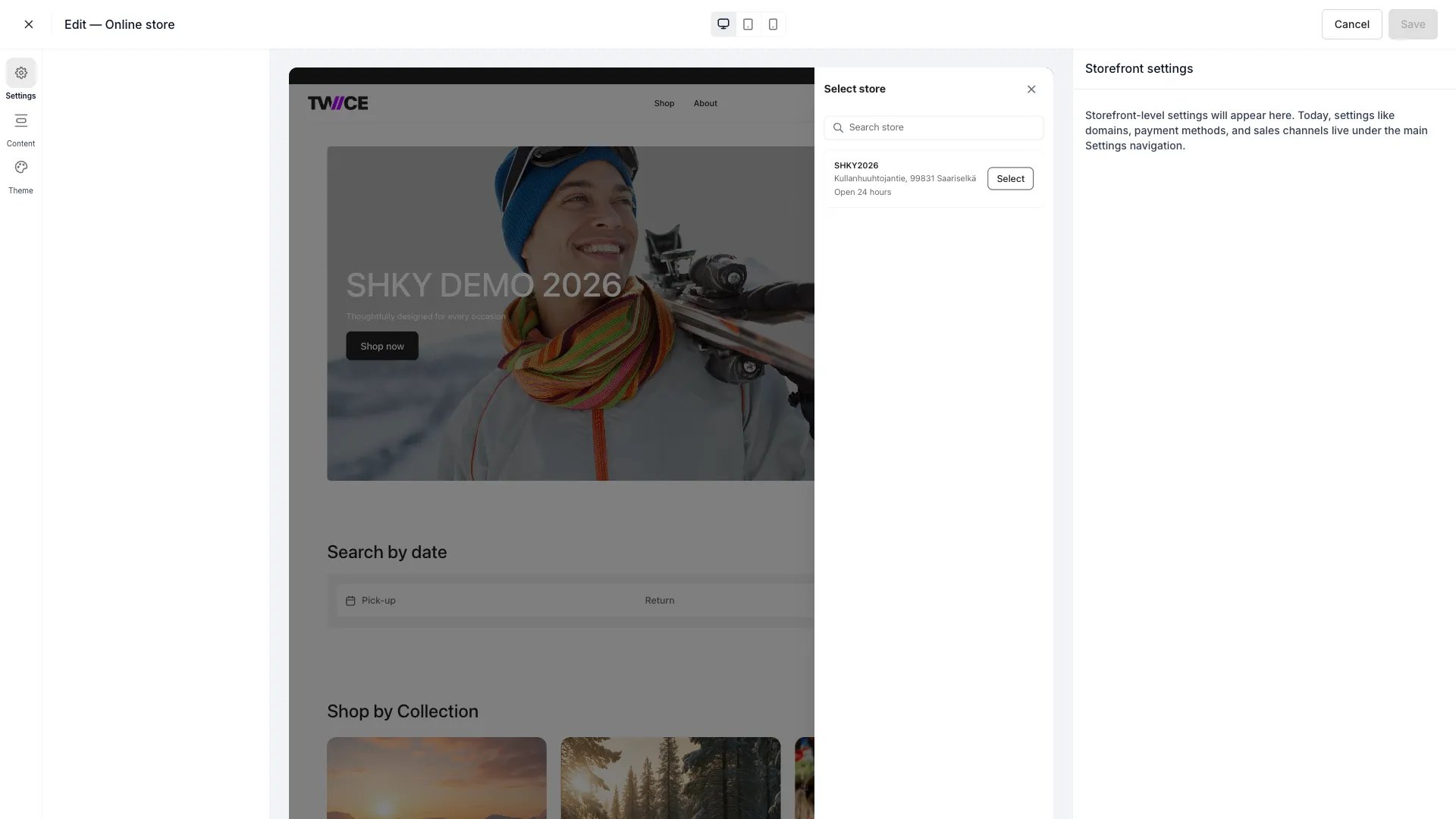
Settings panel
Visibility and permissions
This view is gated byonline_store:editor, in the four operations — , , and .
All four system roles — Owner, Admin, Manager and Member — hold every operation on this.
For what each operation means and the full role matrix, see Users & Roles.
Related articles
Design the storefront
The order to work these panels in, and why it matters.
Pages and navigation
Composing the templates and wiring the header and footer.