

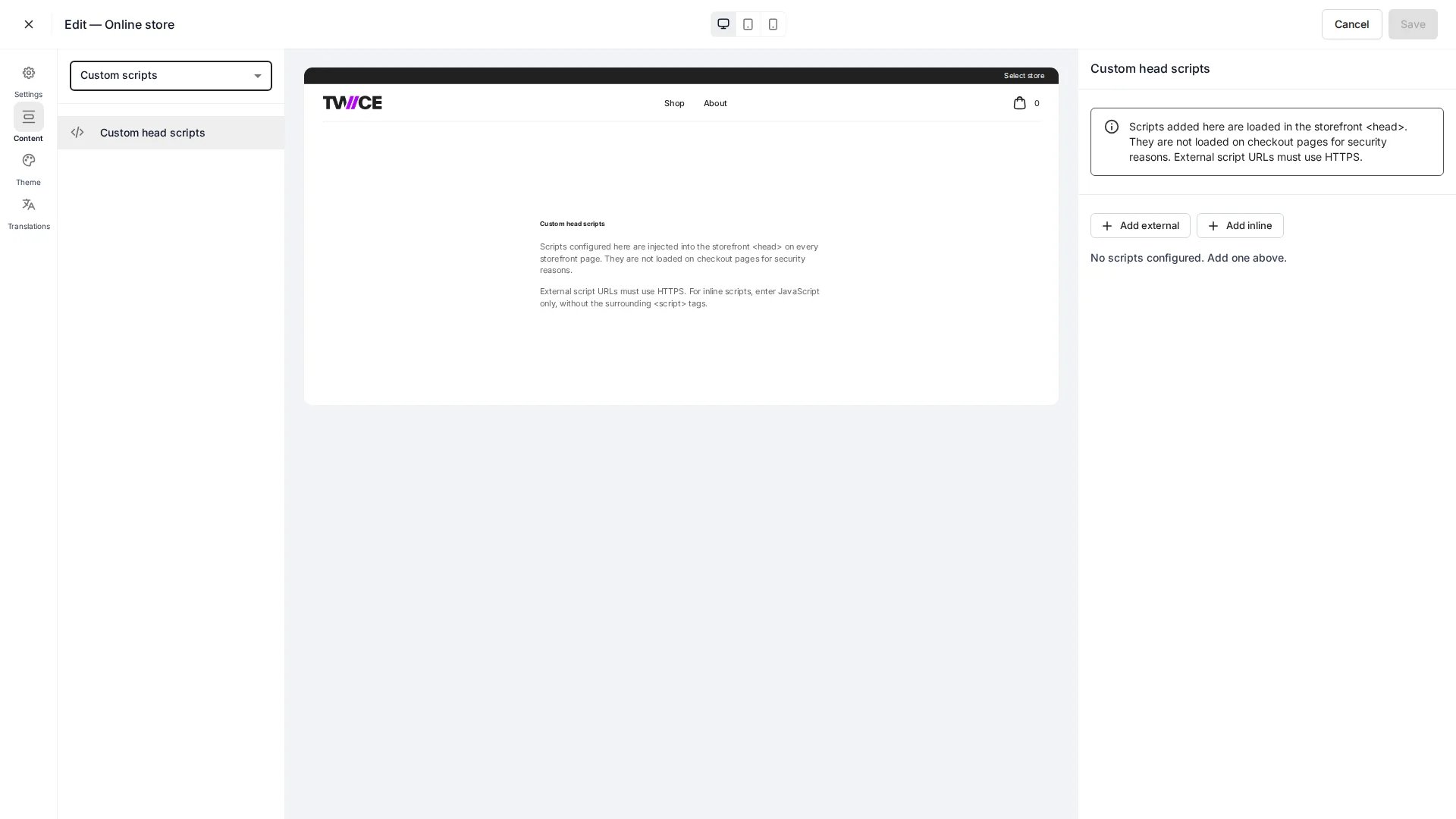
Online Store > Custom scripts
<head> of your storefront — for analytics, tag managers, chat widgets, or other third-party tools. Each script is sanitised on the server before it is saved.
Script types
You can add two kinds of script:Examples
<script> tag with your URL and attributes. Inline scripts are wrapped in a <script> tag automatically — paste only the JavaScript, not the surrounding tags.
Paste a script tag
Instead of filling in each field manually, you can paste a complete<script> tag. Open the Paste a script tag section on any external script entry, paste the full tag, and click Parse tag. The editor extracts the src, loading mode (async/defer), and any allowed attributes automatically.
If the pasted tag contains disallowed attributes (such as event handlers like onload) or a non-HTTPS src, the editor shows a validation error and rejects the paste.
Security controls
These rules are enforced when you save — invalid scripts are rejected or cleaned automatically:-
External
srcmust behttps://. Absolute HTTPS URLs only.http:,javascript:,data:,file:, and protocol-relative (//host) URLs are rejected. -
Inline content is fenced. The
</scriptend-tag token is stripped so inline code cannot break out of its<script>tag. -
Attributes are allow-listed. On external scripts, only these attributes are kept, alongside
src,async, anddefer:id·crossorigin·integrity·nonce·referrerpolicy·fetchpriority·type·nomodule— plus anydata-*attribute. Event-handler attributes (onload,onerror, and otheron*) are removed — they are an XSS vector.
Custom scripts are never loaded on payment pages — see Payment pages below.
Payment pages
Three route families render or lead directly into payment. TWICE Commerce holds them to PCI DSS rules that do not apply to the rest of your storefront:
Two things follow from that.
Your scripts never run there. These pages ignore
headScripts entirely, so no script you add — analytics, tag manager, chat widget, consent manager — loads on any of them. This includes the order confirmation step, so you cannot fire purchase tracking from the browser at the moment an order is placed. Track completed orders server-side instead, from the order.created webhook.
TWICE Commerce loads one script of its own. These pages, and only these pages, load a client-side script monitor from csidetm.com. It satisfies PCI DSS v4.0 requirement 6.4.3 (an inventory and integrity check of every script on a payment page) and 11.6.1 (tamper detection on the page’s scripts and HTTP headers).
TWICE Commerce operates it under a single platform account: the numeric segment in its URL identifies TWICE Commerce, not you, and is identical on every merchant’s store. It loads render-blocking, so it is in place before the payment form’s own scripts run.
The two are exact opposites of each other — where your scripts run the monitor is absent, and where the monitor runs your scripts are absent. They never load on the same page.
Leaving a payment page reloads the document instead of navigating client-side, so expect a full page load when a customer goes from checkout back to your storefront. This is deliberate: it stops the monitor at the moment the customer leaves the payment page.
Usage
- Open Custom scripts in the Online Store editor.
- Add an External or Inline script.
- For external scripts, enter the
https://URL and choose the loading mode (async,defer, or blocking) — or use Paste a script tag to fill in the fields from a copied<script>tag. - Add any allowed attributes (e.g.
data-*,id,integrity) if needed. - Save. The script is sanitised and stored, then injected into the storefront
<head>on the next load.
Targeting storefront DOM IDs
The storefront exposes two stable DOM IDs that your head scripts can target to inject custom content into the footer — for example, a cookie consent settings link.
Anchors (
<a>) appended as direct children of #twice-footer-links automatically inherit the policy links’ styling (typography, color, no underline). Your script does not need to replicate theme styles.
Example: adding a cookie consent link
This inline script appends a “Cookie Settings” link to the footer policy links row. It waits for the DOM to load, then inserts the link so it matches the existing policy links visually.Custom scripts do not run on payment pages. The footer does not render there either, so DOM ID targeting is limited to storefront pages.
Related articles
Custom CSS
Add custom styles beyond the visual theme settings.
Online Store overview
Configure and publish your storefront.