

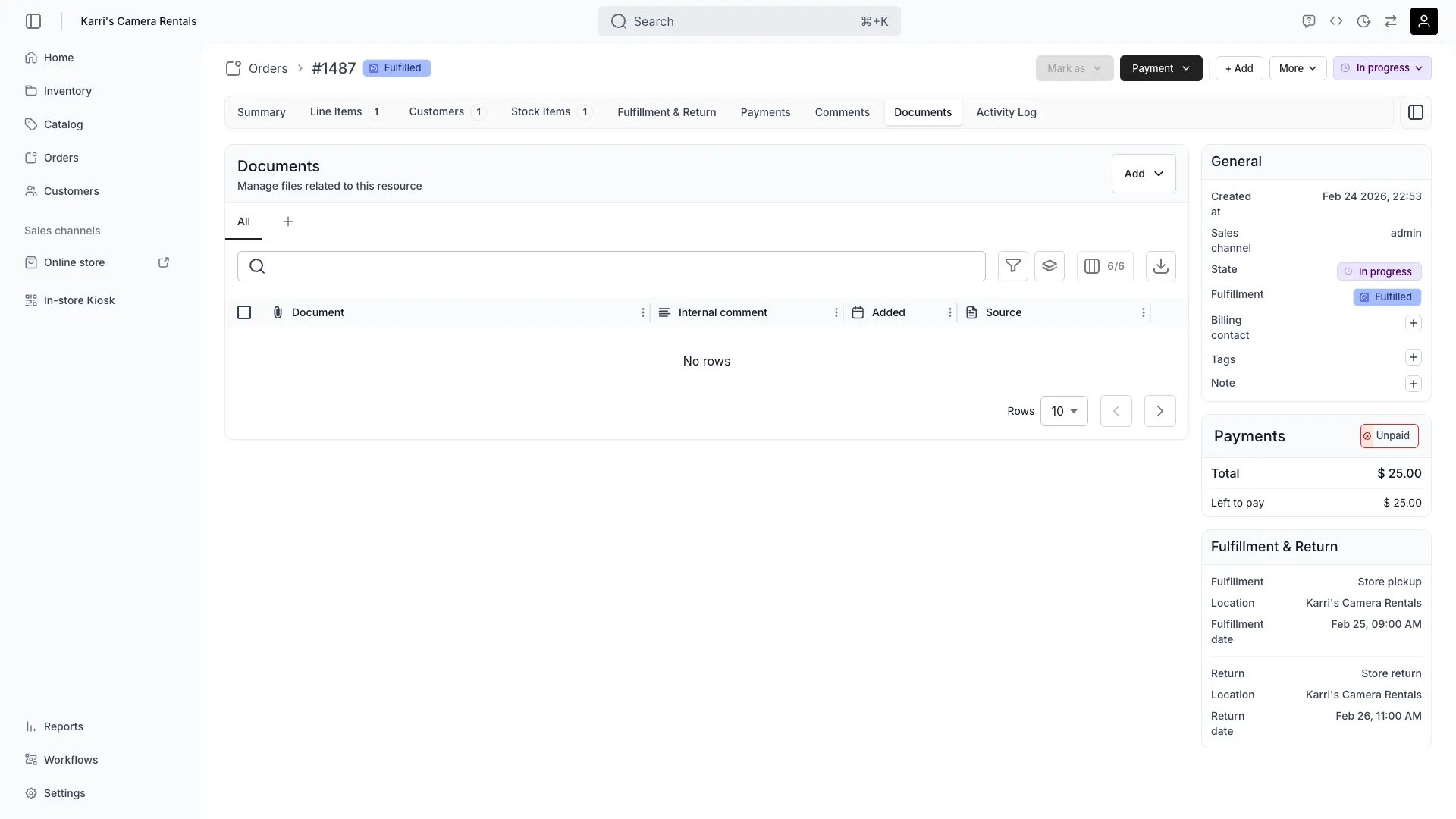
Orders > [Order] > Documents
This view can look different dependent on your user role.
See Visibility and permissions for details.
See Visibility and permissions for details.
Open in TWICE Admin
orders/[order-id]/attachments
Primary purpose
The Documents tab allows you to upload and manage files related to the order such as contracts, photos, or supporting documentation. Documents also arrive here automatically, copied from the listings, SKUs, and stock items on the order.Upload Documents
Upload Documents
Attach contracts, rental agreements, damage reports, or any relevant documentation to the order.
Create a Document from a Template
Create a Document from a Template
Select Add → Create from template, pick a template and create a PDF that is saved on this tab. Attach images, PDFs and videos to it before you create it.Read more: Attach files to a created document
Review Copied Documents
Review Copied Documents
A document on a listing, SKU, or stock item flagged Copy to order is copied here whenever that resource joins the order. The Source column names where each document came from, so you can tell a copied certificate from a file someone uploaded to the order by hand.
Add Photos
Add Photos
Upload photos of items before pickup, condition documentation, or proof of delivery.
Organize Files
Organize Files
Categorize attachments by type and add descriptions for easy retrieval.
Rename Files
Rename Files
Rename any uploaded file from the row actions menu. The file’s storage location stays the same — only the display name changes.
How documents arrive on an order
A document reaches this tab in one of two ways: someone uploads it here, or it is copied from a resource on the order. The copy is driven by the Copy to order flag on a document attached to a listing, a SKU, or a stock item. Flag a stock item’s inspection certificate and it lands on every order that stock item joins.
A stock item copies its flagged documents however it got onto the order: through the Add stock item dialog, through the stock item drawer, by scanning a stock code, or when TWICE Commerce auto-assigns a free stock item.
Turning Copy to order on also backfills. Existing orders that already reference the listing, SKU, or stock item receive the document, so the flag is not only forward-looking.
Attach files to a created document
Select Add → Create from template on this tab, pick a template, and select Add attachments in the dialog to append files to the PDF. A document shortcut opens the same dialog on its template’s preview, so the button is there too. Templates come from Settings → Documents.1
Open the template
Select Add → Create from template and pick a template. Edit File name if you want a different name.
2
Choose the files
Select Add attachments. The file manager opens on this order’s folder, and you can browse to any other folder.
3
Create the document
Select Create. The PDF appears on this tab.
Every attachment, videos included, is also linked from an Attachments list at the end of the template’s text. The list and the added pages follow the order shown under the preview. Other file types, such as GIF, WebP or Word files, cannot be chosen.
Two limits apply, and the dialog disables Create with a message under the list when you pass one:
Videos do not count towards the size limit.
If TWICE Commerce cannot read an image or PDF, for example a damaged PDF, no document is created. The error names the file: “Could not add {file name} to the document. Remove it and try again.” Remove that file, or upload a fresh copy, and select Create again.
The same Add → Create from template menu is on the Documents tab of a customer, a stock item and a listing, and attachments work the same way there.
Related concepts
Here are a few key concepts of TWICE Commerce that relate to Order Documents.Document Types
Document Types
Different attachment types serve different purposes: contracts for legal records, photos for condition tracking, receipts for accounting.
Copy to Order vs Attach to Order Confirmation
Copy to Order vs Attach to Order Confirmation
Two different flags on the same source document. Copy to order puts the file on this tab. Attach to order confirmation attaches it to the order confirmation email instead. Setting one does not set the other.
Audit Trail
Audit Trail
Documents become part of the order’s permanent record for dispute resolution and compliance.
Visibility and permissions
This tab is gated byorders:order_documents, in the four operations — , , and .
All four system roles — Owner, Admin, Manager and Member — hold every operation on this.
For what each operation means and the full role matrix, see Users & Roles.