

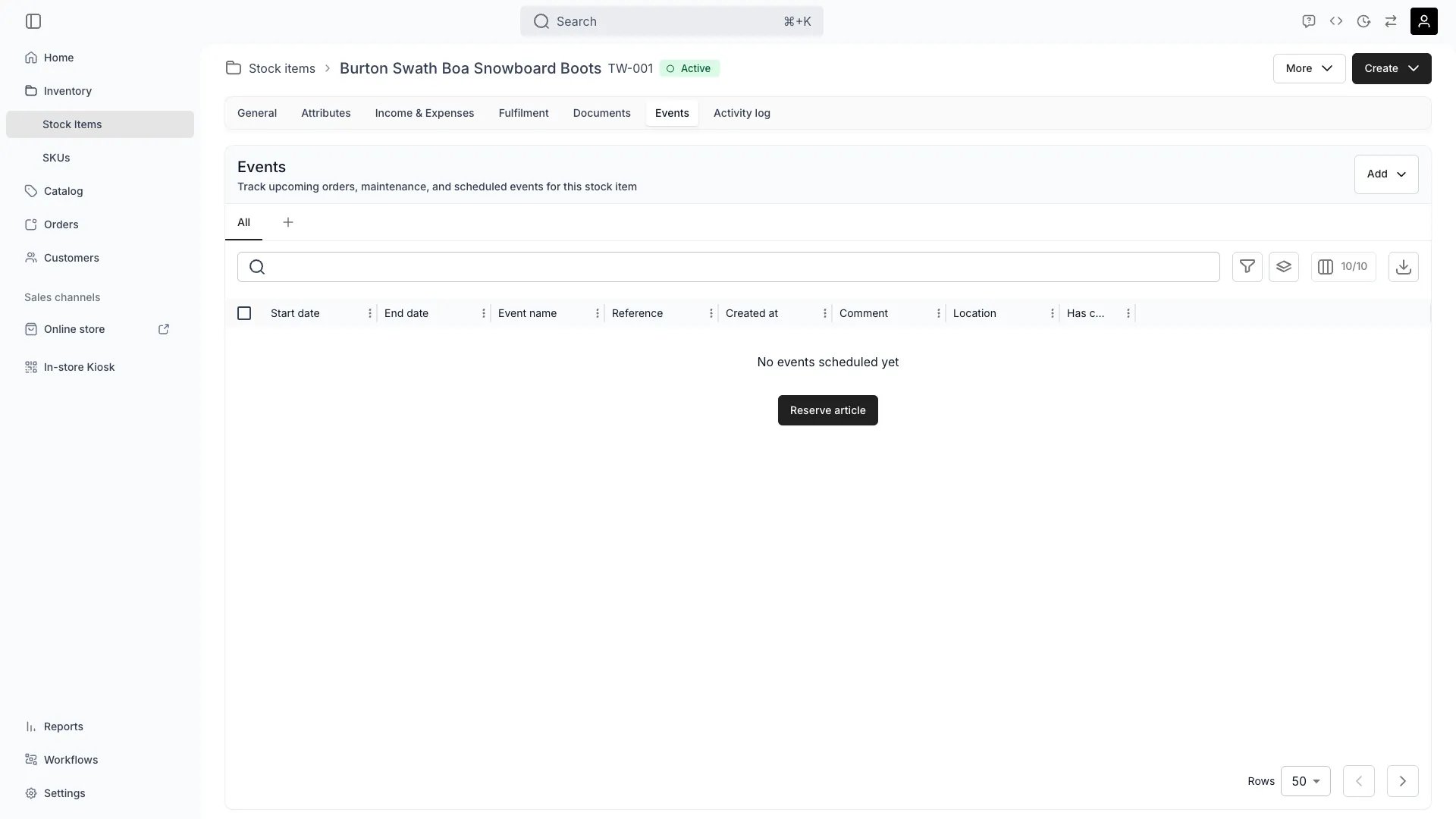
Inventory > Stock Items > [Item] > Events
Definition
A Stock Item’s events make up the timeline of everything that has happened to that item. TWICE distinguishes two layers:- Scheduled events — time-ranged blocks (reservations and notes) created by you or by automation. These can block availability and may carry attachments.
- Activity log events — the system-recorded history of changes to the item (order assignment, fulfillment, status, location, attributes).
Where do I use it?
Events are displayed in the Events tab of each Stock Item. You work with events when:- Tracking item availability — see what is blocking availability and when items will be free.
- Recording customer orders — order events are recorded automatically when items are assigned to orders.
- Managing internal reservations — block items for maintenance, storage, or internal use.
- Adding documentation — record inspections, condition notes, repair logs, or important observations.
- Auditing item history — reconstruct exactly when and why an item changed state, status, location, or SKU.
- Reporting — view all events across your inventory in one table.
Scheduled events
Scheduled events are user-controlled and live on the article viascheduledEvents. Two types exist:
endDate can be null for open-ended events. Reservations with null end dates make the item unavailable until the reservation is closed.
Reservations
Reservations create anunavailability range for the item. They are the way to take a Stock Item off the available pool for an internal reason — not a customer order — like maintenance, photo shoots, training, or holding an item for a known event.
- Manually created from the Stock Item’s Events tab via Add → Reservation, which opens the Schedule a reservation drawer, or via
POST /articles/:id/scheduled-events. An item with no events yet offers Reserve article in the empty state. - During the reservation range, the item drops out of ATS and cannot be assigned to new orders.
- Once the end date passes, availability automatically returns. Reservations expire on their own — no manual cleanup required.
- A reservation can carry an attachment via the article ledger (
scheduledEventIdon a ledger entry) — e.g. log the repair cost against the reservation that scheduled the work.
Reservation priority
A manually-created reservation takes precedence over existing holds (orders and other reservations) when the stock item has no free capacity. TWICE resolves the conflict in order:- Use any free capacity.
- Rearrange existing holds into other free slots where possible.
- As a last resort, release the fewest existing holds needed to make room.
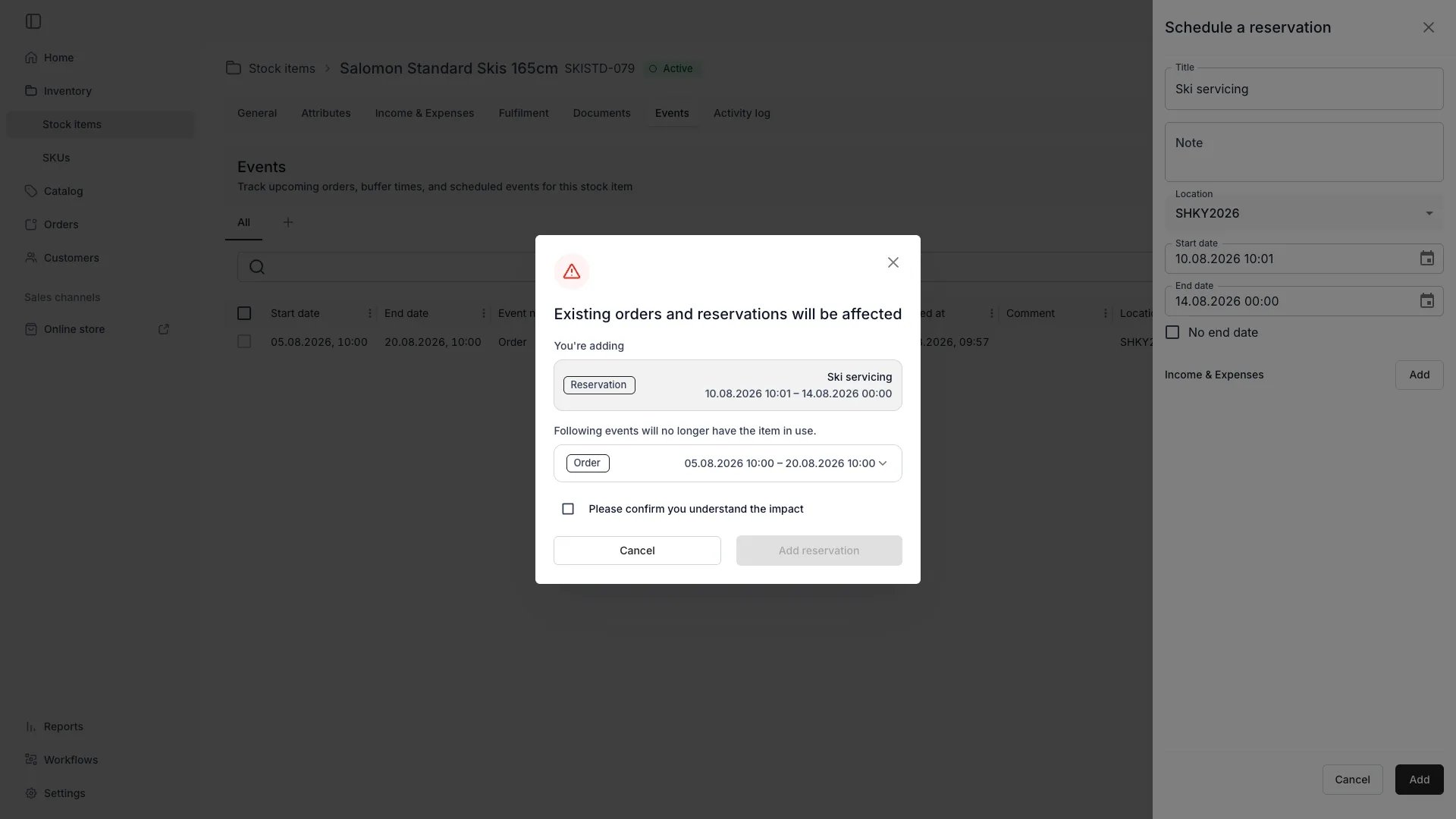
Reservation conflict confirmation dialog
- The reservation you are adding (name, dates, location).
- A scrollable list of every order and reservation that will lose its hold on the stock item.
- Each affected row can be expanded to load details — order number, customer, status, and dates for orders; name and comment for reservations.
- A “Please confirm you understand the impact” checkbox gates the confirm button, Add reservation.
Notes
Notes are timestamped entries that do not block availability. Use them to document anything operational that should live on the item’s record but is not a real-time commitment.- Manually created from the Stock Item’s Events tab via Add → Note, which opens the Add a note drawer, or via
POST /articles/:id/scheduled-eventswithtype: 'note'. - Visible to operators with access to the item; never shown to customers.
- Can have an
endDateif the observation covers a range (e.g. “condition observed Jan 10–15”) ornullfor a single timestamp. - Useful as a base for incident reports, condition history, and operational handoffs.
Order events (activity log)
When an item is assigned to a customer order, TWICE records a stream of events in the activity log. These events are system-driven and not editable. The full set of system event types:Comparison
Where to manage events
Customer Orders
Internal Reservations and Notes
Internal reservations vs holds
Reservations are the only way to “hold” inventory in TWICE outside of an order. Common patterns:- Maintenance window. Block an item for a scheduled service period. Attach a ledger cost entry to the reservation for the repair invoice.
- Photo shoot or training. Block an item without involving the orders system.
- Operator hold. A customer is en route to pick up — create a short-range reservation so no one else can book that item.
- Damage assessment. Block the item until you have inspected and decided whether to return it to service.
Documents attached to events
Files can be attached to events through two mechanisms:- Stock Item documents (
documentson the article) — global to the item. - Article ledger entries with
scheduledEventId— financial entries tied to a specific reservation. The ledger entry can reference a file attachment as part of itsvaluepayload.
Yearly service reservation drives a cost ledger entry of €150 with a PDF receipt attached. Both the reservation and the ledger entry stay linked, making the item’s audit trail traceable end to end.
Workflow triggers from events
Events are natural automation hooks. Common patterns:- On
handed_out→ start a timer; flag the order as overdue ifreturneddoes not fire withinNdays. - On
returned→ create a maintenance reservation if the order line was tagged as damaged. - On
status_changedto Lost → notify operations and open a ticket in your support system. - On reservation expiry → automatically set status back to Active after a repair window closes.
- On
assigned_to_order→ write a webhook to your warehouse system to prepare the item.
Lifecycle
Creation
How are order events created?
How are order events created?
assigned_to_order → handed_out → returned. Cancellations record freed_from_order.Manual creation
How do I create a reservation?
How do I create a reservation?
POST /articles/:id/scheduled-events with type: 'reservation'.How do I create a note?
How do I create a note?
POST /articles/:id/scheduled-events with type: 'note'.Automated creation
Can event creation be automated?
Can event creation be automated?
Display
Where do I see events?
Where do I see events?
How are events sorted?
How are events sorted?
What is shown for each event?
What is shown for each event?
attributeChanges) or the order context (eventContext).Modification
Can I edit order events?
Can I edit order events?
Can I edit a reservation?
Can I edit a reservation?
PUT /articles/:id/scheduled-events/:eventId with the new fields. Or click the reservation in the timeline and edit. Availability recalculates immediately.Can I edit a note?
Can I edit a note?
Deletion
How do I delete a reservation?
How do I delete a reservation?
DELETE /articles/:id/scheduled-events/:eventId. The blocked availability is released immediately.How do I delete a note?
How do I delete a note?
Can I delete order events?
Can I delete order events?
freed_from_order (and possibly returned if applicable) but the original assigned_to_order event stays in the log.Bulk delete?
Bulk delete?
POST /articles/:id/scheduled-events/delete-many accepts either explicit ids or deleteAllExcept semantics.FAQs
Why would I use a reservation instead of an order?
Why would I use a reservation instead of an order?
Can I convert a reservation to an order?
Can I convert a reservation to an order?
Do notes appear to customers?
Do notes appear to customers?
Can I attach documents to events?
Can I attach documents to events?
scheduledEventId so financial attachments (invoices, receipts) stay associated with the reservation that triggered them.How do events affect availability calculations?
How do events affect availability calculations?
Can I see all events across all stock items?
Can I see all events across all stock items?
What happens if a reservation overlaps an order?
What happens if a reservation overlaps an order?
What are stock item conflicts on orders?
What are stock item conflicts on orders?
Developer Reference
Scheduled events (reservations and notes) are exposed asunavailabilities. Activity log entries come from audit-logs.