

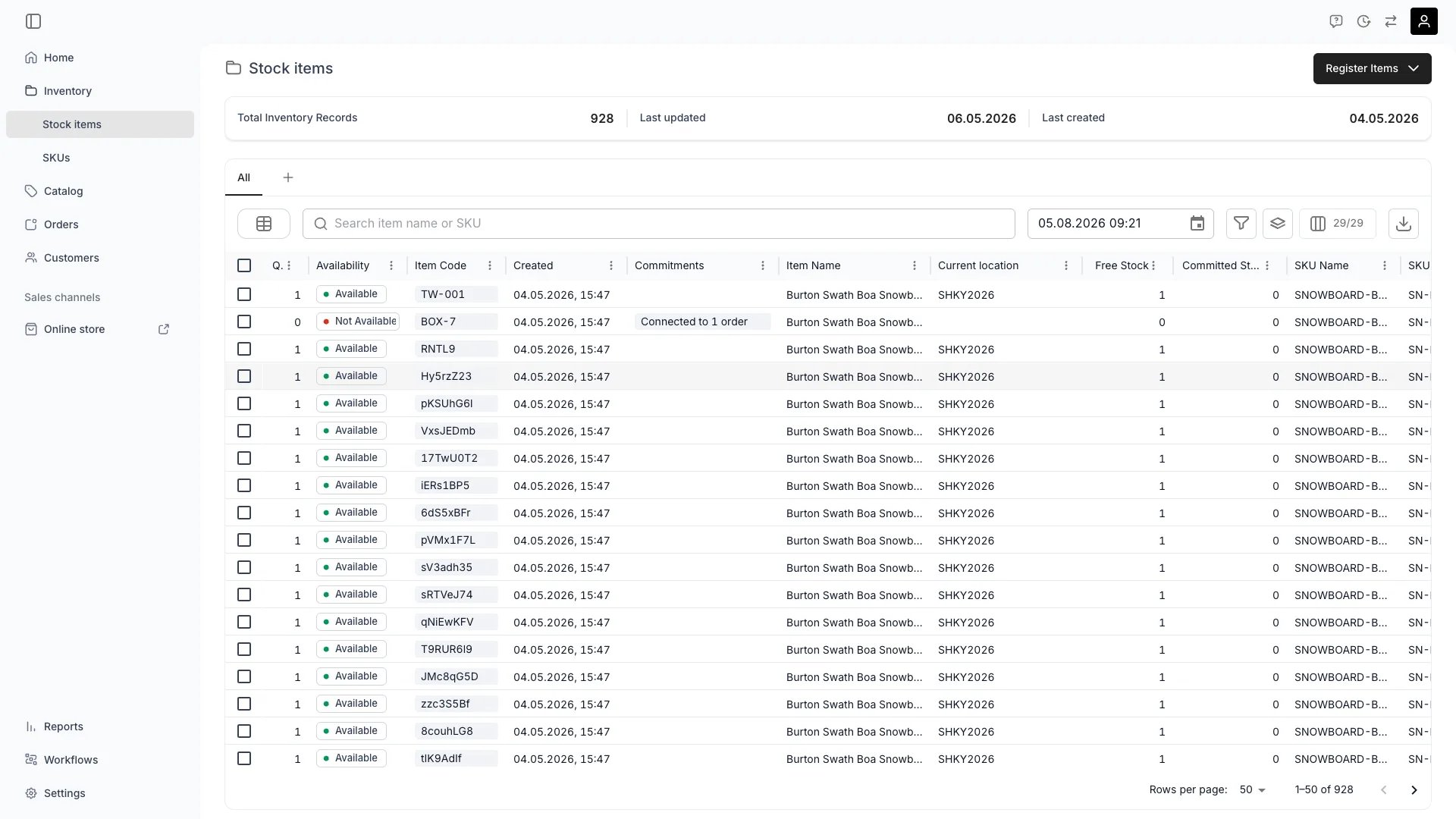
Inventory > Stock Items
Definition
A Stock Item is the unit of inventory you actually own — the digital twin of a physical thing. Stock items are held in inventory records (called anarticle in the API), one record per item or one record covering several identical ones; how you track them is your choice.
A record carries codes, location, condition, attributes, media, documents, a full event timeline, and income and expenses, and belongs to a tenant and a service location. It may also be linked to a SKU, from which it inherits product-level fields by default.
Where do I use it?
Stock Items are the foundation of TWICE’s inventory system. You work with Stock Items when:- Registering new inventory — recording units that enter your fleet, store, or warehouse
- Tracking item lifecycle — usage, rentals, sales, maintenance, depreciation, disposal
- Managing availability — knowing what is at hand, out with a customer, or under repair
- Analysing profitability — reading income and costs per individual item via the ledger
- Fulfilling orders — assigning specific items to customer orders, scanning them in and out
The article ledger
Every Stock Item has its own ledger — a chronological log of monetary entries grouped as either income or cost. Together they produce the item’s profitability. In the admin this appears as the item’s Income & Expenses tab; the API resource isarticleLedgers.
orderId (auto-recorded when an item earns from an order), to a scheduledEventId (e.g. a maintenance reservation that incurred cost), or stand alone (manual adjustments).
Quantity handling: serialized vs pooled
How a Stock Item is tracked is decided at registration with the Track individually checkbox (trackIndividually in the create request, default true) and the Quantity field.
N creates one inventory record per stock item. With it off, you create a single record covering all N. trackIndividually is a create-time input only — it is not stored on the Article resource. On responses, the quantity object reports the record’s total unit count and its byLocation breakdown.
When to choose each:
- Serialized — bikes, skis, cameras, lifts, kayaks, e-scooters, any rentable or high-value asset.
- Pooled — helmets, locks, lanyards, lift passes (when not RFID), small consumables you do not need to trace individually.
Key Properties
A Stock Item is represented by theArticle type. The most important fields:
purchasePrice, description, attributes, and category can be defined on the SKU. The Stock Item reads from the SKU unless it has its own value. The *Origin fields in the API tell you which source supplied each value (article or sku). Setting a value on the item overrides the SKU default; clearing the value lets it re-inherit.Fulfillment field values inherit the same way and are kept apart from attributes: a value entered on an order wins, else the item’s, else its SKU’s. See Fulfillment fields.Status
Status describes where the item sits in its operational lifecycle. Three values exist:- Active — operational, available to be assigned to orders. (
status: 'active'in the API.) - Inactive — excluded from operations (e.g. under repair, retired, lost, or sold). Preserved in the system. (
status: 'inactive'.) - Draft — registration in progress. Not yet operational. (
status: 'draft'.)
State (In / Out)
State describes the item’s physical location relative to your operation. It is automatic — you cannot set it manually.- In — at hand in your inventory. May still be committed to an upcoming order.
- Out — currently with a customer (rental in progress) or otherwise away.
- Pickup / handout → Out
- Return → In
Location tracking
A Stock Item is always tied to a service location. ThearticleLocations array stores the assignment as temporal ranges:
- The current location is the assignment whose range covers
now. - You can schedule future transfers by adding a new range with a future start.
- All location changes are recorded in the activity log as
location_changedevents.
PUT /articles/:id with a new serviceLocationId), TWICE checks for conflicts: orders or scheduled events that would be left stranded by the move. The conflicts field on the article response surfaces these proactively.
Media and documents
Two ordered file collections per item:- Media (
media) — images and videos shown on the item detail. The first media item is used as the thumbnail in lists. Reorderable. - Documents (
documents) — arbitrary files (PDFs, spreadsheets, photos). Each document carries anorderIndexand an optionalcomment.
Activity log and events
Each Stock Item has two streams of history:-
Activity log — system-recorded changes to the item itself. Examples of recorded event types:
assigned_to_order/freed_from_orderhanded_out/returnedstatus_changedallocation_changedsku_changedlocation_changedidentifiers_changedspecifications_changed
-
Scheduled events — user-created reservations and notes that may block availability and may have documents attached. Types:
reservation,note.
Relationships
Belongs to a SKU (optional)
Belongs to a SKU (optional)
skuId. The SKU acts as the product-level template: purchasePrice, description, attributes, and category cascade down unless overridden. A Stock Item without a SKU is fully self-contained.Has a ledger
Has a ledger
itemIncome, itemCosts, and profitability.Has events
Has events
References orders and customers
References orders and customers
handed_out and returned come from order fulfillment.Lives in a location
Lives in a location
articleLocations) so transfers and future moves are first-class.Lifecycle
Creation
How do I create a Stock Item?
How do I create a Stock Item?
What information is required?
What information is required?
name and serviceLocationId. Recommended: skuId (for inheritance), taxonomyCategoryId, purchasePrice, and one or more codes (auto-generated if omitted).Initial state and bulk creation
What is the initial state?
What is the initial state?
status: 'active' (Active) and the In state. They appear immediately in availability calculations. If items need inspection before going live, set status to inactive (Inactive) on creation.Can I create many at once?
Can I create many at once?
N items), the CSV import flow, or POST /articles/create-many for API import. See Bulk creation for which call to make and how many records to create.Usage
Where do I see Stock Items?
Where do I see Stock Items?
What actions can I perform?
What actions can I perform?
How does it affect listings?
How does it affect listings?
status: active and In state (and not committed to an overlapping booking) contribute to a listing’s ATS. See Stock item state.Modification
How do I edit a Stock Item?
How do I edit a Stock Item?
PUT /articles/:id.What can be changed?
What can be changed?
id itself is immutable. Codes can be added or removed but must remain unique within the tenant.What about quantity?
What about quantity?
POST /articles/:id/increase-quantity or POST /articles/:id/decrease-quantity. Before decreasing, call GET /articles/:id/plan-quantity-change to see what would be impacted (blockingUnavailabilities, moves, removedSlotIds).Retirement or deletion
How do I retire an item?
How do I retire an item?
POST /articles/:id/inactivate also tries to reassign upcoming bookings to another available Stock Item.How do I remove an item for good?
How do I remove an item for good?
When can an item be deleted outright?
When can an item be deleted outright?
DELETE /articles/:id refuses with Stock items with order history cannot be deleted — archive them instead for an item that sits on an order or holds an order-linked reservation. Order status is ignored, so closing the order does not lift the refusal.What happens to history on delete?
What happens to history on delete?
FAQs
When should I use a record with quantity > 1?
When should I use a record with quantity > 1?
Can I change the SKU link on a Stock Item?
Can I change the SKU link on a Stock Item?
skuId to a new value (or null to unlink). The change is recorded as a sku_changed event. Existing ledger and event history stay with the item.What's the difference between Item Code and SKU Code?
What's the difference between Item Code and SKU Code?
codes belongs to the Stock Item — it identifies the physical thing. code on the SKU identifies the product type. One SKU can have many Stock Items, each with its own item code(s).Which properties are inherited from the SKU?
Which properties are inherited from the SKU?
purchasePrice, description, attributes, and taxonomyCategoryId. The API returns *Origin fields telling you whether the value came from the article or the SKU. Setting a value on the article overrides; clearing it re-inherits.How does state differ from status?
How does state differ from status?
What if an item goes missing or is sold off?
What if an item goes missing or is sold off?
Developer Reference
Stock Items are exposed asarticles in the API.