

Open in TWICE Admin
orders
Prerequisites
Have ready before you start:
- Views shared with your team. A Manager, Admin or Owner saves a view and chooses Share with team in its menu. To build the views first, see Work the day’s pickups and returns.
The walkthrough
1
Open Orders
Select Orders in the left sidebar. The tab row above the table shows All and any views you saved yourself. Views your colleagues shared are not on it yet.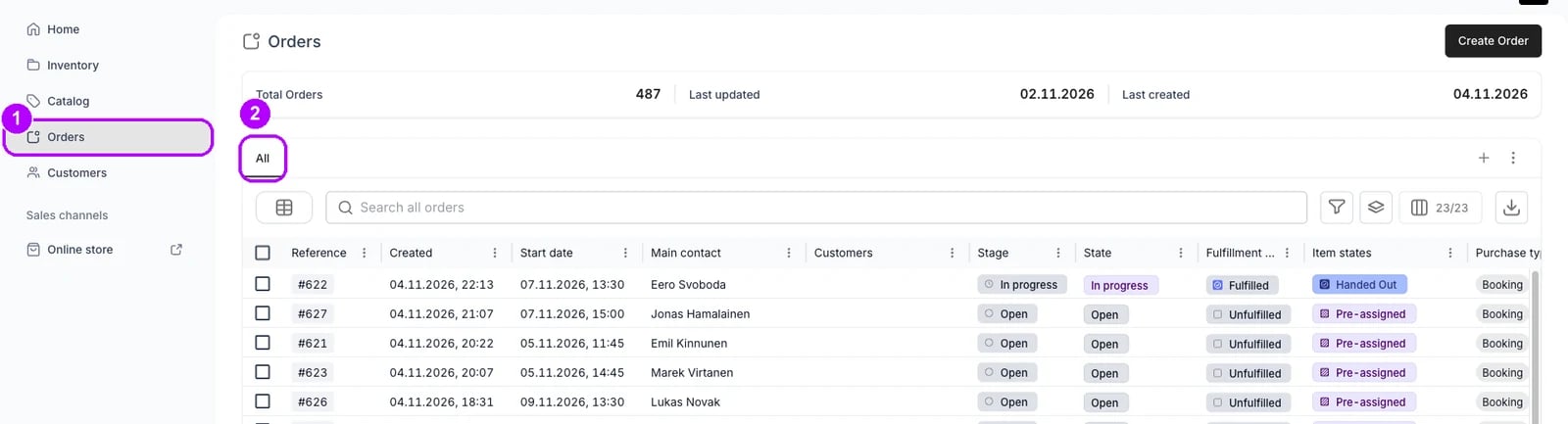
2
Open the views panel
Click the three-dot button at the right end of the tab row, whose tooltip reads Show and reorder views. The panel that opens lists every tab with a checkbox, between Search views at the top and Show all and Hide all at the bottom. A shared view carries a share icon.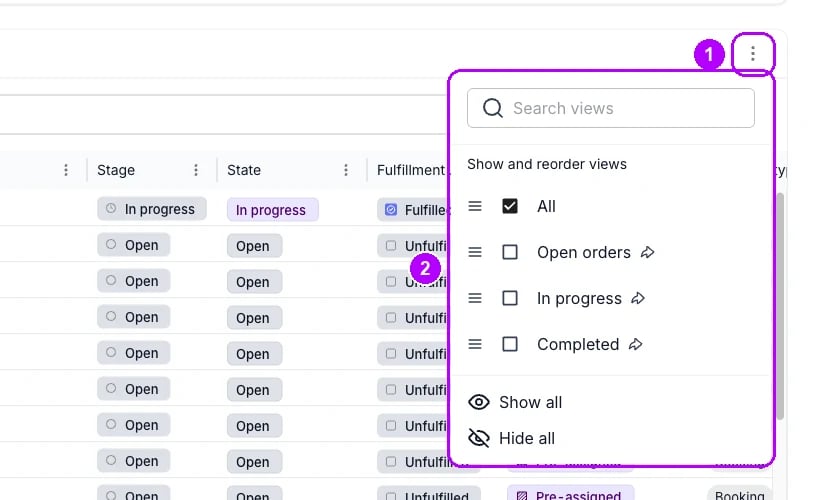
3
Tick the views to show
Select the checkbox next to each view you want on your row. The view appears as a tab right away, with the number of orders it holds beside its name. Use Search views to find a view by name in a long list.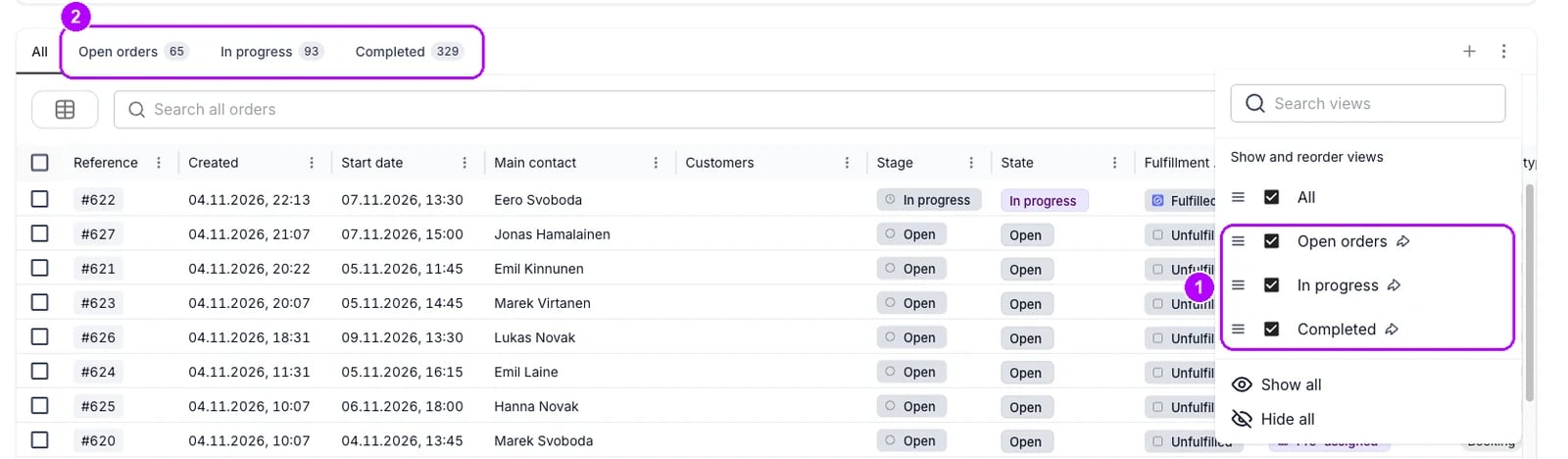
4
Hide All, if you do not use it
Remove the unfiltered tab from your row by clearing the checkbox next to All. If you were on All, the table moves to the first tab still showing. The row always keeps one tab, so the last ticked checkbox will not clear.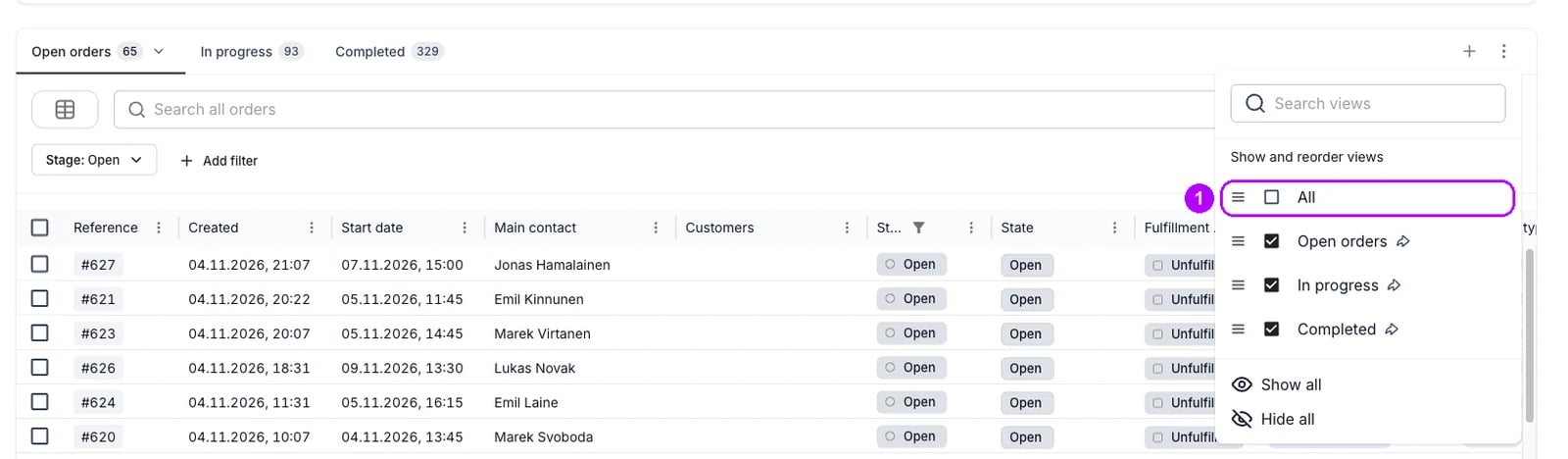
5
Put the tabs in order
Move a tab along the row by dragging the grip to the left of its name up or down the list. Leave Search views empty while you do, because dragging is off while it has text in it.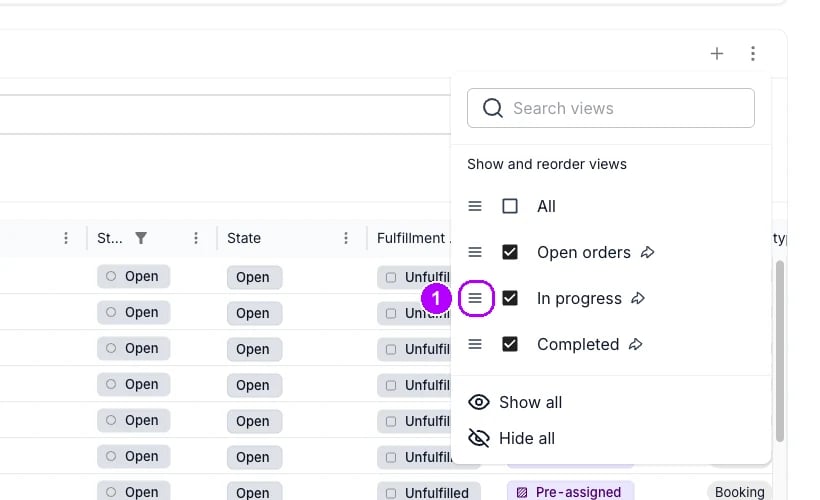
6
Close the panel and read the counts
Click anywhere outside the panel to close it. Each view’s tab shows how many orders match its filters, and 999+ from a thousand up. All carries no number. Click a tab to open that view.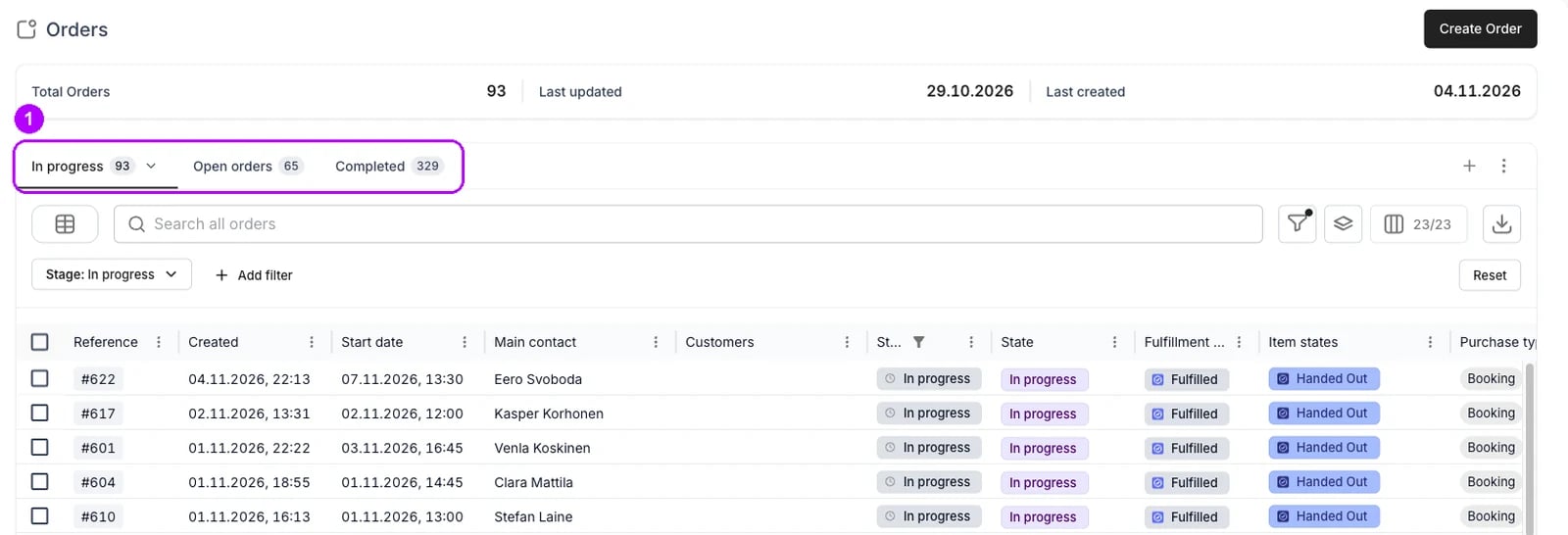
How do I know it worked?
- The views you ticked are tabs on the Orders tab row, in the order you dragged them into.
- Each view’s tab shows a count of the orders it holds.
- All is gone from the row, if you unticked it.
- The row looks the same the next time you open Orders in this browser.
Troubleshooting / common pitfalls
A view your colleagues use is not in the panel
A view your colleagues use is not in the panel
The panel lists your own views and the views shared with the team. A view its creator has not shared is visible only to them. Ask them to choose Share with team in the view’s menu. See Tables.
Your tabs are gone on another computer or browser
Your tabs are gone on another computer or browser
Your ticks and your order are kept in the browser you set them in. Another browser or device starts from the default row, with shared views hidden. Open Orders there and tick them again. See Tables.
A colleague's row does not match yours
A colleague's row does not match yours
Showing, hiding and ordering tabs changes only your own row. Ask each colleague to tick the shared views on their own row. See Tables.
Related articles
Tables
The tab row, saved views and sharing, control by control.
Work the day's pickups and returns
Build and save the views your counter works from.
Orders overview
Every column and layout the Orders table offers.