

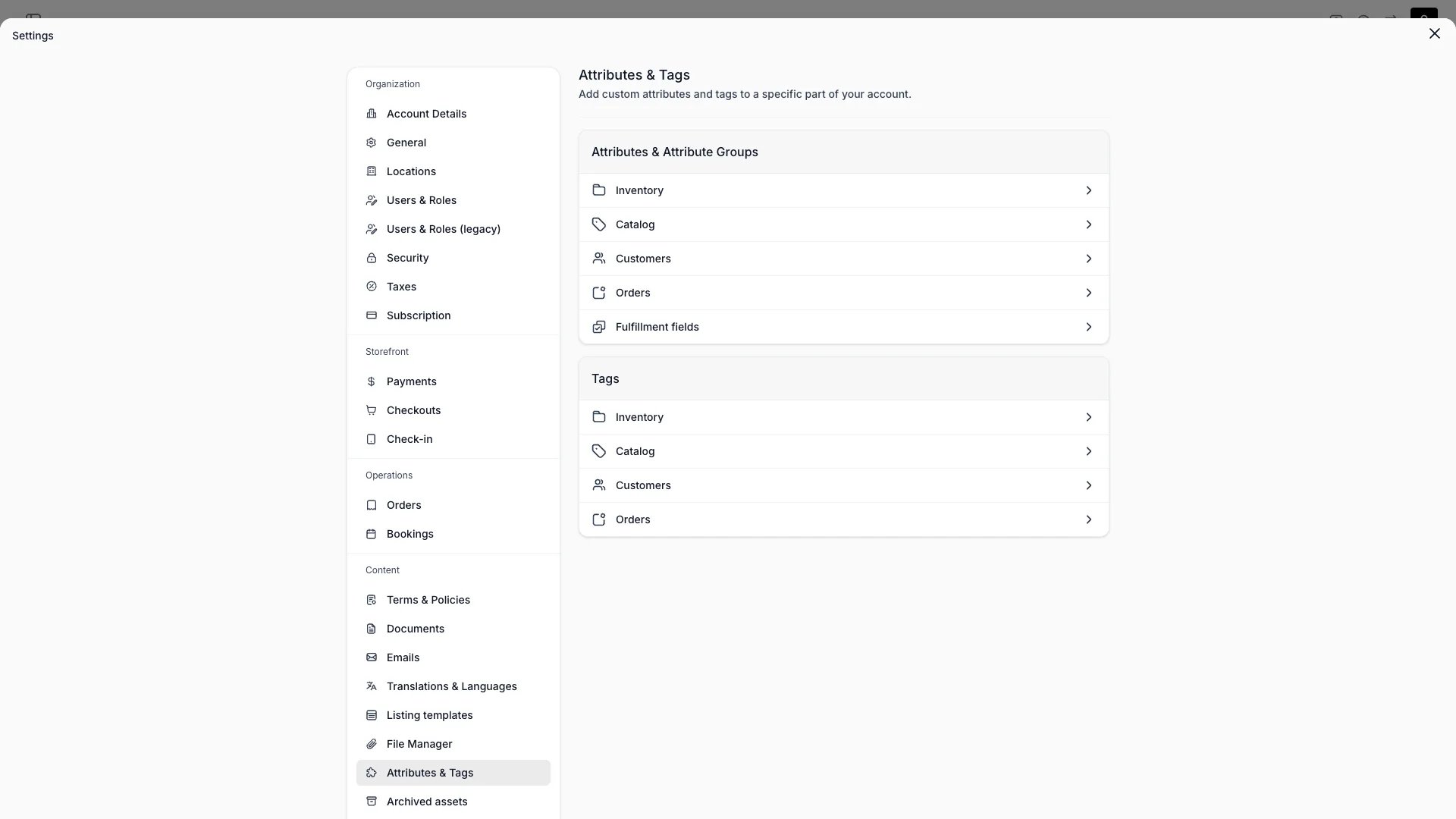
Settings > Attributes & Tags
Definition
An Attribute Group is a named bucket that holds related Attributes for a single resource (Inventory, Catalog, Customer, or Order). Groups serve two purposes:- Organization — they keep your settings page legible as the number of Attributes grows
- UI layout — they drive how the Attributes tab is divided on entity detail pages
The analogy: Think of an Attribute Group like a folder of related fields. The folder doesn’t add new fields — it organises the ones you already have so they show up together everywhere they’re used.
How groups affect the UI
Every entity with Attributes — Stock Item, SKU, Listing, Customer, Order — has an Attributes tab. That tab is organised by Group:- Each Group renders as a labeled section on the tab
- Attributes within a Group render in their
sortOrder - Ungrouped Attributes fall under a default section labeled Details
- Groups themselves render in their own
sortOrder— you can drag-reorder them in the settings table
System groups can’t be deleted or renamed — they exist whether you’ve created your own groups or not.
Key properties
An Attribute Group carries:
A Group is owned by exactly one resource. There is no cross-resource sharing — if you want similar groupings on both Stock Items and Listings, you create matching groups on each resource.
Scope: one resource, one group
Unlike some platforms, TWICE doesn’t let one Group span multiple resources. The reasoning is the same as for Attributes themselves — each resource has its own schema, and mixing groups across resources would create coupling that’s hard to reason about. In practice, this means:Lifecycle
Creating
- Open Settings → Attributes & Tags
- Pick the resource tab (Inventory, Catalog, Customer, Order)
- In the Attribute Groups section, click Add group
- Set name, optional description, and sort order
- Assign existing Attributes to the group, or assign them later from the Attributes table
Updating
- Rename, edit description, and reorder freely — display only, no data impact
- Drag-reorder groups in the table to change their
sortOrder - Move an Attribute into or out of a group at any time by editing the Attribute’s
groupId
Deleting
- Deleting a group does not delete its Attributes — they move back to the default (“Details”) section
- Bulk delete is supported from the table’s row-selection tools
system) cannot be deleted.
Working with groups in the API
Groups are listed and modified via the internal API: When you create an Attribute, supply thegroupId to place it in a specific group, or omit it to leave the Attribute in the default section.
Relationships
FAQs
Can one Attribute belong to multiple groups?
Can one Attribute belong to multiple groups?
No. An Attribute has exactly one
groupId (or none, in which case it appears under the default “Details” section).What happens if I delete a group with Attributes in it?
What happens if I delete a group with Attributes in it?
The group definition is removed but the Attributes are preserved. They move to the default section. To clean up Attributes too, delete or archive them separately.
Can groups be nested?
Can groups be nested?
No — Attribute Groups are a single level. If you need finer subdivision, create multiple groups and order them with
sortOrder.What's the difference between a group and a tag?
What's the difference between a group and a tag?
Groups organize Attribute definitions in Settings and on the Attributes tab. Tags are user-applied labels on records (Customers, Stock Items) used for segmentation and filtering. Tags don’t affect form layout.
Are system groups counted in my plan limits?
Are system groups counted in my plan limits?
No. System groups (
system) are managed by TWICE and don’t count toward any group quota on your plan.Developer Reference
Attribute groups are exposed under theattributes tag in the API.
API: Attributes
Open the endpoint in the API reference.
Related articles
Attributes
The fields that groups contain
Attributes & Tags settings
Where you create and manage groups in the admin
Listing Templates
Bulk-apply attribute sets when creating new Listings
Design Patterns
How groups fit into the broader tab-based detail page layout