

Open in TWICE Admin
orders
Prerequisites
Have ready before you start:
- A name for the view, such as Overdue.
The walkthrough
1
Open Orders on the All tab
Select Orders in the left sidebar and click the All tab above the table. If filters show under the search box, click Reset at the right end of their row. With more than one location, check the location selector in the top-left corner first: the table lists only that location’s orders.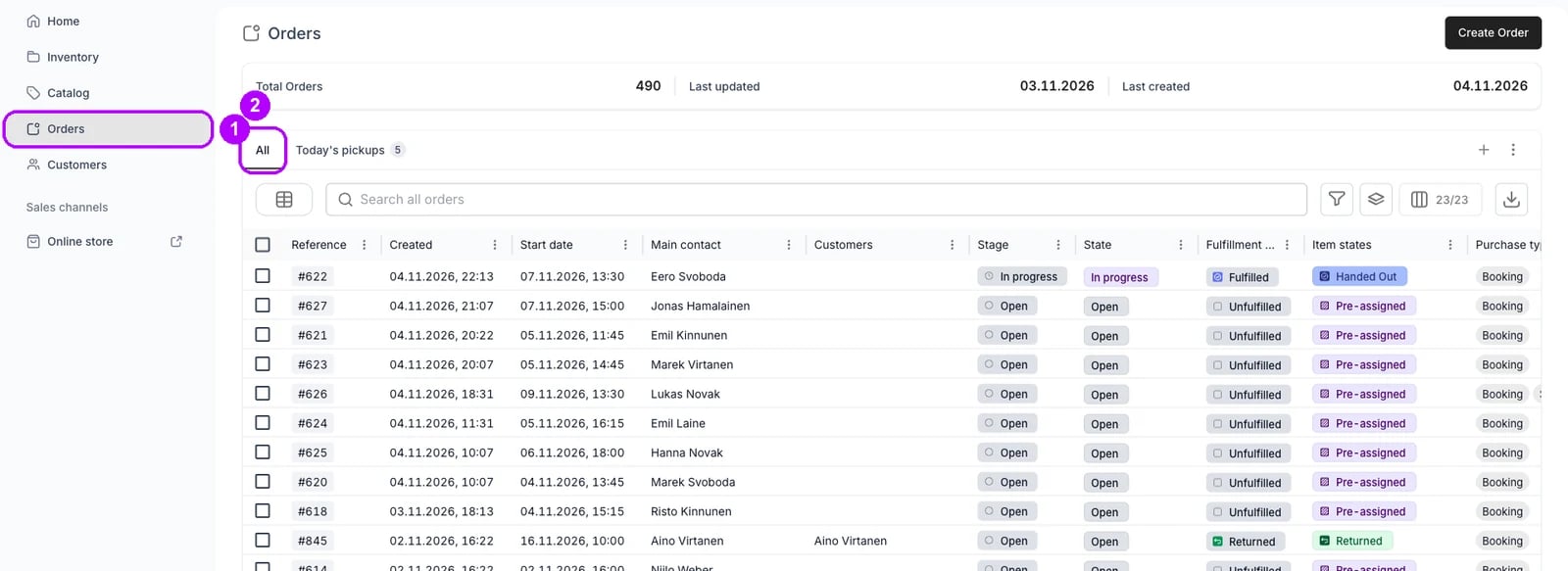
2
Filter on Stage
Click the funnel button to the right of the search box, whose tooltip reads Filter, and choose Stage in the list of columns. A Stage filter appears under the search box with its panel open, listing Open, In progress and Completed.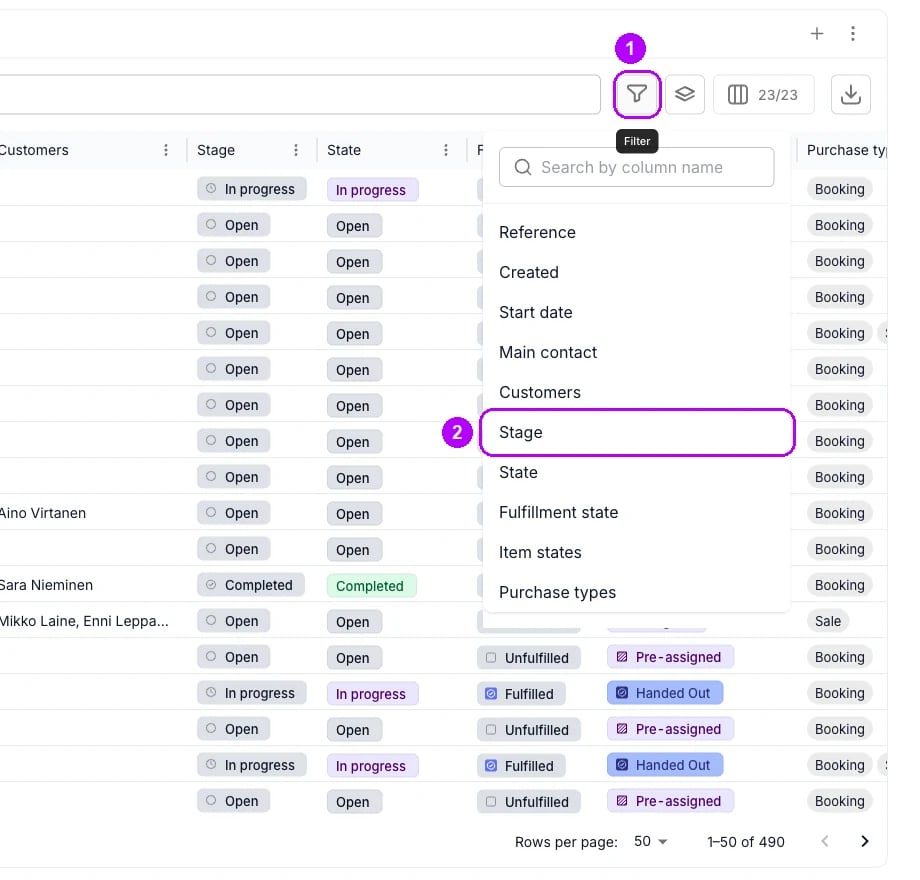
3
Tick Open and In progress
Select the checkboxes next to Open and In progress, then click outside the panel to close it. The table lists every order that is not completed.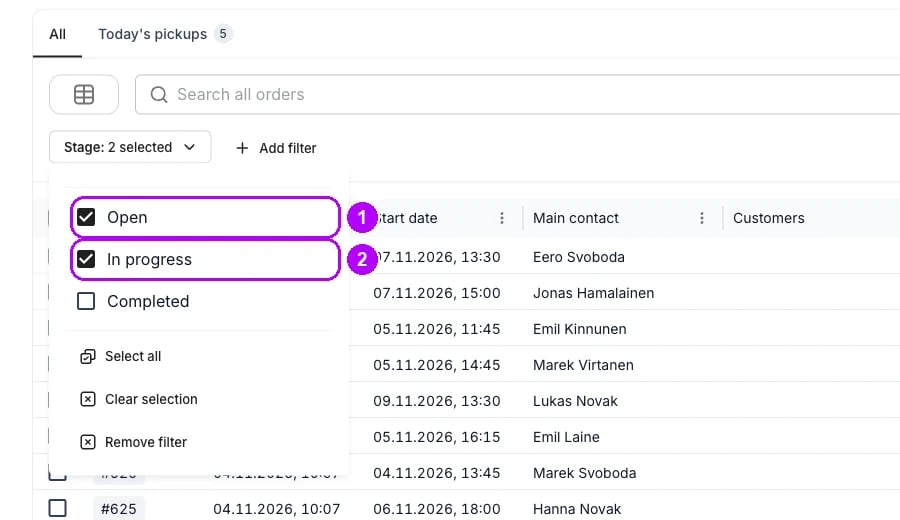
4
Add an End date filter
Click Add filter beside the Stage filter and choose End date in the list of columns. Type the start of its name in Search by column name at the top of the list to find it. Its panel opens under the new filter, with an operator list that reads is.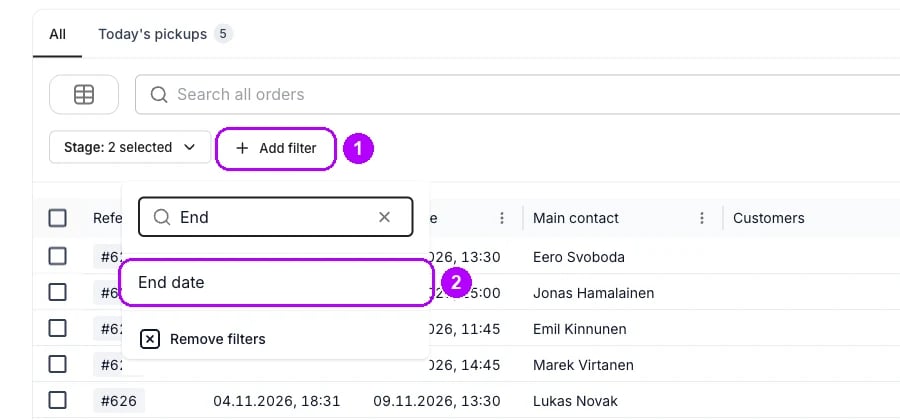
5
Choose is before today
Open the operator list and choose is before today, then click outside the panel to close it. The table lists the orders whose end date has passed and that nobody has completed.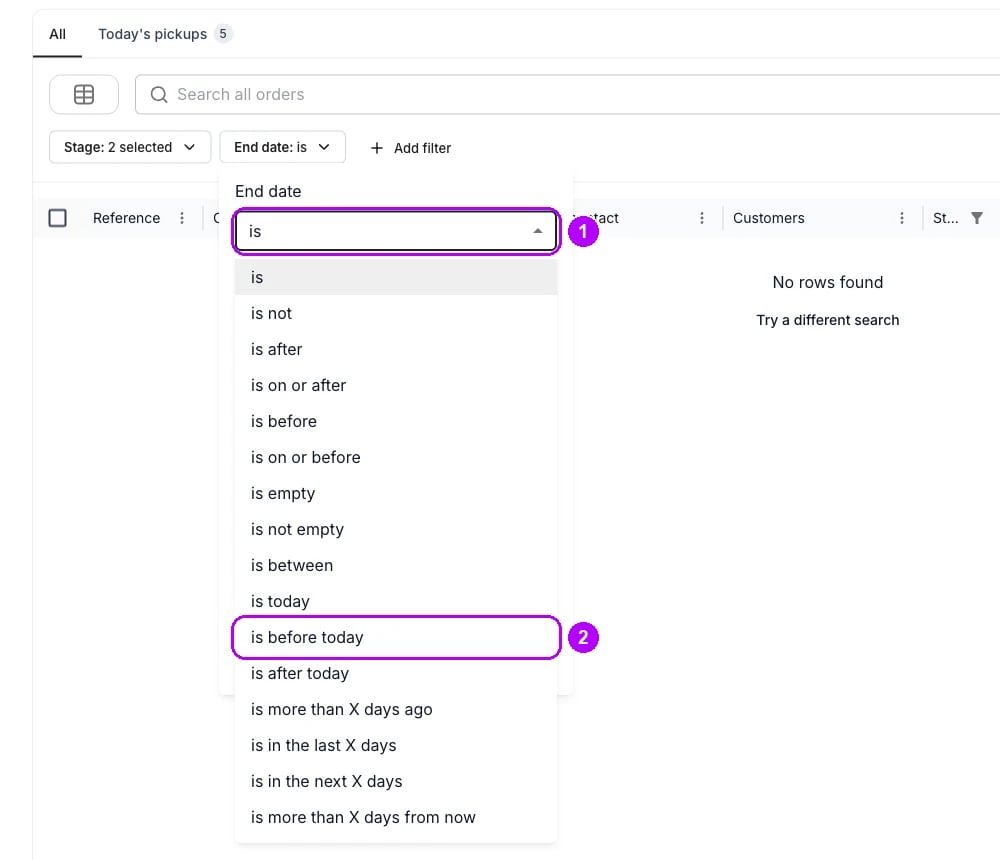
6
Save the table as a view
Click the plus button at the end of the tab row. A new tab opens with a placeholder name, such as View 4, and the number of orders it holds beside the name. It keeps both filters.
7
Open Rename
Click the arrow next to the new tab’s name. A menu of view actions opens. Choose Rename, and the Rename view dialog opens.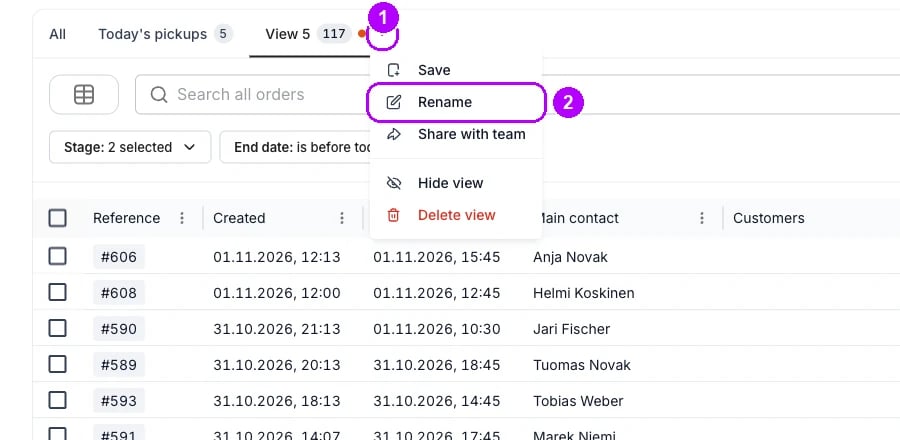
8
Name the view
Enter Overdue in View name and click Save. The dialog closes and the tab shows the new name.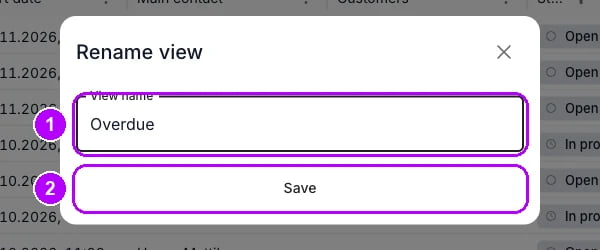
9
Open an order from the view
Click an order’s row to open it. An item that went out and is past its return date carries an Overdue chip on its line, and the banner under the order’s header counts the late items, such as 1 item is overdue.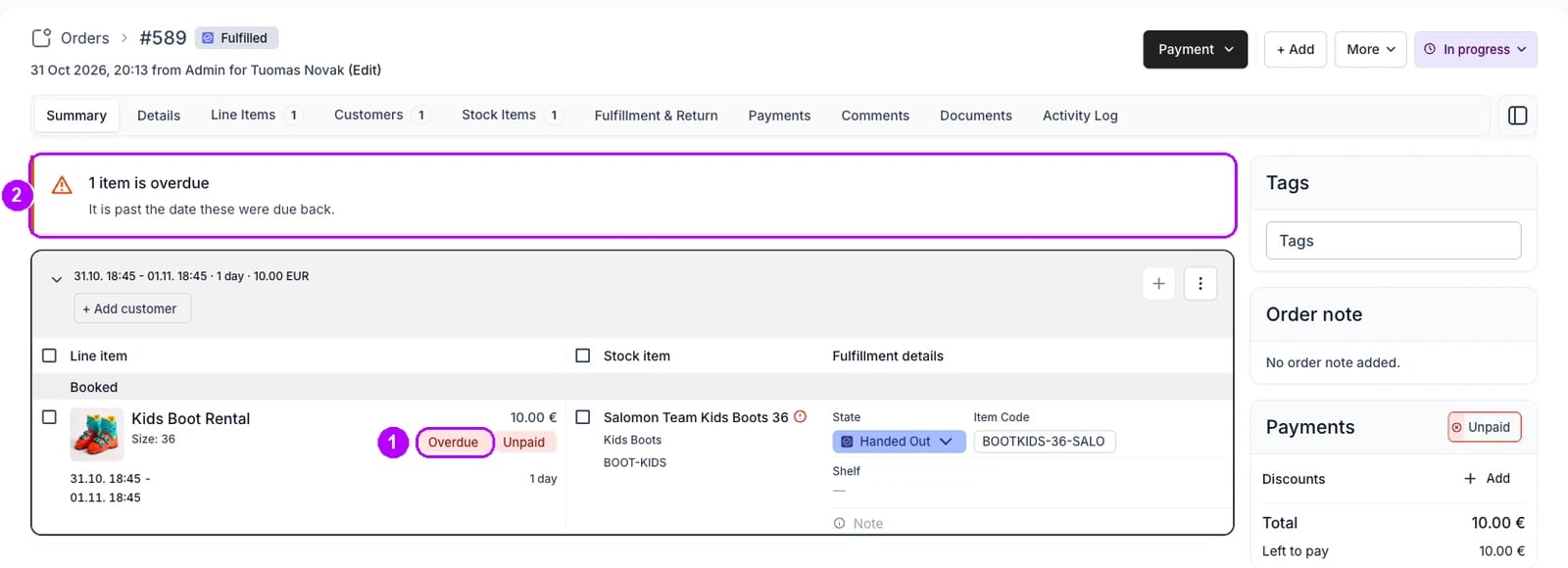
How do I know it worked?
- The Overdue tab is on the tab row, with a count of the orders on it.
- Every row ended before today and is still open or in progress.
- An order leaves the view once it is completed.
Troubleshooting / common pitfalls
An order on the view has every item back
An order on the view has every item back
Its Fulfillment state reads Returned, so nothing is out, but nobody completed the order. Complete it to take it off the view. See Complete an order.
An Open order is on the view
An Open order is on the view
Nobody moved it to In progress, so its items may never have gone out, and the order page counts only items that went out as overdue. Start the order or cancel it. See Order Lifecycle.
An order due back today is not on the view
An order due back today is not on the view
is before today compares whole calendar days, so an order that ends today joins the view tomorrow. Keep a view of today’s returns for those. See Tables.
Related articles
Order Lifecycle
The statuses an order moves through, and what each move does.
Planning the day
Every walkthrough for working the day from the Orders table.
Save a daily view
Save today’s pickups or returns as a tab on the Orders table.
Returns and damage
Take goods back late, damaged or in part.
Complete an order
Close the order once nothing is left to do on it.