

Open in TWICE Admin
orders
Prerequisites
Have ready before you start:
- A name for the view, such as Today’s pickups.
- The columns your counter reads, so staff see what to fetch without opening each order.
The walkthrough
1
Open Orders on the All tab
Select Orders in the left sidebar and click the All tab above the table. If filters show under the search box, click Reset at the right end of their row. With more than one location, check the location selector in the top-left corner first: the table lists only that location’s orders.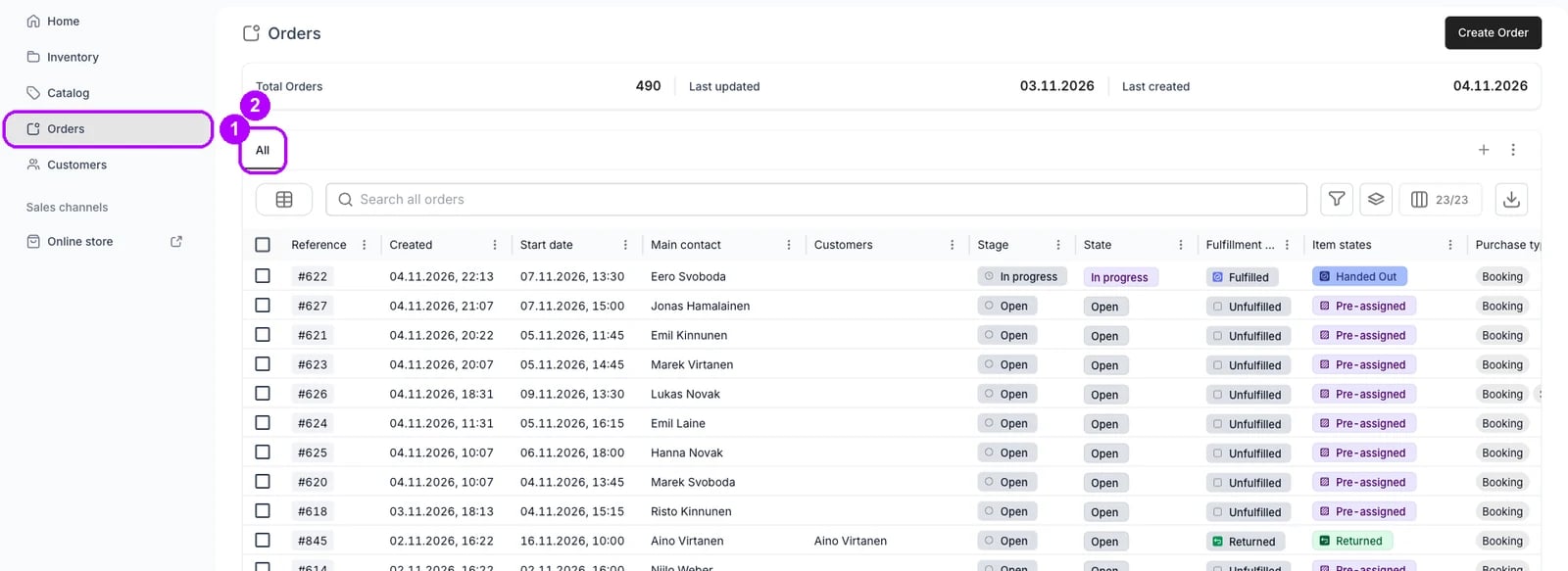
2
Filter on Start date
Click the funnel button to the right of the search box, whose tooltip reads Filter. A list of columns opens. Choose Start date, and a Start date filter appears under the search box with its panel open. For a view of today’s returns, choose End date instead.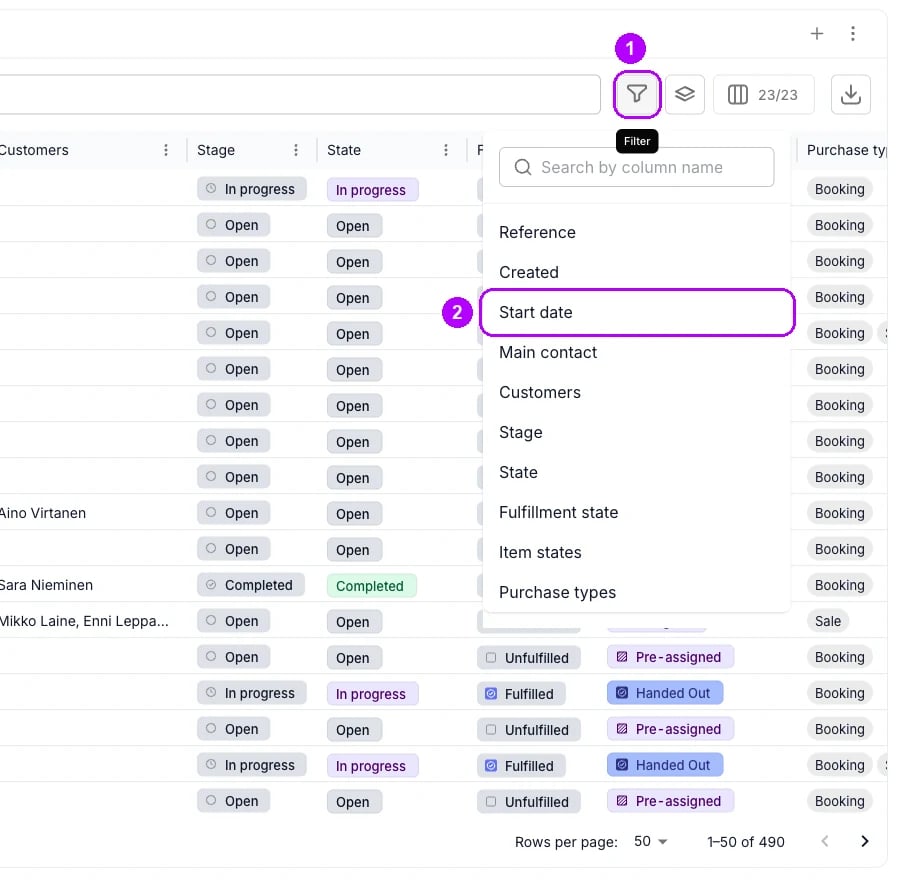
3
Choose is today
Open the operator list in the panel, which reads is, and choose is today. No date picker shows, because the operator is the whole filter. Click outside the panel to close it. The filter reads Start date: is today, and the table lists the orders that start today.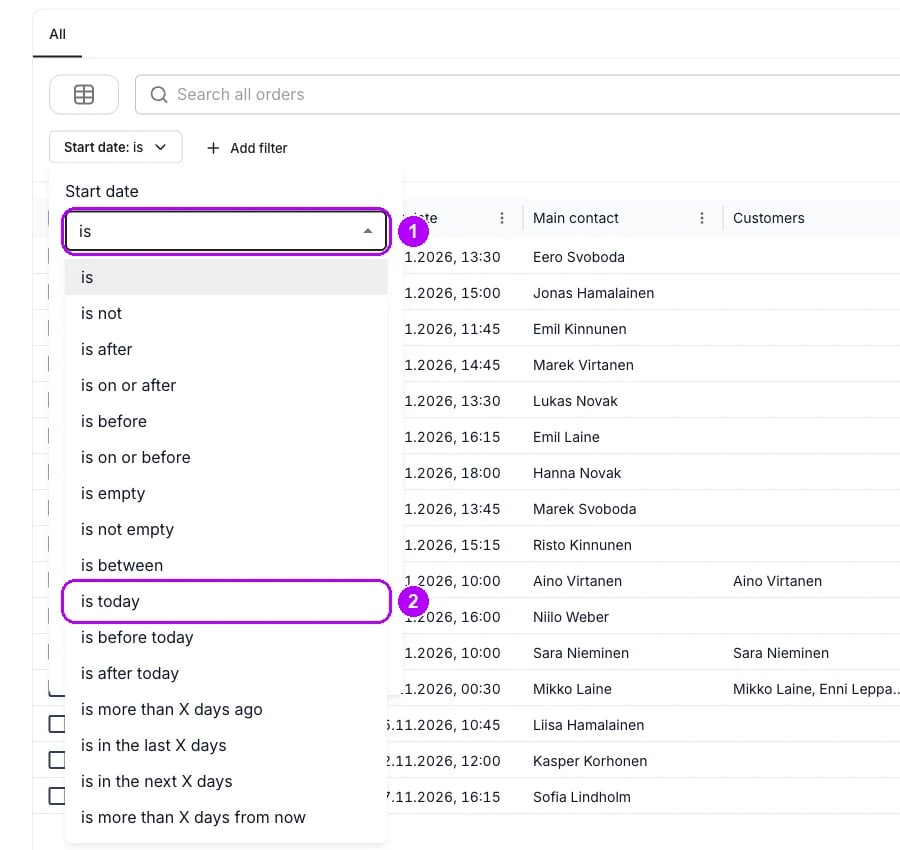
4
Hide every column
Click the button to the right of the filter buttons that counts the visible columns, such as 22/22. Its tooltip reads Columns. In the panel that opens, click Hide all at the bottom. Every checkbox in the panel’s list clears.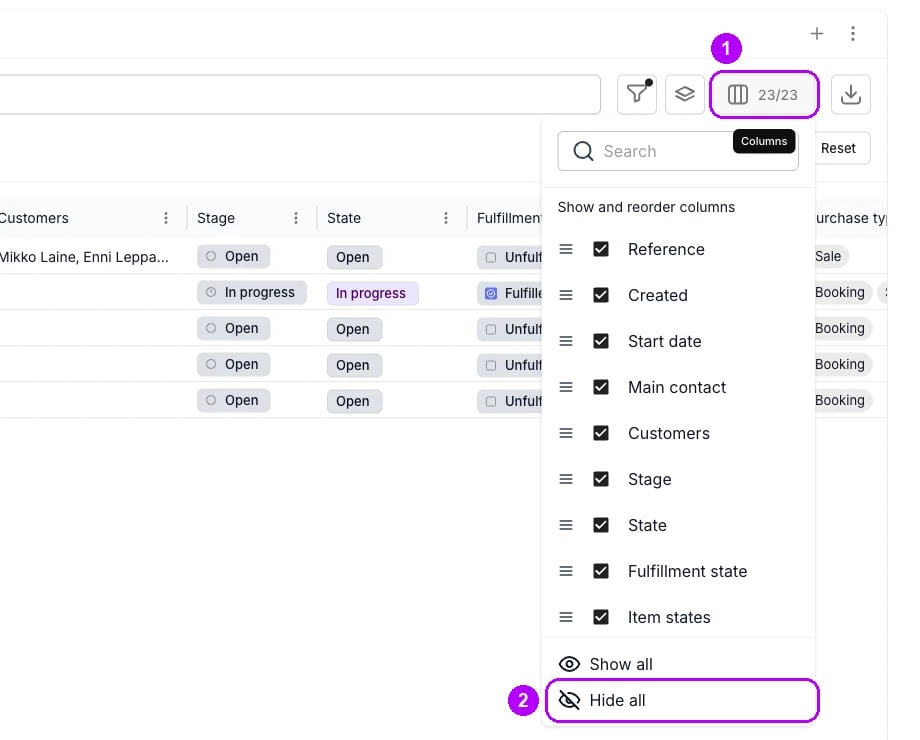
5
Tick the columns your counter reads
Select the checkboxes next to Reference, Main contact, Start date, Fulfillment state, Payment and Listings. Each column returns to the table as you tick it. For a view of returns, tick End date in place of Start date. Click outside the panel to close it.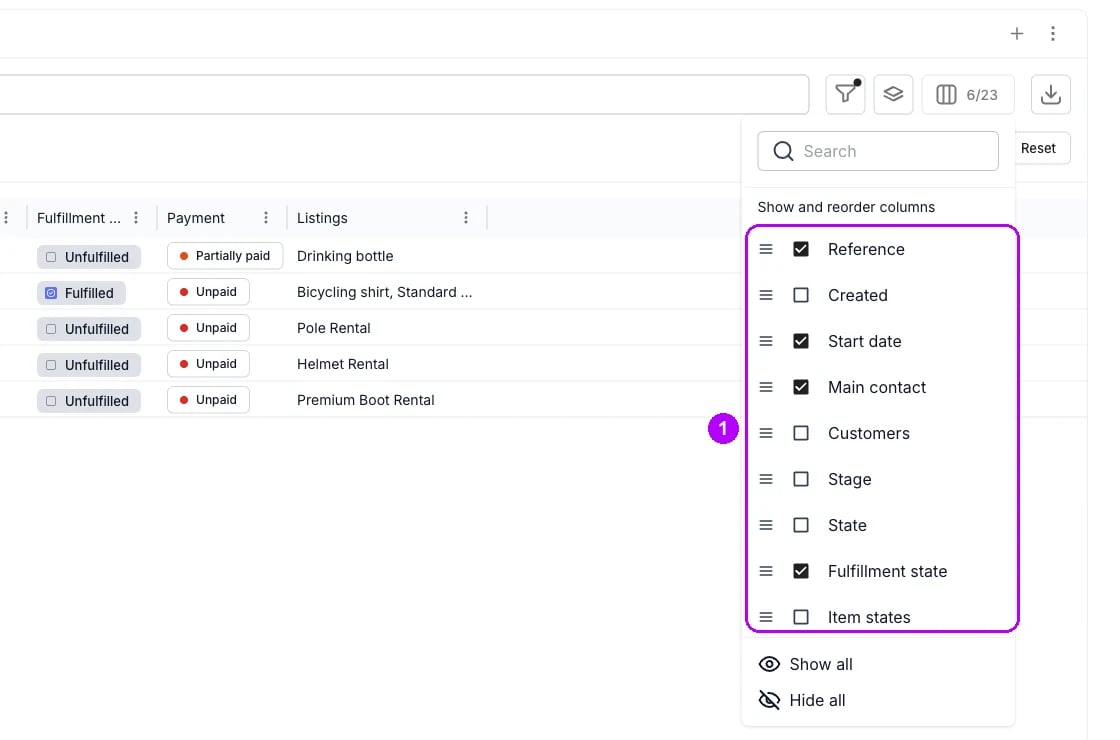
6
Save the table as a view
Click the plus button at the end of the tab row. A new tab opens with a placeholder name, such as View 4, and the number of orders it holds beside the name. It keeps your filter and your columns.
7
Open Rename
Click the arrow next to the new tab’s name. A menu of view actions opens. Choose Rename, and the Rename view dialog opens.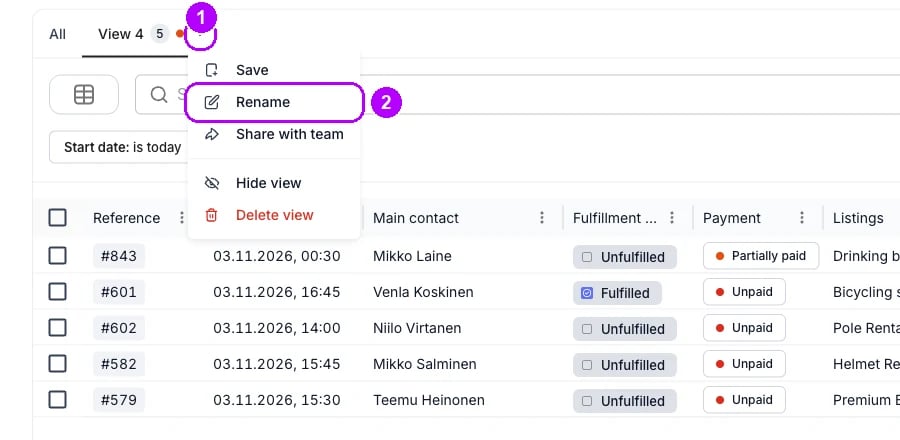
8
Name the view
Enter a name in View name, such as Today’s pickups, and click Save. The dialog closes and the tab shows the new name.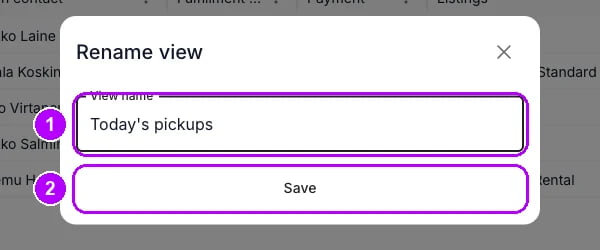
How do I know it worked?
- The new tab carries your name, such as Today’s pickups, with a count of its orders beside it.
- The tab lists the orders that start today, and tomorrow it lists tomorrow’s without any edit.
- Only the columns you ticked show when you open the tab.
Troubleshooting / common pitfalls
The view still lists yesterday's orders
The view still lists yesterday's orders
The filter holds a date you picked, not is today. Open the filter, choose is today, then choose Save in the view’s menu. See Tables.
There is no All tab on the row
There is no All tab on the row
The All tab is hidden on your row. Click the three-dot button at the right end of the tab row and tick All. See Show saved views.
Colleagues do not see your view
Colleagues do not see your view
A view you save is yours alone until you choose Share with team in its menu, which needs the Manager role or higher. Each colleague then ticks it on their own row. See Tables.
Related articles
Tables
Filters, saved views and sharing, control by control.
Planning the day
Every walkthrough for working the day from the Orders table.
Find overdue orders
Save a view of the orders past their end date.
Use the order calendar
See when the day’s pickups and returns fall.
Show saved views
Put the views your team has shared on your own tab row.