

Open in TWICE Admin
orders
Prerequisites
Have ready before you start:
- The units marked Returned on the order. Mark them as they come back, not after the check, because the order records the return at the moment you mark it. See Mark items returned.
- Two tag names your whole team uses, such as Inspect for waiting and Inspected for checked.
The walkthrough
1
Open the order
Open Orders and enter the code from a returned unit’s tag in Search all orders. With more than one location, check the location selector in the top-left corner first. The table lists every order the unit has ever been on, so click the row that reads In progress. The order opens on its Summary tab.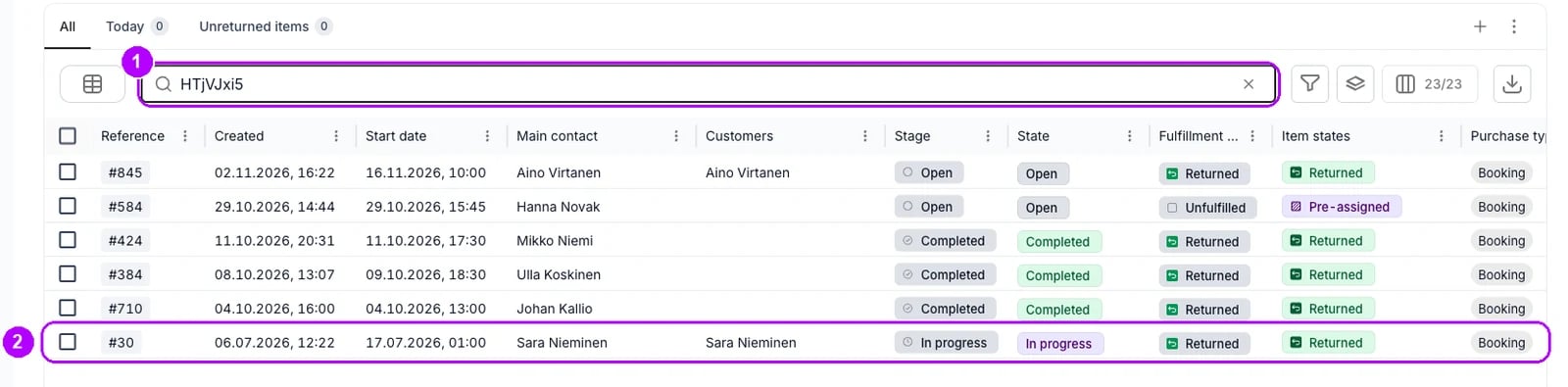
2
Tag the order Inspect
In the Tags card in the panel on the right, type Inspect and choose it from the list. The first time, the list reads Add new tag: Inspect, which creates the tag. The tag shows as a chip in the card and is saved at once.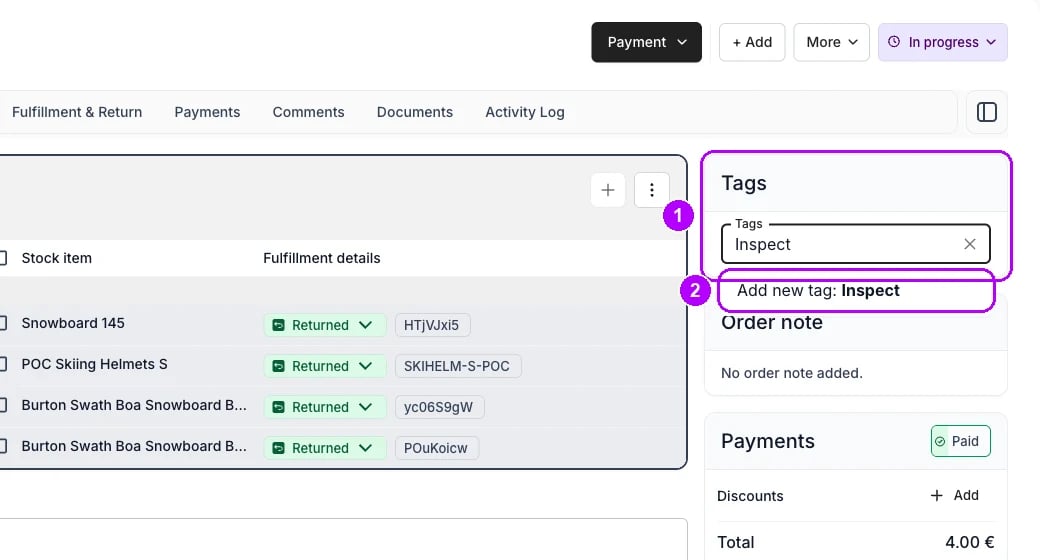
3
Filter Orders on Tags
Open Orders on the All tab. Click the funnel button to the right of the search box, whose tooltip reads Filter, and choose Tags in the list of columns. A Tags filter appears under the search box with its panel open.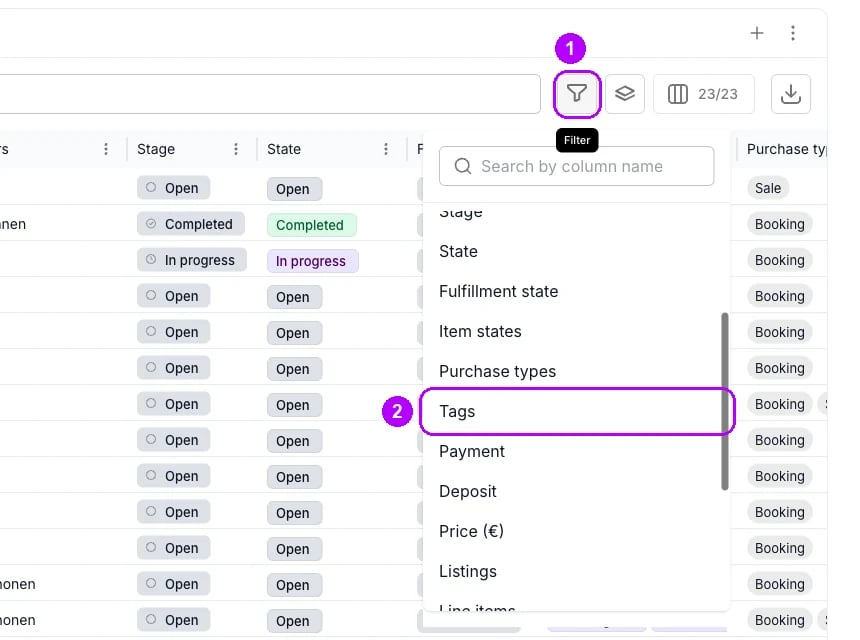
4
Choose Has and tick Inspect
Leave the rule at the top of the panel at Has and tick Inspect in the list. Click outside the panel. The table lists every order waiting for inspection.Save the filter as a view and share it with your team, as Save a daily view shows, so the list opens from its own tab.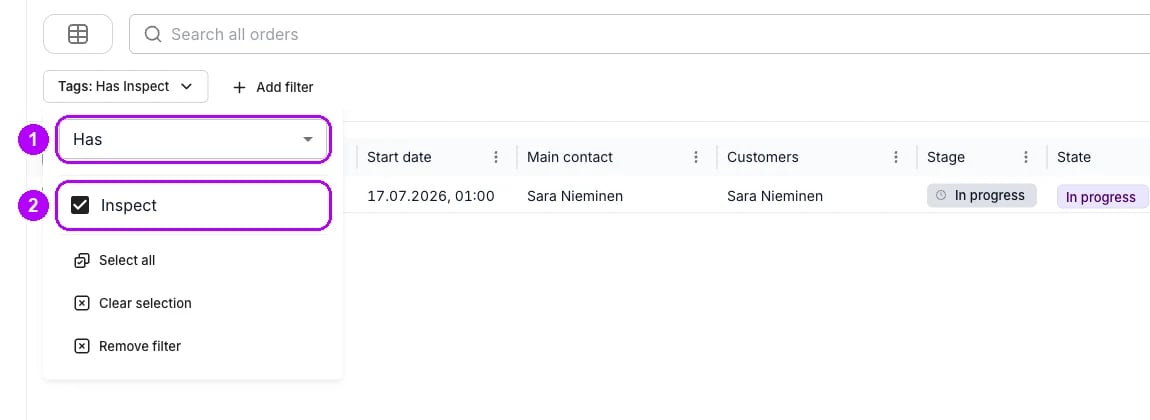
5
Check the items
Click an order’s row and check each unit that reads Returned on its Summary tab. Record any damage on the stock item before you release the order, as Record a damaged item shows.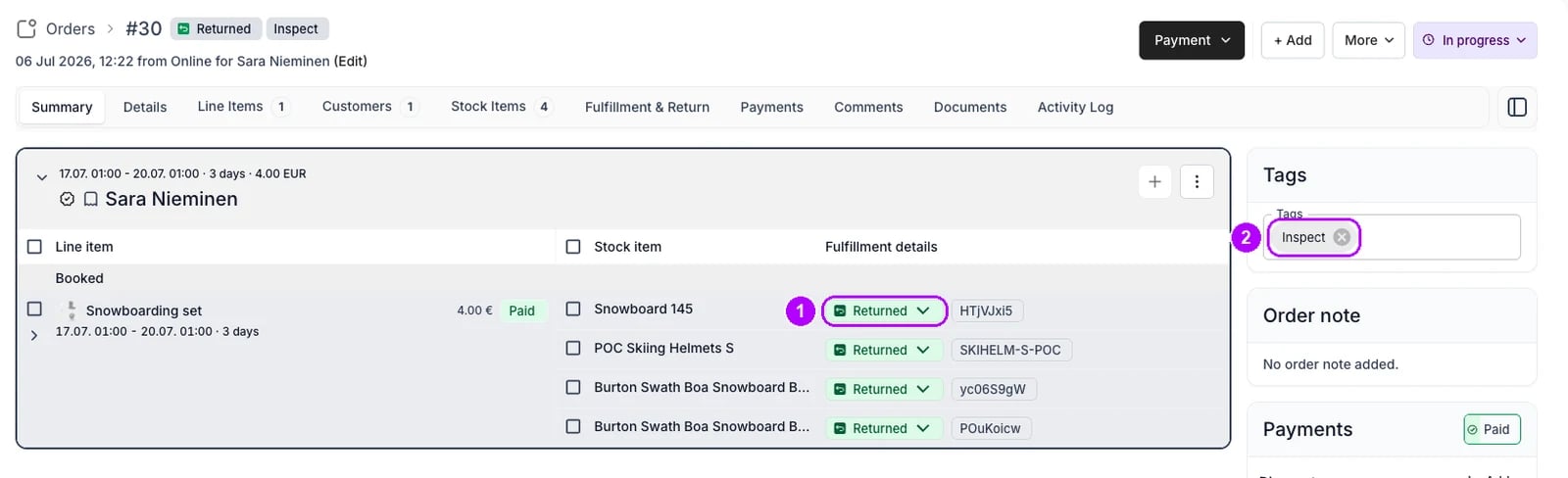
6
Swap Inspect for Inspected
In the Tags card, type Inspected and choose it, or Add new tag: Inspected the first time. Then click the cross on the Inspect chip. The order leaves the Inspect list, and Inspected records that the check was done.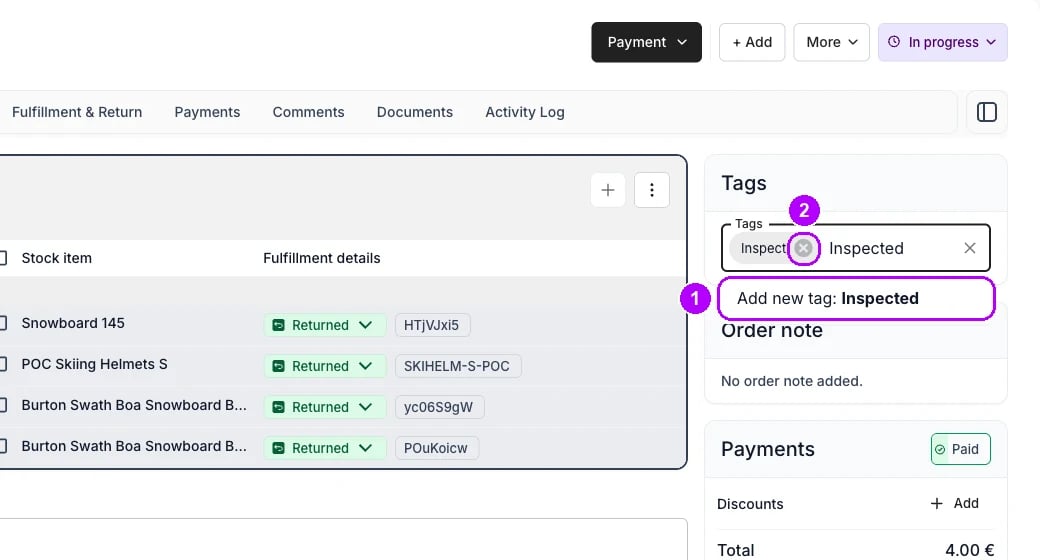
7
Complete the order
Click the In progress status chip in the top-right corner, choose Completed and confirm, as Complete an order shows. Nothing checks the tag on the way, so an order still tagged Inspect completes all the same.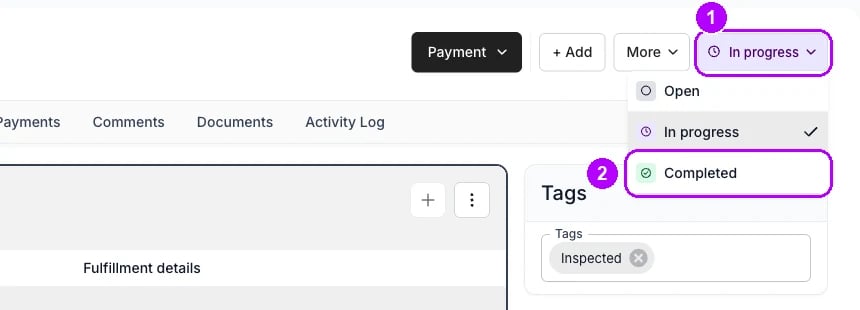
How do I know it worked?
- The order carries Inspected in its Tags card, and its status chip reads Completed.
- The Inspect list is empty once every return on it has been checked.
- Every completed order you took back carries Inspected. Filter Orders on Stage, ticking Completed, and on Tags with Has not and Inspected ticked. An order on that list closed without the check.
Troubleshooting / common pitfalls
An order closed before anyone inspected it
An order closed before anyone inspected it
No check reads tags before an order closes. Return from orders on scanned units also closes every order it finishes while Change order state to stays ticked. Reopen the order and tag it Inspect again. See Return scanned items and Reopen an order.
A unit went out on another order before it was inspected
A unit went out on another order before it was inspected
The tag holds nothing back. A unit marked Returned is free for other orders at once, and an item state under Handed out holds its unit only to the booked end. Reserve a unit that must not go out unchecked, as Record a damaged item shows. See Fulfillment lifecycle.
Related articles
Tables
Filters, saved views and sharing, control by control.
Returns and damage
Every walkthrough for taking items back.
Mark items returned
Record which units came back on the order.
Record a damaged item
Note the damage on the stock item and keep it out of service.
Save a daily view
Save a filtered Orders table as a tab of its own.
Complete an order
Close the order once nothing is left to do on it.