

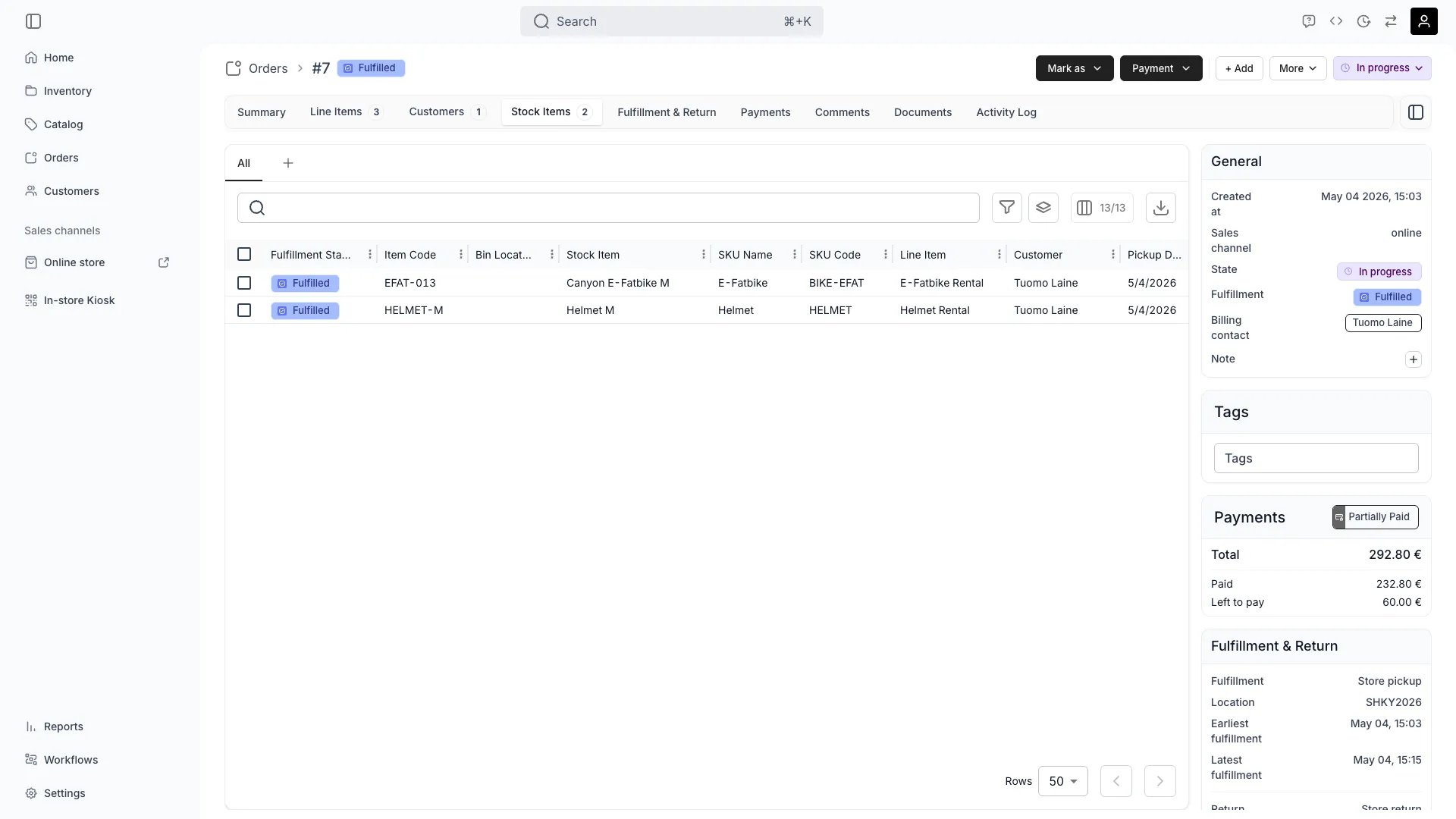
Orders > [order] > Stock Items
Open in TWICE Admin
orders
Prerequisites
Before you start, know:
- What actually came back, item by item. Record it per unit, because a vague “most of it” cannot be entered.
- Whether a deposit is being held, and whether it was a real card authorisation or only recorded. See Take payment and deposits.
- What you intend to charge, if anything. Decide damage and late fees yourself, because TWICE performs no such calculation.
The walkthrough
1
Mark back what came back
Select the units the customer returned on the Stock Items tab and use Mark as → Returned.Leave the rest alone. Items still with the customer stay Fulfilled, and two states on one order is exactly what a partial return should look like until the rest turns up.
2
Leave the order open until everything is settled
Do not close the order yet. Close it last, because closing early makes the order read-only while you still have work to do on it.
Read per-item states on the Stock Items tab rather than the rollup chip when you need to know what is physically where. The order-level fulfilment chip does not move backwards when items return, so an order with some items back and some still out stays Fulfilled.
3
Record what is wrong with a damaged item
Write the damage on the stock item, because no condition or damage field exists on the return itself. The unit’s own record carries its history, and its activity log is what a later dispute is settled from.Return it on the order regardless. The unit came back and the order should say so, because its condition is the unit’s business rather than the order’s.
4
Take the damaged unit out of service
Stop the unit being booked again while it is broken. Reserve it for maintenance, or archive it if it is finished. Check what archiving flags before you confirm, because it releases the unit’s future holds.
5
Decide your own inspection routine
Design the inspection routine yourself and hold your staff to it. Merchants differ: a resale shop grades every garment before it goes back on sale, a venue counts chairs and moves on.Build it out of the pieces TWICE gives you, which are attributes on the unit, maintenance reservations, and buffer time between bookings. Every one of them ends in a person looking at the item, because nothing inspects for you.
6
Work out what is owed
Decide the figure yourself. There is no late fee rule, no damage schedule, and nothing that prices an overdue day. Then choose how to collect it:
7
Check the deposit has money behind it
Check whether the deposit was authorised or only recorded, in the deposit steps of Take payment and deposits. A recorded deposit has no money behind it, so capturing it is bookkeeping and getting the money is a conversation.
8
Chase what has not come back
Combine two filters on the Orders table to find the late ones, because nothing flags them for you:
9
Save that filter as a view
Read an order matching both as one nobody has brought back. Narrow it with Fulfillment state to see only the items still recorded as out.Save it as a view rather than rebuilding it each time. Work the day’s pickups and returns covers it, and it is the closest thing to an overdue report you will get.
10
Close the order once
Set the status chip to Completed once everything is settled, with items marked and money taken or written off. That is the last state a fresh account carries.Answer the dialog’s Also mark booked items as Returned, which is off by default and sweeps up anything still unmarked. Leave it off on a return you have already worked item by item, because ticking it would flatten the distinction you made. Tick it on an order you are closing out in bulk.Change anything else first, because closing makes the order read-only. Refunds still work afterwards: see Refund an order.
How do I know it worked?
- Each returned unit reads Returned on the Stock Items tab, and anything still out reads Fulfilled.
- Returned units are available again for their dates, and a damaged one is reserved or archived so it is not.
- The charge is on the order, as a captured deposit with a reason or a paid line item, rather than in somebody’s memory.
- The order is Completed, and its activity log carries who did what.
Troubleshooting / common pitfalls
The order still says Fulfilled after I marked items Returned
The order still says Fulfilled after I marked items Returned
Expect that. Returns do not move the order-level chip backwards, so an order with returns against it stays Fulfilled.What to do: read the per-item states on the Stock Items tab. The rollup answers “did this go out”, not “is it back”.
I cannot find a place to record the item's condition
I cannot find a place to record the item's condition
Cause: the return marks a state change on the unit and captures no grade or note about damage.What to do: record it on the stock item itself and take the unit out of service. Treat grading as a workflow that belongs to inventory intake rather than to the order. See Take used stock in and grade it.
Nothing flagged the order as late
Nothing flagged the order as late
Cause: there is no overdue flag, notification or automatic late fee.What to do: filter Stage to Open or In progress and End date to before today, then save it as a view so it is one click each morning. See Tables and Work the day’s pickups and returns.
The deposit does not cover the damage
The deposit does not cover the damage
Cause: a capture cannot exceed the authorisation, and Available to capture is a hard ceiling.What to do: capture the deposit in full, then add a line item for the remainder and collect it. Two movements on the record are also easier to explain to the customer than one unexplained figure.
The customer returned an item that was never assigned to them
The customer returned an item that was never assigned to them
Cause: usually a swap that happened physically but not in the admin, so they went home with a different unit than the one on the order.What to do: fix the assignment first, then return it. See Assign and swap stock items, because marking the wrong unit returned leaves both units wrong.
I closed the order and then the last item came back
I closed the order and then the last item came back
Reopen it. Set the status back to Open or In progress, mark the item Returned, and close it again.Never leave it closed with an item recorded as still out, because the unit stays committed and the dates stay blocked. Closing is reversible and leaves the record intact, so this costs nothing but a moment.
Related articles
Work the day's pickups and returns
Finding today’s returns, and the late ones nobody flagged.
Cancel or archive an order
When the goods are not coming back at all.
Take payment and deposits
Capturing a deposit against damage.
Read a stock item's history
Where a damaged unit’s record lives.