

Open in TWICE Admin
orders
Prerequisites
Have ready before you start:
- The returned items, to check against the order.
- Anything still owed, collected first. Closing the order stops its checkout links. See Take payment and deposits.
The walkthrough
1
Open the order
Open Orders and click the order’s row. Type its reference or the customer’s name in Search all orders to find it. With more than one location, check the location selector in the top-left corner first: the table lists only that location’s orders.The order opens on its Summary tab.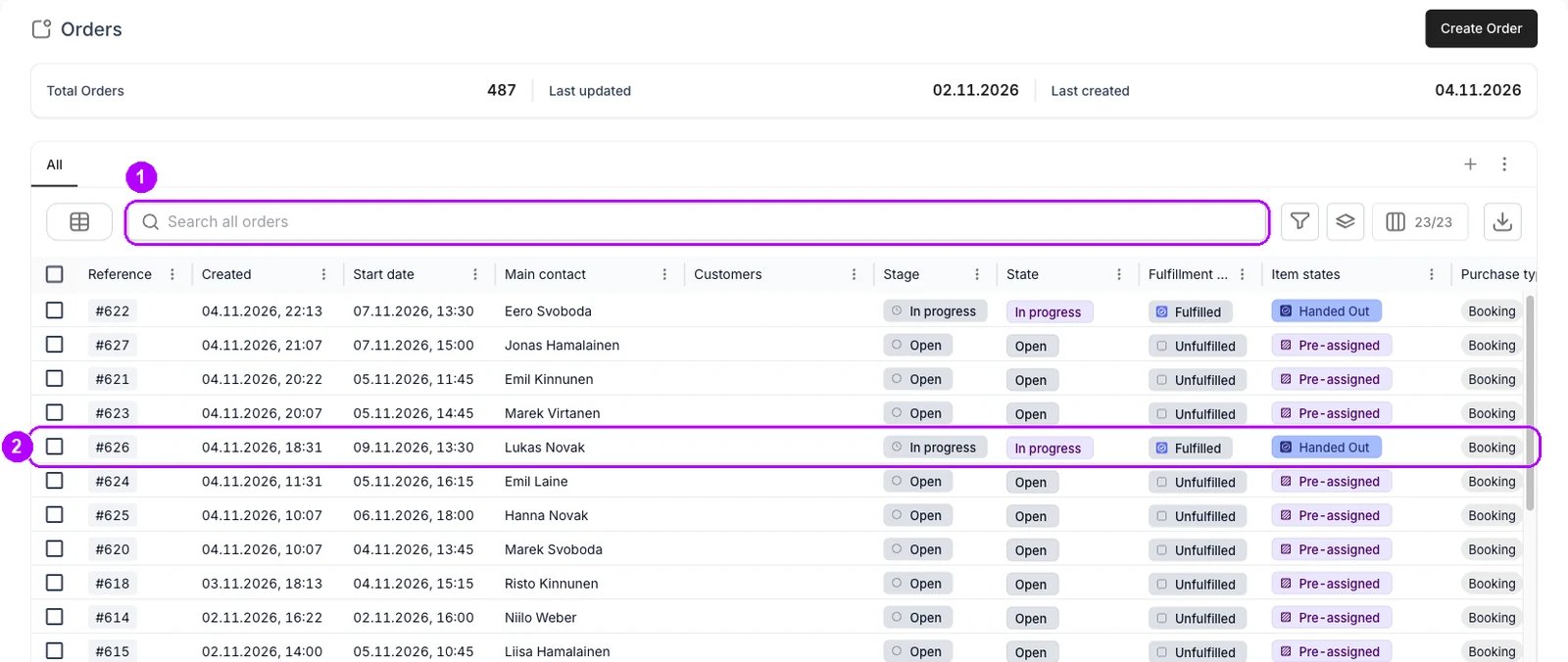
2
Check what came back
On the Summary tab, match each stock item listed under its line against what the customer brought back. Until you complete the order, their chips read Handed Out. Sold items stay with the customer, so they need no check.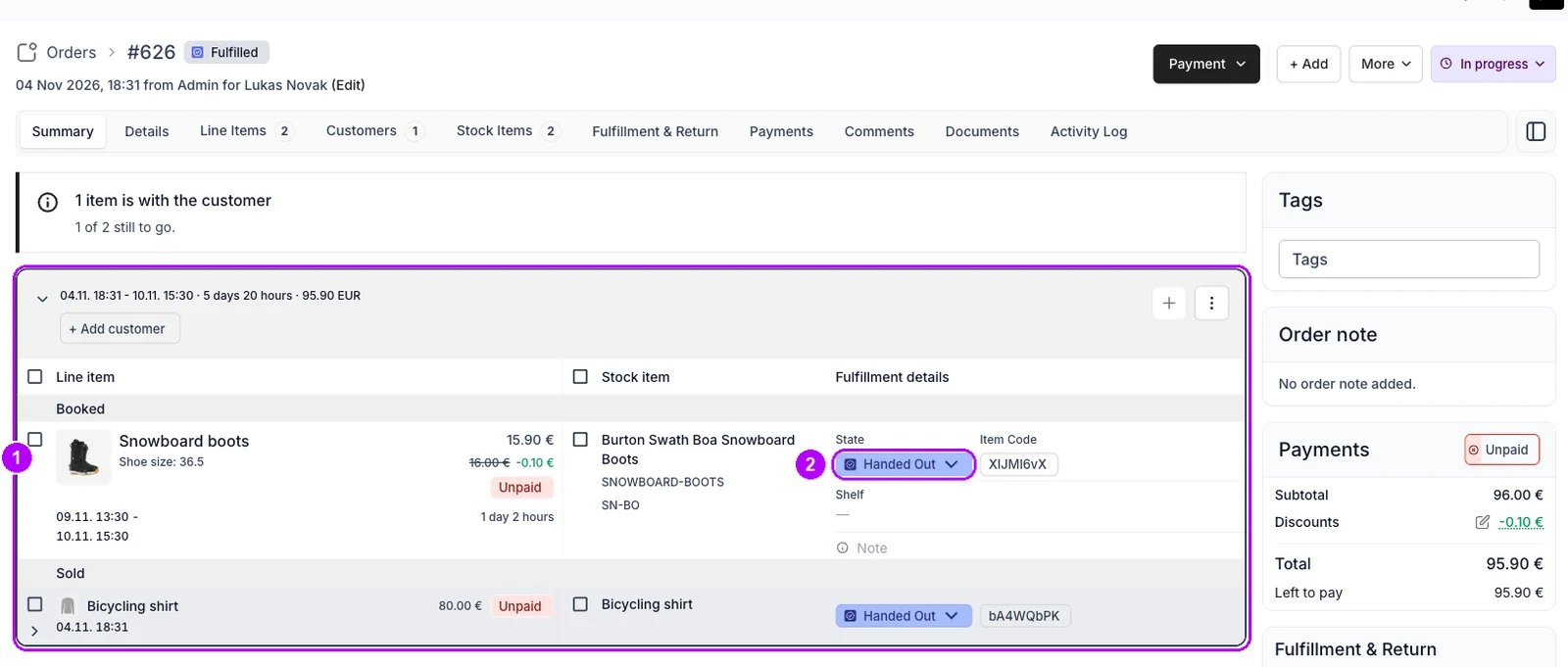
3
Choose Completed
Click the In progress status chip in the top-right corner and choose Completed. A dialog opens that lists what closing the order does.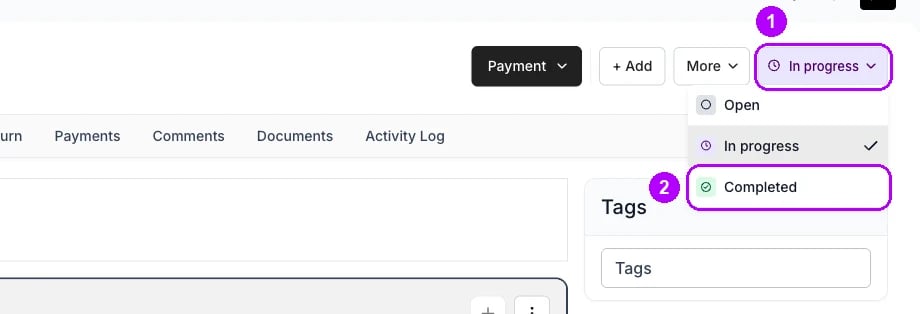
4
Read what closing does
Open “What happens when you close order?” to read the list: checkout links stop working, scheduled payment collections stop, and the order can no longer be edited. Where the order has them, a reserved deposit is released and subscriptions are cancelled.Under Item automations, items move to Returned by default, and sale items stay Handed Out.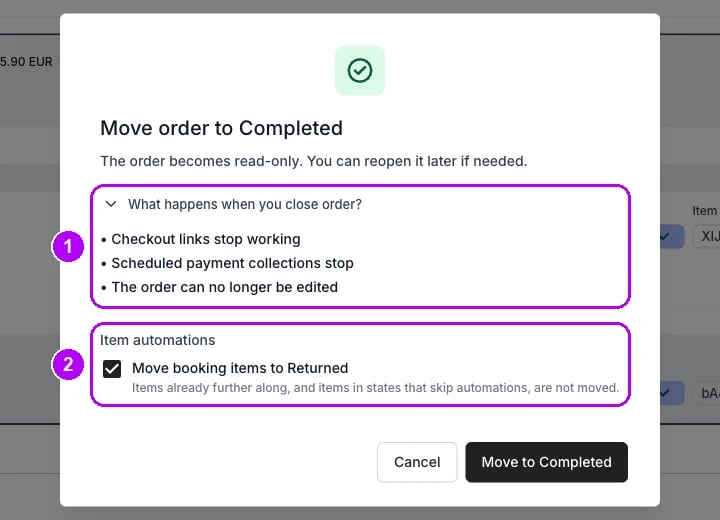
5
Confirm
Click Move to Completed at the bottom of the dialog. The dialog closes and the order is completed.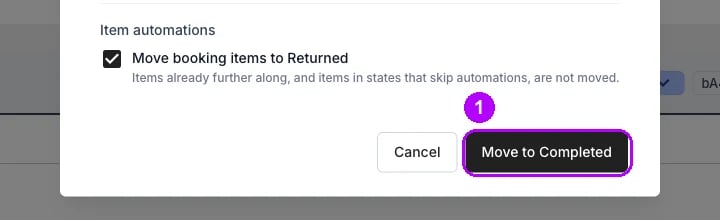
6
Check the order is closed
A notice below the order’s tabs reads This order is closed, and the status chip reads Completed. + Add and Payment are gone from the top-right corner, because a closed order is read-only.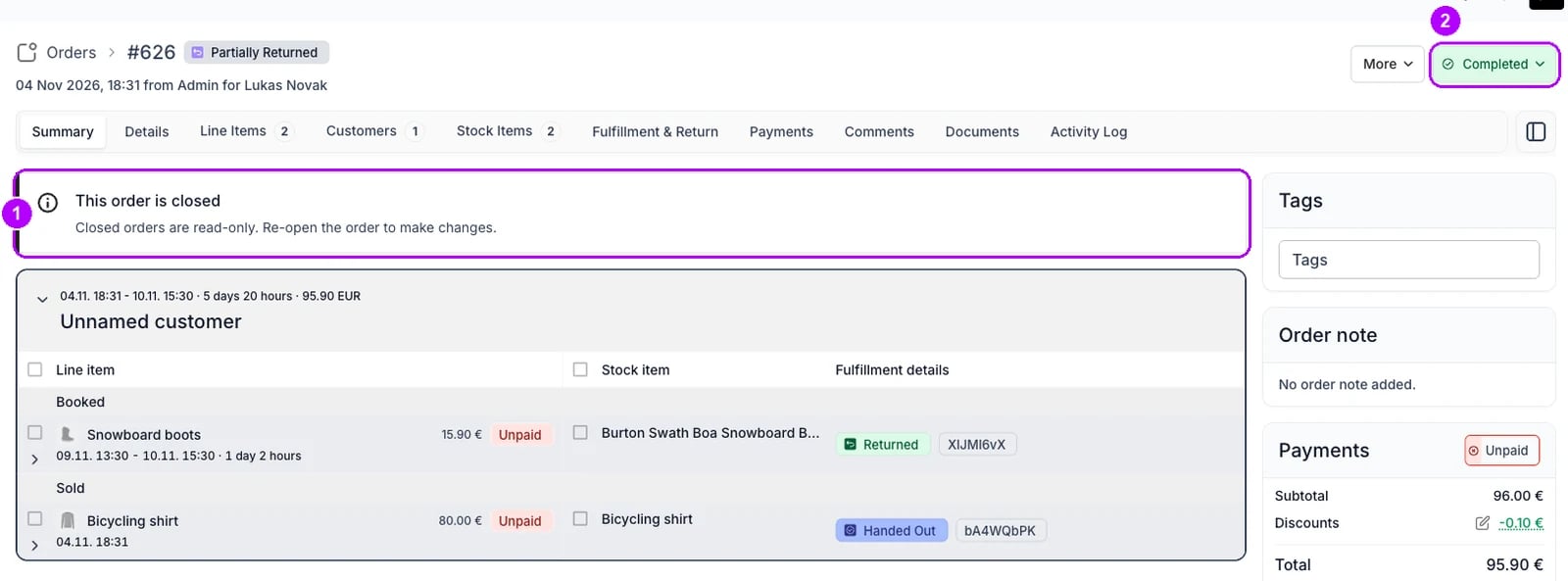
How do I know it worked?
- The status chip reads Completed in the top-right corner of the order.
- The notice This order is closed shows below the order’s tabs, with “Closed orders are read-only. Re-open the order to make changes.”
- Items read Returned on the Summary tab, and sold items read Handed Out.
- The order is listed as Completed when you filter the Orders table by Stage.
Troubleshooting / common pitfalls
Something has not come back yet
Something has not come back yet
Leave the order In progress and mark back only what came back, item by item. Complete the order once the rest is settled. See Handle a return.
Move to Completed is greyed out
Move to Completed is greyed out
A check your account runs before an order closes, such as Order is unpaid, is set to block, and the dialog lists what stands in the way. Fix it and try again. See Order lifecycle settings.
You need to change the order after completing it
You need to change the order after completing it
Reopen it. Click the Completed status chip, choose In progress and confirm with Move to In progress. The items keep their states, and the order is editable again. See Order Lifecycle.
Related articles
Order Lifecycle
The statuses an order moves through, and what each move does.
Take an order in admin
Every step of an admin order, from creating it to closing it.
Start an order
Hand the items over by moving the order to In progress.
Handle a return
Late, damaged and partial returns, item by item.