

Open in TWICE Admin
orders
Prerequisites
Have ready before you start:
- The units that came back, with the code on each unit’s tag.
- Damaged units set aside. Mark them returned too, then record the damage on the stock item. See Record a damaged item.
The walkthrough
1
Find the order
Open Orders and enter the code from a returned unit’s tag in Search all orders. The search also lists earlier orders the unit went out on. With more than one location, check the location selector in the top-left corner first.Click the row of the order it came back from. The order opens on its Summary tab.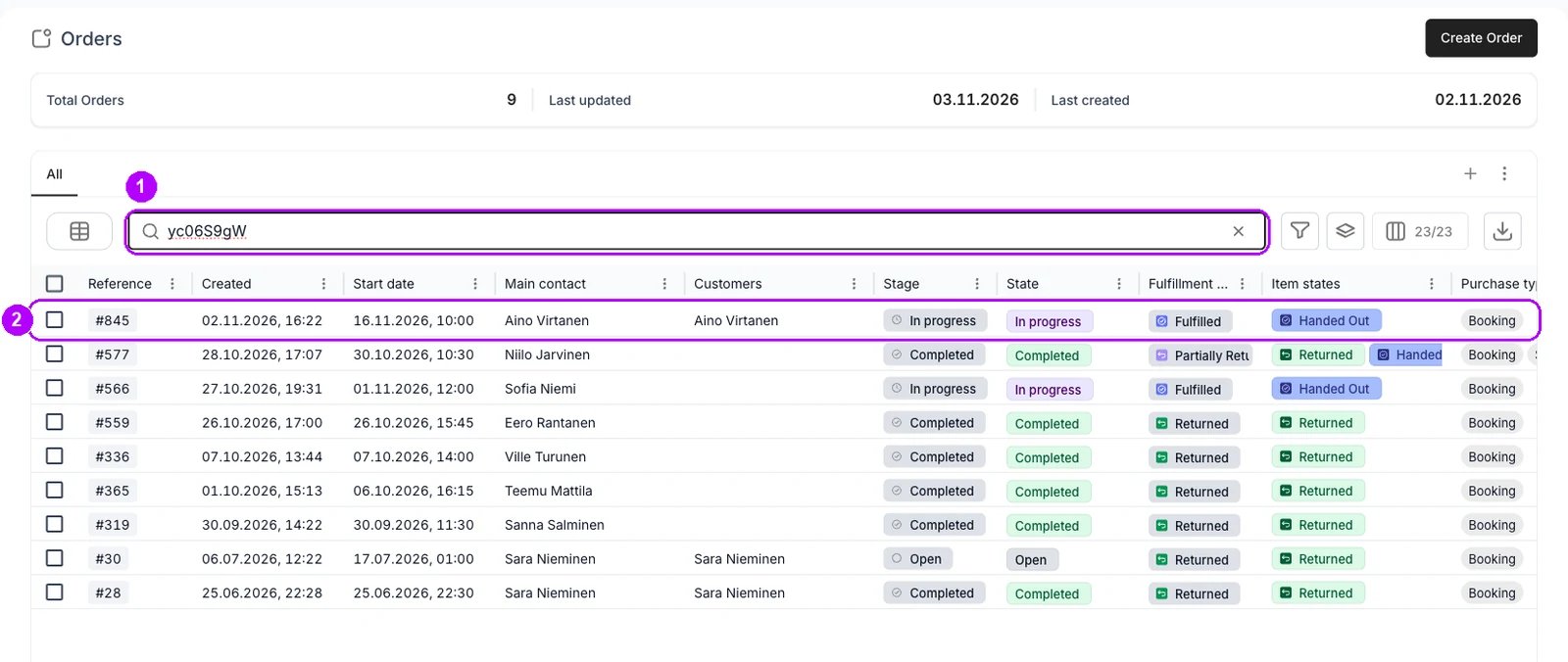
2
Select the units that came back
On the Summary tab, click the checkbox beside each unit that came back, in the Stock item column. Leave the units still with the customer unticked.Unselect and Mark 2 items as appear in the top-right corner of the order.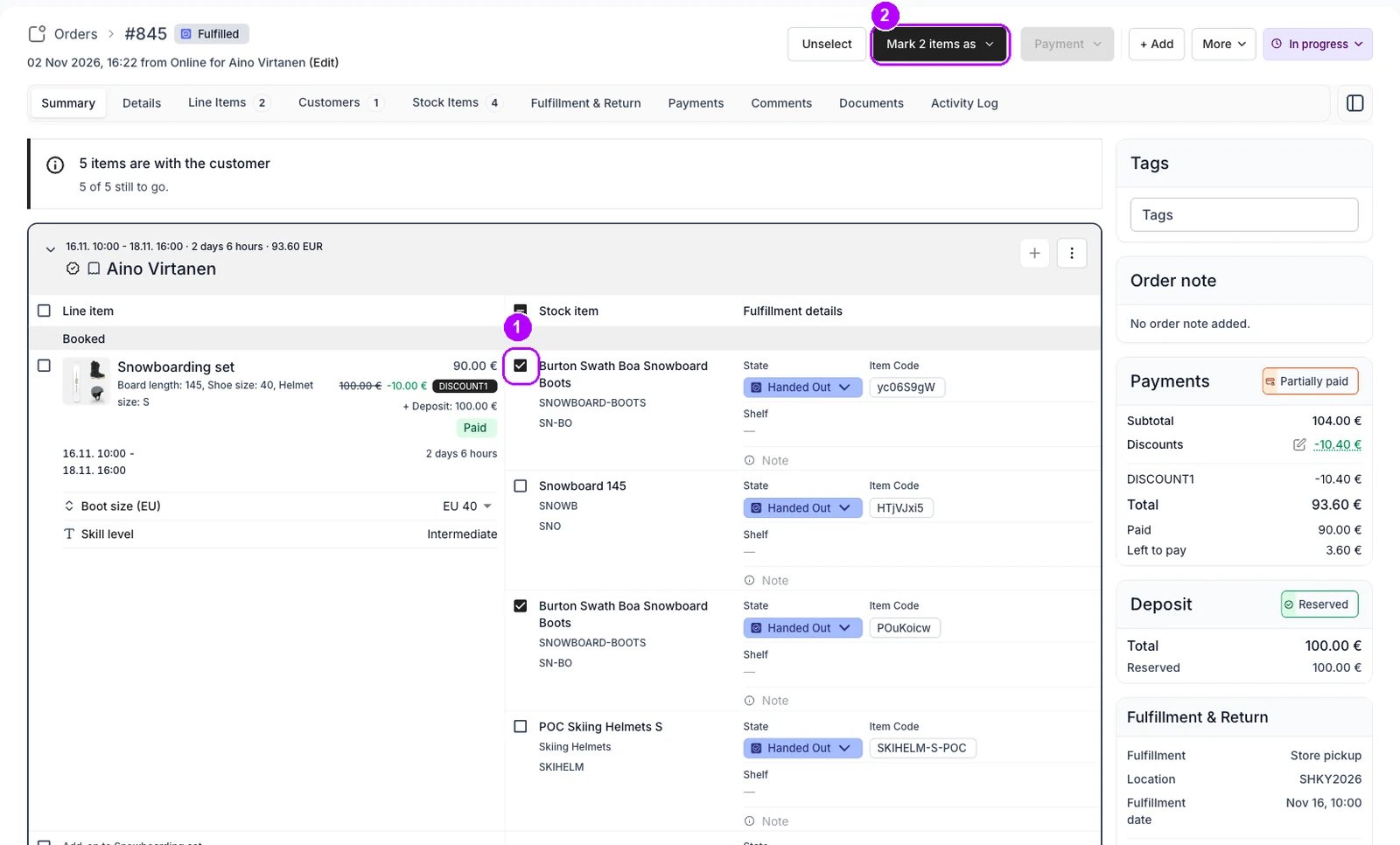
3
Open the Mark menu
Click Mark 2 items as. The number counts the units you selected. A menu opens with your account’s item states, in the order an item moves through them.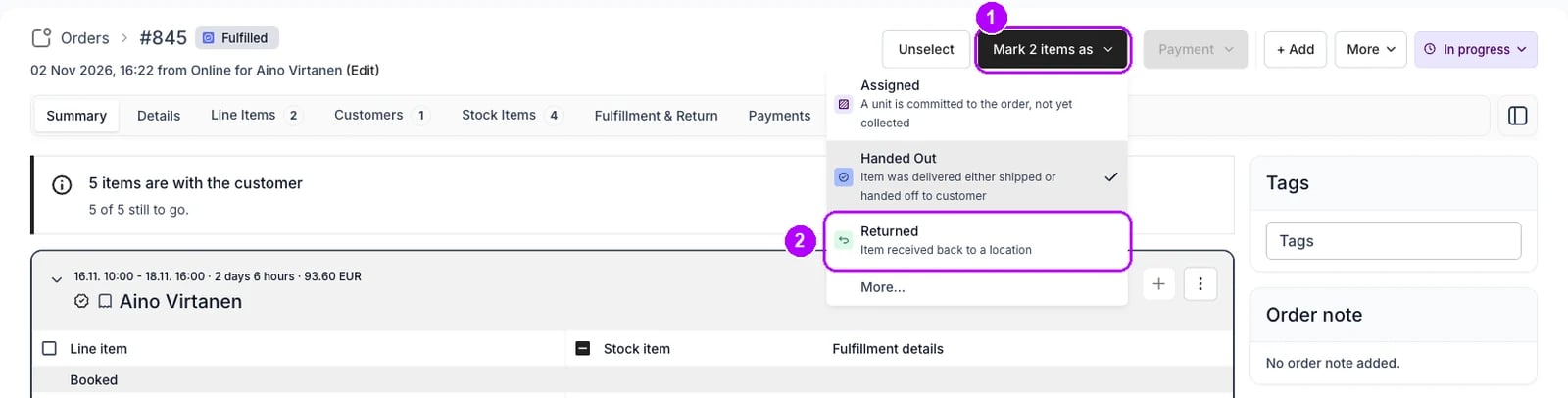
4
Choose Returned
Choose Returned, the state described as “Item received back to a location”. Where your account renamed its states, choose the one it uses for items back with you.The menu closes, the selection clears, and each unit you selected reads Returned in the Fulfillment details column.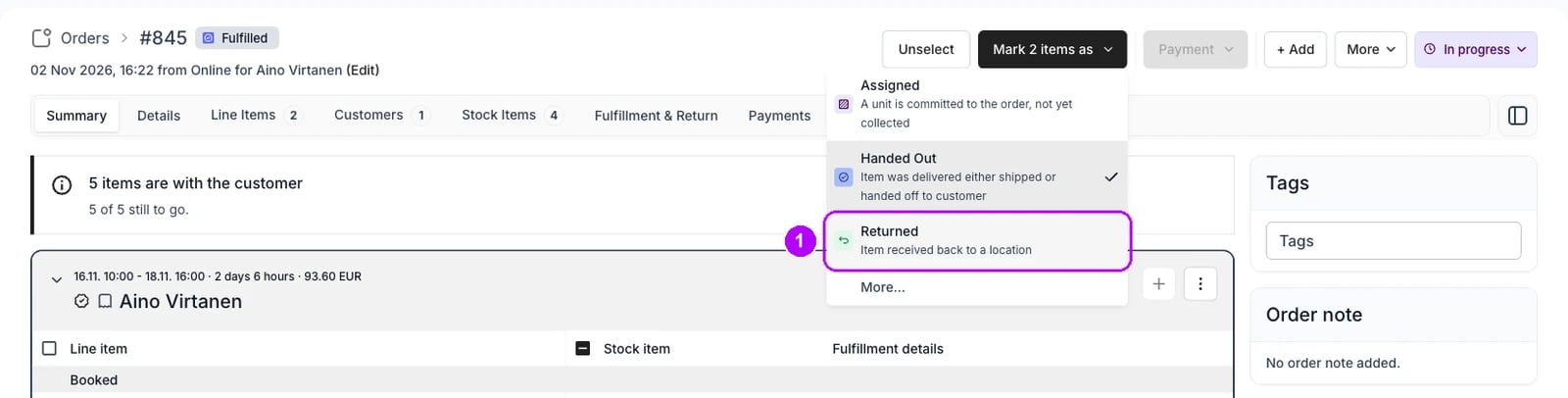
5
Read the order's fulfillment chip
Check the chip beside the order number at the top of the page. It reads Partially Returned while some units are still out, and Returned once every unit is back.The unit still with the customer reads Handed Out, and the order stays In progress.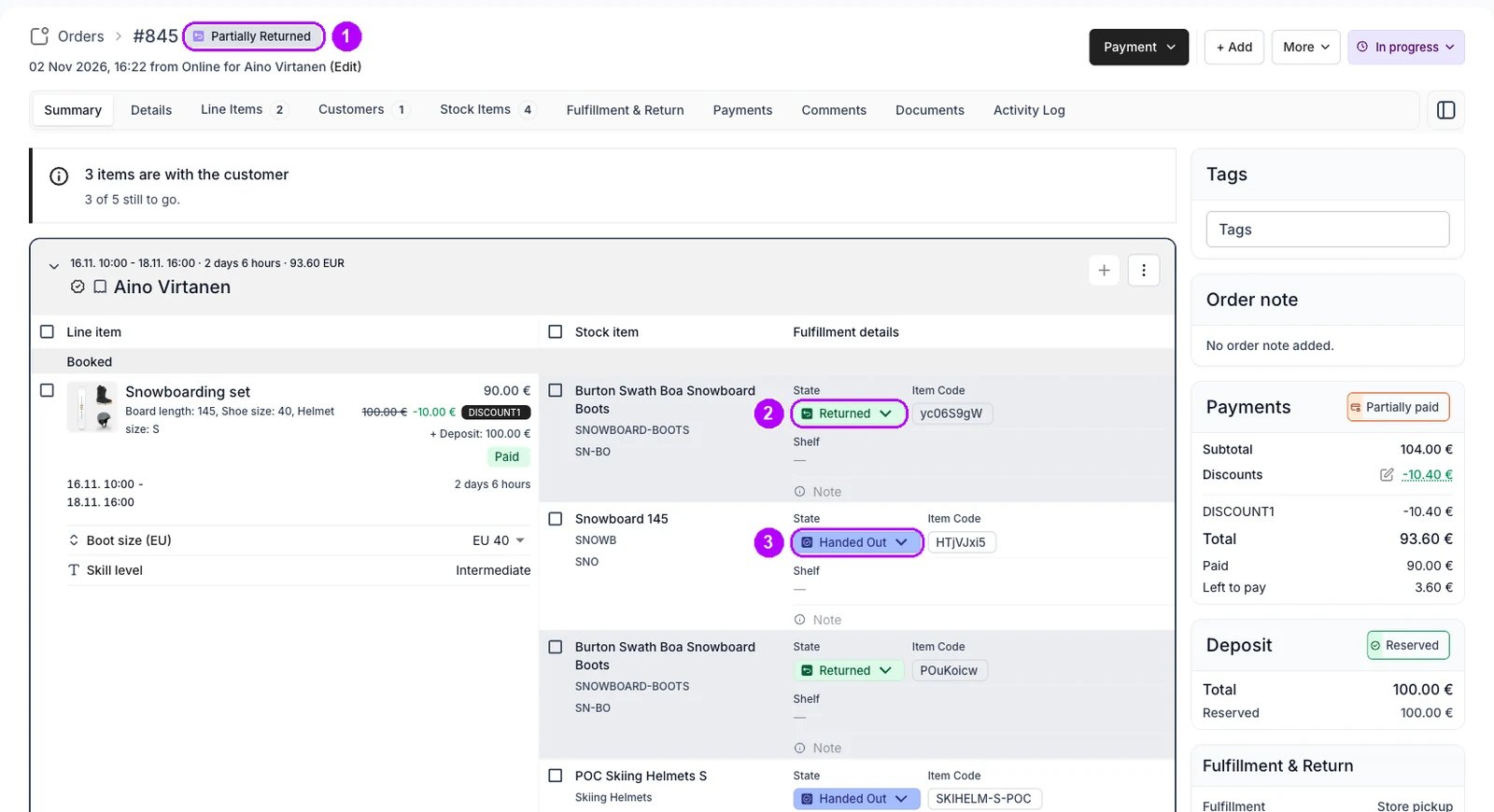
How do I know it worked?
- Each unit that came back reads Returned on the order’s Summary tab, and the units still out read Handed Out.
- The chip beside the order number reads Partially Returned, or Returned once nothing is left out.
- The order no longer holds the returned units, so other orders can take them.
Troubleshooting / common pitfalls
The unit that came back is not on the order
The unit that came back is not on the order
A different unit went out than the one the order records. Put the unit that came back on the line first, then mark it. See Swap a stock item.
The order is already completed
The order is already completed
A completed order is read-only, so its items cannot be marked. Reopen it, mark the unit and complete it again. See Order Lifecycle.
Related articles
Order Lifecycle
How the order’s fulfillment chip reads its items.
Returns and damage
Every walkthrough for taking items back.
Record a damaged item
Note the damage on the stock item and keep it out of service.
Complete an order
Close the order once everything is back.
Find overdue orders
The orders whose items are late back.