

Open in TWICE Admin
orders
Prerequisites
Have ready before you start:
- What you are charging for, and the price, from your price list.
- The customer’s email, to send the checkout link to.
- A payment provider connected, for the online payment methods the link offers. See Payments settings.
The walkthrough
1
Open the order
Open Orders and find the order. Check the location selector in the top-left corner first if your account has more than one location, because the table lists only that location’s orders. The order opens on its Summary tab.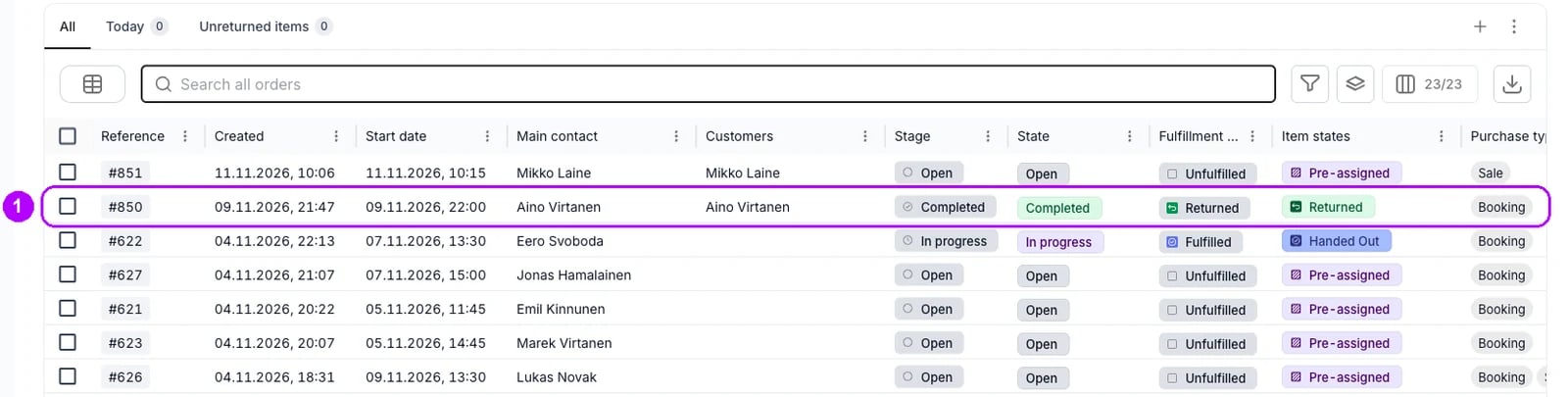
2
Reopen a completed order
Check the top of the order. This order is closed means the order was completed. Reopen it to Open from the status chip at the far right of the top bar, as Reopen an order shows. + Add and Payment then show in the top-right corner.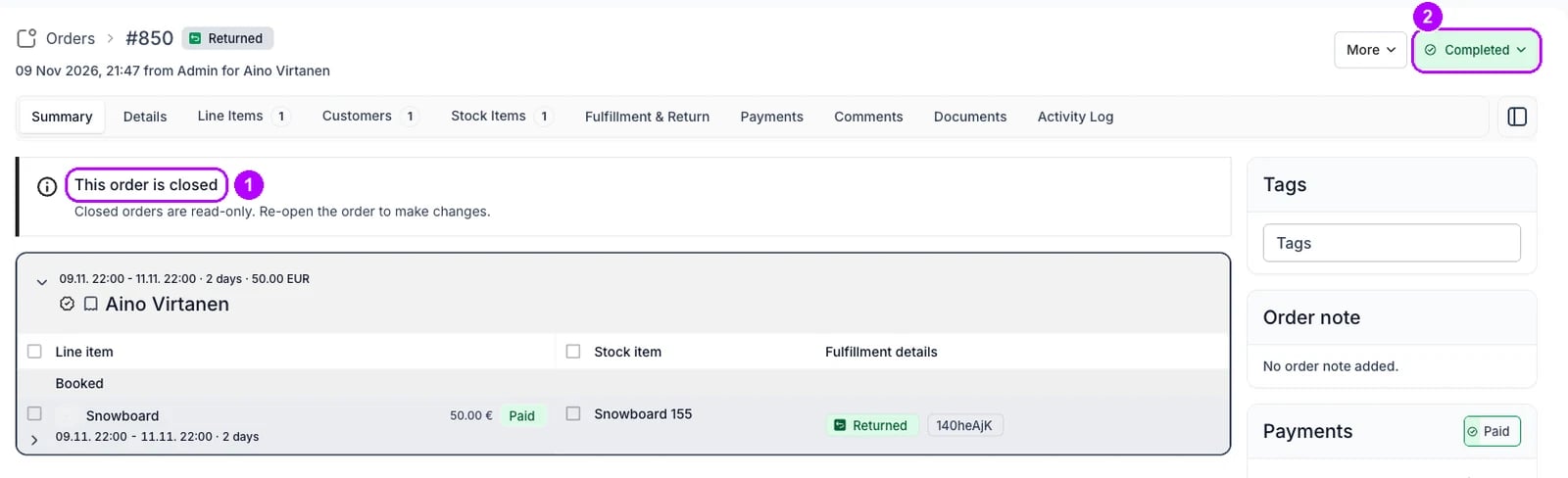
3
Open Add custom item
Click + Add in the top-right corner of the order. In the Add panel that opens, click Add custom item at the right end of the row of tabs. The Add Line Item panel opens with an empty Name.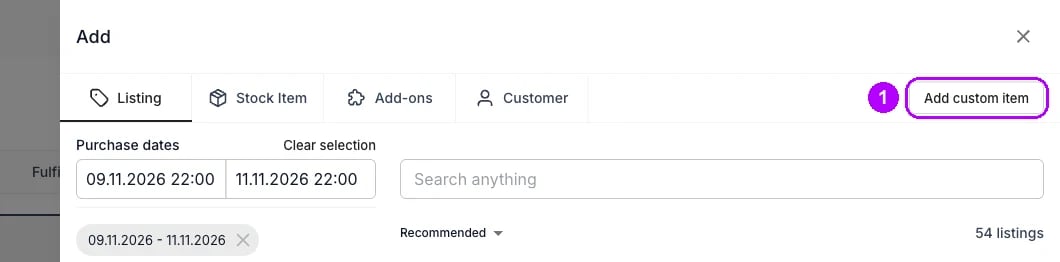
4
Name the charge
Enter what the charge is for in Name at the top of the Line item card, for example Refuel or Broken tail lamp. The line carries this name on the order. Leave Purchase Type under it at Sale, where it starts.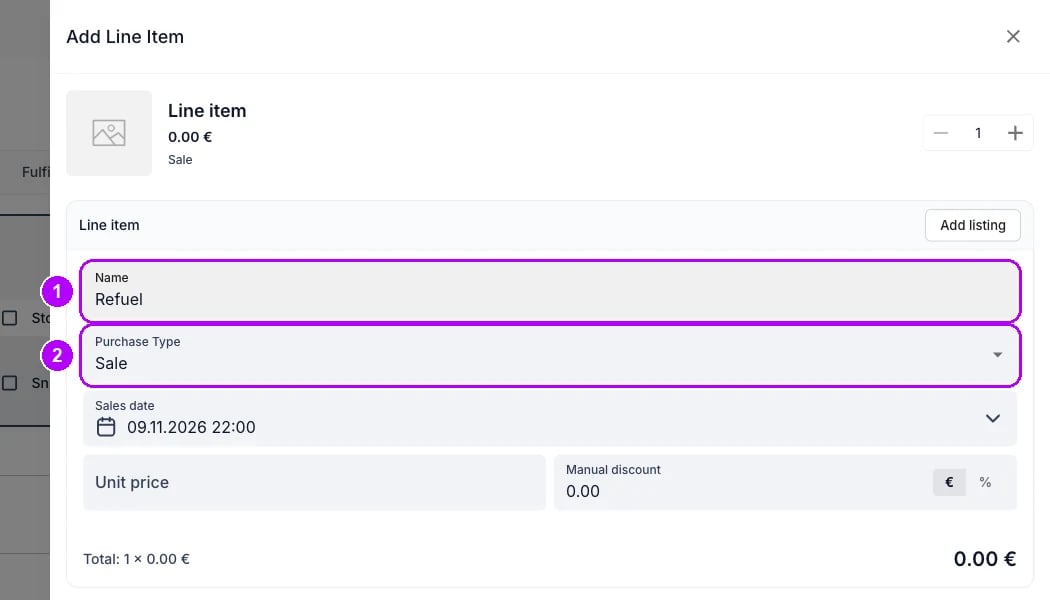
5
Enter the price
Enter the amount you charge in Unit price. The total at the bottom of the Line item card shows what the line adds to the order.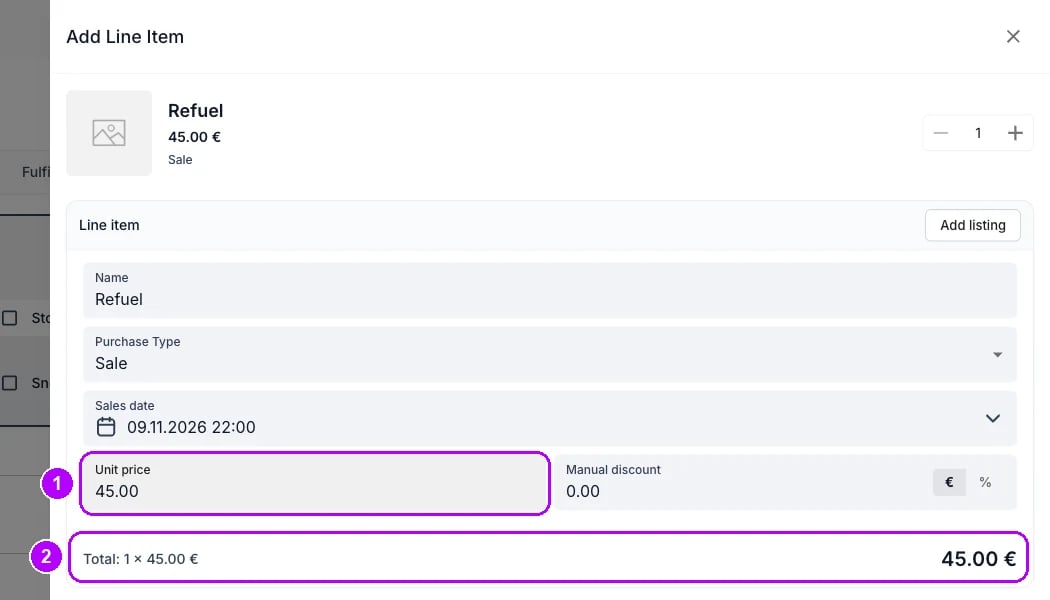
6
Add the line
Click Add at the bottom of the panel. The panel closes, and the Summary tab lists the new line under Sold with an Unpaid chip. The Payments card on the right of the order reads Partially paid.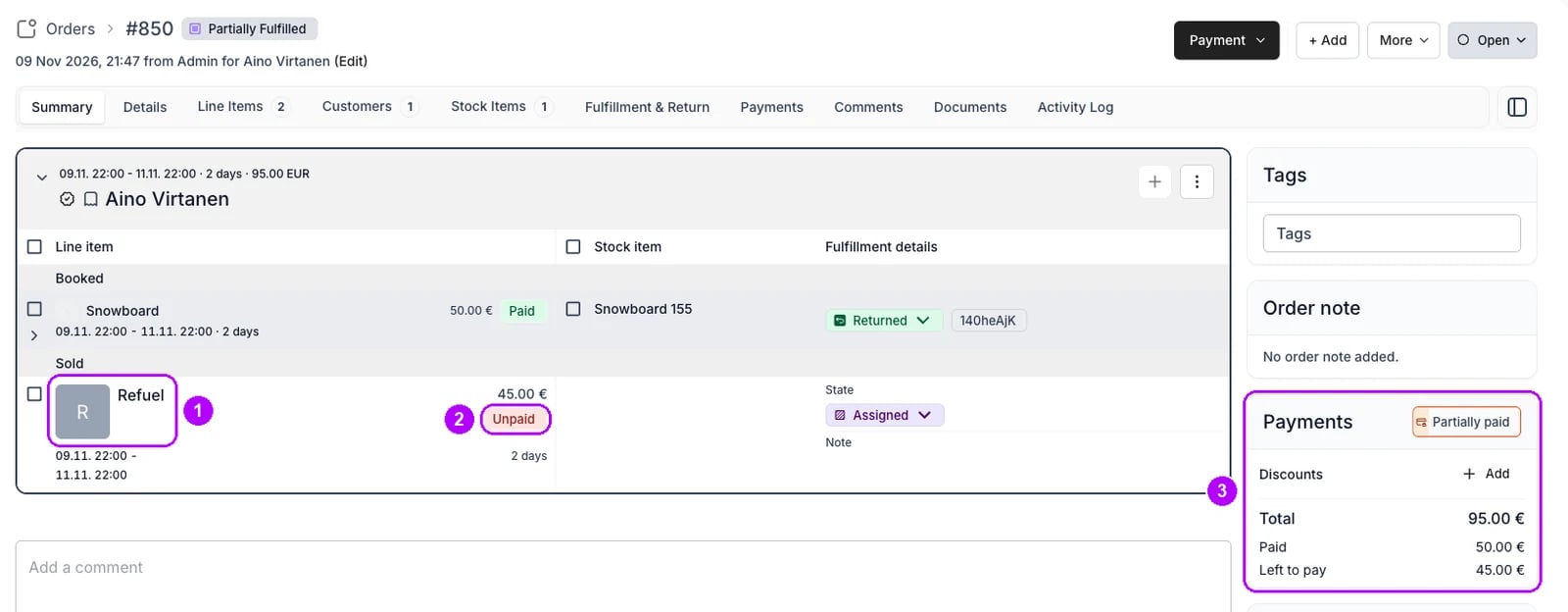
7
Open Send checkout link
Click Payment in the top-right corner of the order and choose Send checkout link. The Send checkout link panel opens on the right.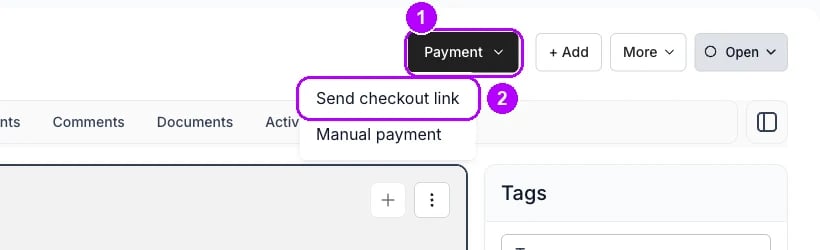
8
Check the email and what the link collects
Check Email under Contact details. It starts with the email of the order’s main customer. Check the rows under Amount to collect: every line that still owes money is ticked at what it owes. On an order that was paid in full, that is the new line alone. Untick any other row.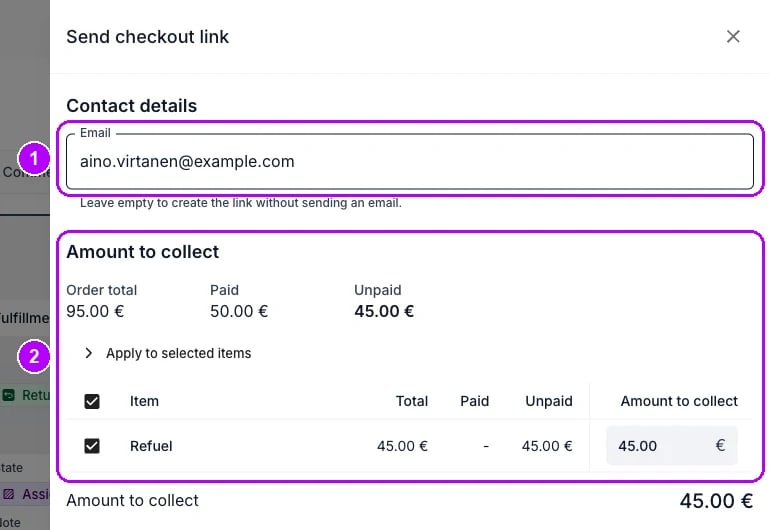
9
Send the link
Check that the online methods under Available payment methods are ticked, then click Send checkout link at the bottom of the panel. The button ends in the amount, for example 45.00 €. Checkout link created successfully confirms it, and the panel closes.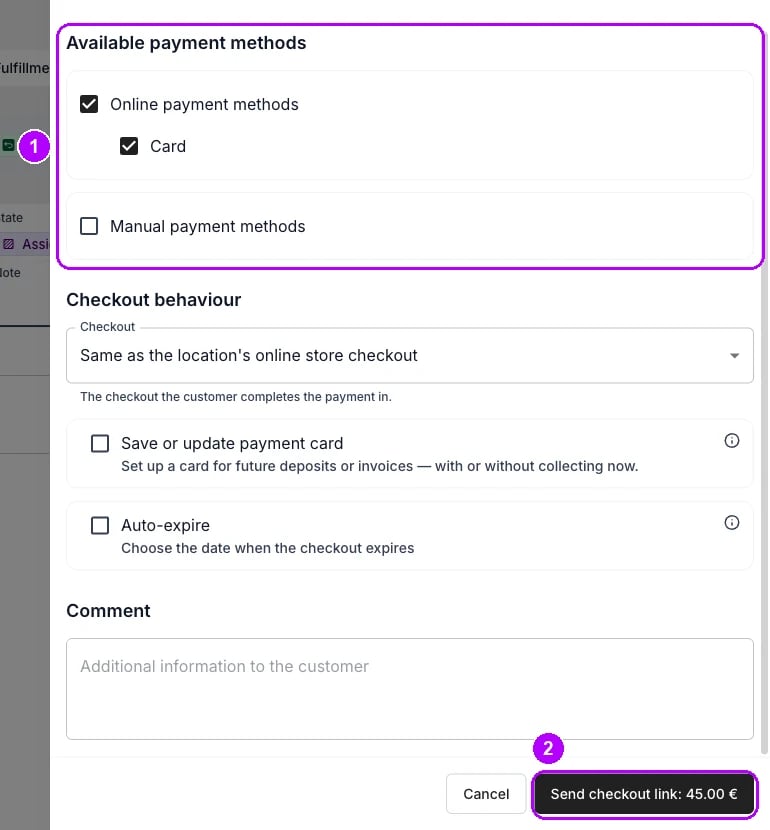
10
Follow the payment
Open the order’s Payments tab. The link is listed under Checkout links as Active. When the customer pays, it reads Used, and the new line’s chip on the Summary tab reads Paid.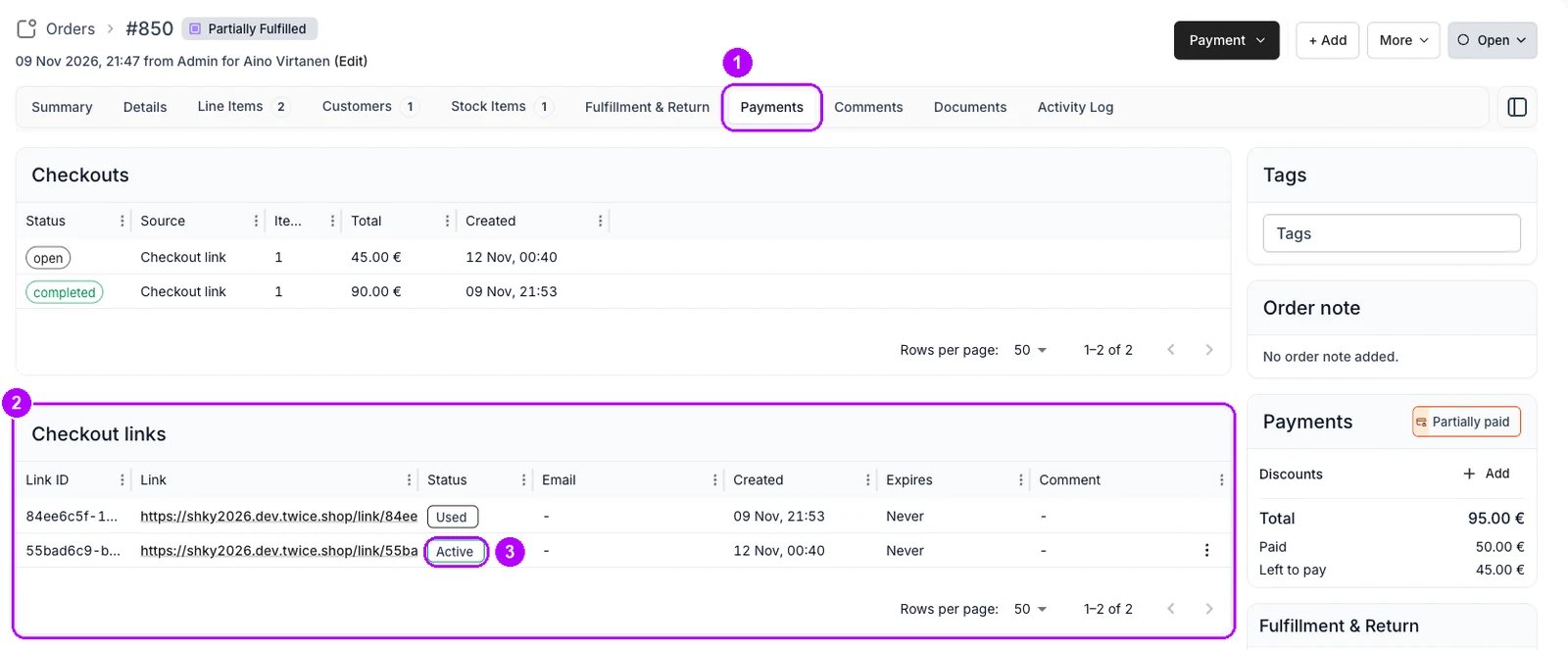
11
Complete the order once it is paid
Wait until the link reads Used, then complete the order again, as Complete an order shows. Completing it sooner revokes the link, and the customer can no longer pay it.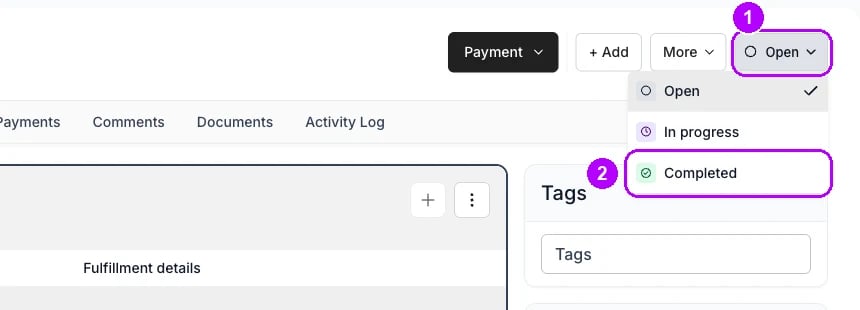
How do I know it worked?
- The new line is on the Summary tab under Sold, with the name and price you entered.
- The link is listed under Checkout links on the Payments tab, with the address it went to in the Email column.
- The line’s chip reads Paid once the customer pays, and the order reads Completed again after you complete it.
Troubleshooting / common pitfalls
There is no + Add or Payment in the top-right corner
There is no + Add or Payment in the top-right corner
The order is closed, and This order is closed shows at the top. Reopen it as Reopen an order shows. On an order that is not closed, your role hides the buttons. See UI visibility.
The panel says no payment methods are enabled
The panel says no payment methods are enabled
Your account has no payment method switched on, so the link has nothing to offer the customer. Connect a payment provider and enable the methods you accept under Payments settings, then send the link.
The customer says the link no longer opens
The customer says the link no longer opens
The order was completed before they paid, and completing an order revokes its active checkout links. Reopen the order and send a new link. See Order Lifecycle.
Related articles
Order Lifecycle
What completing an order closes, and what reopening it brings back.
Returns and damage
Every walkthrough for taking items back and charging for damage.
Capture a deposit
Take the charge from a deposit you still hold.
Send a checkout link
Collect what an order owes, in full or in part.
Reopen an order
Make a completed order editable again.