

Open in TWICE Admin
orders
Prerequisites
Have ready before you start:
- The unit marked Returned on its order. It came back, whatever its condition. See Mark items returned.
- What is wrong with it, in a few words.
- The order still in progress, to charge the damage from its deposit. Completing the order releases the deposit hold, so capture it first. See Capture a deposit.
The walkthrough
1
Open the order
Open Orders and enter the code from the unit’s tag in Search all orders. With more than one location, check the location selector in the top-left corner first. Click the order’s row. The order opens on its Summary tab.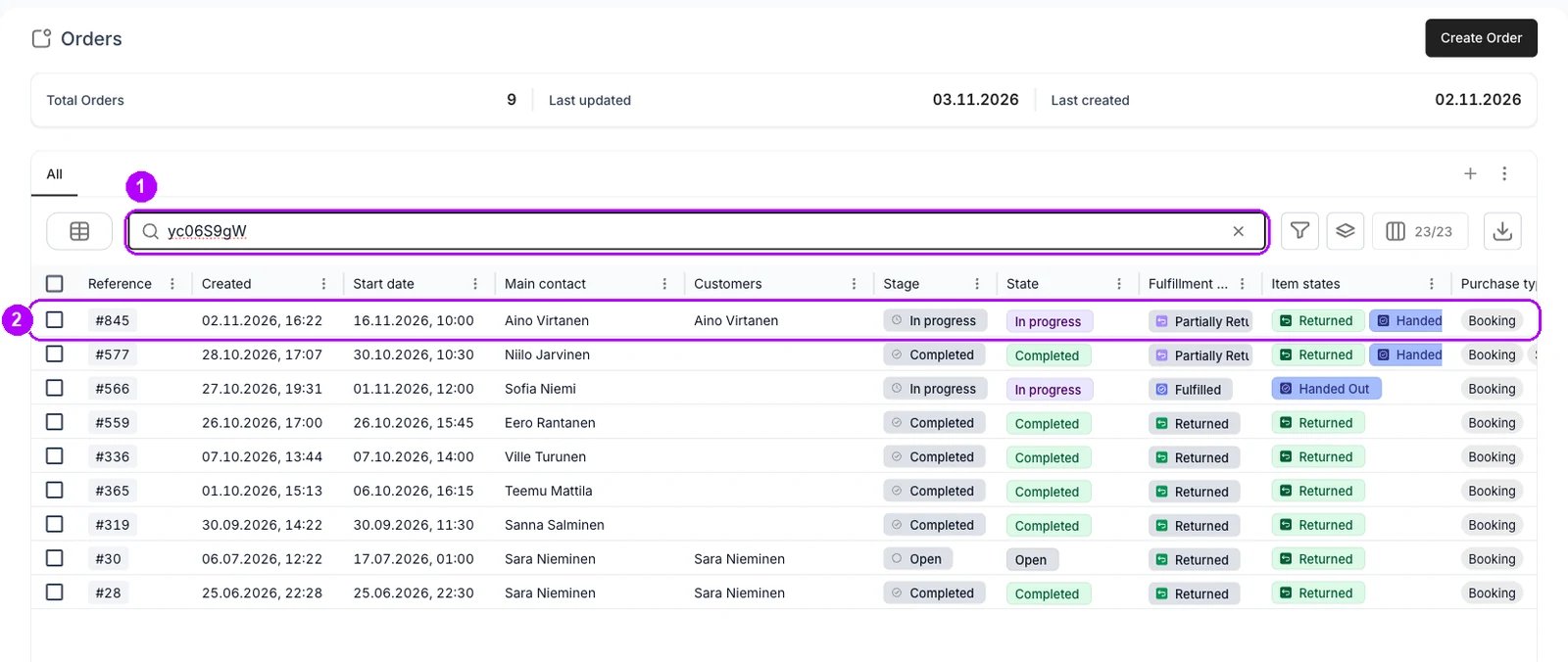
2
Open the unit's panel
Find the unit’s row and click its code in the Fulfillment details column, beside the unit’s state. The stock item panel opens on the right.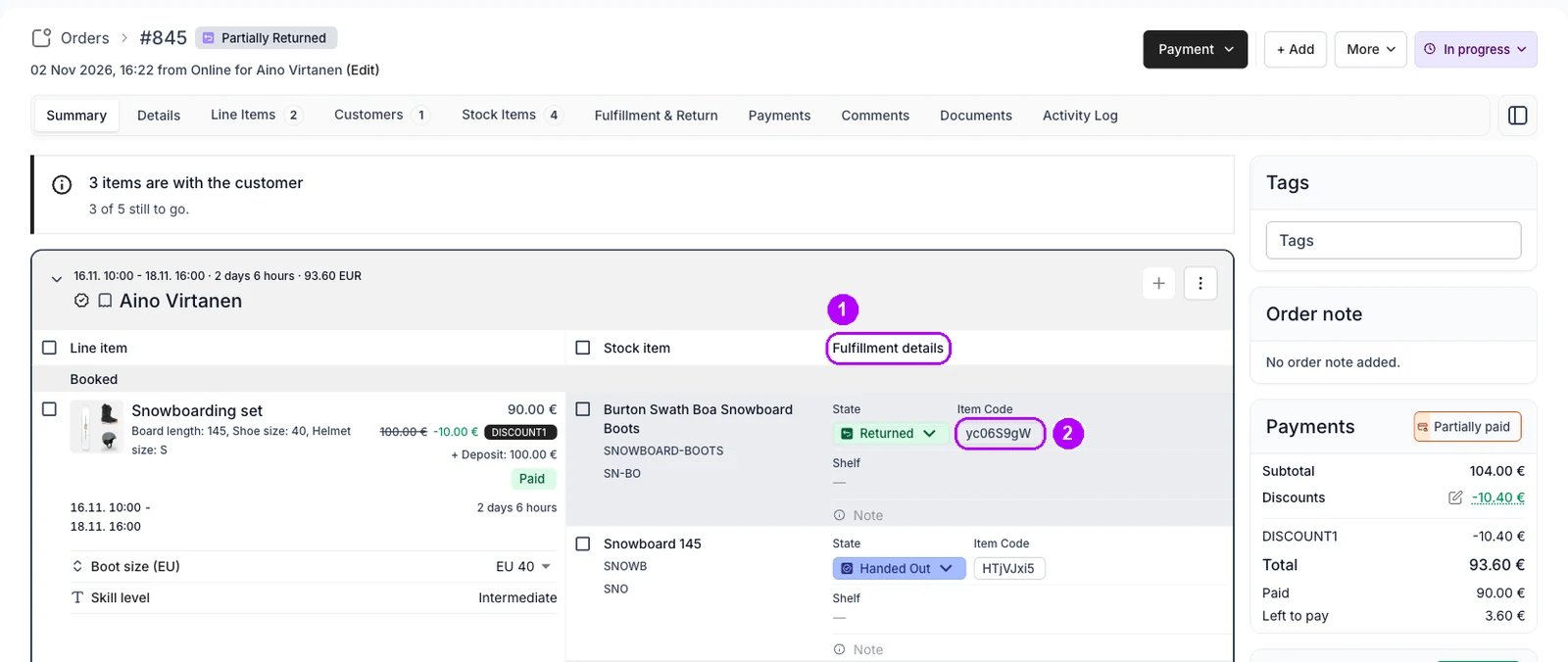
3
Open the stock item's page
Click the code under Item Codes near the top of the panel. The stock item’s own page opens in a new browser tab.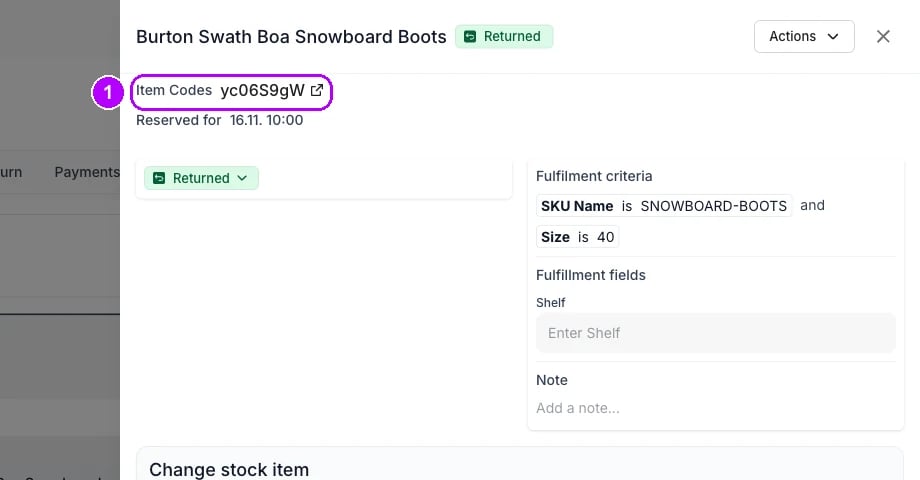
4
Open the Events tab
Click the Events tab. It lists the unit’s orders, reservations and notes.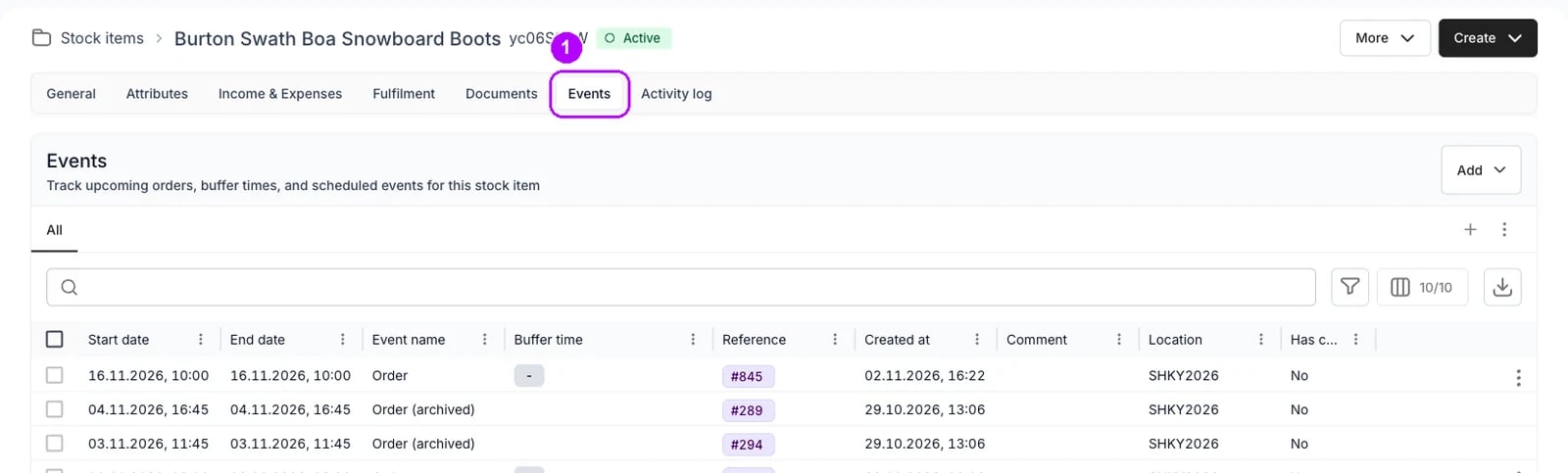
5
Choose Add, then Note
Click Add in the top-right corner of the Events card and choose Note. The Add a note panel opens on the right.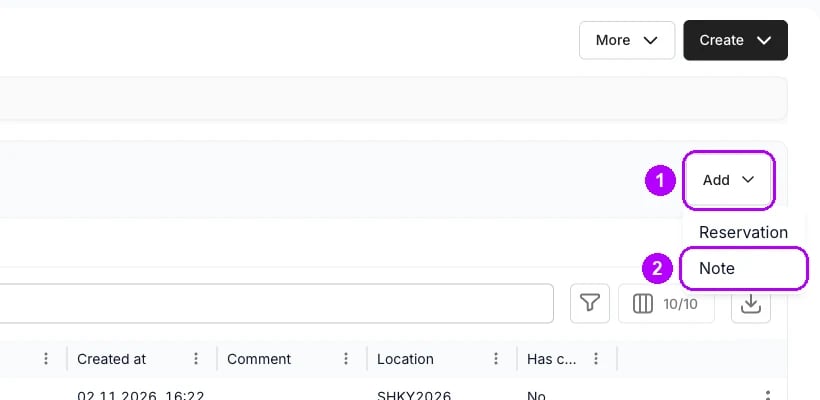
6
Describe the damage
Enter a Title, for example Damaged, and in Note write what is wrong and which order the unit came back on. Leave Location and Timestamp as they open. The panel adds no note without a title.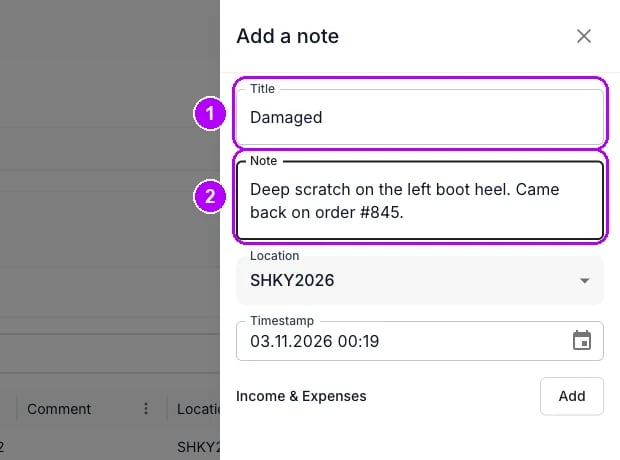
7
Add the note
Click Add at the bottom of the panel. The panel closes, and the note is listed on the Events tab under its title.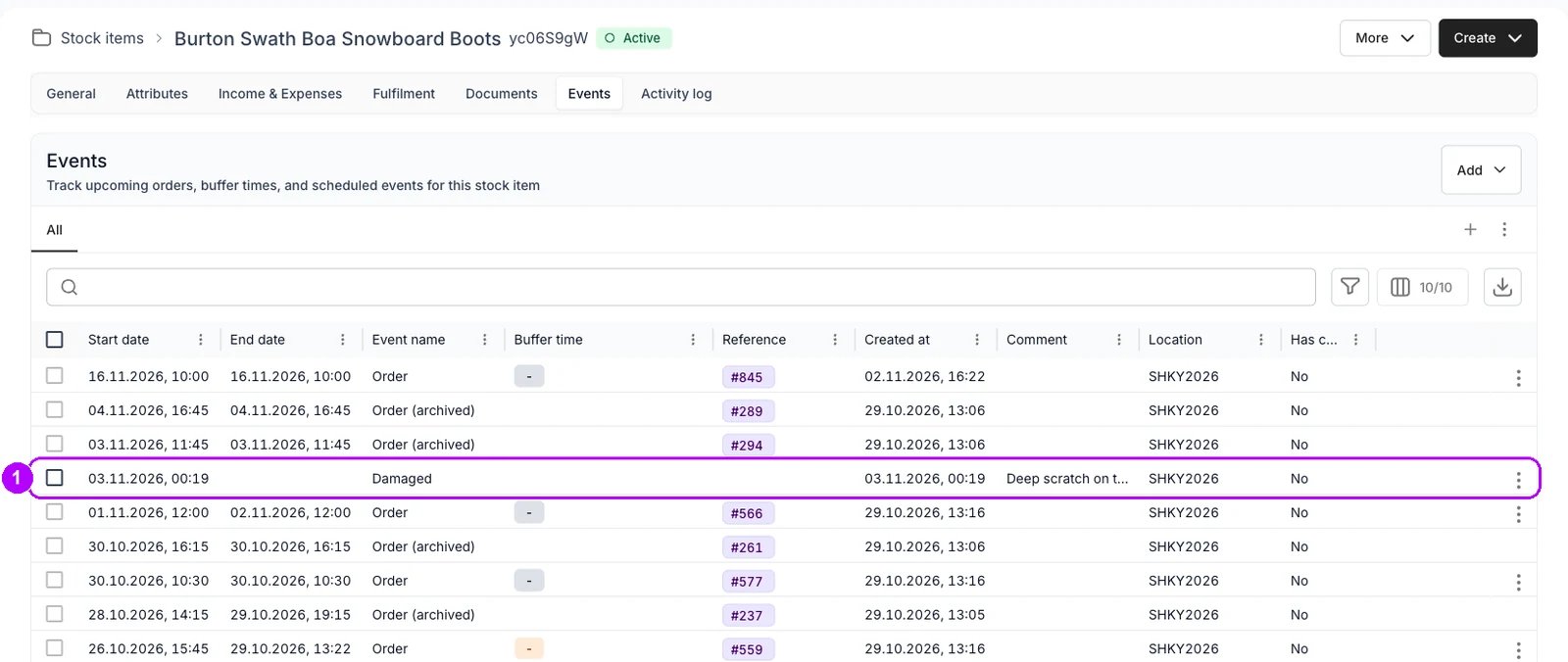
8
Reserve the unit until it is fixed
Click Add again and choose Reservation. The Schedule a reservation panel opens. Fill it in as Reserve a stock item shows, with End date set to when the unit is back in service, or No end date.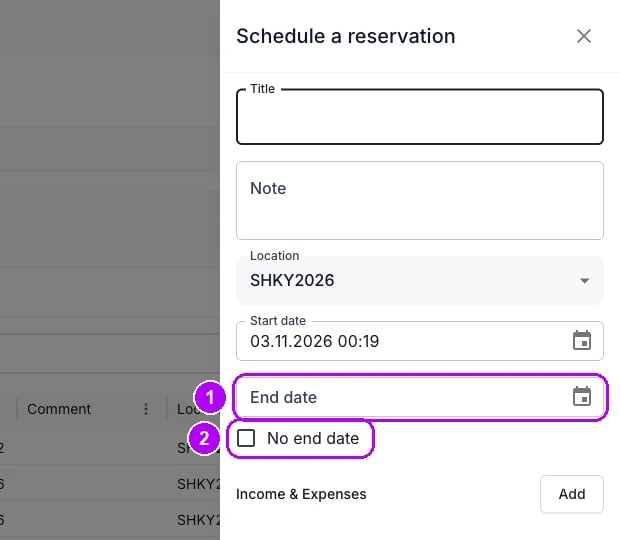
How do I know it worked?
- The note is on the stock item. Its Events tab lists it under your title.
- The reservation is listed on the same tab, and the unit cannot go on an order over its dates.
- The order still reads the unit as Returned. The order records that it came back, and the stock item records its condition.
Troubleshooting / common pitfalls
The unit's code opens nothing
The unit's code opens nothing
The order is completed, and a completed order is read-only. Open the unit from Inventory → Stock items instead, searching for its code. See Order Lifecycle.
A dialog lists orders that lose the unit
A dialog lists orders that lose the unit
The unit is booked over the reservation’s dates. Confirming takes it from those orders, and each needs another unit. See Reservation priority.
The deposit was released before you charged the damage
The deposit was released before you charged the damage
Completing the order released the deposit hold. Reopen the order, add a line for the damage and collect it as a payment. See Security Deposits.
Related articles
Stock Item Events
Notes and reservations on a stock item.
Returns and damage
Every walkthrough for taking items back.
Mark items returned
Record which units came back on the order.
Reserve a stock item
Keep a unit off every order until it is repaired.
Capture a deposit
Charge the damage from the deposit you hold.
Archive stock items
Retire a unit that is beyond repair.