

Open in TWICE Admin
orders
Prerequisites
Have ready before you start:
- The order’s reference or the customer’s name, to find the order.
- The state to return it to: Open or In progress, whichever matches where the order is.
The walkthrough
1
Open the order
Open Orders and type the order’s reference or the customer’s name in Search all orders. A closed order stays in the table. Check the location selector in the top-left corner first if your account has more than one location. Click the order’s row to open it.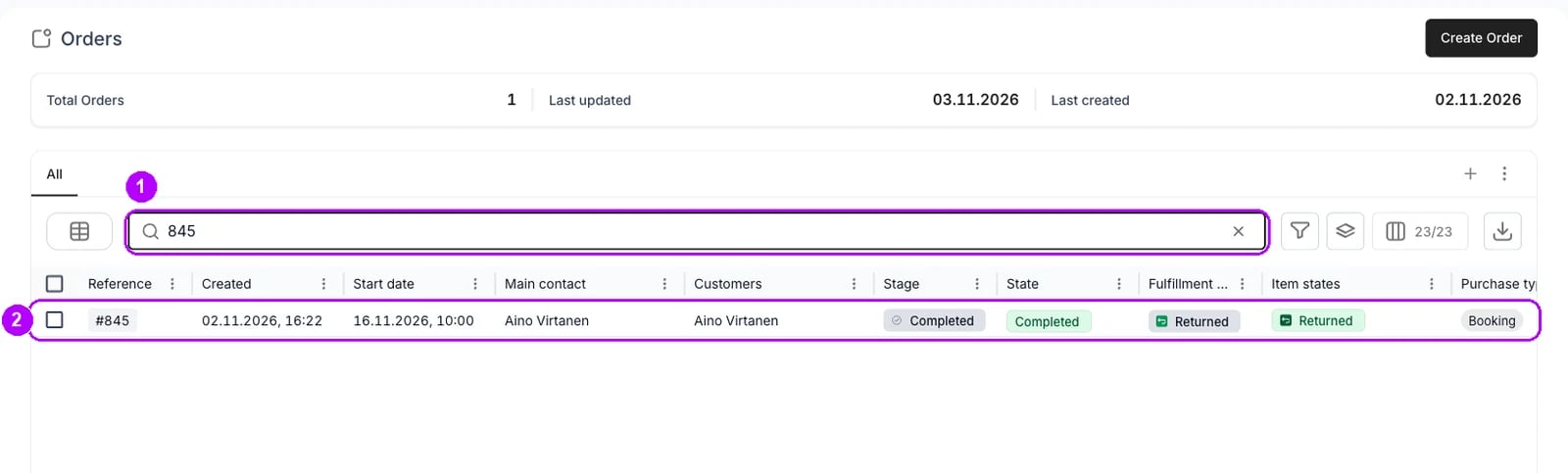
2
Check why it is read-only
Read the banner at the top of the order. This order is closed means you can reopen it here. A banner with Unarchive in it means the order is archived: unarchive it first, as Unarchive an order shows. Unarchiving leaves the order closed, so reopen it afterwards.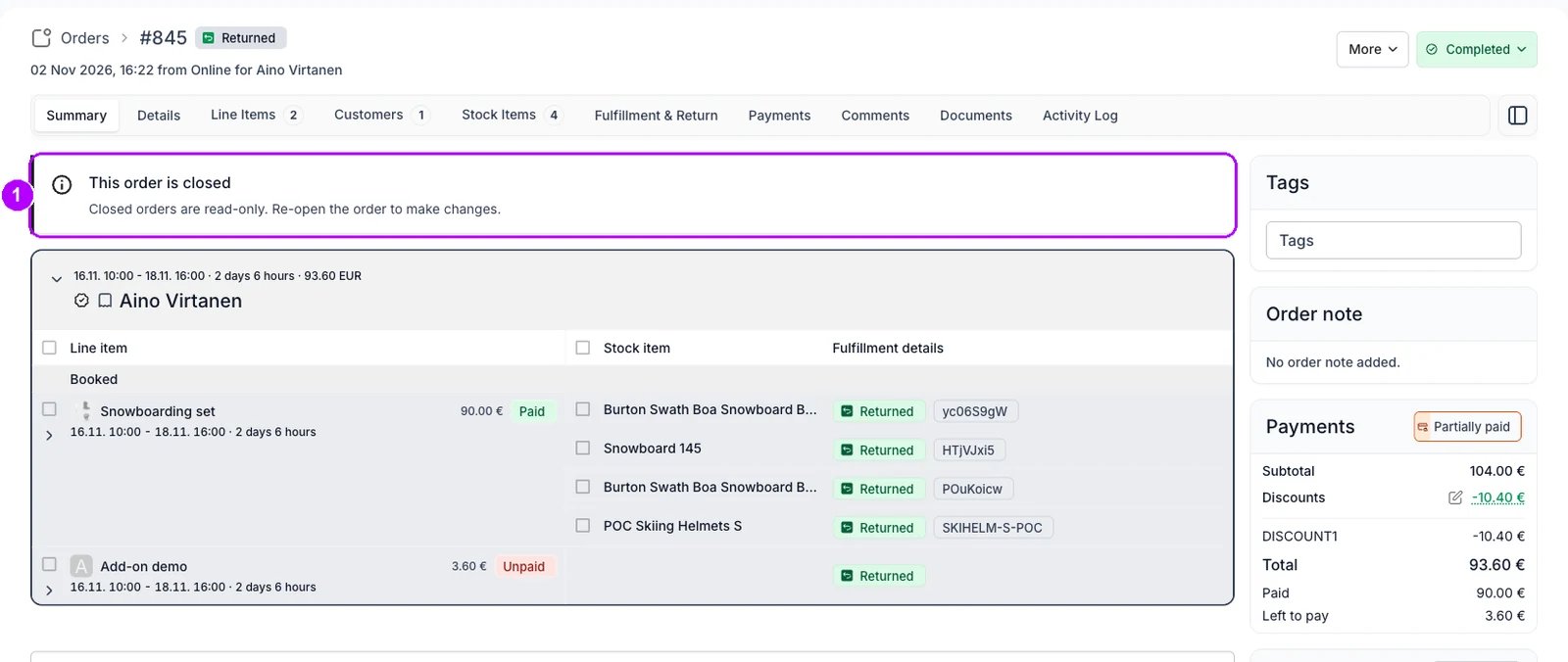
3
Choose Open or In progress
Click the status chip at the far right of the top bar, Completed on a new account. A menu of your order states opens, grouped by status. Choose Open or In progress. Where your account moves orders with a button and one shows there, open the arrow on the button for the menu.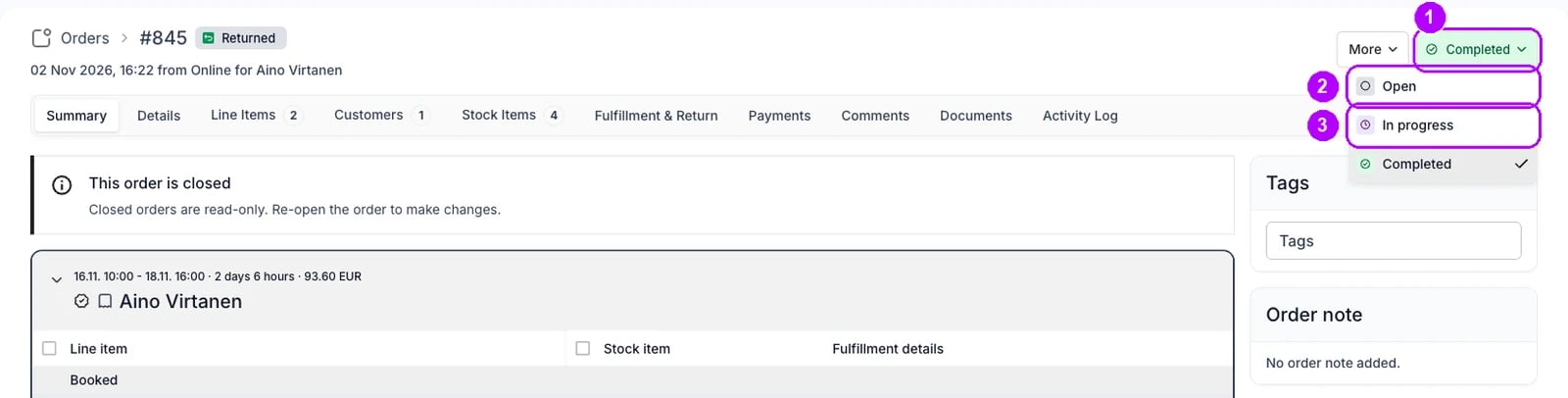
4
Move the order back
Read the Move order to Open dialog, named for the state you chose. It reads “The order moves back to Open and becomes editable again.” Open What stays the same to see what reopening leaves as it is, such as “Cancelled checkout links stay cancelled”. Click Move to Open.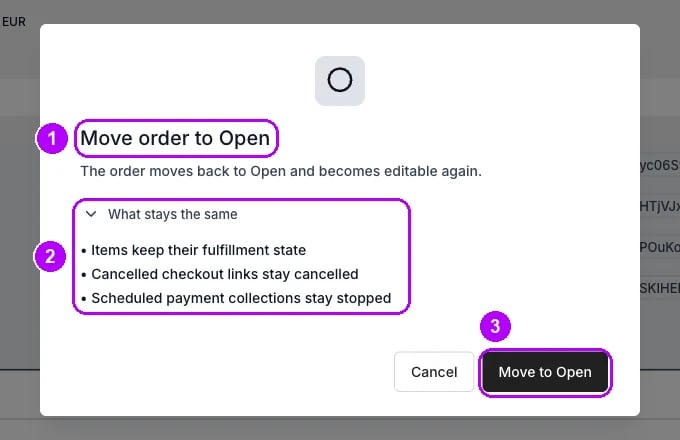
5
Check the order is editable
This order is closed no longer shows, and the status chip reads Open. + Add is back in the top-right corner, and the line items on the Summary tab open again when you click their names.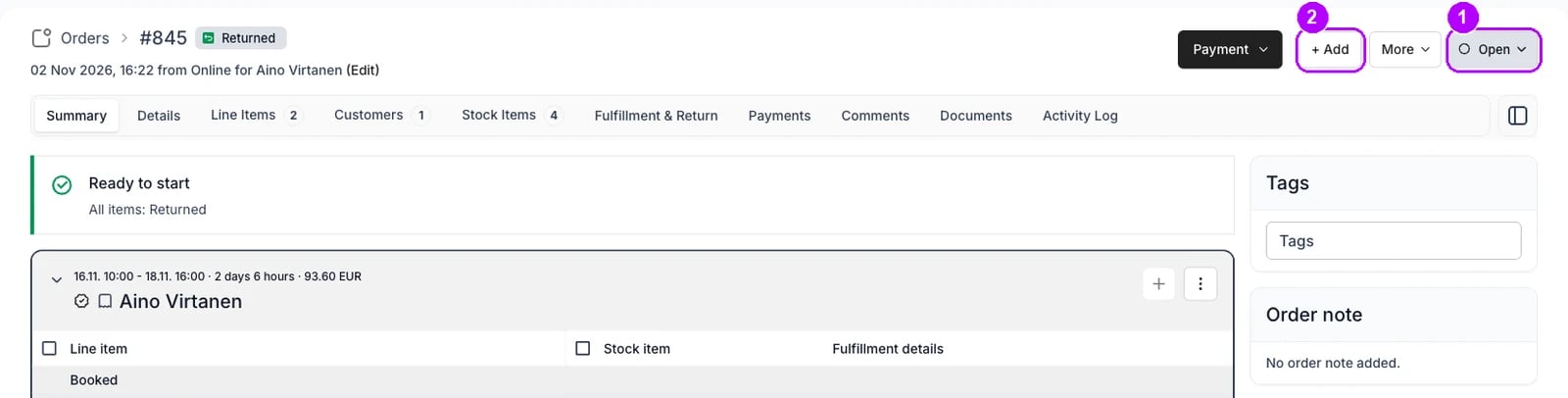
How do I know it worked?
- This order is closed no longer shows at the top of the order.
- The status chip reads the state you chose.
- + Add shows in the top-right corner, and the line items open when you click their names.
Troubleshooting / common pitfalls
The status chip does not open
The status chip does not open
The order is archived, and a banner with Unarchive shows at the top. Unarchive it first, as Unarchive an order shows. Where your account moves orders with a button, your role also needs “Move orders to any state”. See Users & Roles.
An earlier checkout link no longer works
An earlier checkout link no longer works
Reopening leaves cancelled checkout links cancelled. Send the customer a new one, as Send a checkout link shows.
The items did not change state
The items did not change state
Reopening keeps each item’s state, and no checks or automations run on a move back. Set an item by hand from its own chip if it has to change. See Order Lifecycle.
Related articles
Order Lifecycle
The statuses an order moves through, and what reopening keeps.
Changing an order
Every walkthrough for changing an order a customer already has.
Unarchive an order
Bring an archived order back before you reopen it.
Complete an order
Close the order again once the change is done.