

Open in TWICE Admin
orders
Prerequisites
Have ready before you start:
- A reserved deposit on an order that is not completed. Completing an order releases every deposit hold on it, and a released hold has nothing left to capture.
- The amount to keep, and why, for example the repair cost of the damage you found.
- The tax rate that applies to the charge, if it carries tax.
The walkthrough
1
Open the order
Open the order from Orders. Check the location selector in the top-left corner first if you have more than one location, because the table lists only that location’s orders. The order opens on its Summary tab.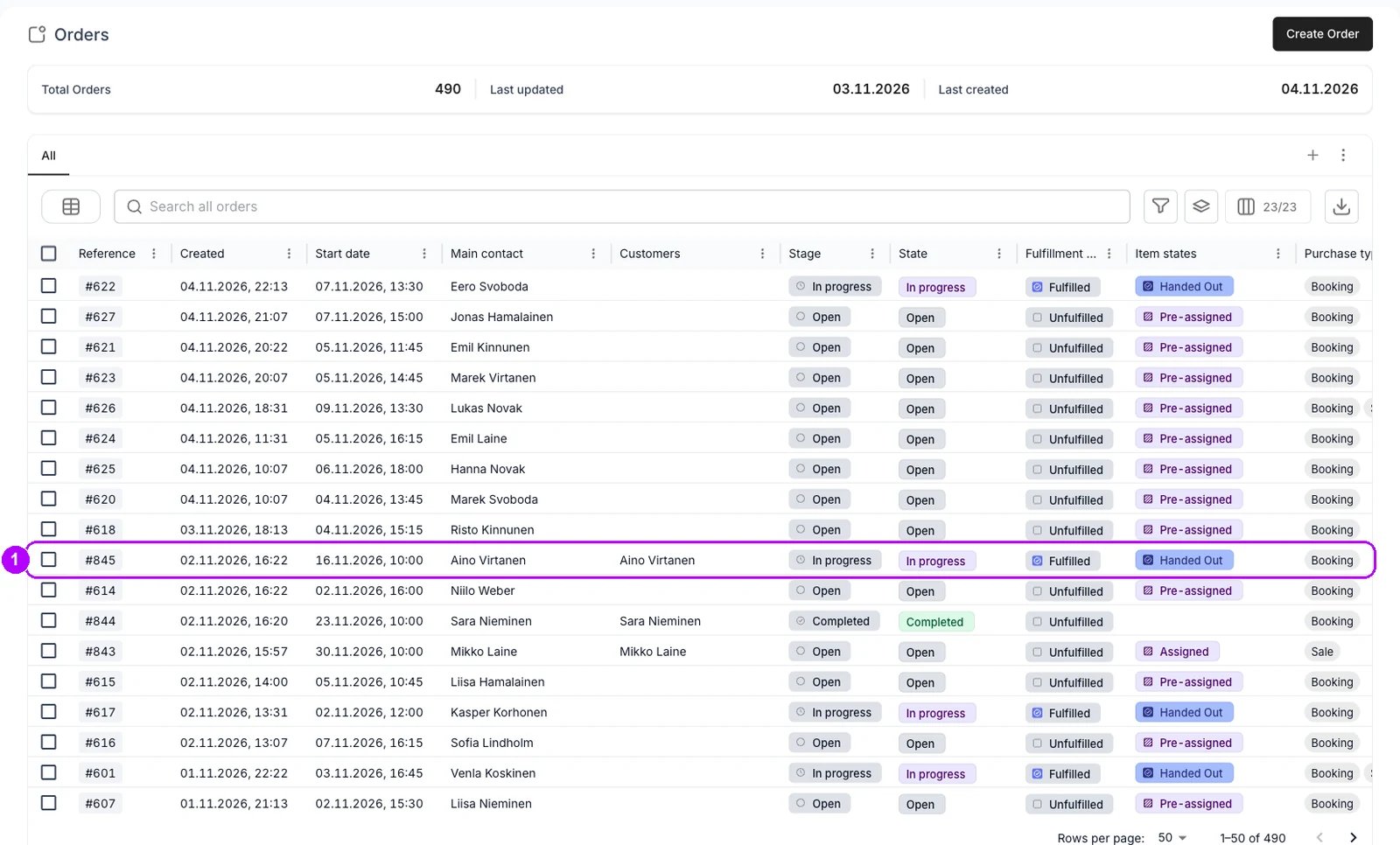
2
Find the deposit on the Payments tab
Click the Payments tab at the top of the order and scroll to the Deposit table at the bottom. The hold is the row of type Deposit Auth. It reads Succeeded while the whole hold is still in place.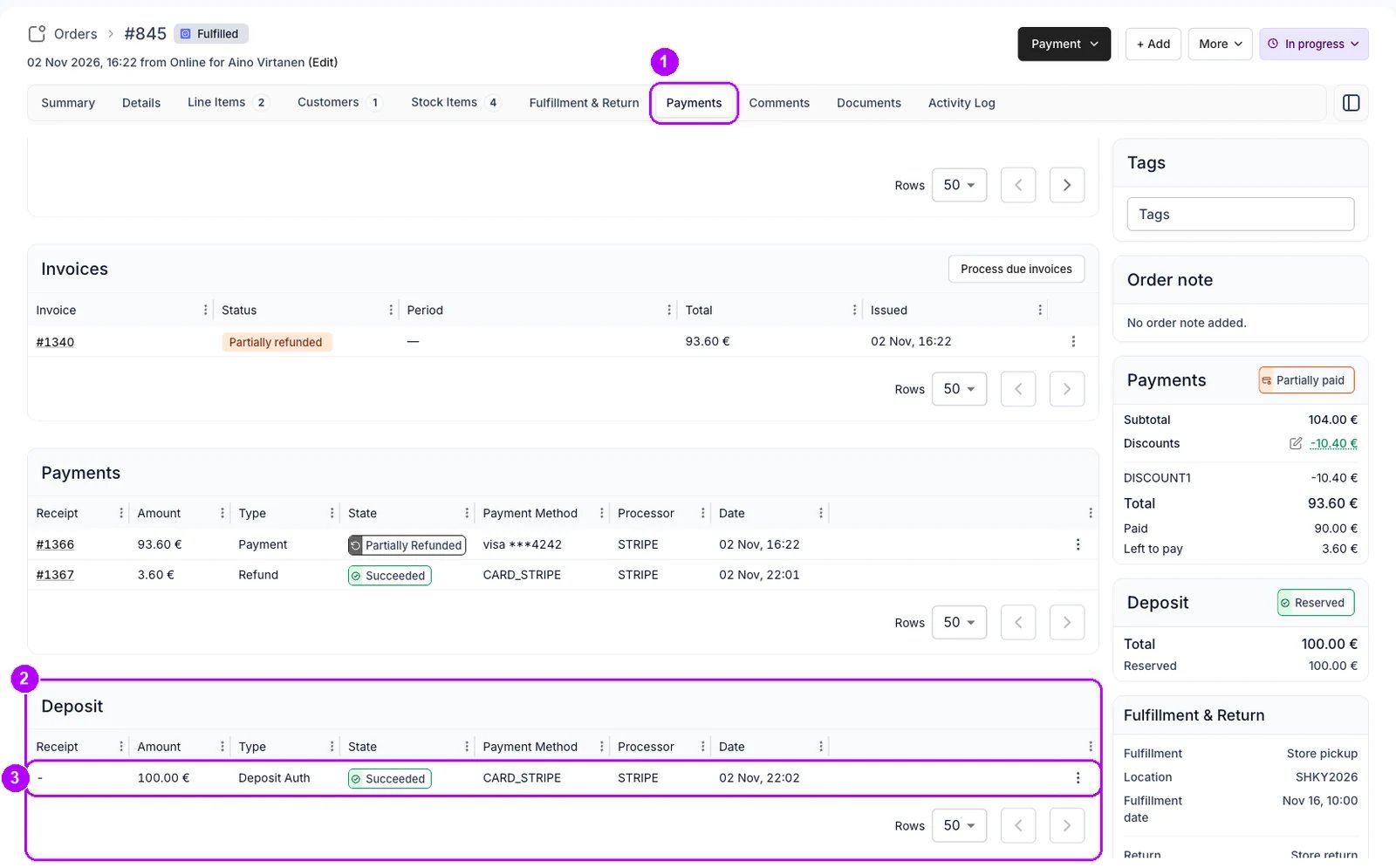
3
Open Capture deposit
Click the three-dot menu at the end of the Deposit Auth row and choose Capture deposit. The Capture deposit window opens with Reserved and Available to capture at the top. Available to capture is the most you can keep.
4
Enter the amount to keep
Type the amount in Amount to capture. It starts at the whole hold. You capture once: when you confirm, the rest of the hold goes back to the customer, and nothing more can be captured from it.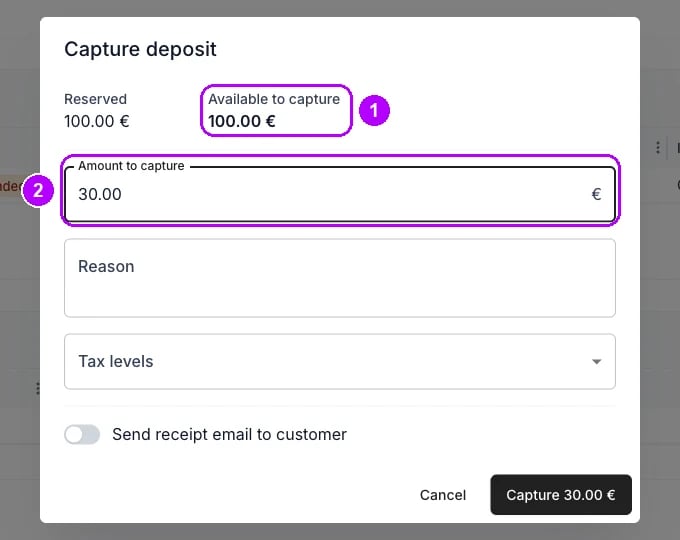
5
Describe the charge
Type why you are keeping it in Reason, for example the damage you found. It names the charge on the receipt. Choose the rate in Tax levels if the charge carries tax, or leave it empty for none. Without tax rates in your account, the window reads “No tax rates configured.” in its place.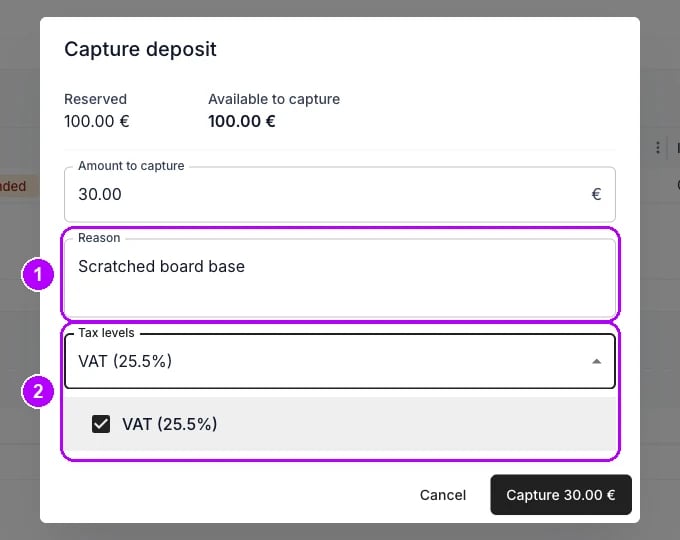
6
Choose whether to email the receipt
Switch on “Send receipt email to customer” to email the customer the receipt. It is off when the window opens. Check the address in Customer email under it. It starts with the order’s contact email.A deposit marked as reserved by hand shows a notice here instead: no payment is processed, so collect the money yourself.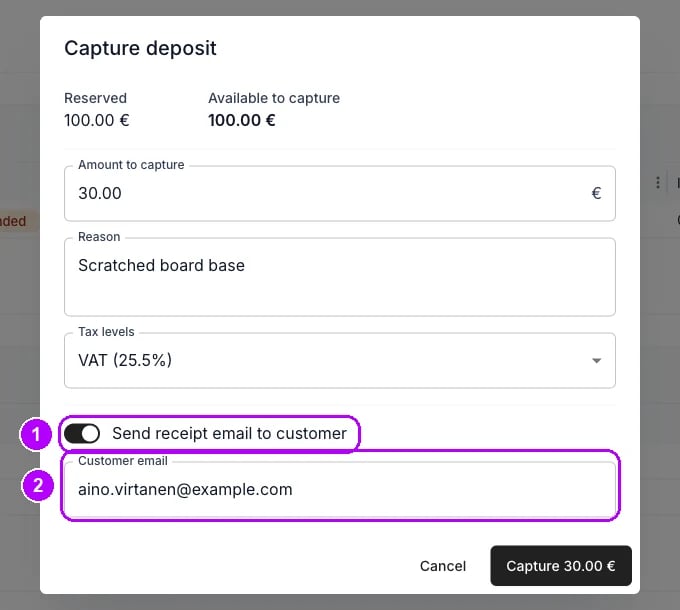
7
Capture the amount
Click the button in the bottom-right corner of the window, which reads Capture and the amount, for example Capture 30.00 €. The window closes, and Deposit captured successfully confirms it.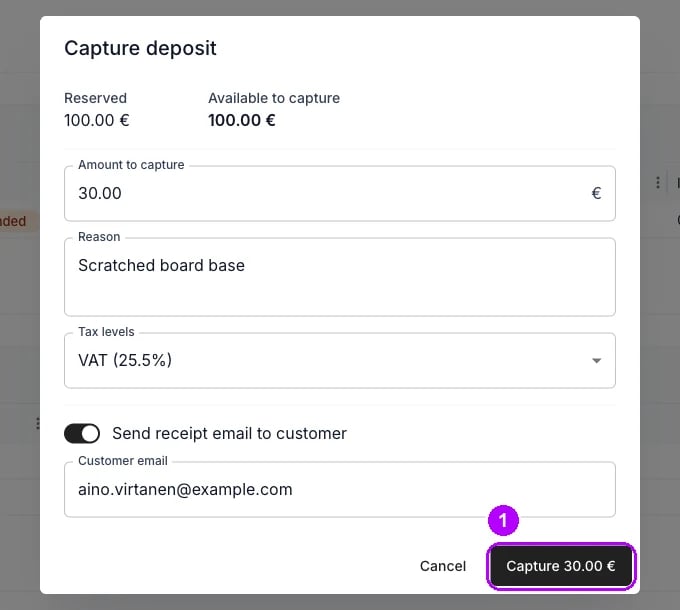
8
Check the result
Check the Deposit table. A new row of type Deposit Capture holds the amount, with its own receipt number, and the Deposit Auth row reads Captured or Partially captured. The Deposit card in the sidebar shows the same status, with the captured amount on its Captured row.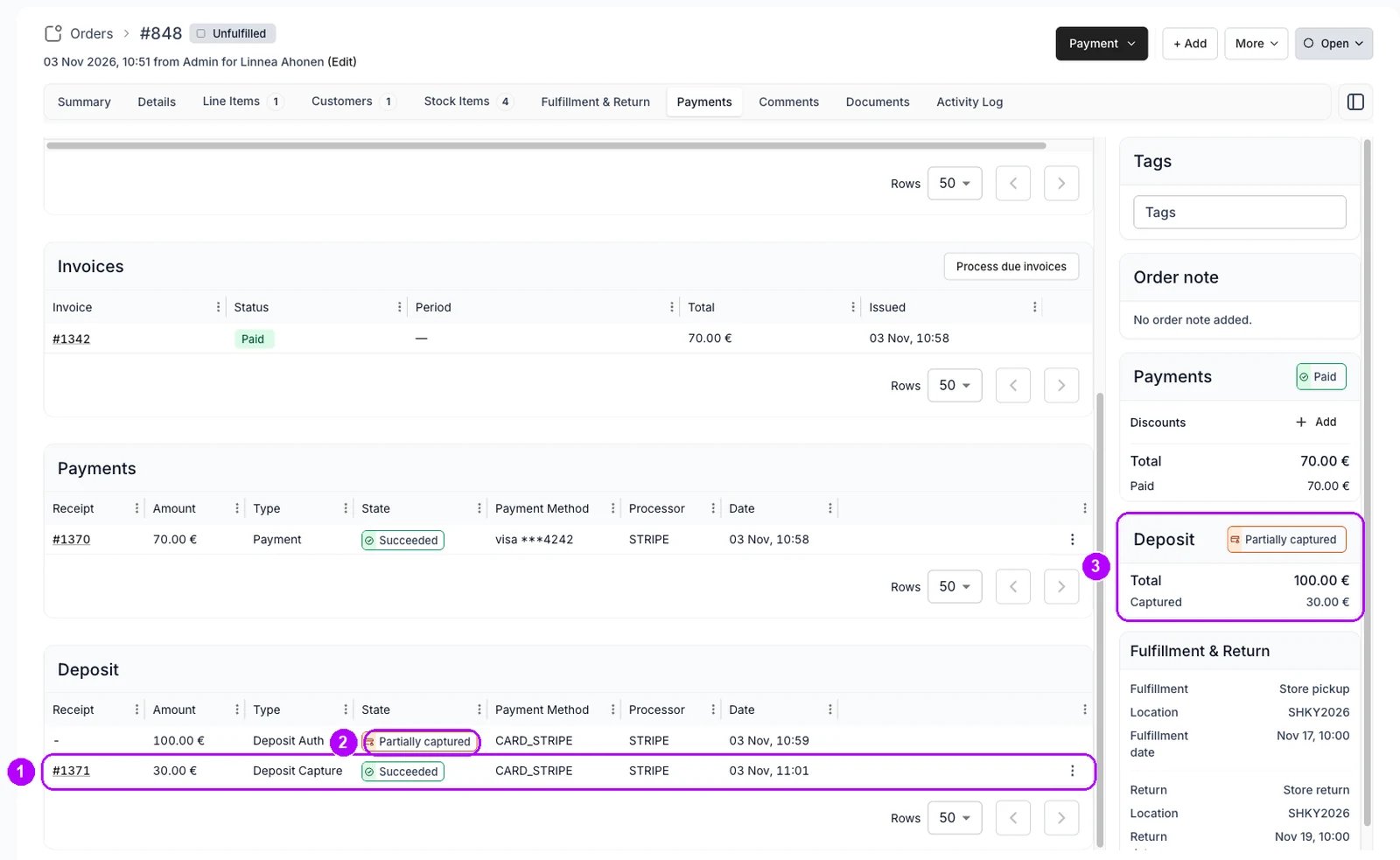
How do I know it worked?
- A row of type Deposit Capture is in the Deposit table for the amount, with its own receipt number.
- The Deposit card reads Captured or Partially captured, with the captured amount on its Captured row.
- The Deposit Auth row has no menu any more, because nothing is left on the hold.
- The customer has the receipt email, if you switched it on.
Troubleshooting / common pitfalls
The damage costs more than the deposit
The damage costs more than the deposit
The window refuses an amount above Available to capture. Capture the whole hold, then add a line item for the rest and collect it with a checkout link. See Security deposits.
The capture fails with an error notice
The capture fails with an error notice
The notice gives the reason the payment provider returned. A hold the provider has already let lapse cannot be captured. See Security deposits.
Related articles
Security deposits
Holds, captures, releases, and what each status means.
Payments and deposits
Every walkthrough for taking money and handling deposits on an order.
Release a deposit
Giving the whole deposit back when nothing is owed.
Reserve a deposit
Checking the deposit at pickup and reserving it when it is not held.
Refund an order
Refunding a captured deposit from its Deposit Capture row.