

Open in TWICE Admin
orders
Prerequisites
Have ready before you start:
- The listing and the dates the customer wants.
- An order that is not closed. A closed order shows no + Add until you reopen it. See Reopen an order.
The walkthrough
1
Open the order
Open Orders and find the order. Check the location selector in the top-left corner first if your account has more than one location, because the table lists only the orders of the location it shows. The order opens on its Summary tab.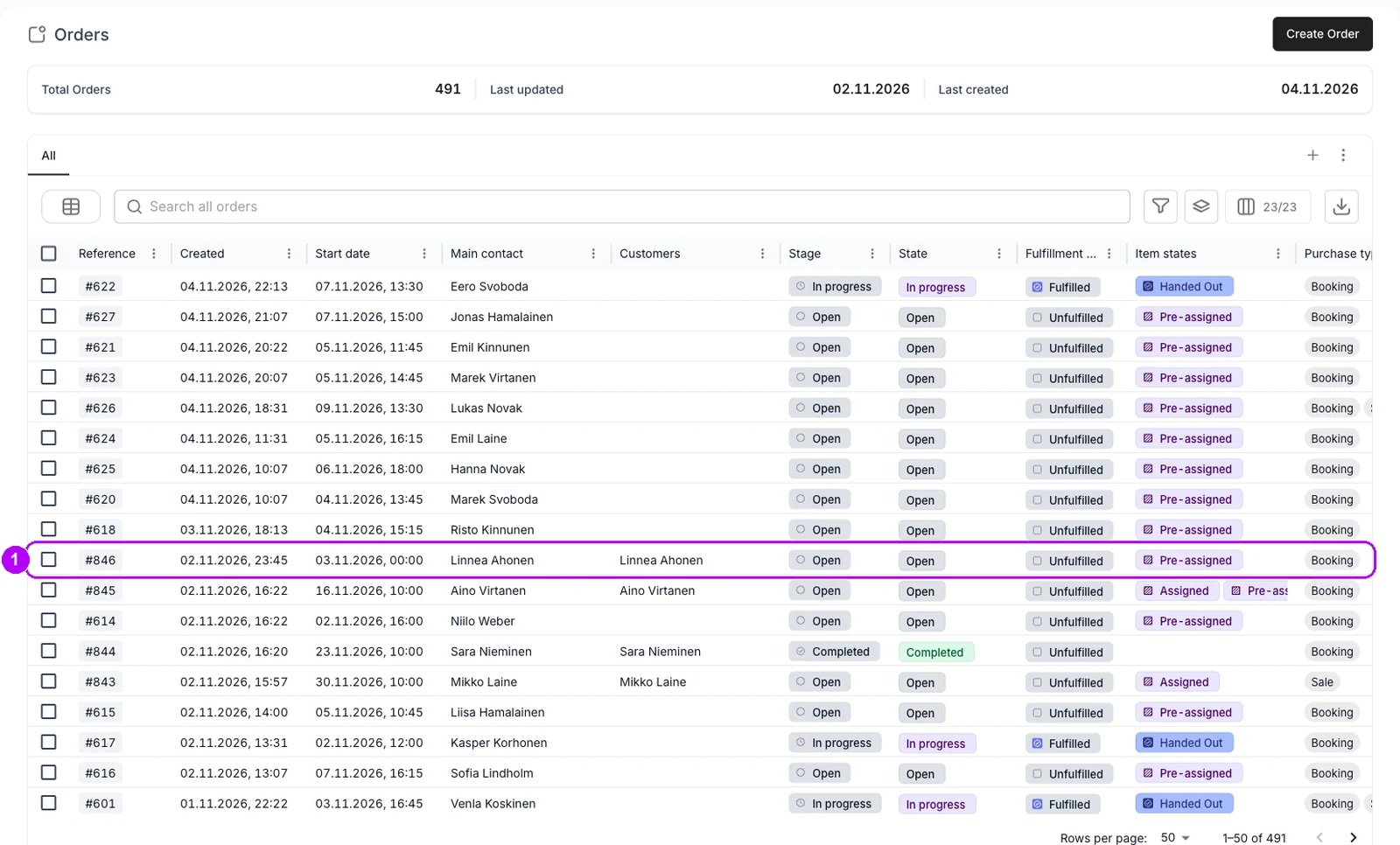
2
Open the Add panel
Click + Add in the top-right corner of the order. The Add panel opens on the right, on its Listing tab, with the listings offered at the order’s location.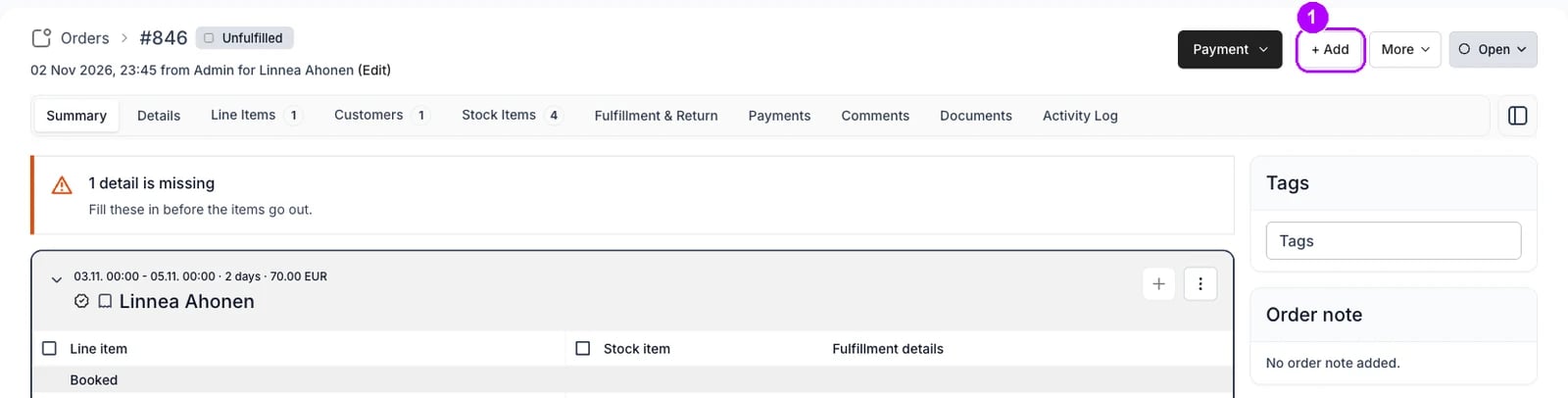
3
Set the dates
Check Purchase dates at the top left of the panel. Start and End begin at the dates of the bookings already on the order. Open each one to pick a new date, then a time. The list beside them counts what is free for these dates.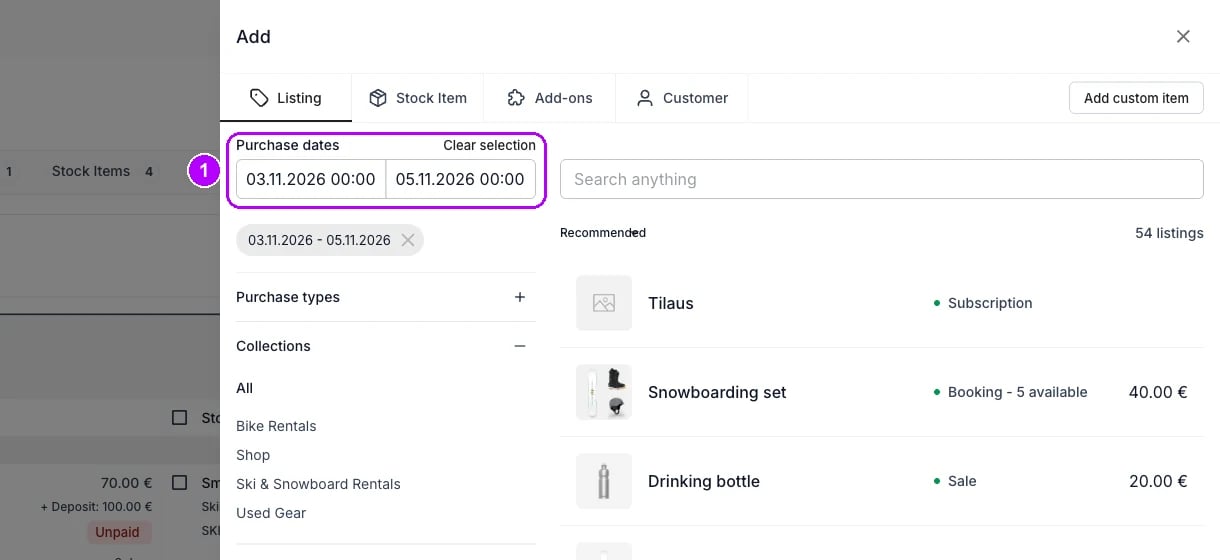
4
Pick the listing
Type the listing’s name in Search anything above the list. Each row shows how many are free for your dates, for each way the listing is sold. Click the listing’s row. The Add Line Item panel opens with the listing and your dates.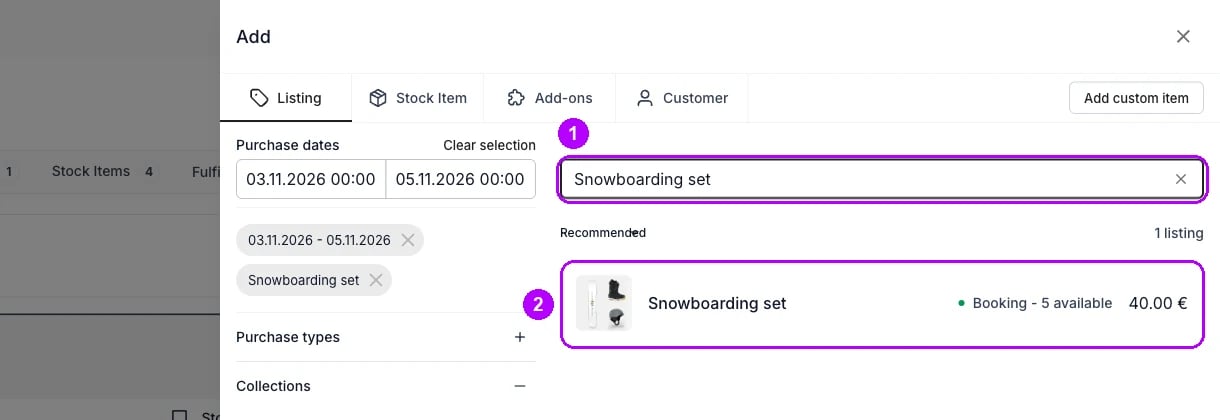
5
Choose the purchase option
Open Purchase option and choose the one the customer wants. It sets how long the booking runs and its price. A listing with a single option has it chosen already, and a sale has none to choose. Where the listing is sold more than one way, choose Purchase Type first.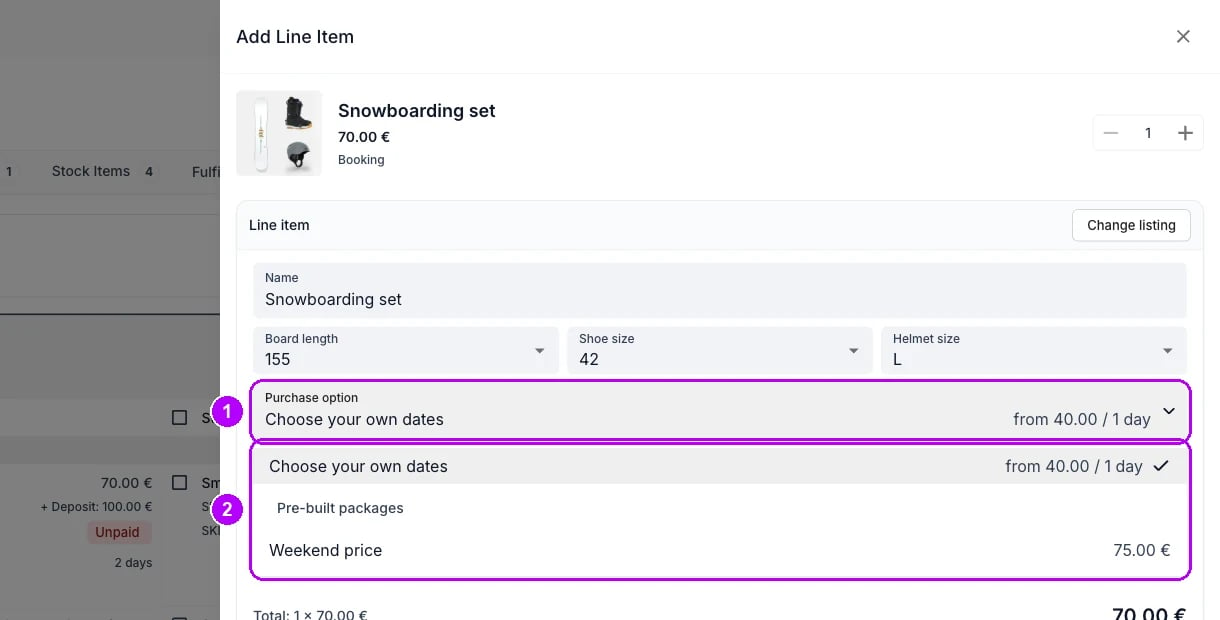
6
Check the dates and the price
Check Start and End, or Sales date on a sale. An option with a fixed length sets End for you. Unit price shows the list price for these dates. Type another price in it to charge something else.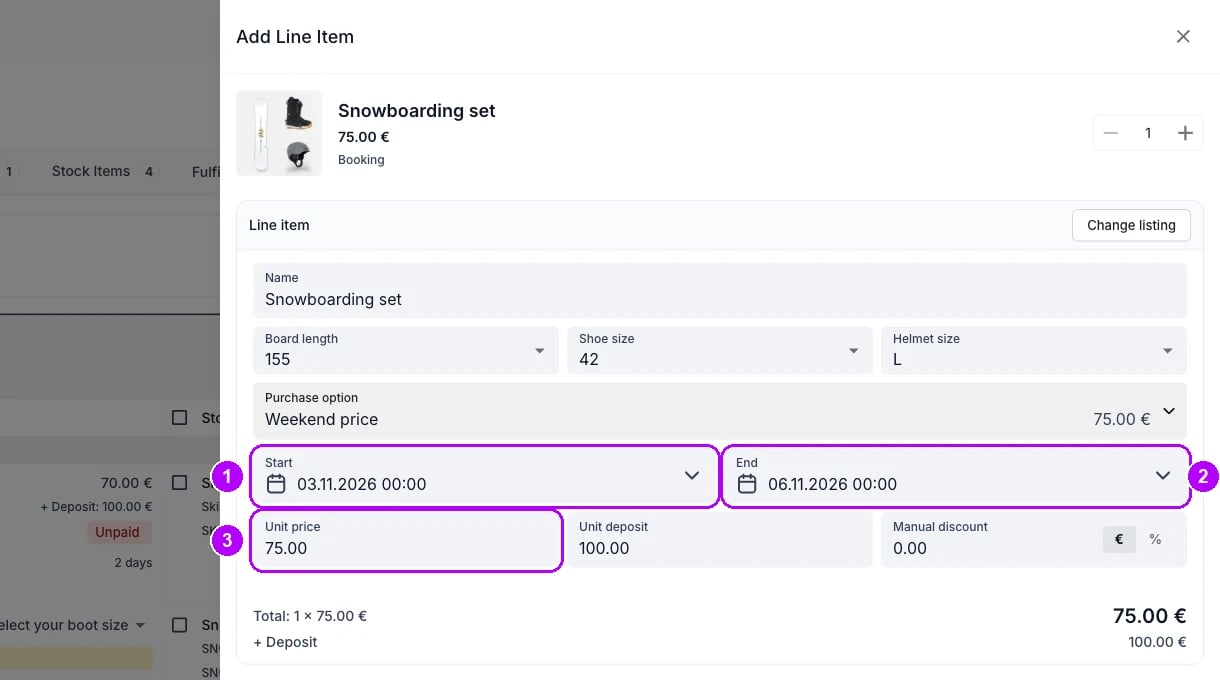
7
Add the line
Click Add at the bottom of the panel. The panel closes, and the Summary tab lists the new line with its dates and price. The order total includes it.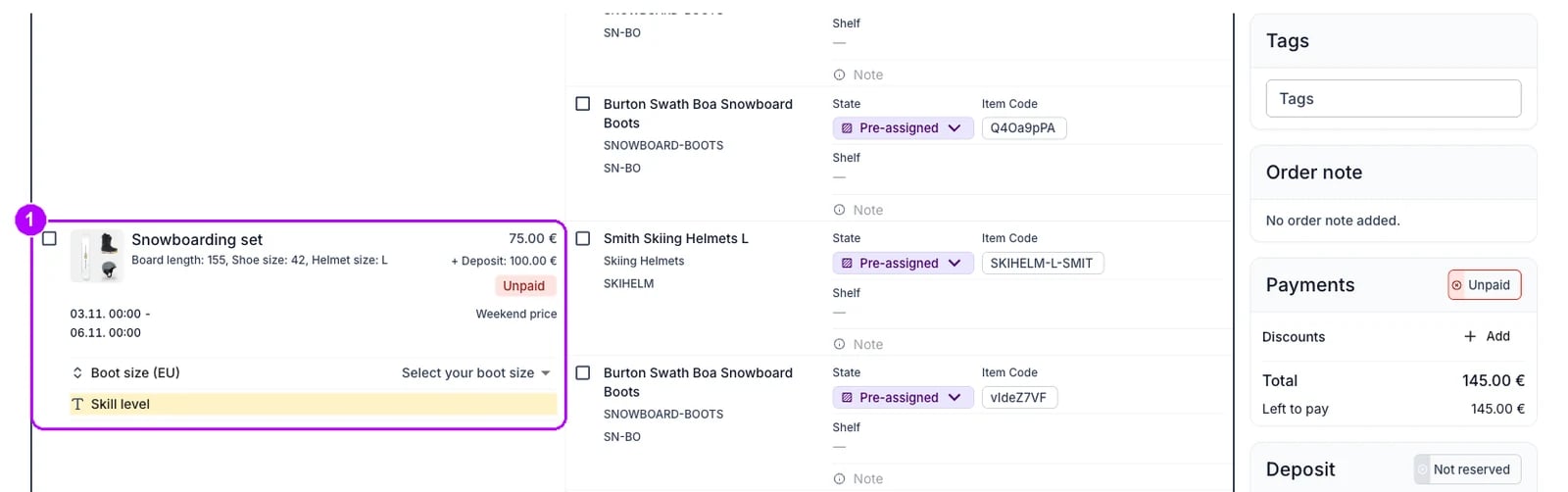
8
Check the stock behind it
Check the Stock item column beside the new line. It lists the units held for the line, each with a chip showing its state, such as Pre-assigned. To put a different unit behind the line, click the unit and follow Swap a stock item.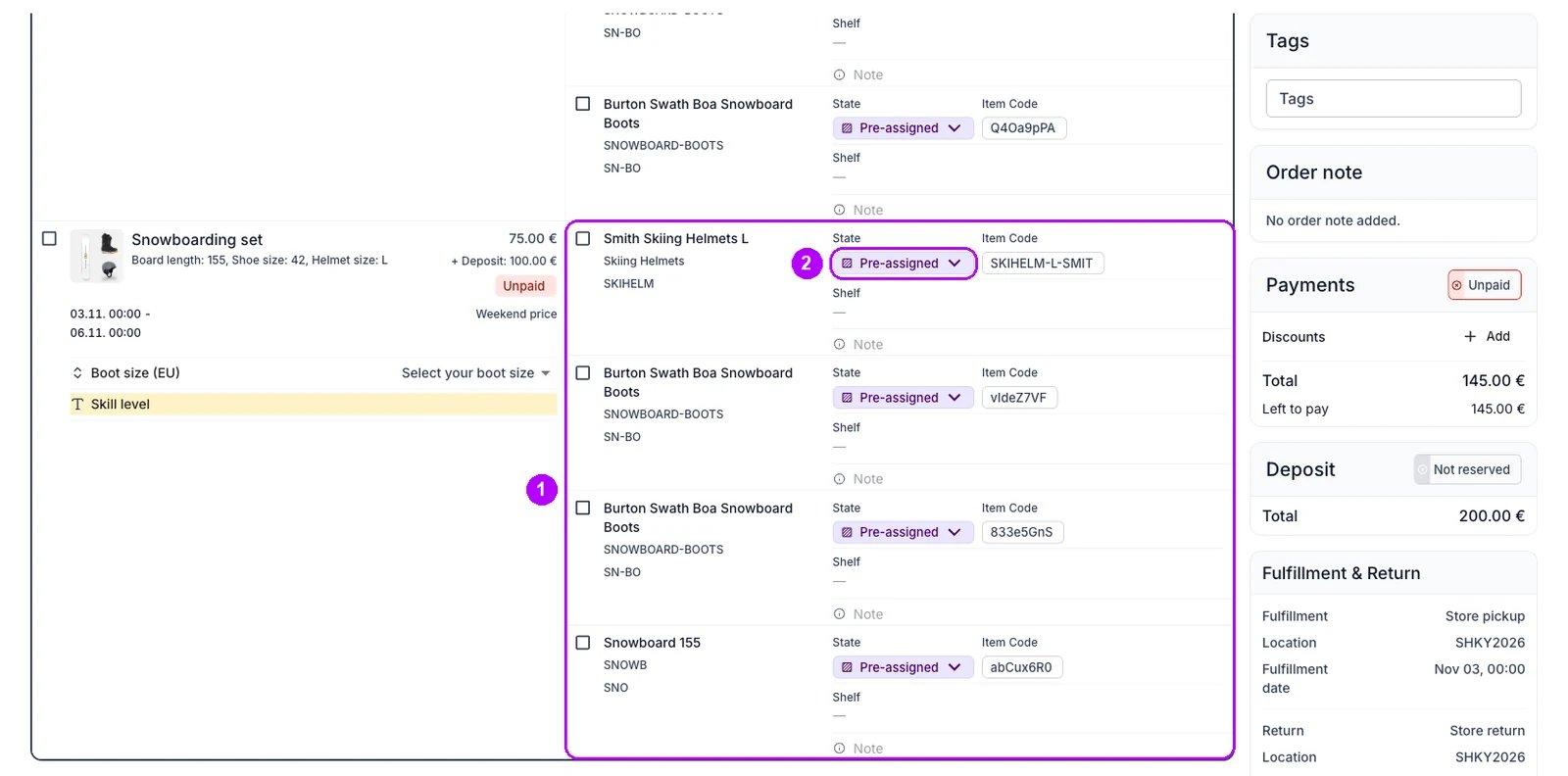
How do I know it worked?
- The new line is listed on the Summary tab with the dates and price you chose.
- The order total includes the new line.
- A unit is listed beside the line under Stock item.
Troubleshooting / common pitfalls
There is no + Add in the top-right corner
There is no + Add in the top-right corner
The order is closed, and This order is closed shows at the top. Reopen it first, as Reopen an order shows. On an order that is not closed, your role hides the button. See UI visibility.
Add stays greyed out
Add stays greyed out
A date or the Purchase option is missing, or the dates are not free. The field says which, for example “Selected start date is not available”. Pick other dates or another option. See Listing Availability.
The new line has no unit, or its unit reads Unassigned
The new line has no unit, or its unit reads Unassigned
Auto-Fulfillment explains why a line ends up without a unit, and when your account hides the one it picked. Put a unit on the line from Stock on an order.
Related articles
Order Lifecycle
What each stage of an order lets you change.
Changing an order
Every walkthrough for changing an order a customer already has.
Change the dates on an order
Move a line’s dates and choose which price it keeps.
Remove an item
Take a line off an order again.
Listing Availability
What the free count beside each listing counts.