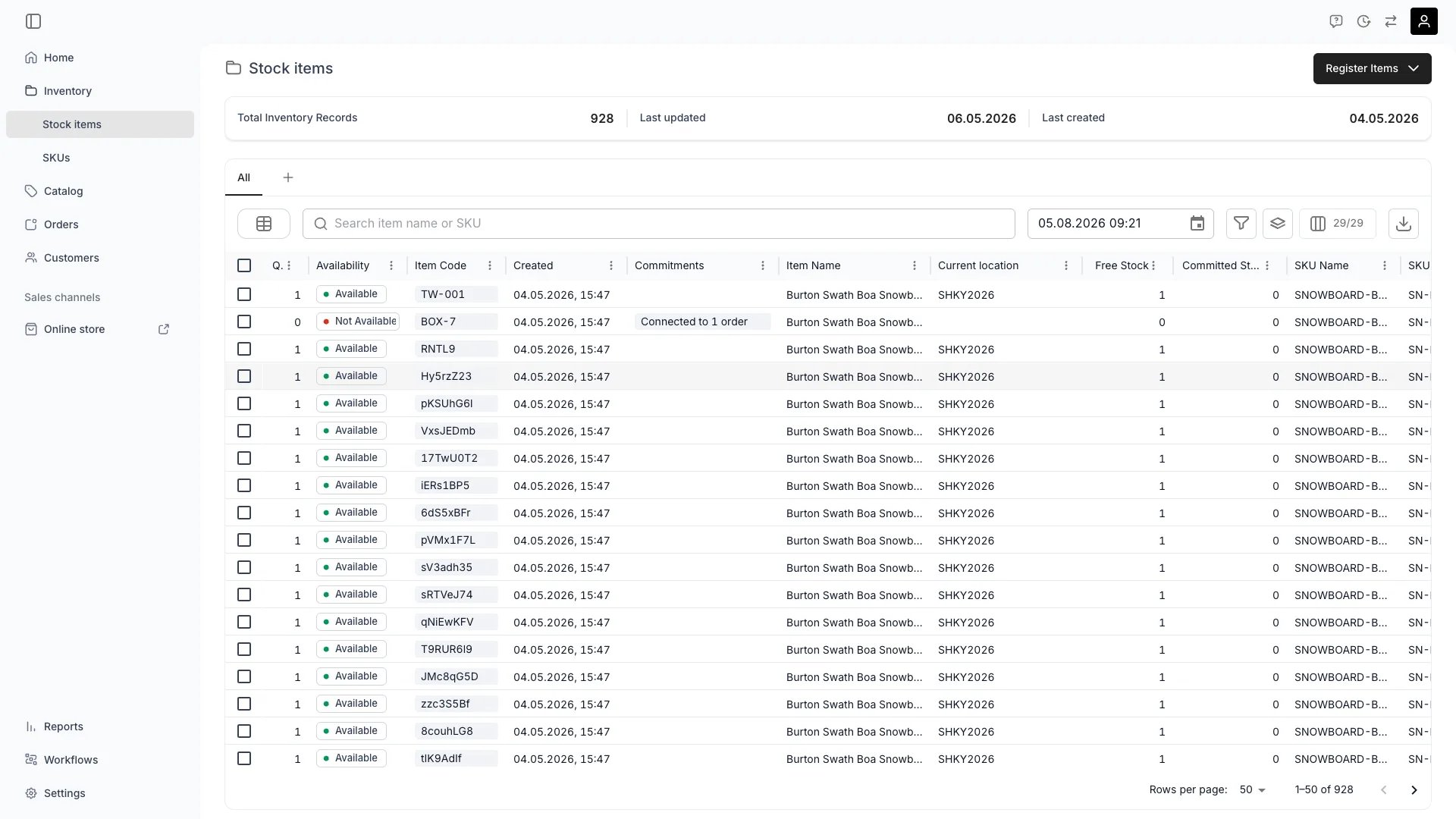
The Availability column shows whether each stock item has free stock at the selected locations. Items with at least one available unit display an “Available” chip (green indicator). Items with no free units display “Not Available” (red indicator).Filter the table by availability status to quickly find items that are free or fully committed. The availability value is computed from the item’s capacity minus any overlapping unavailability records (orders, reservations, buffer times) within the selected date range.
Track Item Status & Location
Monitor the current status, location, and availability of each item in real-time with temporal views.Read more: Timeline View
Manage Income & Expenses
Record and track revenue, maintenance costs, and other financial data for each individual item.Read more: Incomes & Expenses
Select items and choose Archive to take them out of use. The item stops contributing bookable capacity and its unfinished holds are released, so orders that had it assigned need a replacement unit. The confirmation counts those before you commit, and the record stays readable in Settings > Archived assets.Read more: How to archive stock items
Edit Several Items at Once
Tick rows in the table and select Edit to open one stock item page that writes to the whole selection. Item names, categories, SKU links, and attributes propagate to every selected item; per-item fields such as item code and tags do not.Read more: How to bulk-edit stock items
Here are a few key concepts of TWICE Commerce that relate to the Inventory view.
Serialized Inventory
TWICE uses a , allowing you to track each item individually rather than just by SKU count.Read more: Stock Items
Stock Codes
Each inventory record is identified by a , which serves as the primary identifier for tracking.Read more: Stock Codes
Filter and Sort by Attributes
Custom attributes defined on your SKUs and stock items appear as dynamic columns in the table. Each attribute column supports filtering and sorting based on its type:
Attribute type
Filter operators
Text
Contains, equals, starts with, ends with, is empty
Number
Equals, greater than, less than, between
Select
Is, is not
Multi-select
Contains any of the selected options
Boolean
Yes / No
Attribute values follow the inheritance model: stock items inherit from their parent SKU unless overridden at the item level. Filtering respects this inheritance — a filter matches the effective value, whether it comes from the stock item or the SKU.
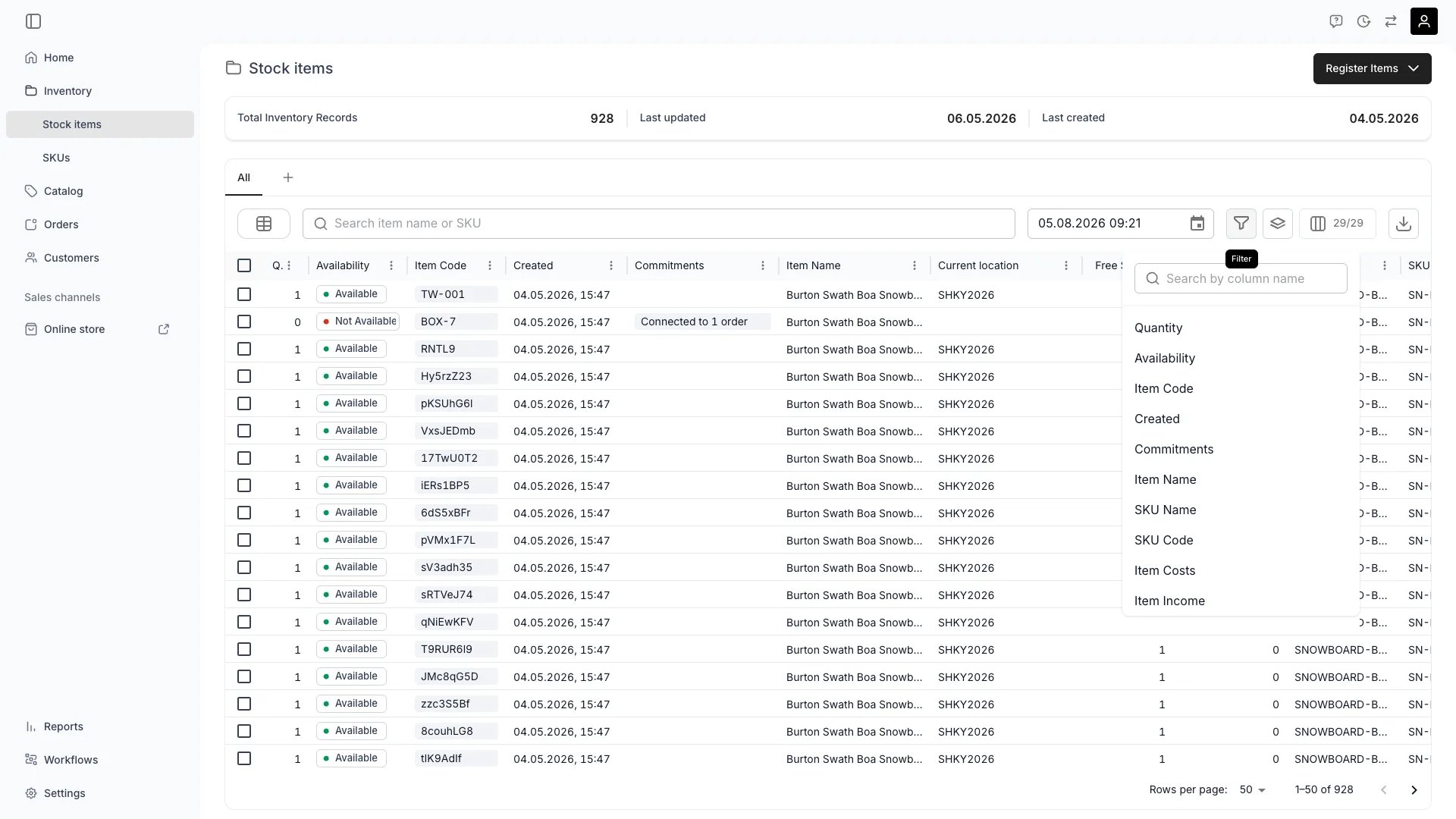
Choosing a column to filter on
Table Features
The inventory table supports all standard plus a dedicated timeline view for temporal data.Read more: Data Tables
Inventory is a visible area for every system role, so the sidebar entry and this view appear for all of them. What the data itself is gated by is on the inventory resource, in four operations: , , , and .
Sub-resource
What it gates
Owner
Admin
Manager
Member
inventory:stock_item
The stock items table and its records
✓
✓
✓
✓
inventory:stock_item_general
Registering items, names, codes, SKU links
✓
✓
✓
✓
inventory:stock_item_attributes
Attribute values on an item
✓
✓
✓
✓
inventory:stock_item_cost
Income and expenses on an item
✓
✓
✓
✗
inventory:attribute
Creating and editing attributes
✓
✓
✓
✓
A ✓ means all four operations. Cost data is the only inventory distinction between the system roles — a Member can register, edit, and delete stock items, but cannot see what they cost. Everything else here is open to all four roles, and a custom role can add cost access to any of them.Read more: Users & Roles