

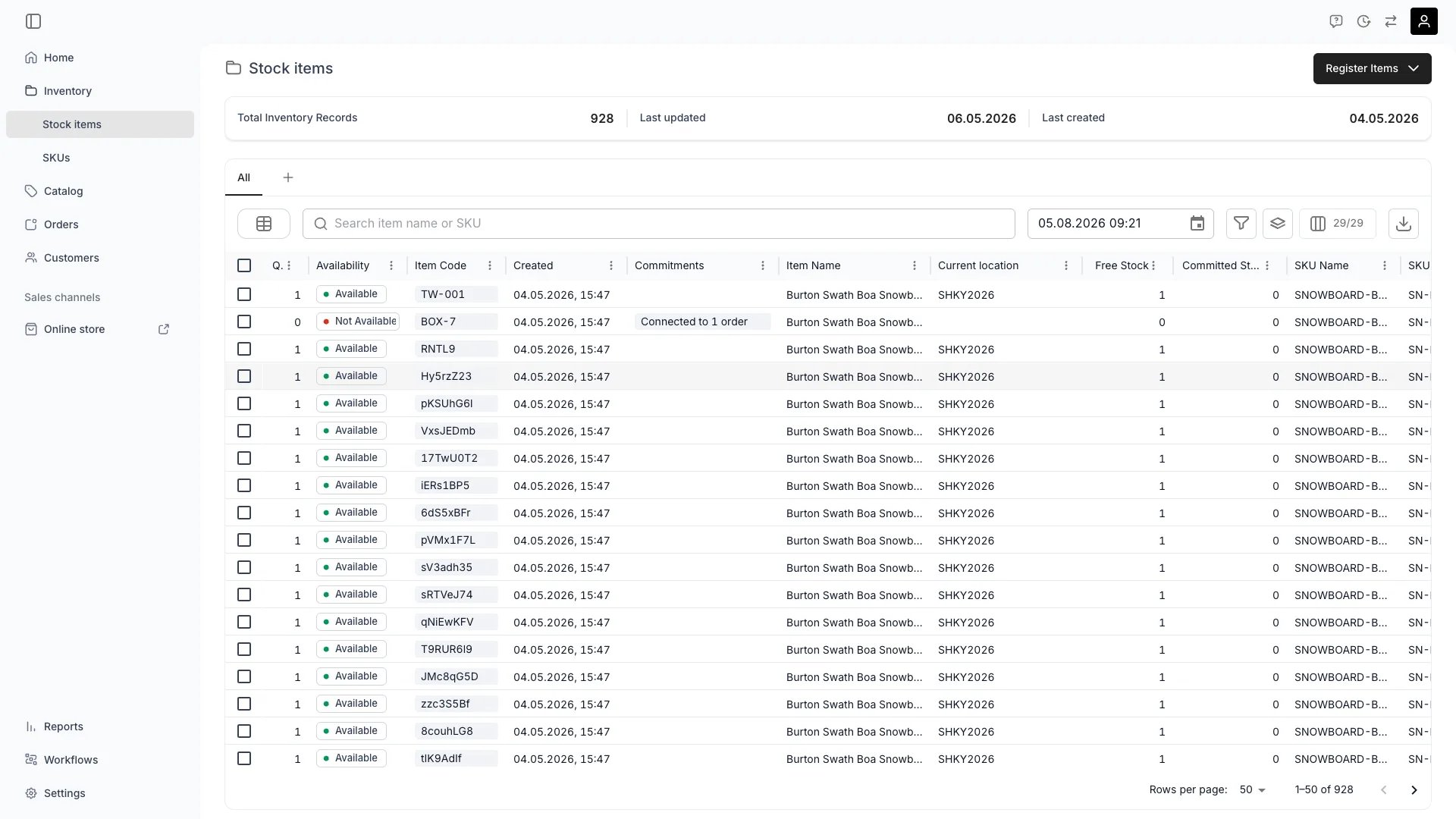
Inventory > Stock Items
Open in TWICE Admin
inventory/stock-items
Prerequisites
Before you start, decide:
- Archive or fix? Archiving is for stock leaving service. If the item is only temporarily out — repairs, a seasonal store — set it Inactive or book a maintenance reservation instead. Neither releases the holds behind existing bookings; archiving does.
- Who takes the bookings? Archiving does not reassign anything. Have a replacement unit in mind for each affected order, or archive after the current bookings have run.
- The whole SKU, or one item? Archiving a stock item leaves its SKU alone. Archiving the SKU is a separate action with its own warning about the items underneath it.
The walkthrough
1
Find the item
Open Inventory → Stock items. Either tick the rows you want to archive, or open a single item’s page.
2
Start the archive
From the table, select Archive in the selection toolbar. From an item’s own page, select More in the top right, then Archive.Both open the same confirmation dialog.
3
Read the impact scan
Before the dialog is confirmable, TWICE scans what live data still depends on the selection and lists it:
4
Read the examples behind each finding
Each finding names up to five examples with their dates, and a total count. A selection with nothing depending on it shows no findings at all.
The scan counts every hold that has not yet ended, which includes one running right now. A rental that is already back is not affected and is not counted.
5
Acknowledge
Both findings are warnings, so the dialog requires the checkbox I understand the impact on the items listed above before Archive becomes clickable. If the scan came back empty, there is no checkbox and you can confirm straight away.
6
Confirm
Select Archive. TWICE stamps the item as archived and releases every hold that had not yet ended, in one transaction.
7
Resolve the conflicts it created
If the scan reported upcoming order bookings, those orders now carry stock item conflicts — the item is still assigned on paper with no reservation behind it. Go to Orders, where a banner reads Some orders have conflicts, and select View orders to filter to them.On each order, open the Stock Items tab, find the highlighted item, and use Change stock item to swap in an available alternative. The conflict clears once every item on the order holds a valid reservation.Read more: Stock Item Conflicts
How do I know it worked?
Three things change, and it is worth checking all three:- The item leaves the table. Stock item lists return active items by default, so an archived item is gone from Inventory → Stock items.
- Its own page still opens, with a warning banner reading This asset is archived and an Unarchive button in it. Links and bookmarks to the item keep working.
- It is listed under Settings → Archived assets → Inventory → Stock items, with the same table tools as the active view.
Getting an item back
Unarchive returns it to active use, from either the banner on its own page or the selection toolbar in Settings → Archived assets. It reappears in the lists and starts contributing capacity again. Unarchiving does not restore the holds that archiving released. Bookings that were reassigned to other units stay where they are, and conflicts you already resolved stay resolved.How deleting differs
Delete is a separate action, available only in Settings → Archived assets and only on an item that is already archived — there is no way to delete a stock item directly from the Inventory table.
Read more: Archiving and Deletion
Troubleshooting / common pitfalls
Orders started showing conflicts right after I archived
Orders started showing conflicts right after I archived
Cause: this is the archive working as designed. An archived item contributes no capacity, so its holds are released — but the orders keep it assigned, which is exactly the state TWICE flags as a conflict.What to do: work through the conflicts from the Orders table and swap in replacement units. Nothing clears them automatically; a conflict resolves only when you reassign the item or the order reaches a terminal state.Read more: Stock Item Conflicts
The scan showed nothing, but I know the item is booked
The scan showed nothing, but I know the item is booked
Two possibilities.The bookings have already ended. The scan only counts holds whose end is still in the future, because a finished rental is not affected by the archive.Or the scan itself failed. An impact scan that errors is non-blocking: the dialog falls back to the plain confirmation with no findings and no acknowledgement checkbox. If you expected findings and got a bare dialog, cancel and try again rather than confirming blind.
I cannot find the item I archived
I cannot find the item I archived
Cause: every list in the admin returns active records by default.What to do: go to Settings → Archived assets → Stock items. That page has no permission gate of its own — every role can open it — and it lists archived items by type with the usual search and filters. Opening the item from there navigates to its normal page.
I want to take an item out temporarily, not retire it
I want to take an item out temporarily, not retire it
When this happens: archiving is a lifecycle move, not an availability one, and it costs you the item’s bookings.What to do: set the item’s Status to Inactive on its General tab, which stops the item being offered for new bookings while the holds behind existing ones stay in place. Or create a reservation on its Events tab covering the period it is out — that blocks the dates without changing the item’s lifecycle at all.
Archiving the item did not archive its SKU
Archiving the item did not archive its SKU
When this happens: stock items and SKUs archive independently. A SKU with no active items left is still an active SKU.What to do: archive the SKU separately from Inventory → SKUs if you are retiring the whole product. Its confirmation warns you about any active stock items still attached.
Related articles
Archived assets
Where archived items live, and where deleting happens.
Archiving and Deletion
The lifecycle behind it, shared by every asset type.
Stock Item Conflicts
Finding and resolving what an archive leaves on orders.
Register stock items
The other end of the lifecycle.