

Open in TWICE Admin
orders
Prerequisites
Have ready before you start:
- A payment provider connected, for the online payment methods the link offers. See Payments settings.
- The customer’s email, to send the link to. Without one, create the link and pass it on yourself.
The walkthrough
1
Open the order
Open the order from Orders. Check the location selector in the top-left corner first if you have more than one location, because the table lists only that location’s orders. The order opens on its Summary tab.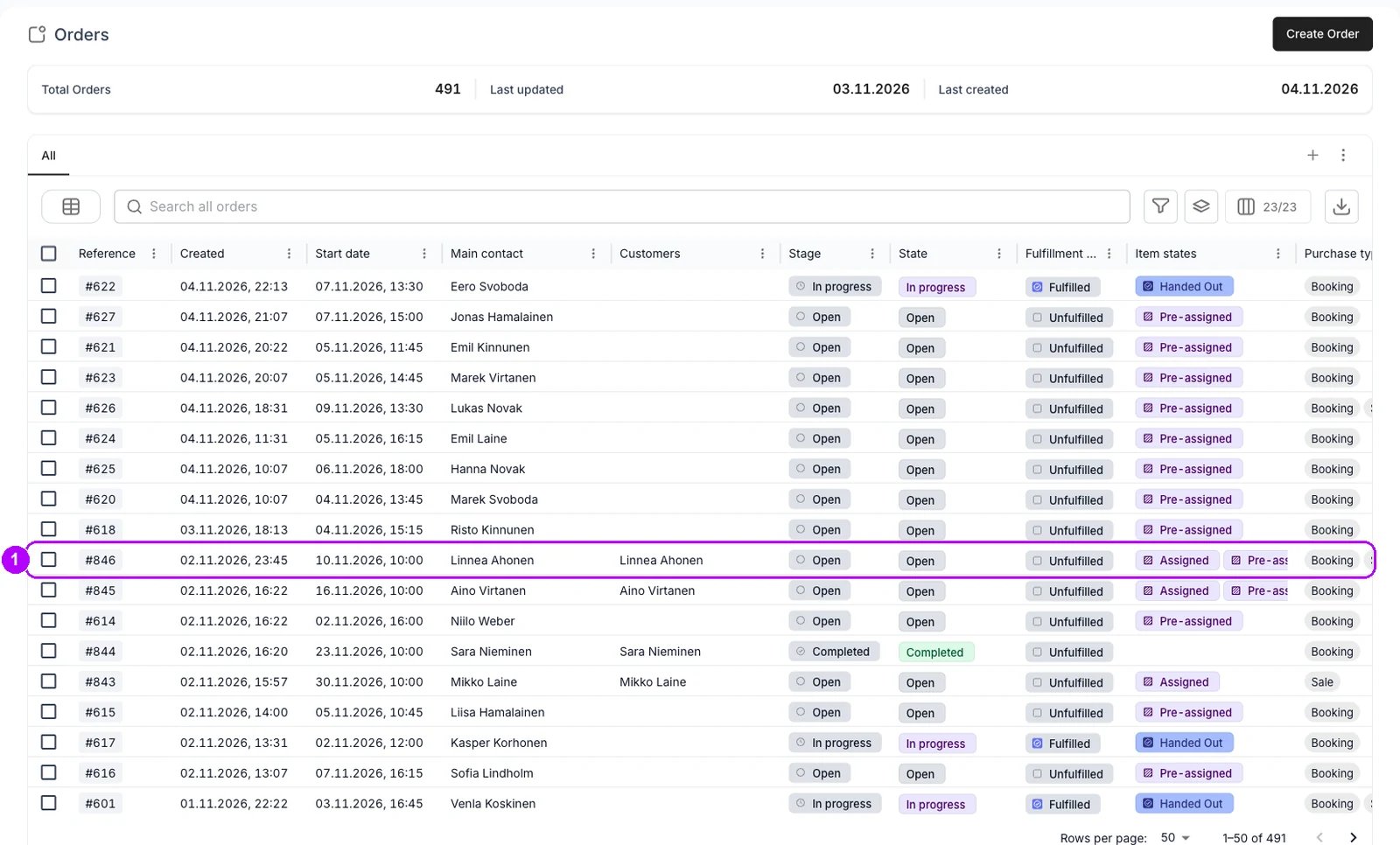
2
Open Send checkout link
Click Payment in the top-right corner of the order and choose Send checkout link. The Send checkout link panel opens on the right.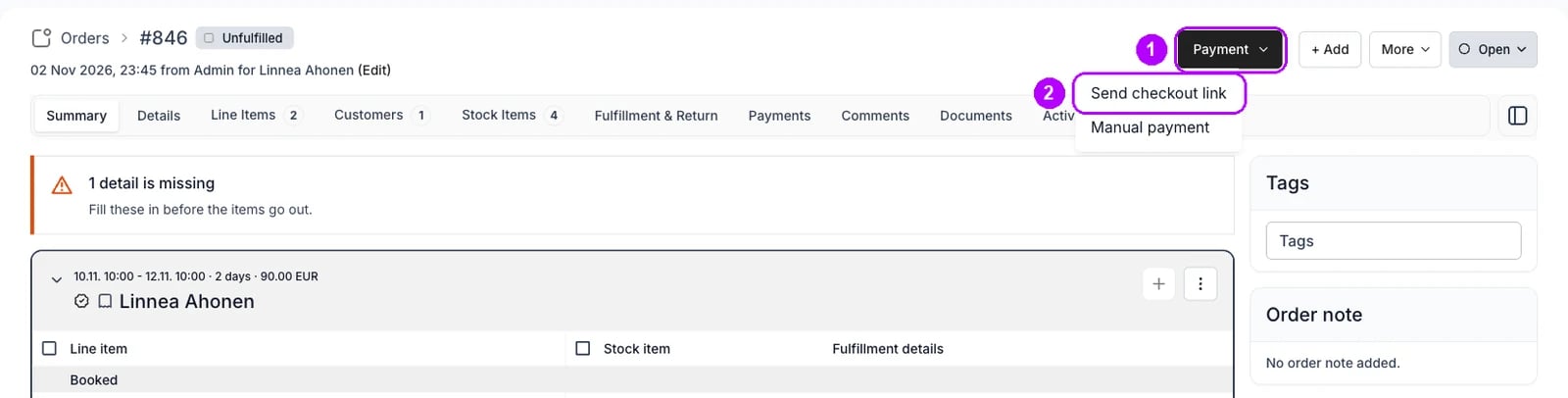
3
Check the email
Check Email under Contact details at the top of the panel. It starts with the email of the order’s main customer. Leave it empty to create the link without sending an email, and copy the link from the order’s Payments tab afterwards.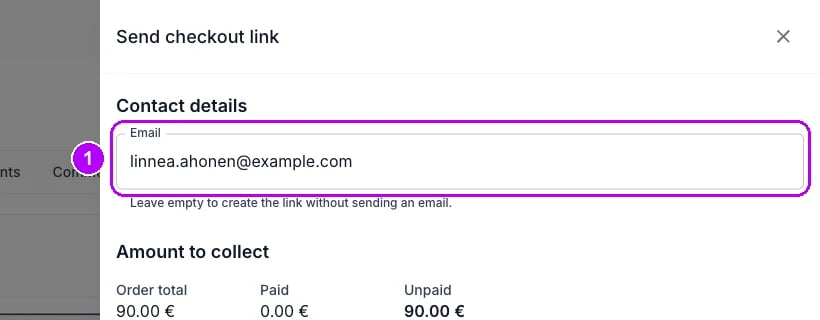
4
Choose what to collect
Check the rows under Amount to collect. Every line that still owes money is listed, ticked at what it owes. With an issued invoice, the rows split into Uncollected items and Open invoices. Untick a row to leave it out of the link, or type a lower figure in its Amount to collect field to collect part of it.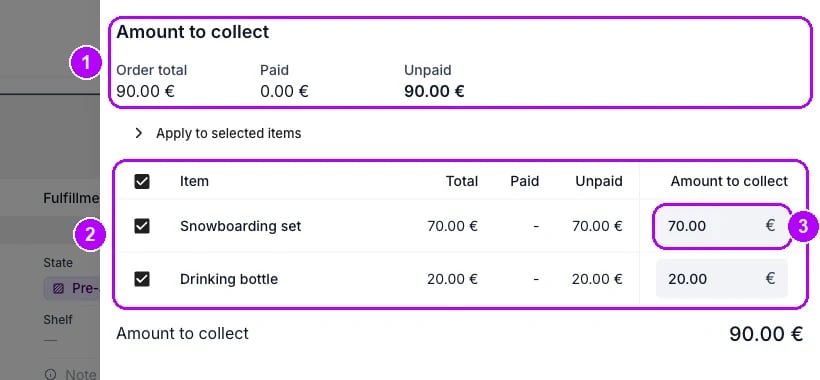
5
Collect a share, such as half up front
Skip this step to collect the ticked rows in full. To collect a share, click Apply to selected items above the rows. Type the figure, choose % beside it, and click Apply. For half up front, type 50: each ticked row then collects half of what it owes. Choose the currency symbol instead to spread a fixed sum.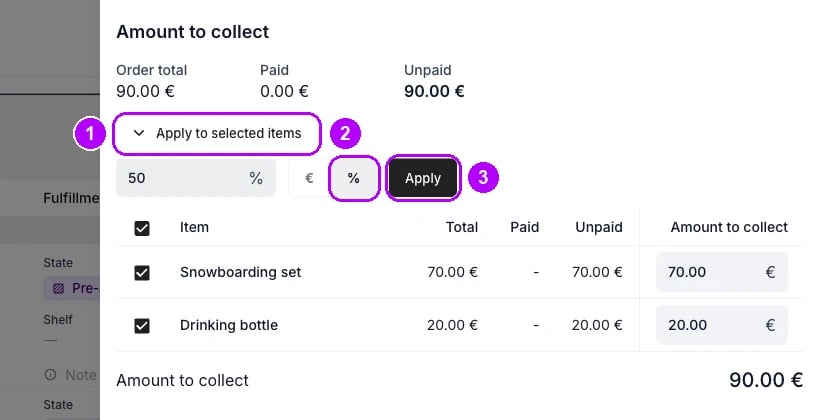
6
Send the link
Check that the online methods under Available payment methods are ticked, then click Send checkout link at the bottom of the panel. The button label ends in the amount to collect, for example 25.00 €. It reads Create checkout link when Email is empty.Checkout link created successfully confirms it, and the panel closes.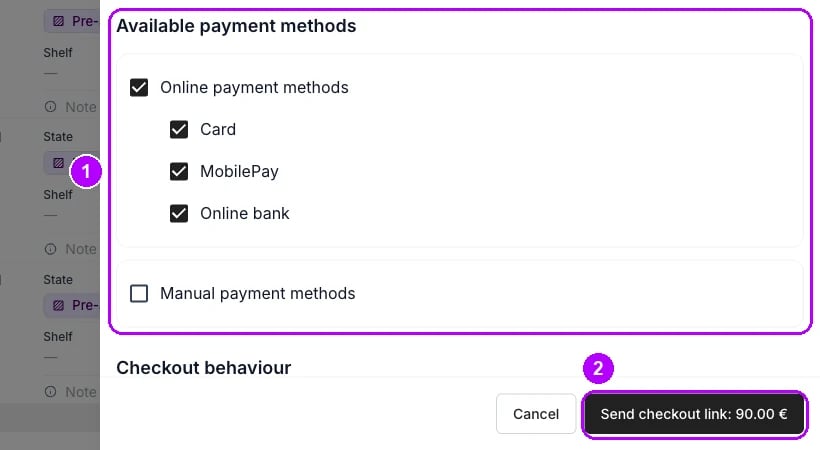
7
Follow the payment
Open the order’s Payments tab. The link is listed under Checkout links as Active. When the customer pays, it changes to Used and the payment appears in the Payments table. The chip on the Payments card in the sidebar reads Paid, or Partially paid if you collected a share.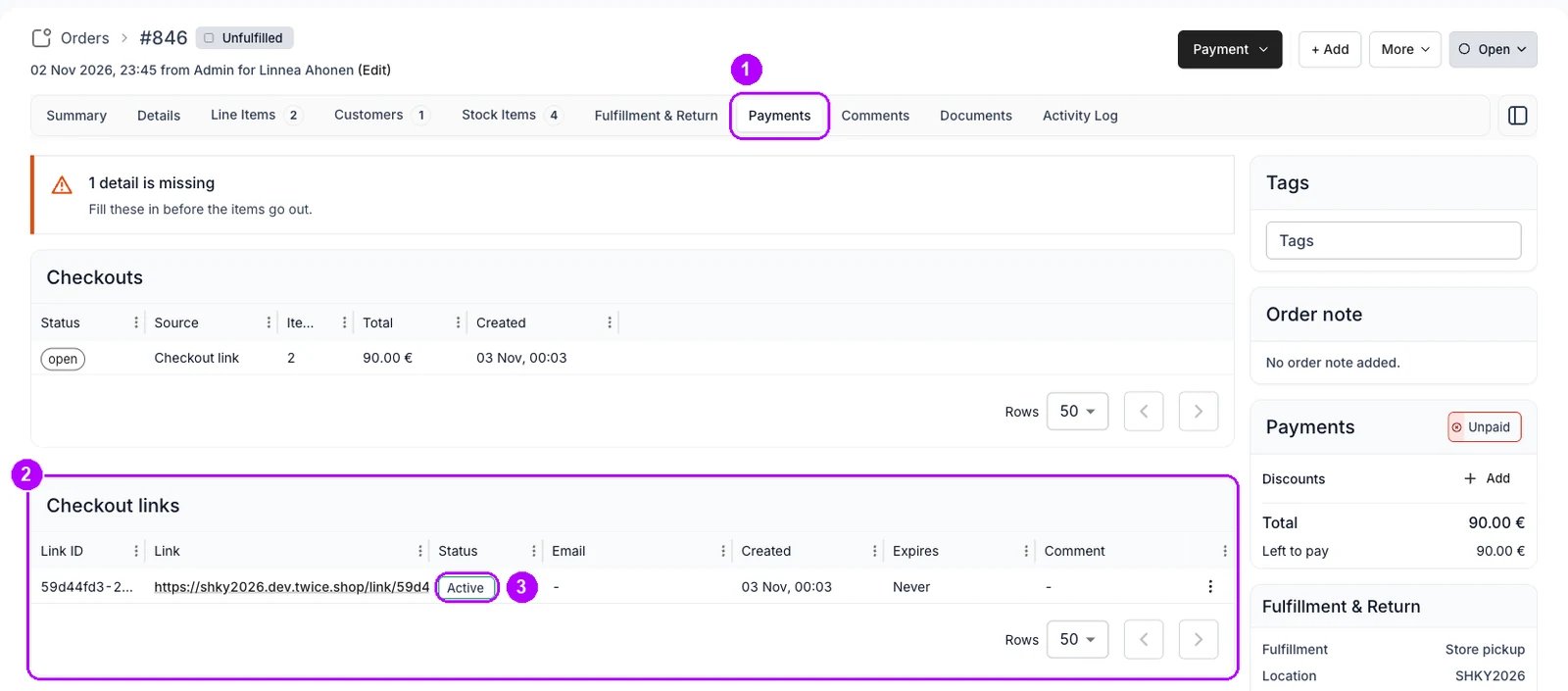
How do I know it worked?
- The link is listed under Checkout links on the Payments tab, with the address it went to in the Email column.
- It reads Active until the customer pays, and Used after.
- A row of type Payment appears in the Payments table once they pay, and the Payments card reads Paid or Partially paid.
Troubleshooting / common pitfalls
The customer says the link no longer opens
The customer says the link no longer opens
Check its status under Checkout links. Expired, Revoked and Used links take no payment, and completing or archiving the order revokes its active links. Send a new one. See Order Payments tab.
Related articles
How payments work
What a checkout link collects, and what caps the amount.
Payments and deposits
Every walkthrough for taking money and handling deposits on an order.
Record a manual payment
Recording money the customer paid outside TWICE.
Extend an order
Giving a customer more time and sending a link for the difference.
Order Payments tab
The Send checkout link panel and the Checkout links table, control by control.