

Open in TWICE Admin
orders
Prerequisites
Have ready before you start:
- A card stored on the order, from the customer’s online checkout, to hold the deposit on. Without one, you can only record a deposit you take another way, such as cash.
The walkthrough
1
Open the order
Open the order from Orders. Check the location selector in the top-left corner first if you have more than one location, because the table lists only that location’s orders. The order opens on its Summary tab.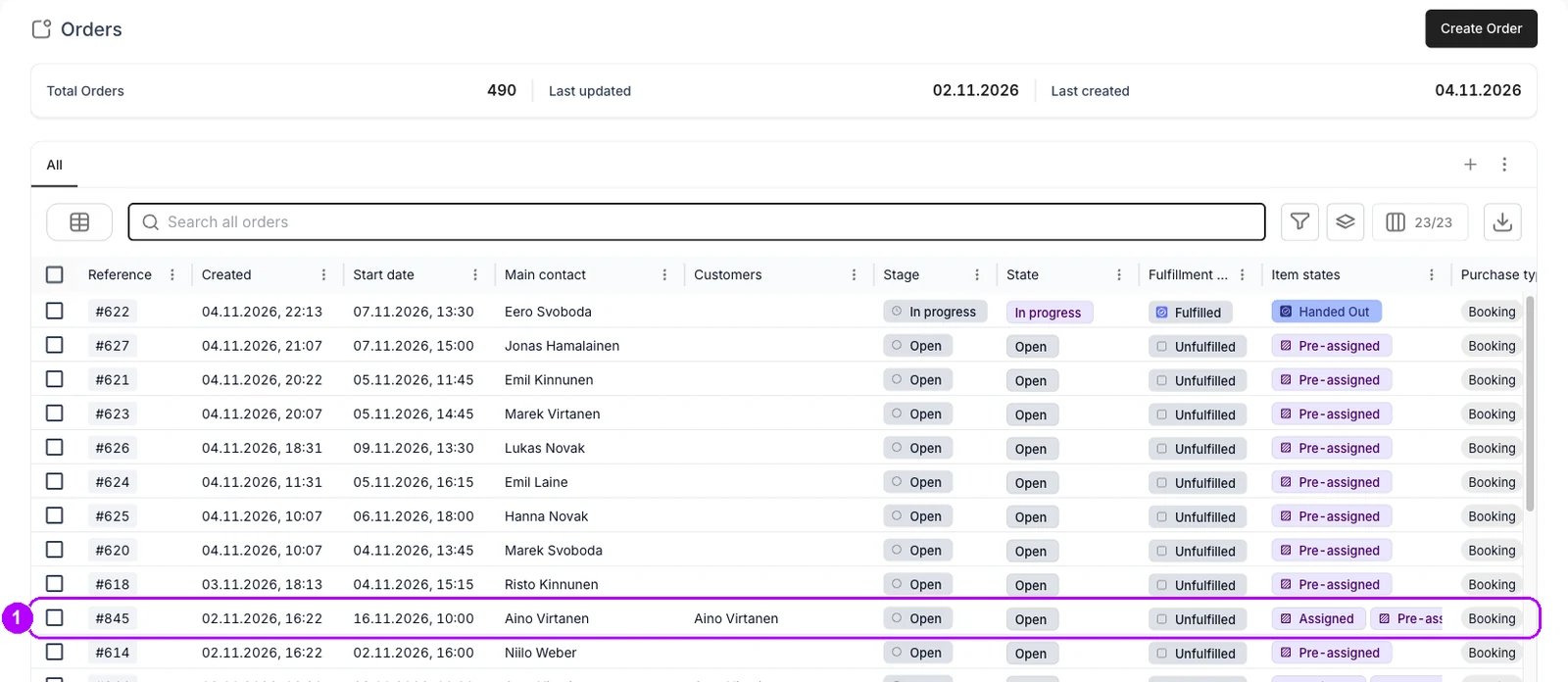
2
Check the deposit on the item
Check the line item on the Summary tab. A line that carries a deposit shows Deposit: and the amount under its price, for example + Deposit: 50.00 €.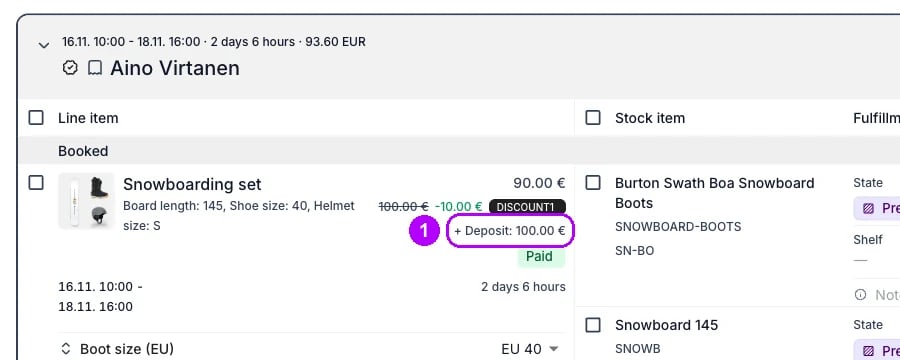
3
Show the sidebar if it is hidden
Check that the sidebar shows on the right of the order, with the Payments and Deposit cards. Click the sidebar button at the right end of the row of tabs, under Payment, to show it if it is hidden. Use the same button or the 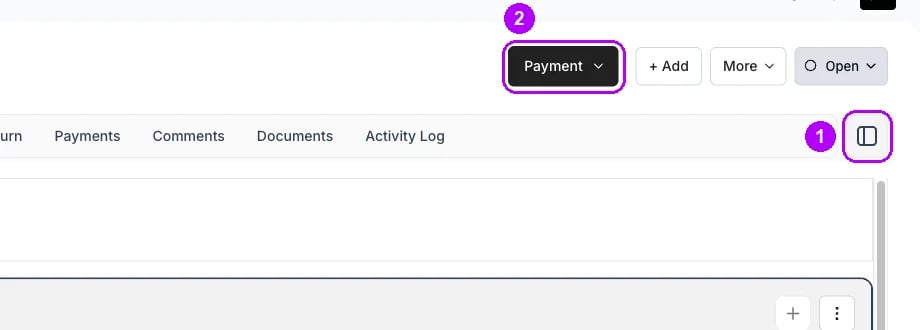
] key to hide it again.4
Check the deposit status
Read the chip on the Deposit card, in the sidebar under Payments. Reserved means the deposit is held, and nothing more is needed. Not reserved means no reservation has succeeded yet, so reserve it in the next steps. The card also shows the deposit Total.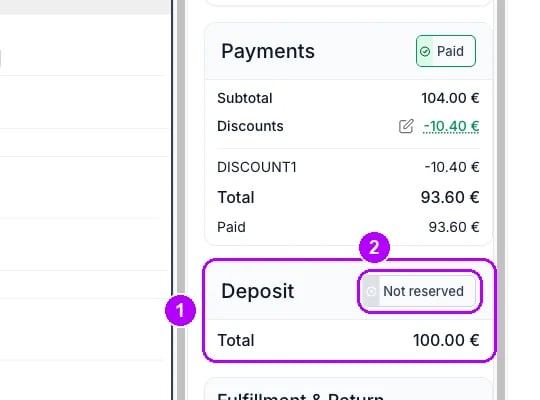
5
Open Reserve deposit
Click Payment in the top-right corner of the order and choose Reserve deposit. The Reserve deposit window opens.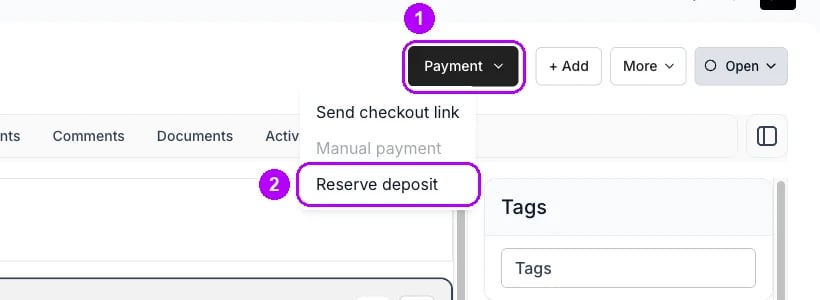
6
Reserve the deposit
With a card stored, the window says the deposit will be reserved from the customer’s stored card. Click Reserve now.With no card stored, the window says the deposit must be reserved outside the system. Take the deposit your own way, such as cash, then click Mark as reserved to record it.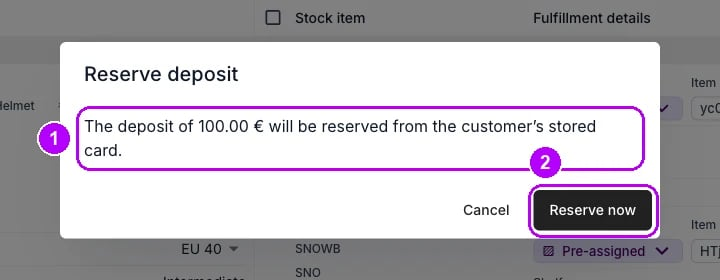
7
Read the result
Read the notice that appears. Deposit reserved successfully confirms a hold on the card, and the chip on the Deposit card changes to Reserved. Deposit marked as reserved confirms a recorded deposit.If the customer’s card is refused, a red notice gives the reason and the chip stays at Not reserved.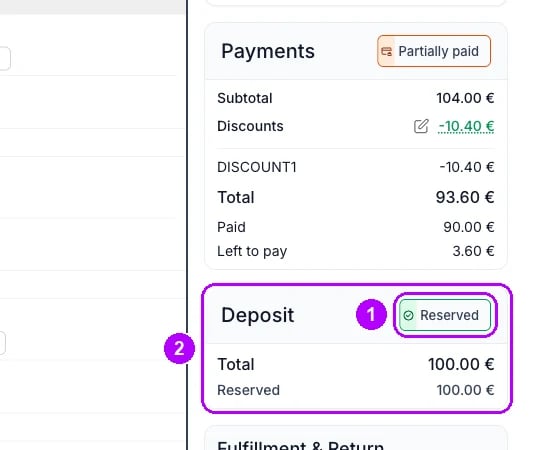
How do I know it worked?
- The Deposit card reads Reserved, with the held amount on a Reserved row under Total.
- The Deposit table on the Payments tab lists a Deposit Auth row for the amount.
- The customer gets an email saying the deposit is reserved, when it was held on their card and the order has their email address.
Troubleshooting / common pitfalls
Reserve deposit is missing or greyed out
Reserve deposit is missing or greyed out
Check the status on the Deposit card: greyed out means the whole deposit is already reserved. Missing means the order carries no deposit, or your role does not hold Take payments. See Security deposits.
The customer's card is refused again
The customer's card is refused again
The notice gives the reason the card issuer returned. Ask the customer for another card: send them a checkout link that saves a new card, then reserve again. See Security deposits.
Related articles
Security deposits
When TWICE reserves a deposit, what each status means, and capturing or releasing it.
Take payment and deposits
Collecting money on an order, and the deposit when the goods come back.
Order Payments tab
The Deposit table and the actions on its rows.