Collect money against an order: checkout links, manual payments, collecting part of a total, and reserving, capturing and releasing a deposit.
Orders > [order] > Payments
Open in TWICE Admin
orders
Collect money from the Payment button on the order’s Payments tab. Handle two kinds separately: what the customer owes for what they ordered, and the deposit you hold against the goods coming back.Keep the deposit distinct as you go. It is collected differently, tracked on its own balance, and released or kept independently of the order total.
Required permissions:orders:order_payments. Owner, Admin and Manager hold every operation on it. Member does not hold it at all, so the Payments tab does not appear for that role and none of this is available to them. See Users & Roles.
Have ready before you start:
A way to take the money. Connect a provider for checkout links and card deposits, or configure a manual method for cash and terminals outside TWICE. See Payments settings.
The customer’s email, if you are sending a checkout link.
A saved card on the order, if you want a deposit actually authorised rather than only recorded.
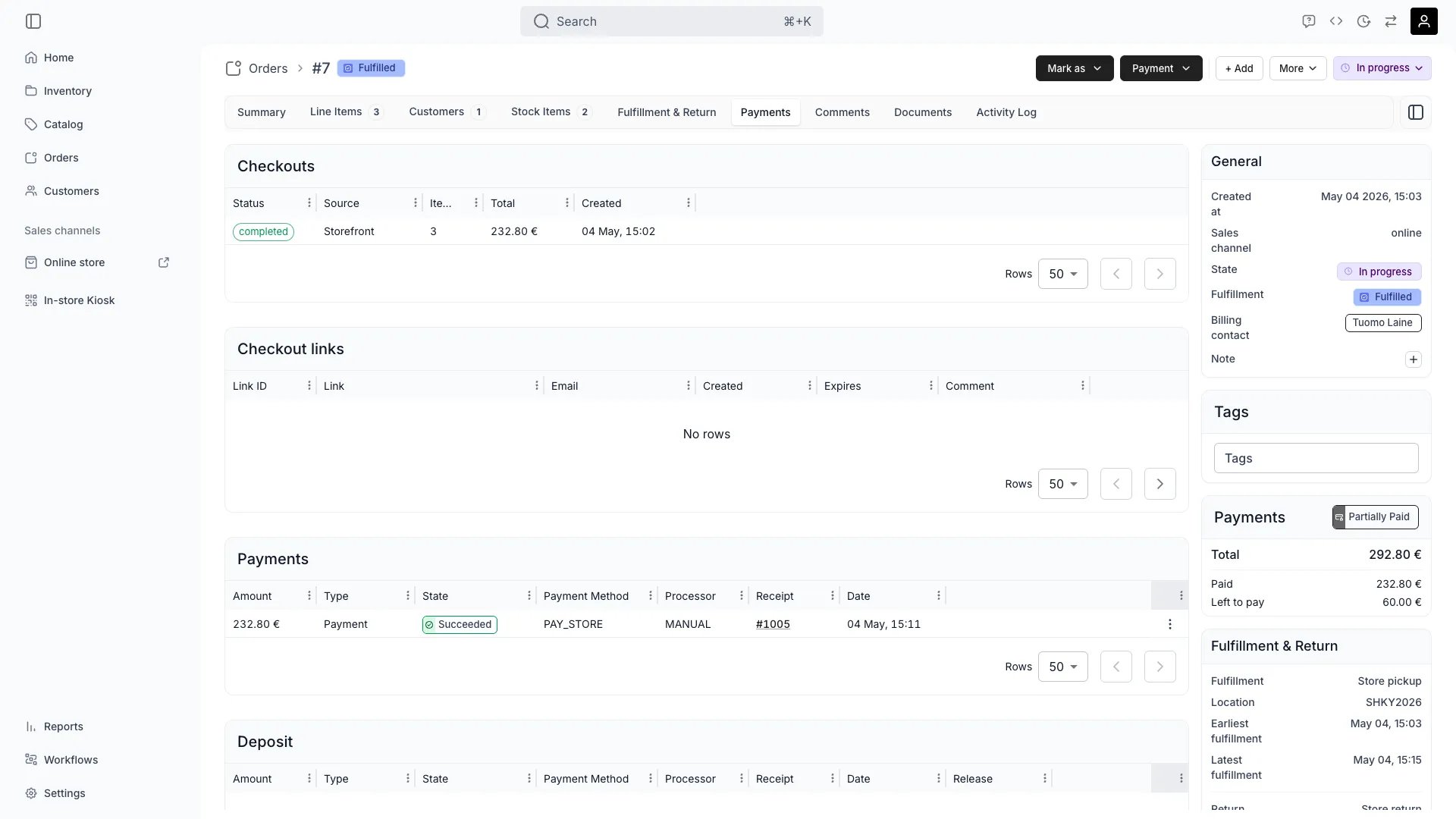
Read the right one of the Payments tab’s five tables:
Table
What it holds
Checkouts
Each checkout created against this order, with its Source: Storefront, Checkout link, or Admin
Checkout links
Every link issued, with Active, Expired, Revoked or Used status
Invoices
The settlement documents, with Mark as paid, Retry, Write off and Cancel row actions
Payments
The money itself: every charge, refund and deposit movement
Deposit
The deposit balance, separately from everything above
Read the order’s own Payment chip for Paid or Unpaid only. It is deliberately coarse, so anything finer than “is there a balance” is read here.
2
Choose how to collect
Open Payment and pick the route the customer’s location decides:
Route
Use it for
Send checkout link
The customer pays themselves. Set the amount and the recipient Email
Manual payment
Money already in hand. Record Amount to pay, Payment method, and optionally a back-dated Payment date
Reserve deposit
The deposit path, covered below. Only offered when the line items carry a deposit
Expect both collect routes to open onto the same amount picker, so everything in the next step applies either way.
3
Collect part of the total rather than all of it
Set an amount against each target in the collect drawer, which splits what is owed into two buckets:
Bucket
What it holds
Uncollected items
The remainder on each line item, per customer
Open invoices
The remainder on any open invoice, shown as Invoice #number
Press Collect all to fill every target at its full remainder, or type the amount you want against each. Select line items on the order before opening the drawer to pre-seed those lines and leave everything else at zero, which is how you charge one person’s items on a shared order.
4
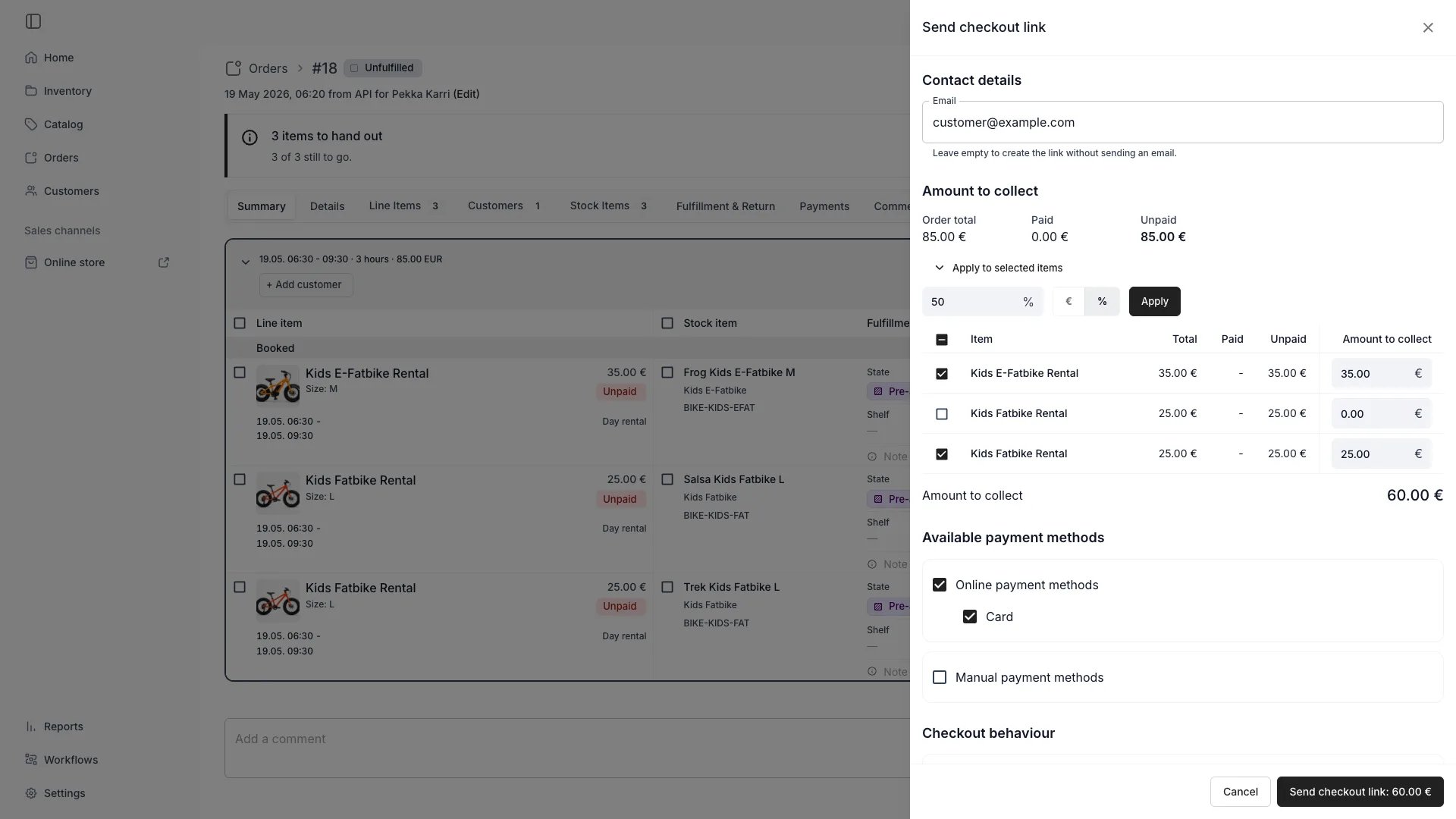
Take a set share of the total, such as half up front
Choose Send checkout link and press Apply to selected items above the amount list. Type 50, switch the toggle to %, and press Apply. Every ticked row takes its share of half the combined balance, across Uncollected items and Open invoices alike.Untick the rows you are leaving out and press Apply again. Switch the toggle to the currency symbol to spread a fixed sum instead.Applying 50% twice still collects 50%: the fill works from what each row owes, not from the amounts on screen. Edit any figure it writes.
Order > Payment > Send checkout link
On Manual payment, type the amounts row by row.
5
Collect the rest by hand when the time comes
Collect part now and the rest later, by hand, each time, because TWICE has no installment plan. Nothing schedules a series of future charges against an order, and nothing chases them.Use a subscription for the one exception, which bills on its own cycle and generates an invoice per period.
6
Reserve the deposit
Use Payment → Reserve deposit to hold the deposit against the order. Read which of the two you are offered, because the system decides rather than you:
The order
What happens
Has a saved card
The deposit is authorised off-session from that card. The dialog says it will be reserved from the customer’s stored card and the button reads Reserve now
Has no saved card
Nothing can be authorised, so the deposit is recorded as reserved by hand. The button reads Mark as reserved, and no money is held anywhere
7
Check which of the two you ended up with
Check this before the goods come back, because the distinction matters at the end. Capture a real authorisation. Treat a recorded one as a note to yourself that you took a deposit some other way, and collect on it yourself.
8
Capture or release the deposit
Use Capture deposit to keep some of it when the goods come back. The dialog shows Reserved, Already captured and Available to capture, and asks for:
Field
Notes
Amount to capture
Cannot exceed what is available. The dialog refuses and tells you the ceiling
Reason
Optional, and the one place the reason for a kept deposit is recorded
Tax levels
Which rate applies to the captured amount. No tax rates configured means you have none set up
Send receipt email to customer
Off unless you tick it, with the address alongside
9
Release the deposit by capturing nothing
Capture nothing to release it. An authorisation you never capture lapses on its own, and the Payments table records it as Expired. See Security deposits for the reservation schedule and expiry.
10
Read the result in the Payments table
Read every movement as a row, with its Receipt, Amount, Type and State.Read Type for what the money did: Payment, Refund, Deposit Auth, Deposit Capture or Cancellation. Read State for how far it got: Succeeded, Captured, Pending, Failed, Voided, Cancelled, Expired, Refunded or Refund Reversed.Expect a receipt number only once a payment has settled. A row still Pending gets one when it succeeds, so a blank receipt there is not a fault.
Cause: the order has no stored payment method, so there is no card to authorise against.What to do: use it anyway, because it records the deposit as reserved rather than holding money. Take the deposit by whatever means you actually use, and remember that capturing it later is a manual step rather than a card capture.To hold a real authorisation, have the customer pay by card through a checkout first so the card is on the order.
"A deposit reservation is already running for this order"
Cause: a reservation is in flight, usually a double click or two people on the same order.What to do: wait a moment and check the Payments table before retrying. The first attempt has probably succeeded, and retrying immediately risks a second hold.
The order still says Unpaid after I collected
Check three usual reasons:
You collected part of it. The chip is binary, so anything short of the full total reads Unpaid.
The payment is still Pending. It has not settled yet, so it does not count toward paid.
The order total moved after you collected, because an edit re-opened the balance. See Edit an order.
I need to charge a customer in installments
Cause: TWICE does not do this. There is no schedule of future charges against an ordinary order, no automatic retry of them, and nothing that chases the customer.What to do: collect part now and the rest later, by hand, each time, which is what the collect drawer is built for. Model a genuinely recurring arrangement as a subscription instead, which does bill on a cycle.
A capture is refused for being too large
Cause: a capture cannot exceed what the authorisation is holding. Available to capture is the ceiling, and the dialog names the figure it will accept.What to do: capture up to that amount. Charge the remainder separately against the order where the damage exceeds the deposit, rather than attempting a bigger capture.
The deposit expired before I captured it
Expect that, and treat deposits as a short hold. An authorisation lapses after its window, and the Payments table records it as Expired.What to do: charge the customer separately if something is owed, because a lapsed authorisation has nothing to capture. Security deposits covers the reservation schedule and expiry window.
I cannot see the Payments tab at all
Cause: your role does not hold orders:order_payments, and the Member system role does not by design.What to do: have someone with Owner, Admin or Manager take the payment, or add the permission to a custom role. The tab is not hidden: it is not yours. See Users & Roles.
Checkouts, payments and transactions in the data model.
Security deposits
The reservation schedule, states and expiry.
Order Payment tab
The tab this all happens on, including checkout links.
Was this page helpful?
{"docsConfig":{"theme":"aspen","$schema":"https://mintlify.com/docs.json","name":"TWICE Commerce","colors":{"primary":"#212121","light":"#F4F4F4","dark":"#212121"},"logo":{"light":"https://mintcdn.com/twicecommerce/KD5MbyezoVxgw-eX/logo/twice-logo-solid.svg?fit=max\u0026auto=format\u0026n=KD5MbyezoVxgw-eX\u0026q=85\u0026s=a1a71755cbd917f23fac5655a627e893","dark":"https://mintcdn.com/twicecommerce/KD5MbyezoVxgw-eX/logo/twice-logo-solid_white.svg?fit=max\u0026auto=format\u0026n=KD5MbyezoVxgw-eX\u0026q=85\u0026s=19eb2023f5a2e29f22337e86347abdb5","href":"https://www.twicecommerce.com/"},"favicon":"https://mintcdn.com/twicecommerce/KD5MbyezoVxgw-eX/favicon.svg?fit=max\u0026auto=format\u0026n=KD5MbyezoVxgw-eX\u0026q=85\u0026s=8572ad950e73aaf44bbd9960aa4a8068","api":{"openapi":{"source":"https://server.twicecommerce.com/api/admin/openapi-mintlify.json"},"params":{"expanded":"all"},"playground":{"display":"interactive"}},"appearance":{"default":"light","strict":true},"navbar":{"links":[{"href":"https://www.twicecommerce.com/","label":"Homepage"},{"href":"https://admin.twicecommerce.com/login","label":"Log in"}],"primary":{"type":"button","label":"Book a demo","href":"https://www.twicecommerce.com/demo"}},"footer":{"socials":{"linkedin":"https://linkedin.com/company/twicecommerce"}},"seo":{"metatags":{"charset":"UTF-8","viewport":"width=device-width, initial-scale=1.0","indexing":"navigable"}},"fonts":{"body":{"family":"Inter"}},"styling":{"eyebrows":"breadcrumbs","latex":true},"errors":{"404":{"redirect":false,"title":"Page not found","description":"**Looking for TWICE 1.0 docs?** They moved to [support.twicecommerce.com](https://support.twicecommerce.com) — 1.0 guides that used to live under `/docs` are all there now.\n\nOn **TWICE Commerce 2.0** you're in the right place: use the search above, or [start from the beginning](/index)."}},"contextual":{"options":["copy","view","chatgpt","claude","perplexity","mcp","cursor","vscode"],"display":"header"},"navigation":{"languages":[{"language":"en","href":""},{"language":"fi","href":"fi"}]}},"deployment":{"deploymentMetadataValue":{"subdomain":"twicecommerce","hasAudioNarration":false,"actualSubdomain":"twicecommerce","customDomains":["www.twicecommerce.com"],"gitSource":{"type":"github","owner":"rentle","repo":"twice-docs","deployBranch":"main","contentDirectory":"","isPrivate":true,"mountPath":"","label":""},"chroma":{"liveDeploymentHistoryId":"6ad609fa175da6d4ad51256e","collectionId":"567ca62c-08aa-4e4c-9f62-c484e004266d","schemaVersion":"v3","latestBuiltDeploymentHistoryId":"6ad609fa175da6d4ad51256e"},"feedback":{"thumbs":true,"edits":false},"entitlements":{"AI_CHAT":{"status":"DISABLED"}},"buildId":"6ad73564e5c56290ed8c0ba2","clientVersion":"0.0.3894","searchFilterCounts":[{"language":"default","tag":"Admin API","count":402},{"language":"default","tag":"API","count":201},{"language":"en","tag":"Docs","count":181},{"language":"fi","tag":"Dokumentaatio","count":181},{"language":"en","tag":"Navigating in TWICE","count":128},{"language":"fi","tag":"Liikkuminen TWICEssä","count":128},{"language":"en","tag":"Guides","count":85},{"language":"fi","tag":"Oppaat","count":85},{"language":"en","tag":"Working in TWICE","count":57},{"language":"fi","tag":"Työskentely TWICEssä","count":57},{"language":"en","tag":"Understand the system","count":50},{"language":"en","tag":"Settings","count":50},{"language":"fi","tag":"Järjestelmän ymmärtäminen","count":50},{"language":"fi","tag":"Asetukset","count":50},{"language":"en","tag":"Catalog","count":44},{"language":"fi","tag":"Katalogi","count":44},{"language":"fi","tag":"Myyntikanavat","count":43},{"language":"en","tag":"Inventory","count":39},{"language":"en","tag":"Sales Channels","count":39},{"language":"fi","tag":"Inventaario","count":39},{"language":"en","tag":"Online Store","count":38},{"language":"fi","tag":"Verkkokauppa","count":38},{"language":"default","tag":"orders","count":25},{"language":"default","tag":"articles","count":24},{"language":"default","tag":"catalog","count":24},{"language":"default","tag":"pricingTables","count":22},{"language":"default","tag":"files","count":13},{"language":"default","tag":"skus","count":12},{"language":"default","tag":"customers","count":11},{"language":"default","tag":"collections","count":9}]},"assistantConfig":{"enableAskAiButton":false,"enableStarterQuestions":false,"enableAskAiSearchBar":true},"hasChatPermissions":false,"hasWebMcpPermissions":false,"toggles":[{"name":"kill-isr","enabled":true,"variant":{"name":"disabled","enabled":false,"feature_enabled":true},"impressionData":false},{"name":"agent-mintlify-slack","enabled":true,"variant":{"name":"disabled","enabled":false,"feature_enabled":true},"impressionData":false},{"name":"editor-v7-file-tree","enabled":true,"variant":{"name":"disabled","enabled":false,"feature_enabled":true},"impressionData":false},{"name":"agent-integrations-settings","enabled":true,"variant":{"name":"disabled","enabled":false,"feature_enabled":true},"impressionData":false},{"name":"automations-pr-grouping","enabled":true,"variant":{"name":"disabled","enabled":false,"feature_enabled":true},"impressionData":false},{"name":"custom-prefix","enabled":true,"variant":{"name":"disabled","enabled":false,"feature_enabled":true},"impressionData":false},{"name":"analytics-v7","enabled":true,"variant":{"name":"disabled","enabled":false,"feature_enabled":true},"impressionData":false},{"name":"user-flows-analytics","enabled":true,"variant":{"name":"disabled","enabled":false,"feature_enabled":true},"impressionData":false},{"name":"no-publish-flow","enabled":true,"variant":{"name":"disabled","enabled":false,"feature_enabled":true},"impressionData":false},{"name":"workos-onboarding","enabled":true,"variant":{"name":"disabled","enabled":false,"feature_enabled":true},"impressionData":false},{"name":"llms-txt-v2","enabled":true,"variant":{"name":"disabled","enabled":false,"feature_enabled":true},"impressionData":false},{"name":"pause-universal-search-reconcile","enabled":true,"variant":{"name":"disabled","enabled":false,"feature_enabled":true},"impressionData":false},{"name":"snapshot-serving-live","enabled":true,"variant":{"name":"disabled","enabled":false,"feature_enabled":true},"impressionData":false},{"name":"stripTemperatureMiddleware","enabled":true,"variant":{"name":"disabled","enabled":false,"feature_enabled":true},"impressionData":false},{"name":"per-site-search-delta","enabled":true,"variant":{"name":"disabled","enabled":false,"feature_enabled":true},"impressionData":false},{"name":"support-platform-pylon-zendesk","enabled":true,"variant":{"name":"disabled","enabled":false,"feature_enabled":true},"impressionData":false},{"name":"editor-branches-v2-autocommit","enabled":true,"variant":{"name":"disabled","enabled":false,"feature_enabled":true},"impressionData":false},{"name":"editor-branches-v2","enabled":true,"variant":{"name":"disabled","enabled":false,"feature_enabled":true},"impressionData":false},{"name":"snapshot-serving","enabled":true,"variant":{"name":"disabled","enabled":false,"feature_enabled":true},"impressionData":false},{"name":"instant-rollback","enabled":true,"variant":{"name":"disabled","enabled":false,"feature_enabled":true},"impressionData":false},{"name":"granular-notifications-server","enabled":true,"variant":{"name":"disabled","enabled":false,"feature_enabled":true},"impressionData":false},{"name":"granular-notifications","enabled":true,"variant":{"name":"disabled","enabled":false,"feature_enabled":true},"impressionData":false},{"name":"editor-private-page-search","enabled":true,"variant":{"name":"disabled","enabled":false,"feature_enabled":true},"impressionData":false},{"name":"automations-fable","enabled":true,"variant":{"name":"disabled","enabled":false,"feature_enabled":true},"impressionData":false},{"name":"fixed-ai-action-pricing","enabled":true,"variant":{"name":"disabled","enabled":false,"feature_enabled":true},"impressionData":false},{"name":"automation-resolve-merge-conflict","enabled":true,"variant":{"name":"disabled","enabled":false,"feature_enabled":true},"impressionData":false},{"name":"scoped-publishing","enabled":true,"variant":{"name":"disabled","enabled":false,"feature_enabled":true},"impressionData":false},{"name":"mintql","enabled":true,"variant":{"name":"disabled","enabled":false,"feature_enabled":true},"impressionData":false},{"name":"page-level-analytics","enabled":true,"variant":{"name":"disabled","enabled":false,"feature_enabled":true},"impressionData":false},{"name":"teamspace","enabled":true,"variant":{"name":"disabled","enabled":false,"feature_enabled":true},"impressionData":false},{"name":"editor-version-history-v2","enabled":true,"variant":{"name":"disabled","enabled":false,"feature_enabled":true},"impressionData":false},{"name":"vite-origin","enabled":true,"variant":{"name":"disabled","enabled":false,"feature_enabled":true},"impressionData":false},{"name":"editor-nav-generations","enabled":true,"variant":{"name":"disabled","enabled":false,"feature_enabled":true},"impressionData":false},{"name":"workspace-projects","enabled":true,"variant":{"name":"disabled","enabled":false,"feature_enabled":true},"impressionData":false},{"name":"assistant-v5","enabled":true,"variant":{"name":"disabled","enabled":false,"feature_enabled":true},"impressionData":false},{"name":"byok-sep-25","enabled":true,"variant":{"name":"disabled","enabled":false,"feature_enabled":true},"impressionData":false},{"name":"revalidation-jwt","enabled":true,"variant":{"name":"disabled","enabled":false,"feature_enabled":true},"impressionData":false},{"name":"editor-agent-model-picker","enabled":true,"variant":{"name":"disabled","enabled":false,"feature_enabled":true},"impressionData":false},{"name":"client-snapshot-docs-config","enabled":true,"variant":{"name":"disabled","enabled":false,"feature_enabled":true},"impressionData":false},{"name":"hobby-abuse-scan","enabled":true,"variant":{"name":"disabled","enabled":false,"feature_enabled":true},"impressionData":false}],"privacy":{"consentBanner":{"enabled":false}},"isAtlas":false,"googleFontsInlined":false},"customCss":[{"filePath":"style.css","content":"@font-face{font-family:\"TWK Everett\";src:url(/docs/fonts/TWKEverett-Medium.woff2) format(\"woff2\"),url(/fonts/TWKEverett-Medium.woff2) format(\"woff2\");font-weight:500;font-style:normal;font-display:swap}:root{--twice-font-nav:\"TWK Everett\", -apple-system, BlinkMacSystemFont, \"Segoe UI\", system-ui, sans-serif;--twice-font-body:\"Inter\", -apple-system, BlinkMacSystemFont, \"Segoe UI\", system-ui, sans-serif;--twice-ink:#212121;--twice-body:#344054;--twice-secondary:#475467;--twice-tertiary:#667085;--twice-muted:#909090;--twice-hairline:#E8E8E8;--twice-surface:#FFFFFF;--twice-pill:#E8E8E8;--twice-purple:#B400FF;--twice-measure:640px;--twice-ease:cubic-bezier(0.16, 1, 0.3, 1);--gray-100:232 232 232}#page-title{font-size:44px;font-weight:500;line-height:1.08;letter-spacing:-.025em;color:var(--twice-ink)}.breadcrumb-item{font-size:14px;color:var(--twice-muted)}#content-area h2:not([data-component-part]){font-size:28px;font-weight:500;line-height:1.2;letter-spacing:-.01em;color:var(--twice-ink)}#content-area h3:not([data-component-part]){font-size:20px;font-weight:500;line-height:1.3;letter-spacing:0;color:var(--twice-ink)}#content-area .prose,#content-area .prose li,#content-area .prose p{font-size:16px;line-height:1.7;color:var(--twice-body)}#content-area #header .prose,#content-area #header .prose p{font-size:20px;line-height:1.4;color:var(--twice-secondary)}#content-container #content-area{max-width:var(--twice-measure)}#content-area .prose a{color:var(--twice-ink);text-decoration:underline;text-underline-offset:2px;transition:color 200ms var(--twice-ease);border-bottom:0}#content-area .prose a.link{border-bottom:0}#content-area .prose a:hover{color:var(--twice-purple)}@media (max-width:640px){#page-title{font-size:30px}#content-area #header .prose,#content-area #header .prose p{font-size:18px}#content-area h2:not([data-component-part]){font-size:24px}#content-area h3:not([data-component-part]){font-size:20px}}#localization-select-trigger,#navbar a,.nav-tabs-item{font-family:var(--twice-font-nav);font-size:14px;font-weight:500}#search-bar-entry,#search-bar-entry-mobile{font-size:14px;font-weight:400;color:var(--twice-muted)}.nav-tabs-item{color:var(--twice-tertiary)}.nav-tabs-item[data-active=true],.sidebar-group-header{color:var(--twice-ink)}.nav-tabs-item[data-active=true]>div{height:2px}#sidebar-content{width:280px;background:0 0;border-right:1px solid var(--twice-hairline)}.sidebar-group-header{font-family:var(--twice-font-nav);font-size:12px;font-weight:500;letter-spacing:.06em;text-transform:uppercase}.sidebar-nav-group-divider{background:0 0}.sidebar-group li>a,.sidebar-group li>button{font-size:14px;color:var(--twice-secondary);border-radius:6px;transition:color 200ms var(--twice-ease)}.sidebar-group li>a:hover,.sidebar-group li>button:hover{background-color:rgba(0,0,0,.04);color:var(--twice-ink)}.sidebar-group li[data-active-nav-item=true]>a{background-color:var(--twice-pill);color:var(--twice-ink);font-weight:500;text-shadow:none}#content-area .prose code{font-size:12.5px;background:var(--twice-surface);border:1px solid var(--twice-hairline);border-radius:4px;padding:1px 5px;color:var(--twice-body)}#content-area .code-block code,#content-area pre code{background:0 0;border:0;border-radius:0;padding:0;font-size:13px}#content-area .accordion-group{border-width:1px 0 0;border-color:var(--twice-hairline);border-radius:0}#content-area details.accordion{background:0 0;border-radius:0;margin-bottom:0}#content-area details.accordion:last-child{border-bottom:1px solid var(--twice-hairline)}#content-area [data-component-part=accordion-button]{padding:16px 0;gap:16px}#content-area [data-component-part=accordion-caret-right]{order:1;margin-left:auto}#content-area [data-component-part=accordion-title-container]{flex:1}#content-area .card[role=link] [data-component-part=card-content-container] div.absolute,#content-area .card[role=link] [data-component-part=card-icon],#content-area [data-component-part=accordion-caret-right] svg,#content-area [data-component-part=accordion-icon]{display:none}#content-area [data-component-part=accordion-button]:hover{background:rgba(0,0,0,.02)}#content-area p[data-component-part=accordion-title]{font-size:17px;font-weight:500;color:var(--twice-ink)}#content-area [data-component-part=accordion-content]{padding:0 0 16px}#content-area [data-component-part=accordion-content] li,#content-area [data-component-part=accordion-content] p{font-size:15px;line-height:1.7;color:var(--twice-secondary)}#content-area [data-component-part=accordion-caret-right]{position:relative}#content-area [data-component-part=accordion-caret-right]::after,#content-area [data-component-part=accordion-caret-right]::before{content:\"\";position:absolute;top:50%;left:50%;width:14px;height:2px;background:var(--twice-tertiary);transform:translate(-50%,-50%)}#content-area [data-component-part=accordion-caret-right]::after{transform:translate(-50%,-50%) rotate(90deg);transition:opacity 200ms var(--twice-ease)}#content-area [aria-expanded=true] [data-component-part=accordion-caret-right]::after{opacity:0}#content-area table{font-size:14px;line-height:1.55;border-collapse:collapse}#content-area table th{font-size:14px;font-weight:600;color:var(--twice-ink);padding:0 16px 12px 0;border-bottom:1px solid var(--twice-hairline)}#content-area table td{padding:14px 16px 14px 0;border-bottom:1px solid var(--twice-hairline);color:var(--twice-secondary)}#content-area table code{font-size:12.5px;background:0 0;border:0;padding:0;color:var(--twice-body)}#content-area .card[role=link]{background:0 0;border:1px solid var(--twice-hairline);border-radius:8px;box-shadow:none;margin:20px 0}#content-area .card[role=link] [data-component-part=card-content-container]{padding:14px 48px 14px 18px;gap:10px}#content-area .card[role=link] [data-component-part=card-title]{display:block;font-size:14px;font-weight:500;color:var(--twice-ink)}#content-area .card[role=link] [data-component-part=card-content]{display:block;margin-top:4px;margin-left:0;font-size:13px;color:var(--twice-secondary)}#content-area .card[role=link] [data-component-part=card-content] span{display:inline!important}#content-area .card[role=link] [data-component-part=card-content-container]::after{content:\"\\2197\";position:absolute;top:14px;right:18px;margin-left:0;color:var(--twice-secondary)}#content-area .card-group:has(.card[role=link]){--cols:1!important;gap:0;border-top:1px solid var(--twice-hairline)}#content-area .card-group .card[role=link]{background:0 0;border:0;border-radius:0;box-shadow:none;margin:0;overflow:visible}#content-area .card-group .card[role=link] [data-component-part=card-content-container]{display:grid;grid-template-columns:1fr 24px;gap:16px;padding:22px 0;align-items:baseline;border-bottom:1px solid var(--twice-hairline)}#content-area .card-group .card[role=link] [data-component-part=card-title]{font-size:17px;font-weight:500;line-height:1.3;color:var(--twice-ink);transition:color 200ms var(--twice-ease)}#content-area .card-group .card[role=link] [data-component-part=card-content],#content-area .card-group .card[role=link] [data-component-part=card-content] span{display:block;font-size:15px;line-height:1.55;color:var(--twice-tertiary)}#content-area .card-group .card[role=link] [data-component-part=card-content]{margin-top:4px;margin-left:0}#content-area .card-group .card[role=link] [data-component-part=card-content-container]::after{content:\"\\2192\";position:static;margin-left:0;justify-self:end;font-size:18px;color:var(--twice-ink);transition:transform 200ms var(--twice-ease)}#content-area .card-group.doc-rows-numbered{counter-reset:twice-row}#content-area .card-group.doc-rows-numbered .card{counter-increment:twice-row}#content-area .card-group.doc-rows-numbered .card[role=link] [data-component-part=card-content-container]{grid-template-columns:48px 1fr 24px}#content-area .card-group.doc-rows-numbered .card[role=link] [data-component-part=card-content-container]::before{content:counter(twice-row,decimal-leading-zero);font-size:13px;color:var(--twice-muted)}#content-area .card-group.doc-rows-numbered .card[role=link] [data-component-part=card-title]{font-size:18px}#content-area .card-group.doc-rows-condensed:has(.card[role=link]){border-top:0}#content-area .card-group.doc-rows-condensed .card[role=link] [data-component-part=card-content]{display:none}#content-area .card-group.doc-rows-condensed .card[role=link] [data-component-part=card-content-container]{padding:9px 0}#content-area .card-group.doc-rows-condensed .card[role=link] [data-component-part=card-title]{font-size:16px}#content-area .card-group .card[role=link]:hover [data-component-part=card-title]{color:var(--twice-purple)}#content-area .card-group .card[role=link]:hover [data-component-part=card-content-container]::after{transform:translateX(4px)}"}],"page":{"pagePath":"guides/orders/take-payment","slug":"/guides/orders/take-payment","pageMetadata":{"title":"How to take payment and deposits on an order","description":"Collect money against an order: checkout links, manual payments, collecting part of a total, and reserving, capturing and releasing a deposit.","sidebarTitle":"Take payment and deposits","keywords":["take payment","checkout link","manual payment","deposit","reserve deposit","capture deposit","part payment","installments"],"og:title":"Take payment and deposits on an order - TWICE Commerce","og:description":"Collect payment, split a total, and handle deposits on a TWICE Commerce order.","og:type":"article","href":"/guides/orders/take-payment"},"description":{"compiledSource":"\"use strict\";\nconst {jsx: _jsx} = arguments[0];\nconst {useMDXComponents: _provideComponents} = arguments[0];\nfunction _createMdxContent(props) {\n const _components = {\n p: \"p\",\n ..._provideComponents(),\n ...props.components\n };\n return _jsx(_components.p, {\n children: \"Collect money against an order: checkout links, manual payments, collecting part of a total, and reserving, capturing and releasing a deposit.\"\n });\n}\nfunction MDXContent(props = {}) {\n const {wrapper: MDXLayout} = {\n ..._provideComponents(),\n ...props.components\n };\n return MDXLayout ? _jsx(MDXLayout, {\n ...props,\n children: _jsx(_createMdxContent, {\n ...props\n })\n }) : _createMdxContent(props);\n}\nreturn {\n default: MDXContent\n};\n","frontmatter":{},"scope":{}},"pageType":"default","mdx":{"mdxSource":{"compiledSource":"\"use strict\";const{Fragment:_Fragment,jsx:_jsx,jsxs:_jsxs}=arguments[0];const{useMDXComponents:_provideComponents}=arguments[0];function _createMdxContent(props){const _components={a:`a`,code:`code`,li:`li`,ol:`ol`,p:`p`,strong:`strong`,tbody:`tbody`,td:`td`,th:`th`,thead:`thead`,tr:`tr`,ul:`ul`,..._provideComponents(),...props.components},{Accordion,AccordionGroup,Card,CardGroup,Frame,Heading,Info,Note,OptimizedImage,Step,Steps,Table,Warning}=_components;if(!Accordion)_missingMdxReference(`Accordion`,true);if(!AccordionGroup)_missingMdxReference(`AccordionGroup`,true);if(!Card)_missingMdxReference(`Card`,true);if(!CardGroup)_missingMdxReference(`CardGroup`,true);if(!Frame)_missingMdxReference(`Frame`,true);if(!Heading)_missingMdxReference(`Heading`,true);if(!Info)_missingMdxReference(`Info`,true);if(!Note)_missingMdxReference(`Note`,true);if(!OptimizedImage)_missingMdxReference(`OptimizedImage`,true);if(!Step)_missingMdxReference(`Step`,true);if(!Steps)_missingMdxReference(`Steps`,true);if(!Table)_missingMdxReference(`Table`,true);if(!Warning)_missingMdxReference(`Warning`,true);return _jsxs(_Fragment,{children:[_jsx(Frame,{caption:`Orders > [order] > Payments`,children:_jsx(OptimizedImage,{src:`https://mintcdn.com/twicecommerce/Ab7tx7ih94KQsi0k/images/order-payment-tab.webp?fit=max\u0026auto=format\u0026n=Ab7tx7ih94KQsi0k\u0026q=85\u0026s=a5deb37bb18abc87753e7cb6a3860e86`,alt:`The Payments tab of an order, showing its payment tables`,\"data-og-width\":`1920`,width:`1920`,\"data-og-height\":`1080`,height:`1080`,\"data-path\":`images/order-payment-tab.webp`,\"data-optimize\":`true`,\"data-opv\":`3`,srcset:`https://mintcdn.com/twicecommerce/Ab7tx7ih94KQsi0k/images/order-payment-tab.webp?w=280\u0026fit=max\u0026auto=format\u0026n=Ab7tx7ih94KQsi0k\u0026q=85\u0026s=36fcb3d990ee0a9df0f4bbc61fbc30fb 280w, https://mintcdn.com/twicecommerce/Ab7tx7ih94KQsi0k/images/order-payment-tab.webp?w=560\u0026fit=max\u0026auto=format\u0026n=Ab7tx7ih94KQsi0k\u0026q=85\u0026s=0d4f17f9a890d2ce586853ff670e24b7 560w, https://mintcdn.com/twicecommerce/Ab7tx7ih94KQsi0k/images/order-payment-tab.webp?w=840\u0026fit=max\u0026auto=format\u0026n=Ab7tx7ih94KQsi0k\u0026q=85\u0026s=474c32051fd05c27cc582ac322e6df10 840w, https://mintcdn.com/twicecommerce/Ab7tx7ih94KQsi0k/images/order-payment-tab.webp?w=1100\u0026fit=max\u0026auto=format\u0026n=Ab7tx7ih94KQsi0k\u0026q=85\u0026s=56b18a53c880132575eddf29bda1a12b 1100w, https://mintcdn.com/twicecommerce/Ab7tx7ih94KQsi0k/images/order-payment-tab.webp?w=1650\u0026fit=max\u0026auto=format\u0026n=Ab7tx7ih94KQsi0k\u0026q=85\u0026s=9edcdab94b1a9dabd7ac5a49b9cbbd41 1650w, https://mintcdn.com/twicecommerce/Ab7tx7ih94KQsi0k/images/order-payment-tab.webp?w=2500\u0026fit=max\u0026auto=format\u0026n=Ab7tx7ih94KQsi0k\u0026q=85\u0026s=aba5051594079f1d856751a95a1bd726 2500w`})}),`\n`,_jsx(Card,{title:`Open in TWICE Admin`,icon:`external-link`,href:`https://admin.twicecommerce.com/orders`,horizontal:true,children:_jsx(_components.p,{children:`orders`})}),`\n`,_jsxs(_components.p,{children:[`Collect money from the `,_jsx(_components.strong,{children:`Payment`}),` button on the order’s `,_jsx(_components.strong,{children:`Payments`}),` tab. Handle two kinds separately: what the customer owes for what they ordered, and the deposit you hold against the goods coming back.`]}),`\n`,_jsx(_components.p,{children:`Keep the deposit distinct as you go. It is collected differently, tracked on its own balance, and released or kept independently of the order total.`}),`\n`,_jsx(Heading,{level:`2`,id:`prerequisites`,children:`Prerequisites`}),`\n`,_jsx(Warning,{children:_jsxs(_components.p,{children:[_jsx(_components.strong,{children:`Required permissions:`}),` `,_jsx(_components.code,{children:`orders:order_payments`}),`. Owner, Admin and Manager hold every operation on it. Member does not hold it at all, so the Payments tab does not appear for that role and none of this is available to them. See `,_jsx(_components.a,{href:`/settings/users-roles`,children:`Users \u0026 Roles`}),`.`]})}),`\n`,_jsxs(Info,{children:[_jsx(_components.p,{children:_jsx(_components.strong,{children:`Have ready before you start:`})}),_jsxs(_components.ul,{children:[`\n`,_jsxs(_components.li,{children:[_jsx(_components.strong,{children:`A way to take the money.`}),` Connect a provider for checkout links and card deposits, or configure a manual method for cash and terminals outside TWICE. See `,_jsx(_components.a,{href:`/settings/payments`,children:`Payments settings`}),`.`]}),`\n`,_jsxs(_components.li,{children:[_jsx(_components.strong,{children:`The customer’s email`}),`, if you are sending a checkout link.`]}),`\n`,_jsxs(_components.li,{children:[_jsx(_components.strong,{children:`A saved card on the order`}),`, if you want a deposit actually authorised rather than only recorded.`]}),`\n`]})]}),`\n`,_jsx(Heading,{level:`2`,id:`the-walkthrough`,children:`The walkthrough`}),`\n`,_jsxs(Steps,{children:[_jsxs(Step,{title:`Read where the order stands`,children:[_jsxs(_components.p,{children:[`Read the right one of the `,_jsx(_components.strong,{children:`Payments`}),` tab’s five tables:`]}),_jsxs(Table,{children:[_jsx(_components.thead,{children:_jsxs(_components.tr,{children:[_jsx(_components.th,{children:`Table`}),_jsx(_components.th,{children:`What it holds`})]})}),_jsxs(_components.tbody,{children:[_jsxs(_components.tr,{children:[_jsx(_components.td,{children:_jsx(_components.strong,{children:`Checkouts`})}),_jsxs(_components.td,{children:[`Each checkout created against this order, with its `,_jsx(_components.strong,{children:`Source`}),`: `,_jsx(_components.strong,{children:`Storefront`}),`, `,_jsx(_components.strong,{children:`Checkout link`}),`, or `,_jsx(_components.strong,{children:`Admin`})]})]}),_jsxs(_components.tr,{children:[_jsx(_components.td,{children:_jsx(_components.strong,{children:`Checkout links`})}),_jsxs(_components.td,{children:[`Every link issued, with `,_jsx(_components.strong,{children:`Active`}),`, `,_jsx(_components.strong,{children:`Expired`}),`, `,_jsx(_components.strong,{children:`Revoked`}),` or `,_jsx(_components.strong,{children:`Used`}),` status`]})]}),_jsxs(_components.tr,{children:[_jsx(_components.td,{children:_jsx(_components.strong,{children:`Invoices`})}),_jsxs(_components.td,{children:[`The settlement documents, with `,_jsx(_components.strong,{children:`Mark as paid`}),`, `,_jsx(_components.strong,{children:`Retry`}),`, `,_jsx(_components.strong,{children:`Write off`}),` and `,_jsx(_components.strong,{children:`Cancel`}),` row actions`]})]}),_jsxs(_components.tr,{children:[_jsx(_components.td,{children:_jsx(_components.strong,{children:`Payments`})}),_jsx(_components.td,{children:`The money itself: every charge, refund and deposit movement`})]}),_jsxs(_components.tr,{children:[_jsx(_components.td,{children:_jsx(_components.strong,{children:`Deposit`})}),_jsx(_components.td,{children:`The deposit balance, separately from everything above`})]})]})]}),_jsxs(_components.p,{children:[`Read the order’s own `,_jsx(_components.strong,{children:`Payment`}),` chip for `,_jsx(_components.strong,{children:`Paid`}),` or `,_jsx(_components.strong,{children:`Unpaid`}),` only. It is deliberately coarse, so anything finer than “is there a balance” is read here.`]})]}),_jsxs(Step,{title:`Choose how to collect`,children:[_jsxs(_components.p,{children:[`Open `,_jsx(_components.strong,{children:`Payment`}),` and pick the route the customer’s location decides:`]}),_jsxs(Table,{children:[_jsx(_components.thead,{children:_jsxs(_components.tr,{children:[_jsx(_components.th,{children:`Route`}),_jsx(_components.th,{children:`Use it for`})]})}),_jsxs(_components.tbody,{children:[_jsxs(_components.tr,{children:[_jsx(_components.td,{children:_jsx(_components.strong,{children:`Send checkout link`})}),_jsxs(_components.td,{children:[`The customer pays themselves. Set the amount and the recipient `,_jsx(_components.strong,{children:`Email`})]})]}),_jsxs(_components.tr,{children:[_jsx(_components.td,{children:_jsx(_components.strong,{children:`Manual payment`})}),_jsxs(_components.td,{children:[`Money already in hand. Record `,_jsx(_components.strong,{children:`Amount to pay`}),`, `,_jsx(_components.strong,{children:`Payment method`}),`, and optionally a back-dated `,_jsx(_components.strong,{children:`Payment date`})]})]}),_jsxs(_components.tr,{children:[_jsx(_components.td,{children:_jsx(_components.strong,{children:`Reserve deposit`})}),_jsx(_components.td,{children:`The deposit path, covered below. Only offered when the line items carry a deposit`})]})]})]}),_jsx(_components.p,{children:`Expect both collect routes to open onto the same amount picker, so everything in the next step applies either way.`})]}),_jsxs(Step,{title:`Collect part of the total rather than all of it`,children:[_jsx(_components.p,{children:`Set an amount against each target in the collect drawer, which splits what is owed into two buckets:`}),_jsxs(Table,{children:[_jsx(_components.thead,{children:_jsxs(_components.tr,{children:[_jsx(_components.th,{children:`Bucket`}),_jsx(_components.th,{children:`What it holds`})]})}),_jsxs(_components.tbody,{children:[_jsxs(_components.tr,{children:[_jsx(_components.td,{children:_jsx(_components.strong,{children:`Uncollected items`})}),_jsx(_components.td,{children:`The remainder on each line item, per customer`})]}),_jsxs(_components.tr,{children:[_jsx(_components.td,{children:_jsx(_components.strong,{children:`Open invoices`})}),_jsxs(_components.td,{children:[`The remainder on any open invoice, shown as `,_jsx(_components.strong,{children:`Invoice #number`})]})]})]})]}),_jsxs(_components.p,{children:[`Press `,_jsx(_components.strong,{children:`Collect all`}),` to fill every target at its full remainder, or type the amount you want against each. Select line items on the order before opening the drawer to pre-seed those lines and leave everything else at zero, which is how you charge one person’s items on a shared order.`]})]}),_jsxs(Step,{title:`Take a set share of the total, such as half up front`,children:[_jsxs(_components.p,{children:[`Choose `,_jsx(_components.strong,{children:`Send checkout link`}),` and press `,_jsx(_components.strong,{children:`Apply to selected items`}),` above the amount list. Type `,_jsx(_components.code,{children:`50`}),`, switch the toggle to `,_jsx(_components.strong,{children:`%`}),`, and press `,_jsx(_components.strong,{children:`Apply`}),`. Every ticked row takes its share of half the combined balance, across `,_jsx(_components.strong,{children:`Uncollected items`}),` and `,_jsx(_components.strong,{children:`Open invoices`}),` alike.`]}),_jsxs(_components.p,{children:[`Untick the rows you are leaving out and press `,_jsx(_components.strong,{children:`Apply`}),` again. Switch the toggle to the currency symbol to spread a fixed sum instead.`]}),_jsx(_components.p,{children:`Applying 50% twice still collects 50%: the fill works from what each row owes, not from the amounts on screen. Edit any figure it writes.`}),_jsx(Frame,{caption:`Order > Payment > Send checkout link`,children:_jsx(OptimizedImage,{src:`https://mintcdn.com/twicecommerce/l95t8ynxivCPRo_n/images/order-checkout-link-apply-selected.webp?fit=max\u0026auto=format\u0026n=l95t8ynxivCPRo_n\u0026q=85\u0026s=24047f479dbf3eb5bf7d751c3e3d6c32`,alt:`Apply to selected items expanded in the Send checkout link drawer with 50 percent entered`,\"data-og-width\":`1920`,width:`1920`,\"data-og-height\":`1080`,height:`1080`,\"data-path\":`images/order-checkout-link-apply-selected.webp`,\"data-optimize\":`true`,\"data-opv\":`3`,srcset:`https://mintcdn.com/twicecommerce/l95t8ynxivCPRo_n/images/order-checkout-link-apply-selected.webp?w=280\u0026fit=max\u0026auto=format\u0026n=l95t8ynxivCPRo_n\u0026q=85\u0026s=33302bc5c2f969019827e26bbbcc162e 280w, https://mintcdn.com/twicecommerce/l95t8ynxivCPRo_n/images/order-checkout-link-apply-selected.webp?w=560\u0026fit=max\u0026auto=format\u0026n=l95t8ynxivCPRo_n\u0026q=85\u0026s=fb13379fbd89ce8ddc81dd5928d02d1c 560w, https://mintcdn.com/twicecommerce/l95t8ynxivCPRo_n/images/order-checkout-link-apply-selected.webp?w=840\u0026fit=max\u0026auto=format\u0026n=l95t8ynxivCPRo_n\u0026q=85\u0026s=0b9e4f67c8e07334a8b4760dc209f1ea 840w, https://mintcdn.com/twicecommerce/l95t8ynxivCPRo_n/images/order-checkout-link-apply-selected.webp?w=1100\u0026fit=max\u0026auto=format\u0026n=l95t8ynxivCPRo_n\u0026q=85\u0026s=672a38b265ecfc079eaf734474fa91a1 1100w, https://mintcdn.com/twicecommerce/l95t8ynxivCPRo_n/images/order-checkout-link-apply-selected.webp?w=1650\u0026fit=max\u0026auto=format\u0026n=l95t8ynxivCPRo_n\u0026q=85\u0026s=ca0685674b0d9544d683e46568b5b2c1 1650w, https://mintcdn.com/twicecommerce/l95t8ynxivCPRo_n/images/order-checkout-link-apply-selected.webp?w=2500\u0026fit=max\u0026auto=format\u0026n=l95t8ynxivCPRo_n\u0026q=85\u0026s=58971a4fce77a80dd2a4095b2bc530c0 2500w`})}),_jsxs(_components.p,{children:[`On `,_jsx(_components.strong,{children:`Manual payment`}),`, type the amounts row by row.`]})]}),_jsx(Step,{title:`Collect the rest by hand when the time comes`,children:_jsxs(Note,{children:[_jsx(_components.p,{children:`Collect part now and the rest later, by hand, each time, because TWICE has no installment plan. Nothing schedules a series of future charges against an order, and nothing chases them.`}),_jsxs(_components.p,{children:[`Use a `,_jsx(_components.a,{href:`/concepts/catalog/subscriptions`,children:`subscription`}),` for the one exception, which bills on its own cycle and generates an invoice per period.`]})]})}),_jsxs(Step,{title:`Reserve the deposit`,children:[_jsxs(_components.p,{children:[`Use `,_jsx(_components.strong,{children:`Payment → Reserve deposit`}),` to hold the deposit against the order. Read which of the two you are offered, because the system decides rather than you:`]}),_jsxs(Table,{children:[_jsx(_components.thead,{children:_jsxs(_components.tr,{children:[_jsx(_components.th,{children:`The order`}),_jsx(_components.th,{children:`What happens`})]})}),_jsxs(_components.tbody,{children:[_jsxs(_components.tr,{children:[_jsx(_components.td,{children:`Has a saved card`}),_jsxs(_components.td,{children:[`The deposit is authorised off-session from that card. The dialog says it will be reserved from the customer’s stored card and the button reads `,_jsx(_components.strong,{children:`Reserve now`})]})]}),_jsxs(_components.tr,{children:[_jsx(_components.td,{children:`Has no saved card`}),_jsxs(_components.td,{children:[`Nothing can be authorised, so the deposit is recorded as reserved by hand. The button reads `,_jsx(_components.strong,{children:`Mark as reserved`}),`, and no money is held anywhere`]})]})]})]})]}),_jsx(Step,{title:`Check which of the two you ended up with`,children:_jsx(_components.p,{children:`Check this before the goods come back, because the distinction matters at the end. Capture a real authorisation. Treat a recorded one as a note to yourself that you took a deposit some other way, and collect on it yourself.`})}),_jsxs(Step,{title:`Capture or release the deposit`,children:[_jsxs(_components.p,{children:[`Use `,_jsx(_components.strong,{children:`Capture deposit`}),` to keep some of it when the goods come back. The dialog shows `,_jsx(_components.strong,{children:`Reserved`}),`, `,_jsx(_components.strong,{children:`Already captured`}),` and `,_jsx(_components.strong,{children:`Available to capture`}),`, and asks for:`]}),_jsxs(Table,{children:[_jsx(_components.thead,{children:_jsxs(_components.tr,{children:[_jsx(_components.th,{children:`Field`}),_jsx(_components.th,{children:`Notes`})]})}),_jsxs(_components.tbody,{children:[_jsxs(_components.tr,{children:[_jsx(_components.td,{children:_jsx(_components.strong,{children:`Amount to capture`})}),_jsx(_components.td,{children:`Cannot exceed what is available. The dialog refuses and tells you the ceiling`})]}),_jsxs(_components.tr,{children:[_jsx(_components.td,{children:_jsx(_components.strong,{children:`Reason`})}),_jsx(_components.td,{children:`Optional, and the one place the reason for a kept deposit is recorded`})]}),_jsxs(_components.tr,{children:[_jsx(_components.td,{children:_jsx(_components.strong,{children:`Tax levels`})}),_jsx(_components.td,{children:`Which rate applies to the captured amount. No tax rates configured means you have none set up`})]}),_jsxs(_components.tr,{children:[_jsx(_components.td,{children:_jsx(_components.strong,{children:`Send receipt email to customer`})}),_jsx(_components.td,{children:`Off unless you tick it, with the address alongside`})]})]})]})]}),_jsx(Step,{title:`Release the deposit by capturing nothing`,children:_jsxs(_components.p,{children:[`Capture nothing to release it. An authorisation you never capture lapses on its own, and the Payments table records it as `,_jsx(_components.strong,{children:`Expired`}),`. See `,_jsx(_components.a,{href:`/concepts/orders/deposits`,children:`Security deposits`}),` for the reservation schedule and expiry.`]})}),_jsxs(Step,{title:`Read the result in the Payments table`,children:[_jsxs(_components.p,{children:[`Read every movement as a row, with its `,_jsx(_components.strong,{children:`Receipt`}),`, `,_jsx(_components.strong,{children:`Amount`}),`, `,_jsx(_components.strong,{children:`Type`}),` and `,_jsx(_components.strong,{children:`State`}),`.`]}),_jsxs(_components.p,{children:[`Read `,_jsx(_components.strong,{children:`Type`}),` for what the money did: `,_jsx(_components.strong,{children:`Payment`}),`, `,_jsx(_components.strong,{children:`Refund`}),`, `,_jsx(_components.strong,{children:`Deposit Auth`}),`, `,_jsx(_components.strong,{children:`Deposit Capture`}),` or `,_jsx(_components.strong,{children:`Cancellation`}),`. Read `,_jsx(_components.strong,{children:`State`}),` for how far it got: `,_jsx(_components.strong,{children:`Succeeded`}),`, `,_jsx(_components.strong,{children:`Captured`}),`, `,_jsx(_components.strong,{children:`Pending`}),`, `,_jsx(_components.strong,{children:`Failed`}),`, `,_jsx(_components.strong,{children:`Voided`}),`, `,_jsx(_components.strong,{children:`Cancelled`}),`, `,_jsx(_components.strong,{children:`Expired`}),`, `,_jsx(_components.strong,{children:`Refunded`}),` or `,_jsx(_components.strong,{children:`Refund Reversed`}),`.`]}),_jsxs(_components.p,{children:[`Expect a receipt number only once a payment has settled. A row still `,_jsx(_components.strong,{children:`Pending`}),` gets one when it succeeds, so a blank receipt there is not a fault.`]})]})]}),`\n`,_jsx(Heading,{level:`2`,id:`how-do-i-know-it-worked`,children:`How do I know it worked?`}),`\n`,_jsxs(_components.ul,{children:[`\n`,_jsxs(_components.li,{children:[_jsx(_components.strong,{children:`The order’s Payment chip reads Paid`}),`, or `,_jsx(_components.strong,{children:`Unpaid`}),` for a balance you know about and intend to collect.`]}),`\n`,_jsxs(_components.li,{children:[_jsx(_components.strong,{children:`The Payments table carries a Succeeded row`}),` for the amount, with a receipt number.`]}),`\n`,_jsxs(_components.li,{children:[_jsx(_components.strong,{children:`The deposit shows on its own balance`}),` as reserved or captured, rather than mixed into the order total.`]}),`\n`,_jsxs(_components.li,{children:[_jsx(_components.strong,{children:`The customer has their receipt`}),`, if you sent one.`]}),`\n`]}),`\n`,_jsx(Heading,{level:`2`,id:`troubleshooting-/-common-pitfalls`,children:`Troubleshooting / common pitfalls`}),`\n`,_jsxs(AccordionGroup,{children:[_jsxs(Accordion,{title:`Reserve deposit says No saved card on file`,id:`reserve-deposit-says-no-saved-card-on-file`,children:[_jsxs(_components.p,{children:[_jsx(_components.strong,{children:`Cause:`}),` the order has no stored payment method, so there is no card to authorise against.`]}),_jsxs(_components.p,{children:[_jsx(_components.strong,{children:`What to do:`}),` use it anyway, because it records the deposit as reserved rather than holding money. Take the deposit by whatever means you actually use, and remember that capturing it later is a manual step rather than a card capture.`]}),_jsx(_components.p,{children:`To hold a real authorisation, have the customer pay by card through a checkout first so the card is on the order.`})]}),_jsxs(Accordion,{title:`\"A deposit reservation is already running for this order\"`,id:`a-deposit-reservation-is-already-running-for-this-order`,children:[_jsxs(_components.p,{children:[_jsx(_components.strong,{children:`Cause:`}),` a reservation is in flight, usually a double click or two people on the same order.`]}),_jsxs(_components.p,{children:[_jsx(_components.strong,{children:`What to do:`}),` wait a moment and check the Payments table before retrying. The first attempt has probably succeeded, and retrying immediately risks a second hold.`]})]}),_jsxs(Accordion,{title:`The order still says Unpaid after I collected`,id:`the-order-still-says-unpaid-after-i-collected`,children:[_jsx(_components.p,{children:_jsx(_components.strong,{children:`Check three usual reasons:`})}),_jsxs(_components.ol,{children:[`\n`,_jsxs(_components.li,{children:[_jsx(_components.strong,{children:`You collected part of it.`}),` The chip is binary, so anything short of the full total reads `,_jsx(_components.strong,{children:`Unpaid`}),`.`]}),`\n`,_jsxs(_components.li,{children:[_jsx(_components.strong,{children:`The payment is still Pending.`}),` It has not settled yet, so it does not count toward paid.`]}),`\n`,_jsxs(_components.li,{children:[_jsx(_components.strong,{children:`The order total moved after you collected`}),`, because an edit re-opened the balance. See `,_jsx(_components.a,{href:`/guides/orders/edit-an-order`,children:`Edit an order`}),`.`]}),`\n`]})]}),_jsxs(Accordion,{title:`I need to charge a customer in installments`,id:`i-need-to-charge-a-customer-in-installments`,children:[_jsxs(_components.p,{children:[_jsx(_components.strong,{children:`Cause:`}),` TWICE does not do this. There is no schedule of future charges against an ordinary order, no automatic retry of them, and nothing that chases the customer.`]}),_jsxs(_components.p,{children:[_jsx(_components.strong,{children:`What to do:`}),` collect part now and the rest later, by hand, each time, which is what the collect drawer is built for. Model a genuinely recurring arrangement as a `,_jsx(_components.a,{href:`/concepts/catalog/subscriptions`,children:`subscription`}),` instead, which does bill on a cycle.`]})]}),_jsxs(Accordion,{title:`A capture is refused for being too large`,id:`a-capture-is-refused-for-being-too-large`,children:[_jsxs(_components.p,{children:[_jsx(_components.strong,{children:`Cause:`}),` a capture cannot exceed what the authorisation is holding. `,_jsx(_components.strong,{children:`Available to capture`}),` is the ceiling, and the dialog names the figure it will accept.`]}),_jsxs(_components.p,{children:[_jsx(_components.strong,{children:`What to do:`}),` capture up to that amount. Charge the remainder separately against the order where the damage exceeds the deposit, rather than attempting a bigger capture.`]})]}),_jsxs(Accordion,{title:`The deposit expired before I captured it`,id:`the-deposit-expired-before-i-captured-it`,children:[_jsxs(_components.p,{children:[`Expect that, and treat deposits as a short hold. An authorisation lapses after its window, and the Payments table records it as `,_jsx(_components.strong,{children:`Expired`}),`.`]}),_jsxs(_components.p,{children:[_jsx(_components.strong,{children:`What to do:`}),` charge the customer separately if something is owed, because a lapsed authorisation has nothing to capture. `,_jsx(_components.a,{href:`/concepts/orders/deposits`,children:`Security deposits`}),` covers the reservation schedule and expiry window.`]})]}),_jsxs(Accordion,{title:`I cannot see the Payments tab at all`,id:`i-cannot-see-the-payments-tab-at-all`,children:[_jsxs(_components.p,{children:[_jsx(_components.strong,{children:`Cause:`}),` your role does not hold `,_jsx(_components.code,{children:`orders:order_payments`}),`, and the Member system role does not by design.`]}),_jsxs(_components.p,{children:[_jsx(_components.strong,{children:`What to do:`}),` have someone with Owner, Admin or Manager take the payment, or add the permission to a custom role. The tab is not hidden: it is not yours. See `,_jsx(_components.a,{href:`/settings/users-roles`,children:`Users \u0026 Roles`}),`.`]})]})]}),`\n`,_jsx(Heading,{level:`2`,id:`related-articles`,children:`Related articles`}),`\n`,_jsxs(CardGroup,{cols:2,className:`doc-rows-condensed`,children:[_jsx(Card,{title:`Refund an order`,icon:`rotate-left`,href:`/guides/orders/refund-an-order`,children:_jsx(_components.p,{children:`Sending money back, in full or in part.`})}),_jsx(Card,{title:`How payments work`,icon:`money-bill`,href:`/concepts/orders/payments`,children:_jsx(_components.p,{children:`Checkouts, payments and transactions in the data model.`})}),_jsx(Card,{title:`Security deposits`,icon:`shield`,href:`/concepts/orders/deposits`,children:_jsx(_components.p,{children:`The reservation schedule, states and expiry.`})}),_jsx(Card,{title:`Order Payment tab`,icon:`table-list`,href:`/orders/order-tabs/payment`,children:_jsx(_components.p,{children:`The tab this all happens on, including checkout links.`})})]})]})}function MDXContent(props={}){const{wrapper:MDXLayout}={..._provideComponents(),...props.components};return MDXLayout?_jsx(MDXLayout,{...props,children:_jsx(_createMdxContent,{...props})}):_createMdxContent(props)}return{default:MDXContent};function _missingMdxReference(id,component){throw new Error(`Expected `+(component?`component`:`object`)+\" `\"+id+\"` to be defined: you likely forgot to import, pass, or provide it.\")}","frontmatter":{},"scope":{"config":{},"pageMetadata":{"title":"How to take payment and deposits on an order","description":"Collect money against an order: checkout links, manual payments, collecting part of a total, and reserving, capturing and releasing a deposit.","sidebarTitle":"Take payment and deposits","keywords":["take payment","checkout link","manual payment","deposit","reserve deposit","capture deposit","part payment","installments"],"og:title":"Take payment and deposits on an order - TWICE Commerce","og:description":"Collect payment, split a total, and handle deposits on a TWICE Commerce order.","og:type":"article","href":"/guides/orders/take-payment"}}},"mdxSourceWithNoJs":null},"mdxExtracts":{"tableOfContents":[{"title":"Prerequisites","slug":"prerequisites","depth":2,"children":[]},{"title":"The walkthrough","slug":"the-walkthrough","depth":2,"children":[]},{"title":"How do I know it worked?","slug":"how-do-i-know-it-worked","depth":2,"children":[]},{"title":"Troubleshooting / common pitfalls","slug":"troubleshooting-/-common-pitfalls","depth":2,"children":[]},{"title":"Related articles","slug":"related-articles","depth":2,"children":[]}],"codeExamples":{}},"jsLinks":[],"subdomain":"twicecommerce","siteName":"TWICE Commerce","title":"Take payment and deposits on an order - TWICE Commerce","navMaps":{"firstHrefInVersion":{},"firstHrefInLanguage":{"en":{"href":"/guides/orders/take-payment","matchLevel":0},"fi":{"href":"/fi/guides/orders/take-payment","matchLevel":1}}},"lastModified":"2026-09-28T10:05:45.440Z","originalFileLocation":"guides/orders/take-payment.mdx","locale":"en"},"headHtml":"\u003cmeta data-mint-head name=\"description\" content=\"Collect money against an order: checkout links, manual payments, collecting part of a total, and reserving, capturing and releasing a deposit.\">\u003cmeta data-mint-head name=\"application-name\" content=\"TWICE Commerce\">\u003cmeta data-mint-head name=\"generator\" content=\"Mintlify\">\u003clink data-mint-head rel=\"icon\" type=\"image/png\" sizes=\"192x192\" href=\"/docs/mintlify-assets/_mintlify/favicons/twicecommerce/iaNQCT4hiBv_0g5S/_generated/favicon/android-chrome-192x192.png\" media=\"(prefers-color-scheme: light)\">\u003clink data-mint-head rel=\"apple-touch-icon\" type=\"image/png\" sizes=\"180x180\" href=\"/docs/mintlify-assets/_mintlify/favicons/twicecommerce/iaNQCT4hiBv_0g5S/_generated/favicon/apple-touch-icon.png\">\u003clink data-mint-head rel=\"icon\" type=\"image/png\" sizes=\"16x16\" href=\"/docs/mintlify-assets/_mintlify/favicons/twicecommerce/iaNQCT4hiBv_0g5S/_generated/favicon/favicon-16x16.png\" media=\"(prefers-color-scheme: light)\">\u003clink data-mint-head rel=\"icon\" type=\"image/png\" sizes=\"32x32\" href=\"/docs/mintlify-assets/_mintlify/favicons/twicecommerce/iaNQCT4hiBv_0g5S/_generated/favicon/favicon-32x32.png\" media=\"(prefers-color-scheme: light)\">\u003clink data-mint-head rel=\"shortcut icon\" type=\"image/x-icon\" href=\"/docs/mintlify-assets/_mintlify/favicons/twicecommerce/iaNQCT4hiBv_0g5S/_generated/favicon/favicon.ico\" media=\"(prefers-color-scheme: light)\">\u003clink data-mint-head rel=\"icon\" type=\"image/png\" sizes=\"192x192\" href=\"/docs/mintlify-assets/_mintlify/favicons/twicecommerce/iaNQCT4hiBv_0g5S/_generated/favicon-dark/android-chrome-192x192.png\" media=\"(prefers-color-scheme: dark)\">\u003clink data-mint-head rel=\"icon\" type=\"image/png\" sizes=\"16x16\" href=\"/docs/mintlify-assets/_mintlify/favicons/twicecommerce/iaNQCT4hiBv_0g5S/_generated/favicon-dark/favicon-16x16.png\" media=\"(prefers-color-scheme: dark)\">\u003clink data-mint-head rel=\"icon\" type=\"image/png\" sizes=\"32x32\" href=\"/docs/mintlify-assets/_mintlify/favicons/twicecommerce/iaNQCT4hiBv_0g5S/_generated/favicon-dark/favicon-32x32.png\" media=\"(prefers-color-scheme: dark)\">\u003clink data-mint-head rel=\"shortcut icon\" type=\"image/x-icon\" href=\"/docs/mintlify-assets/_mintlify/favicons/twicecommerce/iaNQCT4hiBv_0g5S/_generated/favicon-dark/favicon.ico\" media=\"(prefers-color-scheme: dark)\">\u003cmeta data-mint-head property=\"og:title\" content=\"Take payment and deposits on an order - TWICE Commerce\">\u003cmeta data-mint-head property=\"og:description\" content=\"Collect payment, split a total, and handle deposits on a TWICE Commerce order.\">\u003cmeta data-mint-head property=\"og:site_name\" content=\"TWICE Commerce\">\u003cmeta data-mint-head property=\"og:url\" content=\"https://www.twicecommerce.com/docs/guides/orders/take-payment\">\u003cmeta data-mint-head property=\"og:type\" content=\"website\">\u003cmeta data-mint-head property=\"og:image\" content=\"https://twicecommerce.mintlify.app/_mintlify/api/og/v2?division=Money\u0026amp;title=How+to+take+payment+and+deposits+on+an+order\u0026amp;description=Collect+money+against+an+order%3A+checkout+links%2C+manual+payments%2C+collecting+part+of+a+total%2C+and+reserving%2C+capturing+and+releasing+a+deposit.\u0026amp;theme=fe713833444246b162f1af2f\u0026amp;signature=a33a0562fef21100b1743387c85a6c679b548729ecec1ef778d1503159020ab6\">\u003cmeta data-mint-head property=\"og:image:width\" content=\"1200\">\u003cmeta data-mint-head property=\"og:image:height\" content=\"630\">\u003cmeta data-mint-head name=\"twitter:card\" content=\"summary_large_image\">\u003cmeta data-mint-head name=\"twitter:title\" content=\"Take payment and deposits on an order - TWICE Commerce\">\u003cmeta data-mint-head name=\"twitter:description\" content=\"Collect payment, split a total, and handle deposits on a TWICE Commerce order.\">\u003cmeta data-mint-head name=\"twitter:image\" content=\"https://twicecommerce.mintlify.app/_mintlify/api/og/v2?division=Money\u0026amp;title=How+to+take+payment+and+deposits+on+an+order\u0026amp;description=Collect+money+against+an+order%3A+checkout+links%2C+manual+payments%2C+collecting+part+of+a+total%2C+and+reserving%2C+capturing+and+releasing+a+deposit.\u0026amp;theme=fe713833444246b162f1af2f\u0026amp;signature=a33a0562fef21100b1743387c85a6c679b548729ecec1ef778d1503159020ab6\">\u003cmeta data-mint-head name=\"twitter:image:width\" content=\"1200\">\u003cmeta data-mint-head name=\"twitter:image:height\" content=\"630\">\u003cmeta data-mint-head name=\"msapplication-config\" content=\"/docs/mintlify-assets/_mintlify/favicons/twicecommerce/iaNQCT4hiBv_0g5S/_generated/favicon/browserconfig.xml\">\u003cmeta data-mint-head name=\"apple-mobile-web-app-title\" content=\"TWICE Commerce\">\u003cmeta data-mint-head name=\"msapplication-TileColor\" content=\"#212121\">\u003cmeta data-mint-head name=\"charset\" content=\"UTF-8\">\u003cmeta data-mint-head name=\"viewport\" content=\"width=device-width, initial-scale=1.0\">\u003cmeta data-mint-head name=\"indexing\" content=\"navigable\">\u003clink data-mint-head rel=\"canonical\" href=\"https://www.twicecommerce.com/docs/guides/orders/take-payment\">\u003clink data-mint-head rel=\"alternate\" type=\"application/xml\" href=\"/docs/sitemap.xml\">\u003clink data-mint-head rel=\"alternate\" type=\"text/markdown\" href=\"/docs/guides/orders/take-payment.md\">\u003clink data-mint-head rel=\"alternate\" hreflang=\"en\" href=\"https://www.twicecommerce.com/docs/guides/orders/take-payment\">\u003clink data-mint-head rel=\"alternate\" hreflang=\"fi\" href=\"https://www.twicecommerce.com/docs/fi/guides/orders/take-payment\">\u003clink data-mint-head rel=\"alternate\" hreflang=\"x-default\" href=\"https://www.twicecommerce.com/docs/guides/orders/take-payment\">\u003cscript data-mint-head type=\"application/ld+json\">{\"@context\":\"https://schema.org\",\"@graph\":[{\"@type\":\"Organization\",\"@id\":\"https://www.twicecommerce.com/#organization\",\"name\":\"TWICE Commerce\",\"url\":\"https://www.twicecommerce.com\",\"logo\":{\"@type\":\"ImageObject\",\"url\":\"https://mintcdn.com/twicecommerce/KD5MbyezoVxgw-eX/logo/twice-logo-solid.svg?fit=max\u0026auto=format\u0026n=KD5MbyezoVxgw-eX\u0026q=85\u0026s=a1a71755cbd917f23fac5655a627e893\"}},{\"@type\":\"WebSite\",\"@id\":\"https://www.twicecommerce.com/docs#website\",\"name\":\"TWICE Commerce\",\"url\":\"https://www.twicecommerce.com/docs\",\"publisher\":{\"@id\":\"https://www.twicecommerce.com/#organization\"}},{\"@type\":\"WebPage\",\"@id\":\"https://www.twicecommerce.com/docs/guides/orders/take-payment#webpage\",\"url\":\"https://www.twicecommerce.com/docs/guides/orders/take-payment\",\"name\":\"How to take payment and deposits on an order\",\"description\":\"Collect money against an order: checkout links, manual payments, collecting part of a total, and reserving, capturing and releasing a deposit.\",\"dateModified\":\"2026-09-28T10:05:45.440Z\",\"isPartOf\":{\"@id\":\"https://www.twicecommerce.com/docs#website\"},\"breadcrumb\":{\"@id\":\"https://www.twicecommerce.com/docs/guides/orders/take-payment#breadcrumb\"}},{\"@type\":\"BreadcrumbList\",\"@id\":\"https://www.twicecommerce.com/docs/guides/orders/take-payment#breadcrumb\",\"itemListElement\":[{\"@type\":\"ListItem\",\"position\":1,\"name\":\"Working in TWICE\",\"item\":\"https://www.twicecommerce.com/docs/guides/inventory/register-stock-items\"},{\"@type\":\"ListItem\",\"position\":2,\"name\":\"Orders\",\"item\":\"https://www.twicecommerce.com/docs/guides/orders/overview\"},{\"@type\":\"ListItem\",\"position\":3,\"name\":\"How to take payment and deposits on an order\",\"item\":\"https://www.twicecommerce.com/docs/guides/orders/take-payment\"}]},{\"@type\":[\"Article\",\"TechArticle\"],\"@id\":\"https://www.twicecommerce.com/docs/guides/orders/take-payment#article\",\"headline\":\"How to take payment and deposits on an order\",\"name\":\"How to take payment and deposits on an order\",\"description\":\"Collect money against an order: checkout links, manual payments, collecting part of a total, and reserving, capturing and releasing a deposit.\",\"url\":\"https://www.twicecommerce.com/docs/guides/orders/take-payment\",\"mainEntityOfPage\":{\"@id\":\"https://www.twicecommerce.com/docs/guides/orders/take-payment#webpage\"},\"dateModified\":\"2026-09-28T10:05:45.440Z\",\"keywords\":\"take payment, checkout link, manual payment, deposit, reserve deposit, capture deposit, part payment, installments\",\"publisher\":{\"@id\":\"https://www.twicecommerce.com/#organization\"},\"isPartOf\":{\"@id\":\"https://www.twicecommerce.com/docs#website\"}}]}\u003c/script>\u003cscript data-mint-head type=\"application/ld+json\">{\"@context\":\"https://schema.org\",\"@type\":\"WebSite\",\"name\":\"TWICE Commerce\",\"creator\":{\"@type\":\"Organization\",\"name\":\"Mintlify\",\"url\":\"https://mintlify.com\"}}\u003c/script>","siteName":"TWICE Commerce","nav":{"global":null,"languages":[{"language":"en","tabs":[{"tab":"Docs","pages":[{"title":"Docs","href":""}]},{"tab":"Guides","groups":[{"group":"Launch TWICE","pages":[{"group":"Launch path","icon":"/icons/tasks.svg","root":{"title":"Launch TWICE","href":"/guides/launch/overview"},"pages":[{"group":"Before you start","root":{"title":"Before you start","href":"/guides/launch/before-you-start"},"pages":[{"title":"Check what your plan includes","sidebarTitle":"What your plan includes","href":"/guides/launch/check-what-your-plan-includes"}]},{"group":"Connect payments","root":{"title":"Connect payments","href":"/guides/launch/make-it-sellable"},"pages":[{"title":"Connect payments and build your checkout","sidebarTitle":"Connect payments and checkout","href":"/guides/launch/connect-payments-and-build-your-checkout"},{"title":"Set up your terms, documents and emails","sidebarTitle":"Terms, documents and emails","href":"/guides/launch/set-up-your-terms-documents-and-emails"}]},{"group":"Set up your business","root":{"title":"Set up your business","href":"/guides/launch/set-up-the-foundation"},"pages":[{"title":"Set up your business, locations and taxes","sidebarTitle":"Business, locations and taxes","href":"/guides/launch/set-up-business-locations-and-taxes"},{"title":"Design your attributes before you import","sidebarTitle":"Design your attributes","href":"/guides/launch/design-your-attributes"},{"title":"Get your team into TWICE","sidebarTitle":"Get your team in","href":"/guides/launch/get-your-team-into-twice"},{"title":"Decide who owns admin access","sidebarTitle":"Who owns access","href":"/guides/launch/decide-who-owns-access"}]},{"group":"Bring in your data","root":{"title":"Bring in your data","href":"/guides/launch/bring-in-inventory-and-catalog"},"pages":[{"title":"Get your stock into TWICE","sidebarTitle":"Get your stock in","href":"/guides/launch/get-your-stock-in"}]},{"group":"Build your catalog","root":{"title":"Build your catalog","href":"/guides/launch/build-your-catalog"},"pages":[{"title":"Build your first listings","sidebarTitle":"Build your first listings","href":"/guides/launch/build-your-first-listings"}]},{"group":"Design your storefront","root":{"title":"Design your storefront","href":"/guides/launch/shape-the-storefront"},"pages":[{"title":"Make the storefront yours","sidebarTitle":"Make the storefront yours","href":"/guides/launch/make-the-storefront-yours"},{"title":"Sell in more than one language","sidebarTitle":"Sell in more than one language","href":"/guides/launch/sell-in-more-than-one-language"}]},{"title":"Clear external dependencies","href":"/guides/launch/clear-external-dependencies"},{"group":"Test your processes","root":{"title":"Test your processes","href":"/guides/launch/test-end-to-end"},"pages":[{"title":"Run your pre-launch test order","sidebarTitle":"Run your test order","href":"/guides/launch/run-your-pre-launch-test-order"}]},{"group":"Train your team","root":{"title":"Train your team","href":"/guides/launch/train-your-staff"},"pages":[{"title":"Day one at the counter","sidebarTitle":"Day one at the counter","href":"/guides/launch/day-one-at-the-counter"},{"title":"Day one in the warehouse","sidebarTitle":"Day one in the warehouse","href":"/guides/launch/day-one-in-the-warehouse"}]},{"group":"Go live","root":{"title":"Go live","href":"/guides/launch/go-live"},"pages":[{"title":"Run the pre-launch check","sidebarTitle":"Run the pre-launch check","href":"/guides/launch/run-the-pre-launch-check"},{"title":"Verify your first real order","sidebarTitle":"Verify your first real order","href":"/guides/launch/verify-your-first-real-order"}]},{"group":"Your first weeks","root":{"title":"Your first weeks","href":"/guides/launch/first-weeks-live"},"pages":[{"title":"Read your first weeks' numbers","sidebarTitle":"Read your first weeks' numbers","href":"/guides/launch/read-your-first-weeks-numbers"},{"title":"Reconcile your first payouts","sidebarTitle":"Reconcile your first payouts","href":"/guides/launch/reconcile-your-first-payouts"}]}]},{"group":"Migrating from TWICE 1.0","icon":"/icons/clock-rewind.svg","root":{"title":"Migrating from TWICE 1.0","href":"/guides/migration/overview"},"pages":[{"title":"Check what was migrated","href":"/guides/migration/check-what-was-migrated"},{"title":"Configure settings","href":"/guides/migration/configure-settings"},{"title":"Connect payments","href":"/guides/migration/connect-payments"},{"title":"Move your subscription","href":"/guides/migration/move-your-subscription"},{"title":"Test your processes","href":"/guides/migration/test-your-processes"},{"title":"Set up and train your team","href":"/guides/migration/set-up-and-train-your-team"},{"title":"Clear the external dependencies","href":"/guides/migration/clear-external-dependencies"},{"title":"Switch new orders to 2.0","href":"/guides/migration/switch-new-orders"},{"title":"Run both systems until 1.0 is finished","href":"/guides/migration/run-both-systems-down"}]}]},{"group":"Working in TWICE","pages":[{"group":"Inventory","icon":"/icons/inventory.svg","root":{"title":"Inventory guides","href":"/guides/inventory/overview"},"pages":[{"group":"Getting stock in","pages":[{"title":"How to register stock items and connect them to a SKU","sidebarTitle":"Register stock items","href":"/guides/inventory/register-stock-items"},{"title":"How to import inventory from a CSV","sidebarTitle":"Import inventory from a CSV","href":"/guides/inventory/import-inventory-csv"},{"title":"How to register stock items from photos","sidebarTitle":"Register from photos","href":"/guides/inventory/register-from-photos"},{"title":"How to take used stock in and grade it","sidebarTitle":"Intake and grading","href":"/guides/inventory/intake-and-grading"}]},{"group":"Organising stock","pages":[{"title":"How to bulk-edit stock items","sidebarTitle":"Bulk-edit stock items","href":"/guides/inventory/bulk-edit-stock-items"},{"title":"How to identify stock items with stock codes and barcodes","sidebarTitle":"Stock codes and barcodes","href":"/guides/inventory/stock-codes-and-barcodes"},{"title":"How to run stock across several locations","sidebarTitle":"Stock across locations","href":"/guides/inventory/stock-across-locations"},{"title":"How to add a new SKU to an existing listing","sidebarTitle":"Add a SKU to a listing","href":"/guides/inventory/add-a-sku-to-a-listing"}]},{"group":"Running stock day to day","pages":[{"title":"How to reserve a stock item","sidebarTitle":"Reserve a stock item","href":"/guides/inventory/reserve-a-stock-item"},{"title":"How to set buffer times and fulfillment fields","sidebarTitle":"Buffer times and fulfillment fields","href":"/guides/inventory/buffer-times-and-bin-locations"},{"title":"How to work out what is available, and why something is not","sidebarTitle":"Check availability","href":"/guides/inventory/check-availability"},{"title":"How to run a maintenance programme","sidebarTitle":"Run a maintenance programme","href":"/guides/inventory/maintenance-programme"}]},{"group":"Costs and lifecycle","pages":[{"title":"How to archive stock items","sidebarTitle":"Archive stock items","href":"/guides/inventory/archive-stock-items"},{"title":"How to read a stock item's history","sidebarTitle":"Read a stock item's history","href":"/guides/inventory/read-stock-item-history"},{"title":"How to track a stock item's costs and income","sidebarTitle":"Track item costs and income","href":"/guides/inventory/track-item-costs-and-income"},{"title":"How to move a stock item from the rental fleet into resale","sidebarTitle":"Fleet into resale","href":"/guides/inventory/fleet-to-resale"}]}]},{"group":"Catalog","icon":"/icons/catalog.svg","root":{"title":"Catalog guides","href":"/guides/catalog/overview"},"pages":[{"group":"Building a listing","pages":[{"title":"How to create and publish a listing","sidebarTitle":"Create and publish a listing","href":"/guides/catalog/create-and-publish-a-listing"},{"title":"How to create a rental listing","sidebarTitle":"Create a rental listing","href":"/guides/catalog/create-a-rental-listing"},{"title":"How to create a sales listing","sidebarTitle":"Create a sales listing","href":"/guides/catalog/create-a-sales-listing"},{"title":"How to create an add-on listing","sidebarTitle":"Create an add-on listing","href":"/guides/catalog/create-an-addon-listing"},{"title":"How to set up variants on a listing","sidebarTitle":"Set up variants","href":"/guides/catalog/set-up-variants"}]},{"group":"Pricing and offers","pages":[{"title":"How to price a listing","sidebarTitle":"Price a listing","href":"/guides/catalog/price-a-listing"},{"title":"How to create and share a discount code","sidebarTitle":"Create a discount code","href":"/guides/catalog/create-a-discount-code"},{"title":"How to build a price table and share it across listings","sidebarTitle":"Build a price table","href":"/guides/catalog/build-a-price-table"}]},{"group":"Availability and rules","pages":[{"title":"How to control what stock a listing draws from","sidebarTitle":"Listing inventory rules","href":"/guides/catalog/listing-inventory-rules"},{"title":"How to set purchase and booking limits","sidebarTitle":"Purchase and booking limits","href":"/guides/catalog/purchase-and-booking-limits"},{"title":"How to find out why a listing isn't selling","sidebarTitle":"Diagnose an unsellable listing","href":"/guides/catalog/diagnose-an-unsellable-listing"}]},{"group":"Merchandising","pages":[{"title":"How to build a collection and merchandise it","sidebarTitle":"Build a collection","href":"/guides/catalog/build-a-collection"},{"title":"How to ask customers for information at checkout","sidebarTitle":"Checkout fields","href":"/guides/catalog/listing-checkout-fields"}]}]},{"group":"Orders","icon":"/icons/orders.svg","root":{"title":"Orders guides","href":"/guides/orders/overview"},"pages":[{"group":"Creating orders","pages":[{"title":"How to take an order in admin, from reservation to return","sidebarTitle":"Take an order in admin","href":"/guides/orders/take-an-order-in-admin"}]},{"group":"Changing an order","pages":[{"title":"How to edit an existing order","sidebarTitle":"Edit an order","href":"/guides/orders/edit-an-order"},{"title":"How to assign and swap stock items on an order","sidebarTitle":"Assign and swap stock items","href":"/guides/orders/assign-stock-items"},{"title":"How to resolve a stock item conflict","description":"Find every order whose assigned stock has lost its reservation, tell a missing hold apart from a real double-booking, and clear each one before the customer arrives.","sidebarTitle":"Resolve stock item conflicts","href":"/guides/orders/resolve-stock-item-conflicts"}]},{"group":"Money","pages":[{"title":"How to take payment and deposits on an order","sidebarTitle":"Take payment and deposits","href":"/guides/orders/take-payment"},{"title":"How to refund an order","description":"Send money back on an order: refunding whole line items or an arbitrary amount, what the refund does to the order's totals, and the cases the payment will not allow.","sidebarTitle":"Refund an order","href":"/guides/orders/refund-an-order"}]},{"group":"Closing an order","pages":[{"title":"How to work the day's pickups and returns","sidebarTitle":"The day's pickups and returns","href":"/guides/orders/daily-pickups-and-returns"},{"title":"How to handle a late, damaged, or partial return","sidebarTitle":"Handle a return","href":"/guides/orders/handle-a-return"},{"title":"How to cancel or archive an order","sidebarTitle":"Cancel or archive an order","href":"/guides/orders/cancel-or-archive-an-order"}]}]},{"group":"Customers","icon":"/icons/customers.svg","root":{"title":"Customers guides","href":"/guides/customers/overview"},"pages":[{"group":"Customer records","pages":[{"title":"How to create a customer profile and attach it to an order","sidebarTitle":"Create a customer","href":"/guides/customers/create-a-customer"},{"title":"How to set up business customers (B2B)","sidebarTitle":"Business customers","href":"/guides/customers/business-customers"},{"title":"How to import customers from a CSV","sidebarTitle":"Import customers","href":"/guides/customers/import-customers"},{"title":"How to read a customer's history","sidebarTitle":"Read a customer's history","href":"/guides/customers/read-customer-history"}]},{"group":"Data you collect","pages":[{"title":"How to collect customer data at checkout","sidebarTitle":"Collect data at checkout","href":"/guides/customers/collect-customer-data-at-checkout"},{"title":"How to verify a customer's identity with documents","sidebarTitle":"Verify customer identity","href":"/guides/customers/verify-customer-identity"}]},{"group":"Segmentation","pages":[{"title":"How to segment customers with groups and attributes","sidebarTitle":"Segment customers","href":"/guides/customers/segment-customers"},{"title":"How to export customers for your email tool","sidebarTitle":"Export customers","href":"/guides/customers/export-customers"}]},{"group":"Privacy","pages":[{"title":"How to export or erase a customer's data","sidebarTitle":"Handle a data request","href":"/guides/customers/handle-a-data-request"}]}]},{"group":"Sales channels","icon":"/icons/online-store.svg","root":{"title":"Sales channels guides","href":"/guides/sales-channels/overview"},"pages":[{"group":"Launching a store","pages":[{"title":"How to set up the online store and connect a custom domain","sidebarTitle":"Set up the online store","href":"/guides/sales-channels/set-up-the-online-store"}]},{"group":"Storefront design","pages":[{"title":"How to design the storefront in the theme editor","sidebarTitle":"Design the storefront","href":"/guides/sales-channels/design-the-storefront"},{"title":"How to build the storefront's pages and navigation","sidebarTitle":"Pages and navigation","href":"/guides/sales-channels/storefront-pages-and-navigation"}]},{"group":"What sells where","pages":[{"title":"How to control where a listing sells","sidebarTitle":"Where a listing sells","href":"/guides/sales-channels/control-where-a-listing-sells"}]}]},{"group":"Reports","icon":"/icons/reports.svg","root":{"title":"Reports guides","href":"/guides/reports/overview"},"pages":[{"group":"Connecting a BI tool","pages":[{"title":"How to pull your data into a BI tool","sidebarTitle":"Pull data into a BI tool","href":"/guides/reports/pull-report-data"},{"title":"How to connect Power BI to TWICE Commerce","sidebarTitle":"Connect Power BI","href":"/guides/reports/connect-power-bi"},{"title":"How to connect Excel to TWICE Commerce","sidebarTitle":"Connect Excel","href":"/guides/reports/connect-excel"},{"title":"How to connect Google Sheets to TWICE Commerce","sidebarTitle":"Connect Google Sheets","href":"/guides/reports/connect-google-sheets"},{"title":"How to connect Tableau to TWICE Commerce","sidebarTitle":"Connect Tableau","href":"/guides/reports/connect-tableau"},{"title":"How to connect Looker Studio to TWICE Commerce","sidebarTitle":"Connect Looker Studio","href":"/guides/reports/connect-looker-studio"}]}]},{"group":"Account structure","icon":"/icons/admin.svg","root":{"title":"Account structure guides","href":"/guides/account-structure/overview"},"pages":[]},{"group":"Settings","icon":"/icons/settings.svg","root":{"title":"Settings guides","href":"/guides/settings/overview"},"pages":[]}]}]},{"tab":"Updates","pages":[{"title":"Updates","href":"/updates"}]},{"tab":"Roadmap","pages":[{"title":"Roadmap","href":"/roadmap"}]},{"tab":"API","dropdowns":[{"dropdown":"Admin API","icon":"briefcase","description":"Merchant-facing API","groups":[{"group":"Admin API","pages":[{"group":"articles","pages":[{"title":"List articles by filters","deprecated":null,"version":null,"openapi":"https://server.twicecommerce.com/api/admin/openapi-mintlify.json get /v1/admin/articles/","href":"/api-reference/articles/list-articles-by-filters"},{"title":"Create a stock item","deprecated":null,"version":null,"openapi":"https://server.twicecommerce.com/api/admin/openapi-mintlify.json post /v1/admin/articles/","href":"/api-reference/articles/create-a-stock-item"},{"title":"Create many stock items","deprecated":null,"version":null,"openapi":"https://server.twicecommerce.com/api/admin/openapi-mintlify.json post /v1/admin/articles/create-many","href":"/api-reference/articles/create-many-stock-items"},{"title":"Get article by ID","deprecated":null,"version":null,"openapi":"https://server.twicecommerce.com/api/admin/openapi-mintlify.json get /v1/admin/articles/{id}","href":"/api-reference/articles/get-article-by-id"},{"title":"Update a stock item","deprecated":null,"version":null,"openapi":"https://server.twicecommerce.com/api/admin/openapi-mintlify.json put /v1/admin/articles/{id}","href":"/api-reference/articles/update-a-stock-item"},{"title":"List scheduled events for a stock item","deprecated":null,"version":null,"openapi":"https://server.twicecommerce.com/api/admin/openapi-mintlify.json get /v1/admin/articles/{id}/scheduled-events","href":"/api-reference/articles/list-scheduled-events-for-a-stock-item"},{"title":"Create a scheduled event","deprecated":null,"version":null,"openapi":"https://server.twicecommerce.com/api/admin/openapi-mintlify.json post /v1/admin/articles/{id}/scheduled-events","href":"/api-reference/articles/create-a-scheduled-event"},{"title":"Get a scheduled event","deprecated":null,"version":null,"openapi":"https://server.twicecommerce.com/api/admin/openapi-mintlify.json get /v1/admin/articles/{id}/scheduled-events/{eventId}","href":"/api-reference/articles/get-a-scheduled-event"},{"title":"Update a scheduled event","deprecated":null,"version":null,"openapi":"https://server.twicecommerce.com/api/admin/openapi-mintlify.json put /v1/admin/articles/{id}/scheduled-events/{eventId}","href":"/api-reference/articles/update-a-scheduled-event"},{"title":"Delete a scheduled event","deprecated":null,"version":null,"openapi":"https://server.twicecommerce.com/api/admin/openapi-mintlify.json delete /v1/admin/articles/{id}/scheduled-events/{eventId}","href":"/api-reference/articles/delete-a-scheduled-event"},{"title":"Deactivate a stock item","deprecated":null,"version":null,"openapi":"https://server.twicecommerce.com/api/admin/openapi-mintlify.json post /v1/admin/articles/{id}/inactivate","href":"/api-reference/articles/deactivate-a-stock-item"},{"title":"Archive article","deprecated":null,"version":null,"openapi":"https://server.twicecommerce.com/api/admin/openapi-mintlify.json put /v1/admin/articles/{id}/archive","href":"/api-reference/articles/archive-article"},{"title":"Unarchive article","deprecated":null,"version":null,"openapi":"https://server.twicecommerce.com/api/admin/openapi-mintlify.json put /v1/admin/articles/{id}/unarchive","href":"/api-reference/articles/unarchive-article"},{"title":"Check whether a stock-item code is available","deprecated":null,"version":null,"openapi":"https://server.twicecommerce.com/api/admin/openapi-mintlify.json get /v1/admin/articles/validate-code","href":"/api-reference/articles/check-whether-a-stock-item-code-is-available"},{"title":"Check whether stock-item codes are available","deprecated":null,"version":null,"openapi":"https://server.twicecommerce.com/api/admin/openapi-mintlify.json post /v1/admin/articles/validate-codes","href":"/api-reference/articles/check-whether-stock-item-codes-are-available"},{"title":"Preview a stock-item quantity reduction","deprecated":null,"version":null,"openapi":"https://server.twicecommerce.com/api/admin/openapi-mintlify.json get /v1/admin/articles/{id}/plan-quantity-change","href":"/api-reference/articles/preview-a-stock-item-quantity-reduction"},{"title":"Preview a stock-item buffer-time change","deprecated":null,"version":null,"openapi":"https://server.twicecommerce.com/api/admin/openapi-mintlify.json get /v1/admin/articles/{id}/plan-buffer-change","href":"/api-reference/articles/preview-a-stock-item-buffer-time-change"},{"title":"Apply a buffer-time change, optionally skipping bookings it cannot fit","deprecated":null,"version":null,"openapi":"https://server.twicecommerce.com/api/admin/openapi-mintlify.json post /v1/admin/articles/{id}/apply-buffer-change","href":"/api-reference/articles/apply-a-buffer-time-change-optionally-skipping-bookings-it-cannot-fit"},{"title":"List per-booking buffers for a stock item","deprecated":null,"version":null,"openapi":"https://server.twicecommerce.com/api/admin/openapi-mintlify.json get /v1/admin/articles/{id}/booking-buffer","href":"/api-reference/articles/list-per-booking-buffers-for-a-stock-item"},{"title":"Set the buffer for a single booking","deprecated":null,"version":null,"openapi":"https://server.twicecommerce.com/api/admin/openapi-mintlify.json post /v1/admin/articles/{id}/booking-buffer","href":"/api-reference/articles/set-the-buffer-for-a-single-booking"},{"title":"Increase stock-item quantity","deprecated":null,"version":null,"openapi":"https://server.twicecommerce.com/api/admin/openapi-mintlify.json post /v1/admin/articles/{id}/increase-quantity","href":"/api-reference/articles/increase-stock-item-quantity"},{"title":"Reduce stock-item quantity","deprecated":null,"version":null,"openapi":"https://server.twicecommerce.com/api/admin/openapi-mintlify.json post /v1/admin/articles/{id}/decrease-quantity","href":"/api-reference/articles/reduce-stock-item-quantity"},{"title":"Add tags to a stock item","deprecated":null,"version":null,"openapi":"https://server.twicecommerce.com/api/admin/openapi-mintlify.json post /v1/admin/articles/{id}/tags","href":"/api-reference/articles/add-tags-to-a-stock-item"},{"title":"Remove tags from a stock item","deprecated":null,"version":null,"openapi":"https://server.twicecommerce.com/api/admin/openapi-mintlify.json delete /v1/admin/articles/{id}/tags","href":"/api-reference/articles/remove-tags-from-a-stock-item"}]},{"group":"attributes","pages":[{"title":"Get an attribute by ID","deprecated":null,"version":null,"openapi":"https://server.twicecommerce.com/api/admin/openapi-mintlify.json get /v1/admin/attributes/{attributeId}","href":"/api-reference/attributes/get-an-attribute-by-id"},{"title":"Delete an attribute","deprecated":null,"version":null,"openapi":"https://server.twicecommerce.com/api/admin/openapi-mintlify.json delete /v1/admin/attributes/{attributeId}","href":"/api-reference/attributes/delete-an-attribute"},{"title":"Update an attribute","deprecated":null,"version":null,"openapi":"https://server.twicecommerce.com/api/admin/openapi-mintlify.json patch /v1/admin/attributes/{attributeId}","href":"/api-reference/attributes/update-an-attribute"},{"title":"Get all attributes","deprecated":null,"version":null,"openapi":"https://server.twicecommerce.com/api/admin/openapi-mintlify.json get /v1/admin/attributes","href":"/api-reference/attributes/get-all-attributes"},{"title":"Create a new attribute","deprecated":null,"version":null,"openapi":"https://server.twicecommerce.com/api/admin/openapi-mintlify.json post /v1/admin/attributes","href":"/api-reference/attributes/create-a-new-attribute"},{"title":"Get all values for an attribute","deprecated":null,"version":null,"openapi":"https://server.twicecommerce.com/api/admin/openapi-mintlify.json get /v1/admin/attributes/{attributeId}/values","href":"/api-reference/attributes/get-all-values-for-an-attribute"}]},{"group":"availability","pages":[{"title":"Get bookable availability across a date range (calendar view)","deprecated":null,"version":null,"openapi":"https://server.twicecommerce.com/api/admin/openapi-mintlify.json get /v1/admin/availability/{catalogItemId}/range","href":"/api-reference/availability/get-bookable-availability-across-a-date-range-calendar-view"},{"title":"Check whether one booking window is bookable (pre-order validation)","deprecated":null,"version":null,"openapi":"https://server.twicecommerce.com/api/admin/openapi-mintlify.json get /v1/admin/availability/{catalogItemId}/period","href":"/api-reference/availability/check-whether-one-booking-window-is-bookable-pre-order-validation"}]},{"group":"catalog","pages":[{"title":"List catalog items","deprecated":null,"version":null,"openapi":"https://server.twicecommerce.com/api/admin/openapi-mintlify.json get /v1/admin/catalog/","href":"/api-reference/catalog/list-catalog-items"},{"title":"Create catalog item","deprecated":null,"version":null,"openapi":"https://server.twicecommerce.com/api/admin/openapi-mintlify.json post /v1/admin/catalog/","href":"/api-reference/catalog/create-catalog-item"},{"title":"Get catalog item","deprecated":null,"version":null,"openapi":"https://server.twicecommerce.com/api/admin/openapi-mintlify.json get /v1/admin/catalog/{id}","href":"/api-reference/catalog/get-catalog-item"},{"title":"Update catalog item","deprecated":null,"version":null,"openapi":"https://server.twicecommerce.com/api/admin/openapi-mintlify.json put /v1/admin/catalog/{id}","href":"/api-reference/catalog/update-catalog-item"},{"title":"Set inventory rules for a catalog item","deprecated":null,"version":null,"openapi":"https://server.twicecommerce.com/api/admin/openapi-mintlify.json put /v1/admin/catalog/{id}/rules","href":"/api-reference/catalog/set-inventory-rules-for-a-catalog-item"},{"title":"Set variant inventory rules for a catalog item","deprecated":null,"version":null,"openapi":"https://server.twicecommerce.com/api/admin/openapi-mintlify.json put /v1/admin/catalog/{id}/variant-rules","href":"/api-reference/catalog/set-variant-inventory-rules-for-a-catalog-item"},{"title":"Archive catalog item","deprecated":null,"version":null,"openapi":"https://server.twicecommerce.com/api/admin/openapi-mintlify.json put /v1/admin/catalog/{id}/archive","href":"/api-reference/catalog/archive-catalog-item"},{"title":"Unarchive catalog item","deprecated":null,"version":null,"openapi":"https://server.twicecommerce.com/api/admin/openapi-mintlify.json put /v1/admin/catalog/{id}/unarchive","href":"/api-reference/catalog/unarchive-catalog-item"},{"title":"Delete a catalog item inventory rule","deprecated":null,"version":null,"openapi":"https://server.twicecommerce.com/api/admin/openapi-mintlify.json delete /v1/admin/catalog/{id}/rules/{ruleId}","href":"/api-reference/catalog/delete-a-catalog-item-inventory-rule"},{"title":"Delete a rule condition from a catalog item","deprecated":null,"version":null,"openapi":"https://server.twicecommerce.com/api/admin/openapi-mintlify.json delete /v1/admin/catalog/{id}/conditions/{conditionId}","href":"/api-reference/catalog/delete-a-rule-condition-from-a-catalog-item"},{"title":"Link catalog item to service location","deprecated":null,"version":null,"openapi":"https://server.twicecommerce.com/api/admin/openapi-mintlify.json post /v1/admin/catalog/{id}/service-locations","href":"/api-reference/catalog/link-catalog-item-to-service-location"},{"title":"Unlink catalog item from service location","deprecated":null,"version":null,"openapi":"https://server.twicecommerce.com/api/admin/openapi-mintlify.json delete /v1/admin/catalog/{id}/service-locations/{linkId}","href":"/api-reference/catalog/unlink-catalog-item-from-service-location"},{"title":"Add tags to a catalog item","deprecated":null,"version":null,"openapi":"https://server.twicecommerce.com/api/admin/openapi-mintlify.json post /v1/admin/catalog/{id}/tags","href":"/api-reference/catalog/add-tags-to-a-catalog-item"},{"title":"Remove tags from a catalog item","deprecated":null,"version":null,"openapi":"https://server.twicecommerce.com/api/admin/openapi-mintlify.json delete /v1/admin/catalog/{id}/tags","href":"/api-reference/catalog/remove-tags-from-a-catalog-item"},{"title":"Get checkout requirements for a catalog item","deprecated":null,"version":null,"openapi":"https://server.twicecommerce.com/api/admin/openapi-mintlify.json get /v1/admin/catalog/{id}/checkout-requirements","href":"/api-reference/catalog/get-checkout-requirements-for-a-catalog-item"},{"title":"Update checkout requirements for a catalog item","deprecated":null,"version":null,"openapi":"https://server.twicecommerce.com/api/admin/openapi-mintlify.json put /v1/admin/catalog/{id}/checkout-requirements","href":"/api-reference/catalog/update-checkout-requirements-for-a-catalog-item"},{"title":"Add a checkout requirement field to a catalog item","deprecated":null,"version":null,"openapi":"https://server.twicecommerce.com/api/admin/openapi-mintlify.json post /v1/admin/catalog/{id}/checkout-requirements/fields","href":"/api-reference/catalog/add-a-checkout-requirement-field-to-a-catalog-item"},{"title":"Delete a checkout requirement field for a catalog item","deprecated":null,"version":null,"openapi":"https://server.twicecommerce.com/api/admin/openapi-mintlify.json delete /v1/admin/catalog/{id}/checkout-requirements/fields/{fieldId}","href":"/api-reference/catalog/delete-a-checkout-requirement-field-for-a-catalog-item"},{"title":"Update a checkout requirement field for a catalog item","deprecated":null,"version":null,"openapi":"https://server.twicecommerce.com/api/admin/openapi-mintlify.json patch /v1/admin/catalog/{id}/checkout-requirements/fields/{fieldId}","href":"/api-reference/catalog/update-a-checkout-requirement-field-for-a-catalog-item"},{"title":"List add-ons","deprecated":null,"version":null,"openapi":"https://server.twicecommerce.com/api/admin/openapi-mintlify.json get /v1/admin/catalog/{id}/add-ons","href":"/api-reference/catalog/list-add-ons"},{"title":"Create add-on","deprecated":null,"version":null,"openapi":"https://server.twicecommerce.com/api/admin/openapi-mintlify.json post /v1/admin/catalog/{id}/add-ons","href":"/api-reference/catalog/create-add-on"},{"title":"Get add-on","deprecated":null,"version":null,"openapi":"https://server.twicecommerce.com/api/admin/openapi-mintlify.json get /v1/admin/catalog/{id}/add-ons/{addonId}","href":"/api-reference/catalog/get-add-on"},{"title":"Delete add-on","deprecated":null,"version":null,"openapi":"https://server.twicecommerce.com/api/admin/openapi-mintlify.json delete /v1/admin/catalog/{id}/add-ons/{addonId}","href":"/api-reference/catalog/delete-add-on"},{"title":"Update add-on","deprecated":null,"version":null,"openapi":"https://server.twicecommerce.com/api/admin/openapi-mintlify.json patch /v1/admin/catalog/{id}/add-ons/{addonId}","href":"/api-reference/catalog/update-add-on"}]},{"group":"checkoutLinks","pages":[{"title":"Create a checkout link for an existing order","deprecated":null,"version":null,"openapi":"https://server.twicecommerce.com/api/admin/openapi-mintlify.json post /v1/admin/checkout-links/","href":"/api-reference/checkoutlinks/create-a-checkout-link-for-an-existing-order"},{"title":"Revoke a checkout link so it can no longer be opened or paid","deprecated":null,"version":null,"openapi":"https://server.twicecommerce.com/api/admin/openapi-mintlify.json post /v1/admin/checkout-links/{checkoutLinkId}/revoke","href":"/api-reference/checkoutlinks/revoke-a-checkout-link-so-it-can-no-longer-be-opened-or-paid"}]},{"group":"collections","pages":[{"title":"List collections","deprecated":null,"version":null,"openapi":"https://server.twicecommerce.com/api/admin/openapi-mintlify.json get /v1/admin/collections","href":"/api-reference/collections/list-collections"},{"title":"Create collection","deprecated":null,"version":null,"openapi":"https://server.twicecommerce.com/api/admin/openapi-mintlify.json post /v1/admin/collections","href":"/api-reference/collections/create-collection"},{"title":"Get collection by ID","deprecated":null,"version":null,"openapi":"https://server.twicecommerce.com/api/admin/openapi-mintlify.json get /v1/admin/collections/{id}","href":"/api-reference/collections/get-collection-by-id"},{"title":"Update collection","deprecated":null,"version":null,"openapi":"https://server.twicecommerce.com/api/admin/openapi-mintlify.json patch /v1/admin/collections/{id}","href":"/api-reference/collections/update-collection"},{"title":"Archive collection","deprecated":null,"version":null,"openapi":"https://server.twicecommerce.com/api/admin/openapi-mintlify.json put /v1/admin/collections/{id}/archive","href":"/api-reference/collections/archive-collection"},{"title":"Unarchive collection","deprecated":null,"version":null,"openapi":"https://server.twicecommerce.com/api/admin/openapi-mintlify.json put /v1/admin/collections/{id}/unarchive","href":"/api-reference/collections/unarchive-collection"},{"title":"Add catalog item to collection","deprecated":null,"version":null,"openapi":"https://server.twicecommerce.com/api/admin/openapi-mintlify.json post /v1/admin/collections/{id}/items","href":"/api-reference/collections/add-catalog-item-to-collection"},{"title":"Delete catalog item from collection","deprecated":null,"version":null,"openapi":"https://server.twicecommerce.com/api/admin/openapi-mintlify.json delete /v1/admin/collections/{id}/items","href":"/api-reference/collections/delete-catalog-item-from-collection"},{"title":"List catalog items for collection","deprecated":null,"version":null,"openapi":"https://server.twicecommerce.com/api/admin/openapi-mintlify.json get /v1/admin/collections/{id}/catalog-items","href":"/api-reference/collections/list-catalog-items-for-collection"}]},{"group":"customers","pages":[{"title":"Get a customer by ID","deprecated":null,"version":null,"openapi":"https://server.twicecommerce.com/api/admin/openapi-mintlify.json get /v1/admin/customers/{customerId}","href":"/api-reference/customers/get-a-customer-by-id"},{"title":"Update customer details","deprecated":null,"version":null,"openapi":"https://server.twicecommerce.com/api/admin/openapi-mintlify.json patch /v1/admin/customers/{customerId}","href":"/api-reference/customers/update-customer-details"},{"title":"Get customer orders","deprecated":null,"version":null,"openapi":"https://server.twicecommerce.com/api/admin/openapi-mintlify.json get /v1/admin/customers/{customerId}/orders","href":"/api-reference/customers/get-customer-orders"},{"title":"Get all customers","deprecated":null,"version":null,"openapi":"https://server.twicecommerce.com/api/admin/openapi-mintlify.json get /v1/admin/customers","href":"/api-reference/customers/get-all-customers"},{"title":"Create a new customer","deprecated":null,"version":null,"openapi":"https://server.twicecommerce.com/api/admin/openapi-mintlify.json post /v1/admin/customers","href":"/api-reference/customers/create-a-new-customer"},{"title":"Create new customers","deprecated":null,"version":null,"openapi":"https://server.twicecommerce.com/api/admin/openapi-mintlify.json post /v1/admin/customers/many","href":"/api-reference/customers/create-new-customers"},{"title":"Archive a customer","deprecated":null,"version":null,"openapi":"https://server.twicecommerce.com/api/admin/openapi-mintlify.json put /v1/admin/customers/{customerId}/archive","href":"/api-reference/customers/archive-a-customer"},{"title":"Unarchive a customer","deprecated":null,"version":null,"openapi":"https://server.twicecommerce.com/api/admin/openapi-mintlify.json put /v1/admin/customers/{customerId}/unarchive","href":"/api-reference/customers/unarchive-a-customer"},{"title":"Check whether customer emails are available","deprecated":null,"version":null,"openapi":"https://server.twicecommerce.com/api/admin/openapi-mintlify.json post /v1/admin/customers/validate-emails","href":"/api-reference/customers/check-whether-customer-emails-are-available"},{"title":"Add tags to a customer","deprecated":null,"version":null,"openapi":"https://server.twicecommerce.com/api/admin/openapi-mintlify.json post /v1/admin/customers/{id}/tags","href":"/api-reference/customers/add-tags-to-a-customer"},{"title":"Remove tags from a customer","deprecated":null,"version":null,"openapi":"https://server.twicecommerce.com/api/admin/openapi-mintlify.json delete /v1/admin/customers/{id}/tags","href":"/api-reference/customers/remove-tags-from-a-customer"}]},{"group":"discountCodes","pages":[{"title":"List discount codes","deprecated":null,"version":null,"openapi":"https://server.twicecommerce.com/api/admin/openapi-mintlify.json get /v1/admin/discount-codes","href":"/api-reference/discountcodes/list-discount-codes"},{"title":"Create a discount code","deprecated":null,"version":null,"openapi":"https://server.twicecommerce.com/api/admin/openapi-mintlify.json post /v1/admin/discount-codes","href":"/api-reference/discountcodes/create-a-discount-code"},{"title":"Get discount code by id","deprecated":null,"version":null,"openapi":"https://server.twicecommerce.com/api/admin/openapi-mintlify.json get /v1/admin/discount-codes/{id}","href":"/api-reference/discountcodes/get-discount-code-by-id"},{"title":"Update a discount code","deprecated":null,"version":null,"openapi":"https://server.twicecommerce.com/api/admin/openapi-mintlify.json put /v1/admin/discount-codes/{id}","href":"/api-reference/discountcodes/update-a-discount-code"},{"title":"Archive a discount code","deprecated":null,"version":null,"openapi":"https://server.twicecommerce.com/api/admin/openapi-mintlify.json put /v1/admin/discount-codes/{id}/archive","href":"/api-reference/discountcodes/archive-a-discount-code"},{"title":"Unarchive a discount code","deprecated":null,"version":null,"openapi":"https://server.twicecommerce.com/api/admin/openapi-mintlify.json put /v1/admin/discount-codes/{id}/unarchive","href":"/api-reference/discountcodes/unarchive-a-discount-code"},{"title":"Validate a discount code against an order context","deprecated":null,"version":null,"openapi":"https://server.twicecommerce.com/api/admin/openapi-mintlify.json post /v1/admin/discount-codes/validate","href":"/api-reference/discountcodes/validate-a-discount-code-against-an-order-context"}]},{"group":"files","pages":[{"title":"Upload files","deprecated":null,"version":null,"openapi":"https://server.twicecommerce.com/api/admin/openapi-mintlify.json post /v1/admin/files/create","href":"/api-reference/files/upload-files"},{"title":"List files","deprecated":null,"version":null,"openapi":"https://server.twicecommerce.com/api/admin/openapi-mintlify.json get /v1/admin/files/list","href":"/api-reference/files/list-files"},{"title":"Delete files","deprecated":null,"version":null,"openapi":"https://server.twicecommerce.com/api/admin/openapi-mintlify.json post /v1/admin/files/delete-many","href":"/api-reference/files/delete-files"},{"title":"Update files","deprecated":null,"version":null,"openapi":"https://server.twicecommerce.com/api/admin/openapi-mintlify.json put /v1/admin/files/update-many","href":"/api-reference/files/update-files"},{"title":"List documents for a resource","deprecated":null,"version":null,"openapi":"https://server.twicecommerce.com/api/admin/openapi-mintlify.json get /v1/admin/files/documents/{resourceType}/{resourceId}","href":"/api-reference/files/list-documents-for-a-resource"},{"title":"Link documents to a resource","deprecated":null,"version":null,"openapi":"https://server.twicecommerce.com/api/admin/openapi-mintlify.json post /v1/admin/files/documents/{resourceType}/{resourceId}","href":"/api-reference/files/link-documents-to-a-resource"},{"title":"Unlink documents from a resource","deprecated":null,"version":null,"openapi":"https://server.twicecommerce.com/api/admin/openapi-mintlify.json delete /v1/admin/files/documents/{resourceType}/{resourceId}","href":"/api-reference/files/unlink-documents-from-a-resource"},{"title":"Reorder documents for a resource","deprecated":null,"version":null,"openapi":"https://server.twicecommerce.com/api/admin/openapi-mintlify.json put /v1/admin/files/documents/{resourceType}/{resourceId}/reorder","href":"/api-reference/files/reorder-documents-for-a-resource"},{"title":"List media for a resource","deprecated":null,"version":null,"openapi":"https://server.twicecommerce.com/api/admin/openapi-mintlify.json get /v1/admin/files/media/{resourceType}/{resourceId}","href":"/api-reference/files/list-media-for-a-resource"},{"title":"Link media to a resource","deprecated":null,"version":null,"openapi":"https://server.twicecommerce.com/api/admin/openapi-mintlify.json post /v1/admin/files/media/{resourceType}/{resourceId}","href":"/api-reference/files/link-media-to-a-resource"},{"title":"Unlink media from a resource","deprecated":null,"version":null,"openapi":"https://server.twicecommerce.com/api/admin/openapi-mintlify.json delete /v1/admin/files/media/{resourceType}/{resourceId}","href":"/api-reference/files/unlink-media-from-a-resource"},{"title":"Reorder media for a resource","deprecated":null,"version":null,"openapi":"https://server.twicecommerce.com/api/admin/openapi-mintlify.json put /v1/admin/files/media/{resourceType}/{resourceId}/reorder","href":"/api-reference/files/reorder-media-for-a-resource"},{"title":"Get resolved documents for an order","deprecated":null,"version":null,"openapi":"https://server.twicecommerce.com/api/admin/openapi-mintlify.json get /v1/admin/files/orders/{orderId}/documents","href":"/api-reference/files/get-resolved-documents-for-an-order"}]},{"group":"orderAttributes","pages":[{"title":"List captured attribute values for an order","deprecated":null,"version":null,"openapi":"https://server.twicecommerce.com/api/admin/openapi-mintlify.json get /v1/admin/orders/{orderId}/attributes","href":"/api-reference/orderattributes/list-captured-attribute-values-for-an-order"},{"title":"Remove a captured attribute value from an order","deprecated":null,"version":null,"openapi":"https://server.twicecommerce.com/api/admin/openapi-mintlify.json delete /v1/admin/orders/{orderId}/attributes/{attributeId}","href":"/api-reference/orderattributes/remove-a-captured-attribute-value-from-an-order"},{"title":"Set a captured attribute value on an order","deprecated":null,"version":null,"openapi":"https://server.twicecommerce.com/api/admin/openapi-mintlify.json patch /v1/admin/orders/{orderId}/attributes/{attributeId}","href":"/api-reference/orderattributes/set-a-captured-attribute-value-on-an-order"}]},{"group":"orders","pages":[{"title":"Get an order by ID","deprecated":null,"version":null,"openapi":"https://server.twicecommerce.com/api/admin/openapi-mintlify.json get /v1/admin/orders/{orderId}","href":"/api-reference/orders/get-an-order-by-id"},{"title":"Update order main details","deprecated":null,"version":null,"openapi":"https://server.twicecommerce.com/api/admin/openapi-mintlify.json patch /v1/admin/orders/{orderId}","href":"/api-reference/orders/update-order-main-details"},{"title":"Get all orders","deprecated":null,"version":null,"openapi":"https://server.twicecommerce.com/api/admin/openapi-mintlify.json get /v1/admin/orders","href":"/api-reference/orders/get-all-orders"},{"title":"Create a new order","deprecated":null,"version":null,"openapi":"https://server.twicecommerce.com/api/admin/openapi-mintlify.json post /v1/admin/orders","href":"/api-reference/orders/create-a-new-order"},{"title":"Close an order (terminal transition)","deprecated":null,"version":null,"openapi":"https://server.twicecommerce.com/api/admin/openapi-mintlify.json post /v1/admin/orders/{orderId}/close","href":"/api-reference/orders/close-an-order-terminal-transition"},{"title":"Add tags to an order","deprecated":null,"version":null,"openapi":"https://server.twicecommerce.com/api/admin/openapi-mintlify.json post /v1/admin/orders/{orderId}/tags","href":"/api-reference/orders/add-tags-to-an-order"},{"title":"Remove tags from an order","deprecated":null,"version":null,"openapi":"https://server.twicecommerce.com/api/admin/openapi-mintlify.json delete /v1/admin/orders/{orderId}/tags","href":"/api-reference/orders/remove-tags-from-an-order"},{"title":"Add item to order","deprecated":null,"version":null,"openapi":"https://server.twicecommerce.com/api/admin/openapi-mintlify.json post /v1/admin/orders/{orderId}/lineItems","href":"/api-reference/orders/add-item-to-order"},{"title":"Add many items to order","deprecated":null,"version":null,"openapi":"https://server.twicecommerce.com/api/admin/openapi-mintlify.json post /v1/admin/orders/{orderId}/lineItems/create-many","href":"/api-reference/orders/add-many-items-to-order"},{"title":"Update order item","deprecated":null,"version":null,"openapi":"https://server.twicecommerce.com/api/admin/openapi-mintlify.json put /v1/admin/orders/{orderId}/lineItems/{lineItemId}","href":"/api-reference/orders/update-order-item"},{"title":"Remove item from order","deprecated":null,"version":null,"openapi":"https://server.twicecommerce.com/api/admin/openapi-mintlify.json delete /v1/admin/orders/{orderId}/lineItems/{lineItemId}","href":"/api-reference/orders/remove-item-from-order"},{"title":"Update article in order item","deprecated":null,"version":null,"openapi":"https://server.twicecommerce.com/api/admin/openapi-mintlify.json put /v1/admin/orders/{orderId}/stockItems/{stockItemId}","href":"/api-reference/orders/update-article-in-order-item"},{"title":"Remove article from order item","deprecated":null,"version":null,"openapi":"https://server.twicecommerce.com/api/admin/openapi-mintlify.json delete /v1/admin/orders/{orderId}/stockItems/{stockItemId}","href":"/api-reference/orders/remove-article-from-order-item"},{"title":"Add customer to order","deprecated":null,"version":null,"openapi":"https://server.twicecommerce.com/api/admin/openapi-mintlify.json post /v1/admin/orders/{orderId}/customers","href":"/api-reference/orders/add-customer-to-order"},{"title":"Update customer in order","deprecated":null,"version":null,"openapi":"https://server.twicecommerce.com/api/admin/openapi-mintlify.json put /v1/admin/orders/{orderId}/customers/{customerId}","href":"/api-reference/orders/update-customer-in-order"},{"title":"Remove customer from order with explicit line-item handling","deprecated":null,"version":null,"openapi":"https://server.twicecommerce.com/api/admin/openapi-mintlify.json delete /v1/admin/orders/{orderId}/customers/{customerId}","href":"/api-reference/orders/remove-customer-from-order-with-explicit-line-item-handling"},{"title":"Add comment to order","deprecated":null,"version":null,"openapi":"https://server.twicecommerce.com/api/admin/openapi-mintlify.json post /v1/admin/orders/{orderId}/comments","href":"/api-reference/orders/add-comment-to-order"},{"title":"Update comment in order","deprecated":null,"version":null,"openapi":"https://server.twicecommerce.com/api/admin/openapi-mintlify.json put /v1/admin/orders/{orderId}/comments/{commentId}","href":"/api-reference/orders/update-comment-in-order"},{"title":"Remove comment from order","deprecated":null,"version":null,"openapi":"https://server.twicecommerce.com/api/admin/openapi-mintlify.json delete /v1/admin/orders/{orderId}/comments/{commentId}","href":"/api-reference/orders/remove-comment-from-order"},{"title":"Validate a discount code against the order and, when valid, allocate it across eligible line items","deprecated":null,"version":null,"openapi":"https://server.twicecommerce.com/api/admin/openapi-mintlify.json post /v1/admin/orders/{orderId}/discount-codes","href":"/api-reference/orders/validate-a-discount-code-against-the-order-and-when-valid-allocate-it-across-eligible-line-items"},{"title":"Remove an applied discount code from all line items of the order","deprecated":null,"version":null,"openapi":"https://server.twicecommerce.com/api/admin/openapi-mintlify.json delete /v1/admin/orders/{orderId}/discount-codes/{code}","href":"/api-reference/orders/remove-an-applied-discount-code-from-all-line-items-of-the-order"},{"title":"Get payments for an order","deprecated":null,"version":null,"openapi":"https://server.twicecommerce.com/api/admin/openapi-mintlify.json get /v1/admin/orders/{orderId}/payments","href":"/api-reference/orders/get-payments-for-an-order"},{"title":"Get invoices for an order (incl. upcoming scheduled subscription invoices)","deprecated":null,"version":null,"openapi":"https://server.twicecommerce.com/api/admin/openapi-mintlify.json get /v1/admin/orders/{orderId}/invoices","href":"/api-reference/orders/get-invoices-for-an-order-incl-upcoming-scheduled-subscription-invoices"},{"title":"Cancel a subscription — stop future billing and withdraw its open invoice","deprecated":null,"version":null,"openapi":"https://server.twicecommerce.com/api/admin/openapi-mintlify.json post /v1/admin/orders/{orderId}/subscriptions/{subscriptionId}/cancel","href":"/api-reference/orders/cancel-a-subscription-—-stop-future-billing-and-withdraw-its-open-invoice"},{"title":"Get checkout links for an order","deprecated":null,"version":null,"openapi":"https://server.twicecommerce.com/api/admin/openapi-mintlify.json get /v1/admin/orders/{orderId}/checkout-links","href":"/api-reference/orders/get-checkout-links-for-an-order"}]},{"group":"payments","pages":[{"title":"Refund a transaction","deprecated":null,"version":null,"openapi":"https://server.twicecommerce.com/api/admin/openapi-mintlify.json post /v1/admin/transactions/{transactionId}/refund","href":"/api-reference/payments/refund-a-transaction"},{"title":"Capture an authorised deposit hold on a deposit-auth transaction","deprecated":null,"version":null,"openapi":"https://server.twicecommerce.com/api/admin/openapi-mintlify.json post /v1/admin/transactions/{transactionId}/capture-deposit","href":"/api-reference/payments/capture-an-authorised-deposit-hold-on-a-deposit-auth-transaction"},{"title":"Cancel (release) the remaining hold on a deposit-auth transaction","deprecated":null,"version":null,"openapi":"https://server.twicecommerce.com/api/admin/openapi-mintlify.json post /v1/admin/transactions/{transactionId}/cancel-deposit","href":"/api-reference/payments/cancel-release-the-remaining-hold-on-a-deposit-auth-transaction"},{"title":"Record a manual payment against an order","deprecated":null,"version":null,"openapi":"https://server.twicecommerce.com/api/admin/openapi-mintlify.json post /v1/admin/orders/{orderId}/payments/manual","href":"/api-reference/payments/record-a-manual-payment-against-an-order"}]},{"group":"pricingTables","pages":[{"title":"List catalog pricing configurations","deprecated":null,"version":null,"openapi":"https://server.twicecommerce.com/api/admin/openapi-mintlify.json get /v1/admin/pricing-tables/","href":"/api-reference/pricingtables/list-catalog-pricing-configurations"},{"title":"Create a pricing table","deprecated":null,"version":null,"openapi":"https://server.twicecommerce.com/api/admin/openapi-mintlify.json post /v1/admin/pricing-tables/","href":"/api-reference/pricingtables/create-a-pricing-table"},{"title":"Get a catalog pricing configuration","deprecated":null,"version":null,"openapi":"https://server.twicecommerce.com/api/admin/openapi-mintlify.json get /v1/admin/pricing-tables/{pricingTableId}","href":"/api-reference/pricingtables/get-a-catalog-pricing-configuration"},{"title":"Update a pricing table","deprecated":null,"version":null,"openapi":"https://server.twicecommerce.com/api/admin/openapi-mintlify.json patch /v1/admin/pricing-tables/update-table/{pricingTableId}/","href":"/api-reference/pricingtables/update-a-pricing-table"},{"title":"Archive catalog pricing table","deprecated":null,"version":null,"openapi":"https://server.twicecommerce.com/api/admin/openapi-mintlify.json put /v1/admin/pricing-tables/archive-table/{pricingTableId}","href":"/api-reference/pricingtables/archive-catalog-pricing-table"},{"title":"Unarchive catalog pricing table","deprecated":null,"version":null,"openapi":"https://server.twicecommerce.com/api/admin/openapi-mintlify.json put /v1/admin/pricing-tables/unarchive-table/{pricingTableId}","href":"/api-reference/pricingtables/unarchive-catalog-pricing-table"},{"title":"Add a rental pricing row","deprecated":null,"version":null,"openapi":"https://server.twicecommerce.com/api/admin/openapi-mintlify.json post /v1/admin/pricing-tables/pricing-table/{pricingTableId}/row","href":"/api-reference/pricingtables/add-a-rental-pricing-row"},{"title":"Delete a rental pricing row","deprecated":null,"version":null,"openapi":"https://server.twicecommerce.com/api/admin/openapi-mintlify.json delete /v1/admin/pricing-tables/pricing-table/{pricingTableId}/row/{pricingRowId}","href":"/api-reference/pricingtables/delete-a-rental-pricing-row"},{"title":"Update a rental pricing row","deprecated":null,"version":null,"openapi":"https://server.twicecommerce.com/api/admin/openapi-mintlify.json patch /v1/admin/pricing-tables/pricing-table/{pricingTableId}/row/{pricingRowId}","href":"/api-reference/pricingtables/update-a-rental-pricing-row"},{"title":"Add a sale pricing row","deprecated":null,"version":null,"openapi":"https://server.twicecommerce.com/api/admin/openapi-mintlify.json post /v1/admin/pricing-tables/pricing-table/{pricingTableId}/sales-row","href":"/api-reference/pricingtables/add-a-sale-pricing-row"},{"title":"Delete a sale pricing row","deprecated":null,"version":null,"openapi":"https://server.twicecommerce.com/api/admin/openapi-mintlify.json delete /v1/admin/pricing-tables/pricing-table/{pricingTableId}/sales-row/{salesRowId}","href":"/api-reference/pricingtables/delete-a-sale-pricing-row"},{"title":"Update a sale pricing row","deprecated":null,"version":null,"openapi":"https://server.twicecommerce.com/api/admin/openapi-mintlify.json patch /v1/admin/pricing-tables/pricing-table/{pricingTableId}/sales-row/{salesRowId}","href":"/api-reference/pricingtables/update-a-sale-pricing-row"},{"title":"Add a subscription pricing row","deprecated":null,"version":null,"openapi":"https://server.twicecommerce.com/api/admin/openapi-mintlify.json post /v1/admin/pricing-tables/pricing-table/{pricingTableId}/subscription-row","href":"/api-reference/pricingtables/add-a-subscription-pricing-row"},{"title":"Delete a subscription pricing row","deprecated":null,"version":null,"openapi":"https://server.twicecommerce.com/api/admin/openapi-mintlify.json delete /v1/admin/pricing-tables/pricing-table/{pricingTableId}/subscription-row/{subscriptionRowId}","href":"/api-reference/pricingtables/delete-a-subscription-pricing-row"},{"title":"Update a subscription pricing row","deprecated":null,"version":null,"openapi":"https://server.twicecommerce.com/api/admin/openapi-mintlify.json patch /v1/admin/pricing-tables/pricing-table/{pricingTableId}/subscription-row/{subscriptionRowId}","href":"/api-reference/pricingtables/update-a-subscription-pricing-row"},{"title":"Add an external pricing row","deprecated":null,"version":null,"openapi":"https://server.twicecommerce.com/api/admin/openapi-mintlify.json post /v1/admin/pricing-tables/pricing-table/{pricingTableId}/external-pricing-row","href":"/api-reference/pricingtables/add-an-external-pricing-row"},{"title":"Delete an external pricing row","deprecated":null,"version":null,"openapi":"https://server.twicecommerce.com/api/admin/openapi-mintlify.json delete /v1/admin/pricing-tables/pricing-table/{pricingTableId}/external-pricing-row/{externalPricingRowId}","href":"/api-reference/pricingtables/delete-an-external-pricing-row"},{"title":"Update an external pricing row","deprecated":null,"version":null,"openapi":"https://server.twicecommerce.com/api/admin/openapi-mintlify.json patch /v1/admin/pricing-tables/pricing-table/{pricingTableId}/external-pricing-row/{externalPricingRowId}","href":"/api-reference/pricingtables/update-an-external-pricing-row"},{"title":"Calculate catalog item price for selected pricing row","deprecated":null,"version":null,"openapi":"https://server.twicecommerce.com/api/admin/openapi-mintlify.json get /v1/admin/pricing-tables/pricing-table/{pricingTableId}/fixed-price","href":"/api-reference/pricingtables/calculate-catalog-item-price-for-selected-pricing-row"},{"title":"Calculate catalog item price for selected date range","deprecated":null,"version":null,"openapi":"https://server.twicecommerce.com/api/admin/openapi-mintlify.json get /v1/admin/pricing-tables/pricing-table/{pricingTableId}/rate-based-price","href":"/api-reference/pricingtables/calculate-catalog-item-price-for-selected-date-range"},{"title":"List catalog items using a pricing table","deprecated":null,"version":null,"openapi":"https://server.twicecommerce.com/api/admin/openapi-mintlify.json get /v1/admin/pricing-tables/pricing-table/{pricingTableId}/connected-catalog-items","href":"/api-reference/pricingtables/list-catalog-items-using-a-pricing-table"},{"title":"Attach a pricing table to a catalog item","deprecated":null,"version":null,"openapi":"https://server.twicecommerce.com/api/admin/openapi-mintlify.json post /v1/admin/pricing-tables/pricing-table/{pricingTableId}/link-catalog-item","href":"/api-reference/pricingtables/attach-a-pricing-table-to-a-catalog-item"}]},{"group":"serviceLocations","pages":[{"title":"List service locations","deprecated":null,"version":null,"openapi":"https://server.twicecommerce.com/api/admin/openapi-mintlify.json get /v1/admin/service-locations/","href":"/api-reference/servicelocations/list-service-locations"},{"title":"Create a pickup location","deprecated":null,"version":null,"openapi":"https://server.twicecommerce.com/api/admin/openapi-mintlify.json post /v1/admin/service-locations/","href":"/api-reference/servicelocations/create-a-pickup-location"},{"title":"Get a service location","deprecated":null,"version":null,"openapi":"https://server.twicecommerce.com/api/admin/openapi-mintlify.json get /v1/admin/service-locations/{id}","href":"/api-reference/servicelocations/get-a-service-location"},{"title":"Update a service location","deprecated":null,"version":null,"openapi":"https://server.twicecommerce.com/api/admin/openapi-mintlify.json put /v1/admin/service-locations/{id}","href":"/api-reference/servicelocations/update-a-service-location"},{"title":"Archive a service location","deprecated":null,"version":null,"openapi":"https://server.twicecommerce.com/api/admin/openapi-mintlify.json put /v1/admin/service-locations/{id}/archive","href":"/api-reference/servicelocations/archive-a-service-location"},{"title":"Unarchive a service location","deprecated":null,"version":null,"openapi":"https://server.twicecommerce.com/api/admin/openapi-mintlify.json put /v1/admin/service-locations/{id}/unarchive","href":"/api-reference/servicelocations/unarchive-a-service-location"}]},{"group":"skus","pages":[{"title":"Get all SKUs","deprecated":null,"version":null,"openapi":"https://server.twicecommerce.com/api/admin/openapi-mintlify.json get /v1/admin/skus","href":"/api-reference/skus/get-all-skus"},{"title":"Create a SKU","deprecated":null,"version":null,"openapi":"https://server.twicecommerce.com/api/admin/openapi-mintlify.json post /v1/admin/skus","href":"/api-reference/skus/create-a-sku"},{"title":"Get a SKU by ID","deprecated":null,"version":null,"openapi":"https://server.twicecommerce.com/api/admin/openapi-mintlify.json get /v1/admin/skus/{skuId}","href":"/api-reference/skus/get-a-sku-by-id"},{"title":"Update a SKU","deprecated":null,"version":null,"openapi":"https://server.twicecommerce.com/api/admin/openapi-mintlify.json patch /v1/admin/skus/{skuId}","href":"/api-reference/skus/update-a-sku"},{"title":"Create many SKUs","deprecated":null,"version":null,"openapi":"https://server.twicecommerce.com/api/admin/openapi-mintlify.json post /v1/admin/skus/many","href":"/api-reference/skus/create-many-skus"},{"title":"Check whether SKU codes are available","deprecated":null,"version":null,"openapi":"https://server.twicecommerce.com/api/admin/openapi-mintlify.json post /v1/admin/skus/validate-codes","href":"/api-reference/skus/check-whether-sku-codes-are-available"},{"title":"Preview a SKU buffer-time change","deprecated":null,"version":null,"openapi":"https://server.twicecommerce.com/api/admin/openapi-mintlify.json get /v1/admin/skus/{skuId}/plan-buffer-change","href":"/api-reference/skus/preview-a-sku-buffer-time-change"},{"title":"Change SKU default buffer times","deprecated":null,"version":null,"openapi":"https://server.twicecommerce.com/api/admin/openapi-mintlify.json post /v1/admin/skus/{skuId}/apply-buffer-change","href":"/api-reference/skus/change-sku-default-buffer-times"},{"title":"Archive a SKU","deprecated":null,"version":null,"openapi":"https://server.twicecommerce.com/api/admin/openapi-mintlify.json put /v1/admin/skus/{skuId}/archive","href":"/api-reference/skus/archive-a-sku"},{"title":"Unarchive a SKU","deprecated":null,"version":null,"openapi":"https://server.twicecommerce.com/api/admin/openapi-mintlify.json put /v1/admin/skus/{skuId}/unarchive","href":"/api-reference/skus/unarchive-a-sku"},{"title":"Add tags to a SKU","deprecated":null,"version":null,"openapi":"https://server.twicecommerce.com/api/admin/openapi-mintlify.json post /v1/admin/skus/{id}/tags","href":"/api-reference/skus/add-tags-to-a-sku"},{"title":"Remove tags from a SKU","deprecated":null,"version":null,"openapi":"https://server.twicecommerce.com/api/admin/openapi-mintlify.json delete /v1/admin/skus/{id}/tags","href":"/api-reference/skus/remove-tags-from-a-sku"}]},{"group":"tags","pages":[{"title":"Get all tags","deprecated":null,"version":null,"openapi":"https://server.twicecommerce.com/api/admin/openapi-mintlify.json get /v1/admin/tags","href":"/api-reference/tags/get-all-tags"},{"title":"Create a new tag","deprecated":null,"version":null,"openapi":"https://server.twicecommerce.com/api/admin/openapi-mintlify.json post /v1/admin/tags","href":"/api-reference/tags/create-a-new-tag"},{"title":"Get tag by id","deprecated":null,"version":null,"openapi":"https://server.twicecommerce.com/api/admin/openapi-mintlify.json get /v1/admin/tags/{id}","href":"/api-reference/tags/get-tag-by-id"},{"title":"Update a tag","deprecated":null,"version":null,"openapi":"https://server.twicecommerce.com/api/admin/openapi-mintlify.json put /v1/admin/tags/{id}","href":"/api-reference/tags/update-a-tag"},{"title":"Delete a tag","deprecated":null,"version":null,"openapi":"https://server.twicecommerce.com/api/admin/openapi-mintlify.json delete /v1/admin/tags/{id}","href":"/api-reference/tags/delete-a-tag"}]},{"group":"taxes","pages":[{"title":"Get a tax by ID","deprecated":null,"version":null,"openapi":"https://server.twicecommerce.com/api/admin/openapi-mintlify.json get /v1/admin/taxes/{taxId}","href":"/api-reference/taxes/get-a-tax-by-id"},{"title":"Delete a tax","deprecated":null,"version":null,"openapi":"https://server.twicecommerce.com/api/admin/openapi-mintlify.json delete /v1/admin/taxes/{taxId}","href":"/api-reference/taxes/delete-a-tax"},{"title":"Update a tax","deprecated":null,"version":null,"openapi":"https://server.twicecommerce.com/api/admin/openapi-mintlify.json patch /v1/admin/taxes/{taxId}","href":"/api-reference/taxes/update-a-tax"},{"title":"Get all taxes","deprecated":null,"version":null,"openapi":"https://server.twicecommerce.com/api/admin/openapi-mintlify.json get /v1/admin/taxes/","href":"/api-reference/taxes/get-all-taxes"},{"title":"Create a new tax","deprecated":null,"version":null,"openapi":"https://server.twicecommerce.com/api/admin/openapi-mintlify.json post /v1/admin/taxes/","href":"/api-reference/taxes/create-a-new-tax"}]},{"group":"tenants","pages":[{"title":"Get your own merchant data","deprecated":null,"version":null,"openapi":"https://server.twicecommerce.com/api/admin/openapi-mintlify.json get /v1/admin/merchant","href":"/api-reference/tenants/get-your-own-merchant-data"},{"title":"Update current merchant data","deprecated":null,"version":null,"openapi":"https://server.twicecommerce.com/api/admin/openapi-mintlify.json patch /v1/admin/merchant","href":"/api-reference/tenants/update-current-merchant-data"}]},{"group":"unavailability","pages":[{"title":"List unavailabilities by filters","deprecated":null,"version":null,"openapi":"https://server.twicecommerce.com/api/admin/openapi-mintlify.json get /v1/admin/unavailabilities/","href":"/api-reference/unavailability/list-unavailabilities-by-filters"},{"title":"Create an unavailability range for an article","deprecated":null,"version":null,"openapi":"https://server.twicecommerce.com/api/admin/openapi-mintlify.json post /v1/admin/unavailabilities/","href":"/api-reference/unavailability/create-an-unavailability-range-for-an-article"},{"title":"Delete an unavailability","deprecated":null,"version":null,"openapi":"https://server.twicecommerce.com/api/admin/openapi-mintlify.json delete /v1/admin/unavailabilities/{id}","href":"/api-reference/unavailability/delete-an-unavailability"}]},{"group":"variants","pages":[{"title":"Get all variants for a catalog item","deprecated":null,"version":null,"openapi":"https://server.twicecommerce.com/api/admin/openapi-mintlify.json get /v1/admin/variants/{catalogItemId}","href":"/api-reference/variants/get-all-variants-for-a-catalog-item"},{"title":"Create a new variant for a catalog item","deprecated":null,"version":null,"openapi":"https://server.twicecommerce.com/api/admin/openapi-mintlify.json post /v1/admin/variants/{catalogItemId}","href":"/api-reference/variants/create-a-new-variant-for-a-catalog-item"},{"title":"Update a variant for a catalog item","deprecated":null,"version":null,"openapi":"https://server.twicecommerce.com/api/admin/openapi-mintlify.json put /v1/admin/variants/{catalogItemId}/{variantId}","href":"/api-reference/variants/update-a-variant-for-a-catalog-item"},{"title":"Delete a variant for a catalog item","deprecated":null,"version":null,"openapi":"https://server.twicecommerce.com/api/admin/openapi-mintlify.json delete /v1/admin/variants/{catalogItemId}/{variantId}","href":"/api-reference/variants/delete-a-variant-for-a-catalog-item"},{"title":"Get all values for a variant","deprecated":null,"version":null,"openapi":"https://server.twicecommerce.com/api/admin/openapi-mintlify.json get /v1/admin/variants/{catalogItemId}/values/{variantId}","href":"/api-reference/variants/get-all-values-for-a-variant"},{"title":"Create new values for a variant","deprecated":null,"version":null,"openapi":"https://server.twicecommerce.com/api/admin/openapi-mintlify.json post /v1/admin/variants/{catalogItemId}/values/{variantId}","href":"/api-reference/variants/create-new-values-for-a-variant"},{"title":"Delete a value for a variant","deprecated":null,"version":null,"openapi":"https://server.twicecommerce.com/api/admin/openapi-mintlify.json delete /v1/admin/variants/{catalogItemId}/values/{variantId}","href":"/api-reference/variants/delete-a-value-for-a-variant"}]},{"group":"webhook subscriptions","pages":[{"title":"List subscriptions for webhooks","deprecated":null,"version":null,"openapi":"https://server.twicecommerce.com/api/admin/openapi-mintlify.json get /v1/admin/hooks/webhooks/subscription","href":"/api-reference/webhook-subscriptions/list-subscriptions-for-webhooks"},{"title":"Create a webhook subscription","deprecated":null,"version":null,"openapi":"https://server.twicecommerce.com/api/admin/openapi-mintlify.json post /v1/admin/hooks/webhooks/subscription","href":"/api-reference/webhook-subscriptions/create-a-webhook-subscription"},{"title":"Get a webhook subscription","deprecated":null,"version":null,"openapi":"https://server.twicecommerce.com/api/admin/openapi-mintlify.json get /v1/admin/hooks/webhooks/subscription/{id}","href":"/api-reference/webhook-subscriptions/get-a-webhook-subscription"},{"title":"Update a webhook subscription","deprecated":null,"version":null,"openapi":"https://server.twicecommerce.com/api/admin/openapi-mintlify.json put /v1/admin/hooks/webhooks/subscription/{id}","href":"/api-reference/webhook-subscriptions/update-a-webhook-subscription"},{"title":"Delete a webhook subscription","deprecated":null,"version":null,"openapi":"https://server.twicecommerce.com/api/admin/openapi-mintlify.json delete /v1/admin/hooks/webhooks/subscription/{id}","href":"/api-reference/webhook-subscriptions/delete-a-webhook-subscription"},{"title":"Get the signing secret of a webhook subscription","deprecated":null,"version":null,"openapi":"https://server.twicecommerce.com/api/admin/openapi-mintlify.json get /v1/admin/hooks/webhooks/subscription/{id}/secret","href":"/api-reference/webhook-subscriptions/get-the-signing-secret-of-a-webhook-subscription"},{"title":"Rotate the signing secret of a webhook subscription","deprecated":null,"version":null,"openapi":"https://server.twicecommerce.com/api/admin/openapi-mintlify.json post /v1/admin/hooks/webhooks/subscription/{id}/secret/rotate","href":"/api-reference/webhook-subscriptions/rotate-the-signing-secret-of-a-webhook-subscription"},{"title":"List delivery deliveries for a webhook subscription","deprecated":null,"version":null,"openapi":"https://server.twicecommerce.com/api/admin/openapi-mintlify.json get /v1/admin/hooks/webhooks/subscription/{id}/deliveries","href":"/api-reference/webhook-subscriptions/list-delivery-deliveries-for-a-webhook-subscription"},{"title":"Redeliver a recorded webhook delivery to the target URL","deprecated":null,"version":null,"openapi":"https://server.twicecommerce.com/api/admin/openapi-mintlify.json post /v1/admin/hooks/webhooks/subscription/{id}/deliveries/{deliveryId}/redeliver","href":"/api-reference/webhook-subscriptions/redeliver-a-recorded-webhook-delivery-to-the-target-url"}]}]}]}]}]},{"language":"fi","pages":[{"title":"fi","href":"/fi/guides/orders/take-payment"}]}]},"title":"Take payment and deposits on an order - TWICE Commerce","buildId":"dpl_9hmKkjkf3GomzUYvEzceDf6ERcsX","deploymentId":"dpl_9hmKkjkf3GomzUYvEzceDf6ERcsX","dynamics":["07c022d89b","a74be98ba7","a9bb46feb3"],"chunks":["Frame-B_mh-cEP.js","DynamicMarkdown-ZkpIHKEw.js","zoom-image-lightbox-Cfk1lvMz.js","PlusIcon-ShPOYkx0.js","lightbox-handle-r17bVUz3.js","Markdown-Bzheu2pD.js","dist-CFOjL9Bl.js","lib-B6V4jynN.js","lib-vtHBCq3V.js","clsx-C1w3tOY0.js","html-void-elements-mCSPHezU.js","katex-Cnv50rb0.js","marked.esm-BKo0Hl1x.js","AssistantPageLink-CRaa_5ZY.js"]}