

Open in TWICE Admin
orders
Prerequisites
Have ready before you start:
- A manual payment method enabled, such as Pay on pickup or a method you named yourself. See Payments settings.
- The amount and the day the customer paid.
- Whose items it pays for, when several people share the order and one of them pays for their own.
The walkthrough
1
Open the order
Open the order from Orders. Check the location selector in the top-left corner first if you have more than one location, because the table lists only that location’s orders. The order opens on its Summary tab.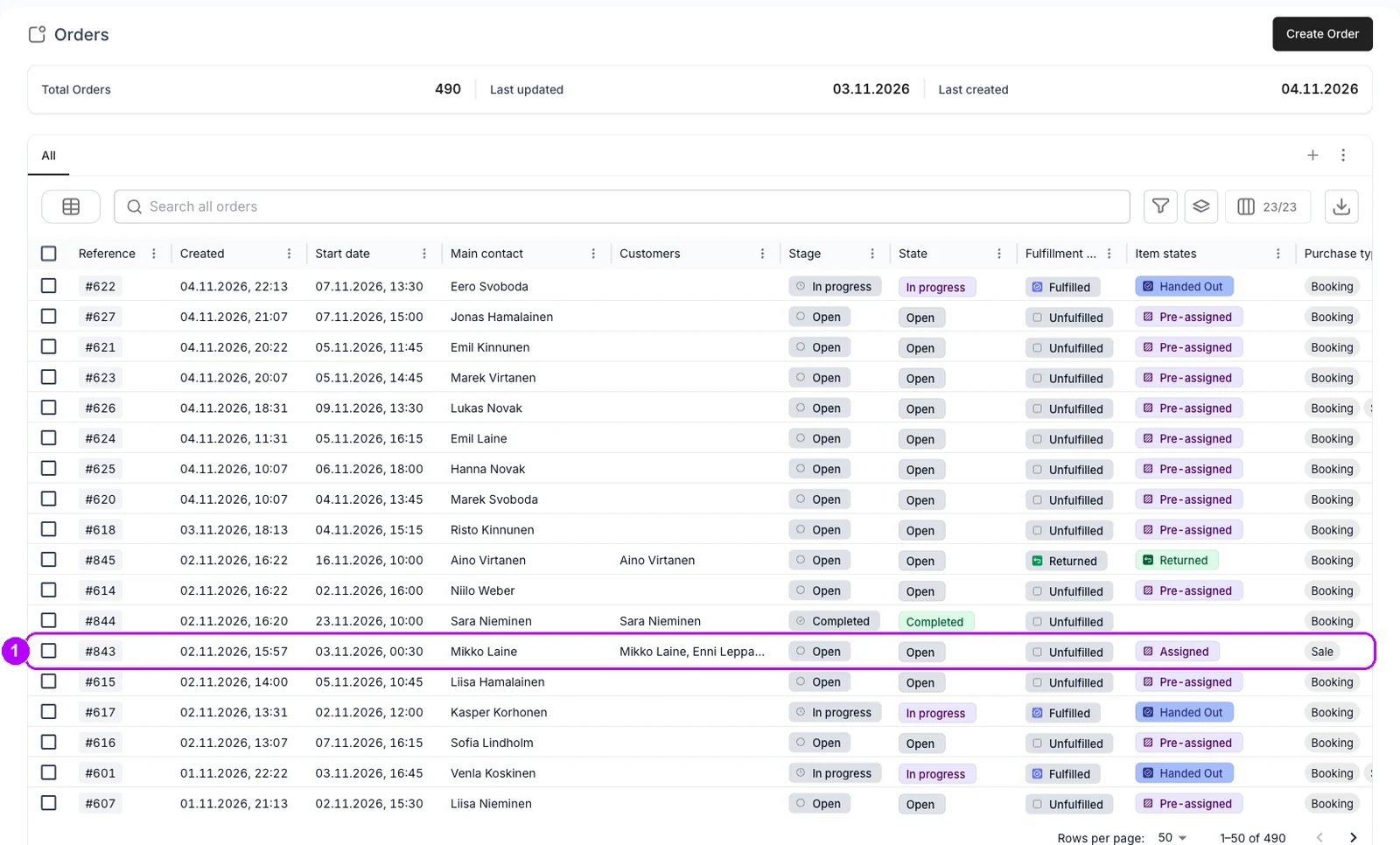
2
Select whose items it pays for
Skip this step to record a payment for the whole order. To record one person’s payment, tick the checkbox in the Line item header of their card on the Summary tab, or the checkbox at the start of each of their lines. Payment in the top-right corner then shows how many items you selected.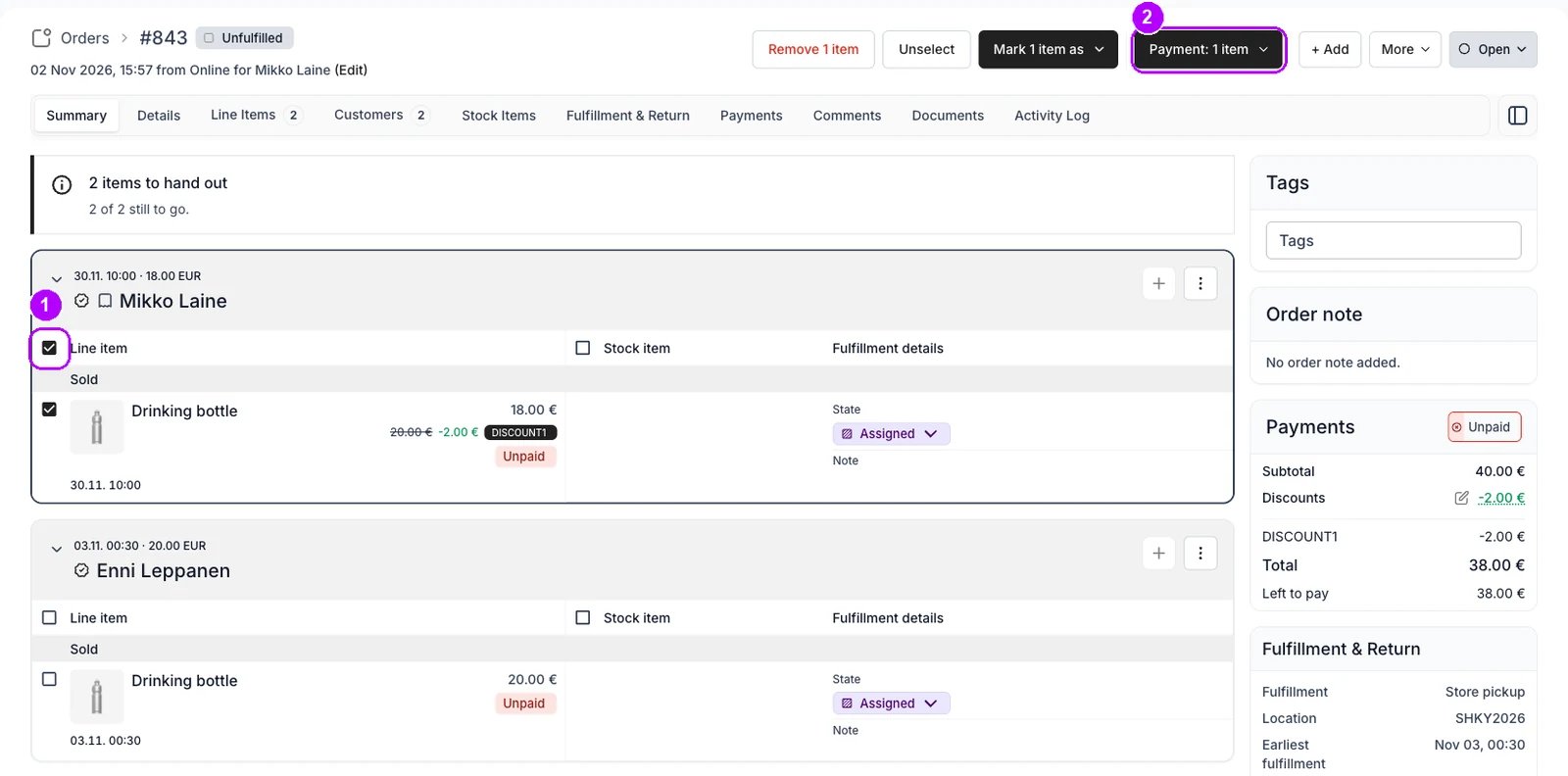
3
Open Manual payment
Click Payment in the top-right corner of the order and choose Manual payment. The Manual payment panel opens on the right, with the order’s Order total, Paid and Unpaid at the top.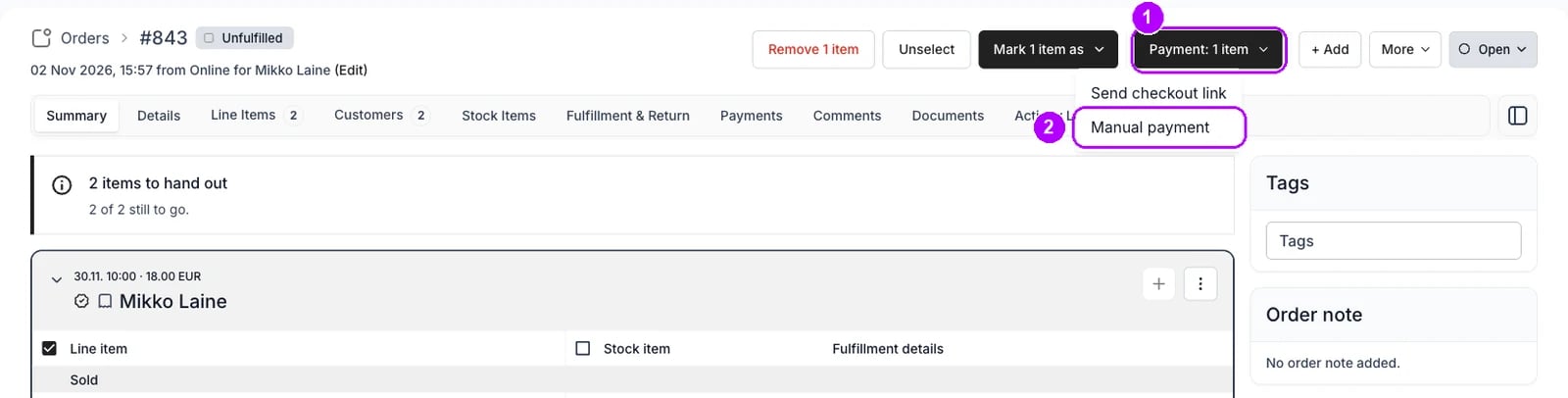
4
Check the amounts
Check the rows, grouped by customer. With an issued invoice, they split into Uncollected items and Open invoices. A ticked row is paid at the figure in its Amount to pay field, at first what it owes. With items selected, only theirs start ticked. Untick a row to leave it out, or lower its figure to record part.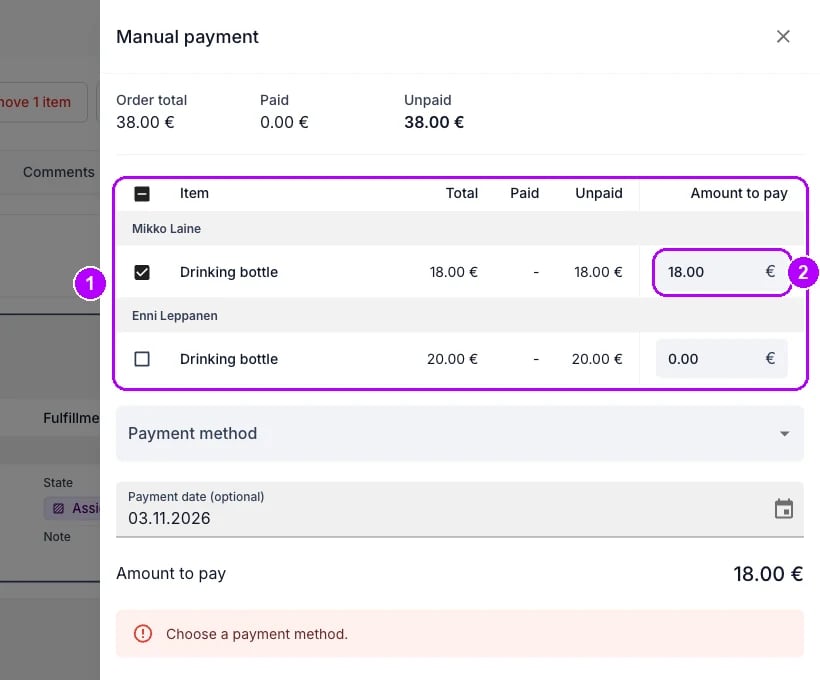
5
Choose the payment method
Choose how the customer paid in Payment method, under the rows. The list holds your manual methods, such as Pay on pickup and the ones you named yourself. With only one method enabled, it is already chosen.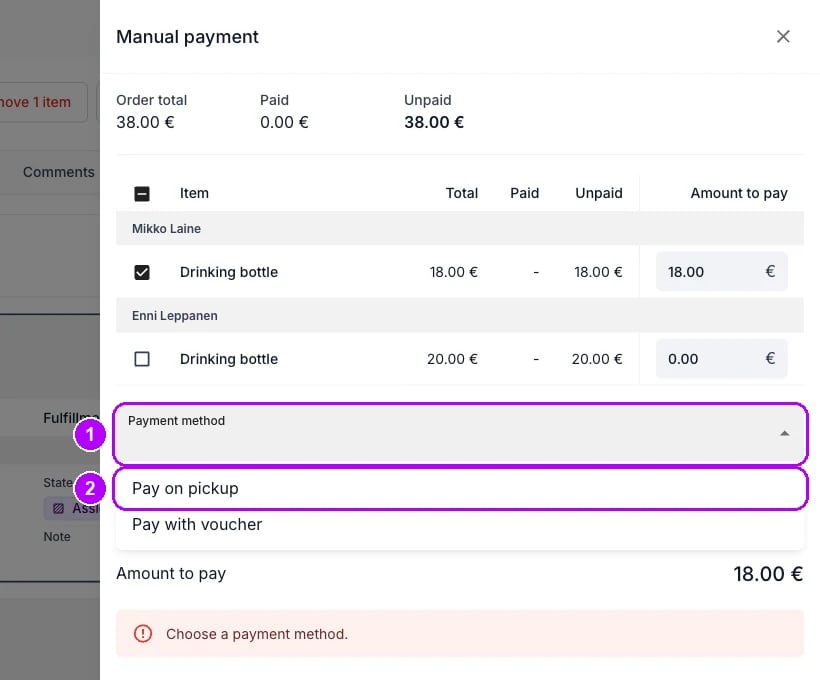
6
Set the payment date
Check Payment date (optional) under the method. It starts at today. Change it to the day the customer paid when you record a payment late, such as a bank transfer that arrived yesterday. A date in the future is refused.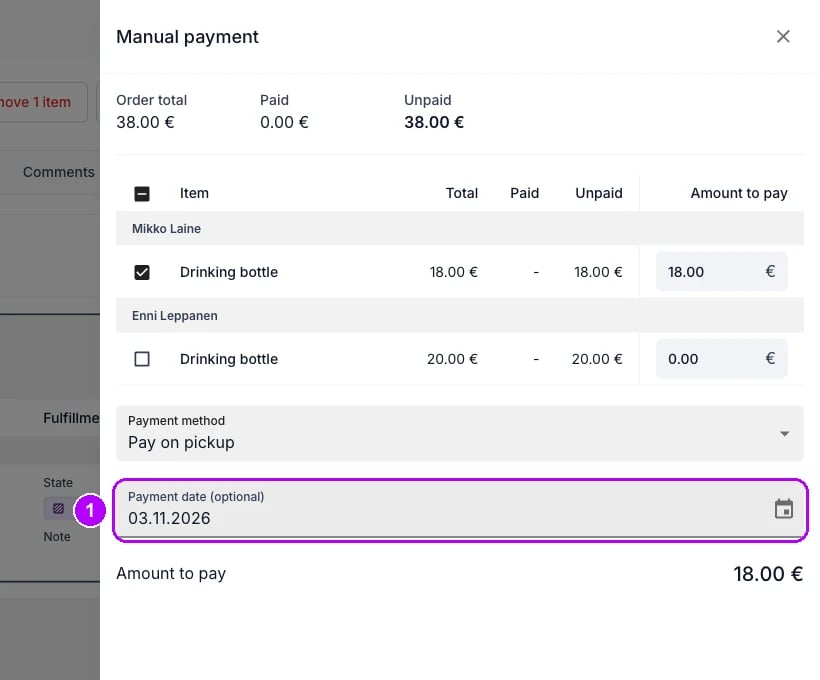
7
Record the payment
Check Amount to pay at the bottom of the panel, then click the button under it, which reads Mark as paid: and the amount, for example Mark as paid: 40.00 €. “Recorded payment of 40.00 €” confirms it, and the panel closes. TWICE moves no money: the record stands for what the customer already paid you.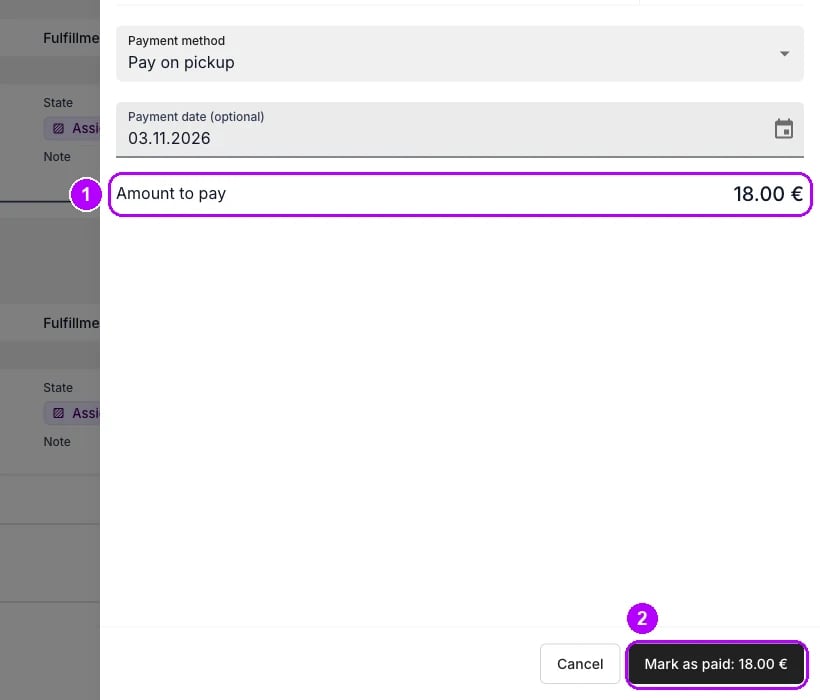
8
Check the payment row
Open the order’s Payments tab. The Payments table has a new row of type Payment for the amount, with the method you chose and its own receipt number. The chip on the Payments card in the sidebar reads Paid, or Partially paid while the order still owes something.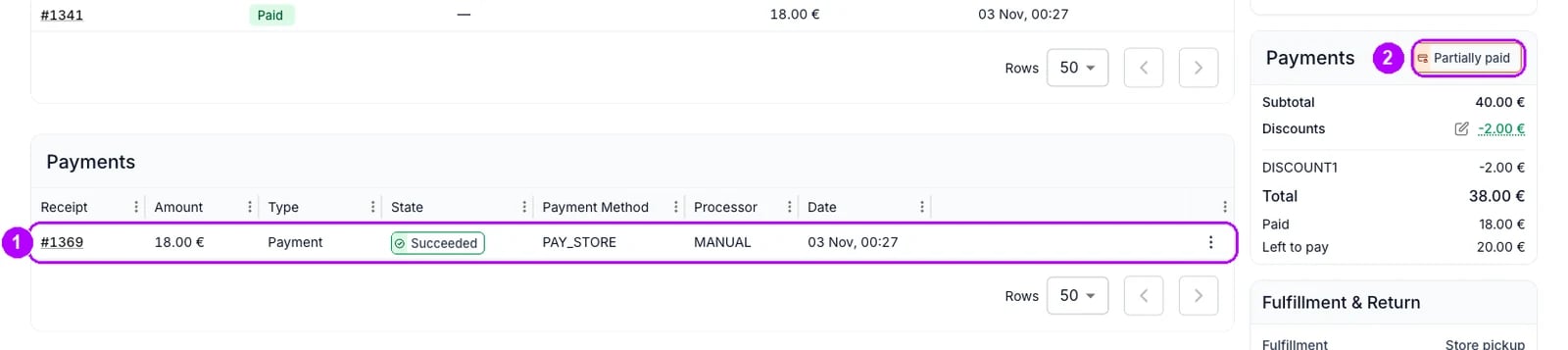
How do I know it worked?
- A row of type Payment is in the Payments table for the amount, at Succeeded, with its own receipt number and the method you chose.
- The Payments card reads Paid, or Partially paid while the order still owes something.
- A row you paid in full is no longer listed the next time you open Manual payment or Send checkout link.
Troubleshooting / common pitfalls
Manual payment is greyed out or missing
Manual payment is greyed out or missing
Greyed out means nothing is owed: the order is paid, or the items you selected are. Click Unselect to record against the rest. Missing means your role does not hold Take payments. See How payments work.
The panel says no manual payment methods are enabled
The panel says no manual payment methods are enabled
Enable one under Settings → Payments. The Configure payment methods link in the notice opens it. See Payments settings.
You recorded the wrong amount or items
You recorded the wrong amount or items
Refund the payment from its row and record it again. Refunding a manual payment moves no money, so nothing goes back to the customer. See Refund an order.
Related articles
How payments work
Manual methods, receipts, and what a payment records.
Payments and deposits
Every walkthrough for taking money and handling deposits on an order.
Send a checkout link
Asking the customer to pay online instead.
Refund an order
Undoing a payment, in full or in part.
Payments settings
Enabling Pay on pickup and naming your own manual methods.