

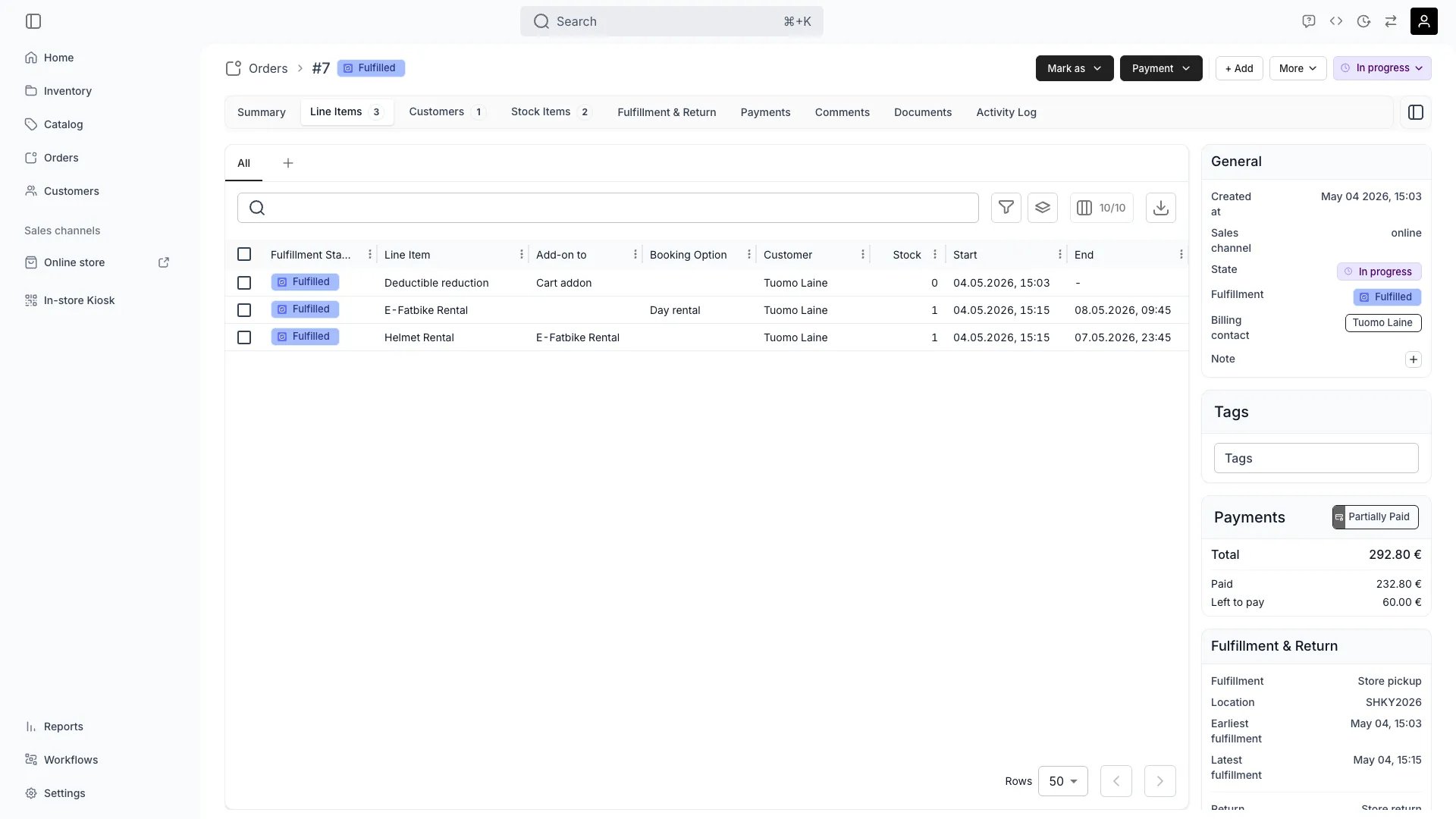
Orders > [order] > Line Items
Open in TWICE Admin
orders
Prerequisites
Have ready before you start:
- An order that is still editable. Closed and archived orders are read-only, and both say so in a banner at the top.
- What is actually changing, whether dates, quantity, which items, or the price. Each has a different downstream cost.
- Whether money has already been collected. Check the Payments tab before you change anything priced, because an edit moves the total rather than the payments.
The walkthrough
1
Check the order is still editable
Open the order and read the top of the page:
Check where the order has got to as well. An Open, unfulfilled order takes any change, while an In progress order takes extensions and additions but will not let you remove items already handed over. See Edit rules at each stage.
2
Open the line item
Go to the Line Items tab and click the row you are changing. The line item editor opens with its current values.Expect two deliberate differences from the storefront’s version of the same editor. Past dates are selectable, up to 24 months back, so an order that began before anyone entered it can be recorded with its real dates.The location’s fulfilment hours do not cap the times either, because staff decide when they can hand over and take back. Stock availability still applies.
3
Move the dates
Change Start and End, or Sales date on a sale, and let the availability check settle before you save.Do not expect the line item to block its own edit. When you re-date an item, its existing reservation is taken out of the availability check, along with those of its add-ons and the buffer windows around them.Extending a two-hour booking by an hour therefore does not report a clash with the buffer that booking itself created.
4
Read the refusal when the dates come back unavailable
Check the other line items on the same order first. They hold their reservations normally, so an edit that collides with one is reported unavailable like any other clash. Full rules in Editing an existing line item.Read which end the editor names: Selected start date is not available, Selected end date is not available, or The selected dates and booking option are not available. Please select different dates or a different booking option.
5
Answer the price prompt
Expect the unit price on the line to survive a date change. It is kept deliberately, which means it can now disagree with what the catalog charges for the new dates.Answer the prompt on save. Where the two differ, Unit price differs from list price opens and shows both, Manual unit price and List price for selected dates, with three ways out:
6
Choose between the quote you gave and the current price
Decide deliberately, because neither answer is the safe default. Honour a quote you already gave with Apply manual price, or charge for the extra days with Apply list price.Expect the prompt for catalog line items in edit mode only. Custom items, add-ons and subscriptions never raise it, because an add-on’s price derives from its parent and a subscription prices off frozen plan terms.Read no prompt as “the two prices already agree”, rather than as “no price change is due”.
7
Add or remove items
Add with + Add, then the Listing, Stock Item or Add-ons tab, exactly as when the order was taken. Attach an add-on to one line item or to the whole order.Add a line that is in no catalog with Add custom item, the button beside the tabs rather than a tab of its own.Remove by selecting the rows on Line Items and using Remove line items in the action bar. The confirmation counts what you are removing.Note that removing a line releases the stock it held and does not refund it. Settle that in the money step below.
8
Decide what happens to the add-ons under a row you remove
Check “Also remove 2 add-on items” in the confirmation to take them with the parent. The box is offered whenever a row you picked has add-ons under it, and it starts unticked.Leave it unticked and the parent goes while its add-ons stay on the order as lines of their own, each still charged and still holding its stock. Remove those you did not mean to keep in a second pass.
9
Re-check the stock behind the change
Check the Stock Items tab after any change to dates or quantity, because a unit that was free for the old dates may not be free for the new ones.Confirm every line carries the units it needs, in a sensible fulfilment state. Treat a conflict banner at the top of the order as a double-committed unit, and see Stock item conflicts.Watch the fulfilment states too. An item already marked Fulfilled is out with the customer, and re-dating around it does not bring it back.
10
Reconcile the money
Expect the total to be recalculated and the payments not to be. The order’s unpaid balance is the current total less what has been captured, so an edit moves the balance the moment it saves:
11
Settle the deposit on its own balance
Settle the deposit separately, on its own balance, because a change to the order total does not adjust it.Do this in the same sitting. An edited order with a stale balance looks settled in the table and is not.
How do I know it worked?
- The line item shows the new dates and the price you chose on the Line Items tab, rather than the list price you did not pick.
- The order total matches what you intend to charge, and the Payment chip reads Paid, or Unpaid for a balance you know about and mean to collect.
- Every line carries stock, with no conflict banner at the top of the order.
- The old dates are free again, and the released period shows as available for the units that were holding it.
- The Activity Log carries the change, with who made it and when. On a disputed booking this is the record.
Troubleshooting / common pitfalls
The order will not let me change anything
The order will not let me change anything
Cause: it is closed or archived. Both make the order read-only, and both show a banner.What to do: reopen a closed order by setting the status chip back to Open or In progress. Unarchive an archived order from its own banner first, because the status chip will not respond until then.
Extending a booking says the dates are not available
Extending a booking says the dates are not available
Cause: something else is holding the time. The item is not blocking itself, because its own reservation and buffers are excluded from the check.Check these, in order:
- Another line item on the same order. These are not excluded, and are the most often missed because they are on the screen in front of you.
- Another order over the new period.
- The buffer of a different booking that starts after yours ends.
- A maintenance reservation or a unit at another location.
I changed the dates and the price did not change
I changed the dates and the price did not change
Expect that. The unit price is kept when dates move, deliberately, because it protects a quote you already gave the customer.What to do: answer Apply list price when the prompt appears on save, or set the Unit price yourself in the editor. The Apply list price button under the field snaps it to the catalog price for the currently selected dates.
No price prompt appeared, but I expected one
No price prompt appeared, but I expected one
Expect silence for three normal reasons:
- The prices already agree for the new dates, so there is nothing to decide.
- The line is an add-on or a subscription. An add-on is priced from its parent and a subscription from frozen plan terms, so the catalog’s standalone price is not the right comparison to offer.
- The line is a custom item, which has no catalog price to differ from.
The order says Unpaid after an edit that only moved dates
The order says Unpaid after an edit that only moved dates
Cause: you answered Apply list price and the new dates price higher. The total moved, the captured amount did not, and the difference is now outstanding.What to do: collect it, or reopen the line and apply the manual price instead if the customer was quoted the old figure. Decide it deliberately, because the edit has already made the choice.
I removed a line the customer had already paid for
I removed a line the customer had already paid for
Cause: removing a line releases the stock and drops the total without refunding anything, which leaves the order overpaid rather than settled.What to do: issue the refund from the Payments tab. Nothing reconciles this on its own, and the order will not flag it.
Related articles
Take an order in admin
The whole arc, from creating the order to closing it on return.
Order Line Items tab
The line item editor, control by control.
Availability
What the check counts, and what it excludes when you edit.
Order Lifecycle
What each stage lets you change.