

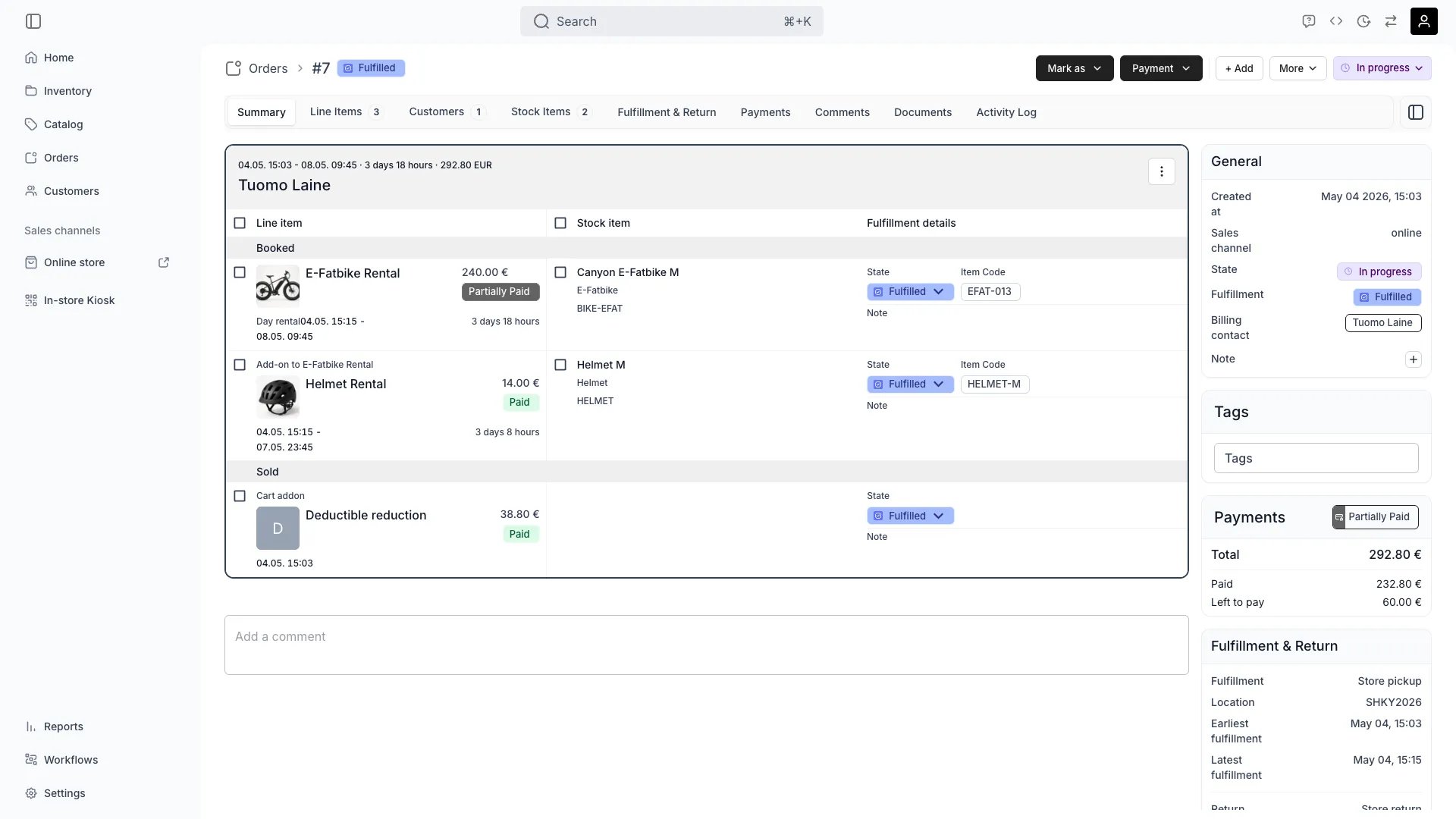
Orders > [order] > Summary
Open in TWICE Admin
orders
Prerequisites
Have ready before you start: the name of the customer who takes the item. They do not have to be on the order yet.
The walkthrough
1
Open the order
Open the order from Orders. Check the location selector in the top-left corner first if your account has more than one location, because the table lists only the orders of the location it shows.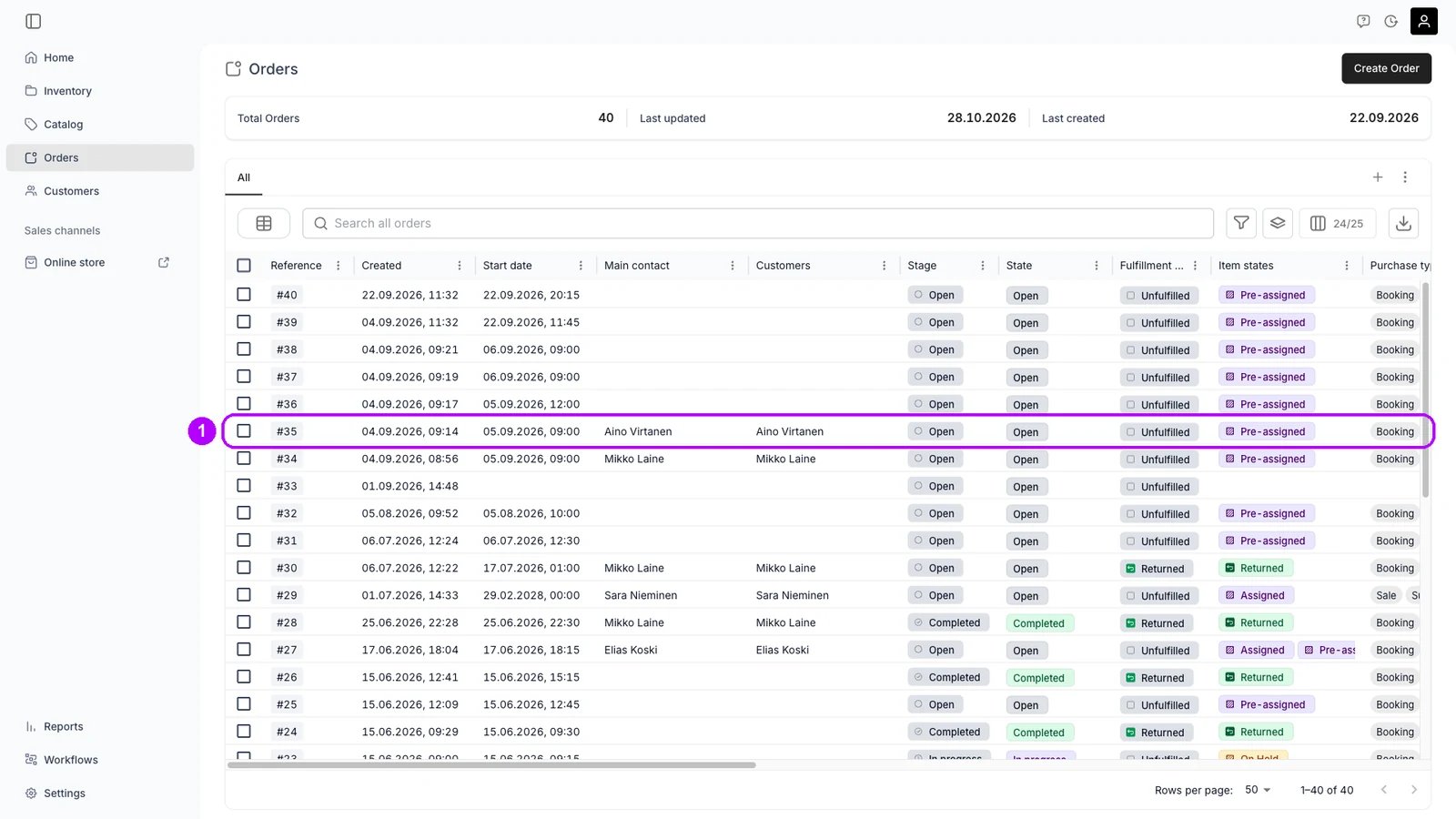
2
Open the line item
On the order’s Summary tab, each customer on the order has a card, and their line items are listed in it. Click the item’s name in the card it is in now. The Edit line item panel opens on the right.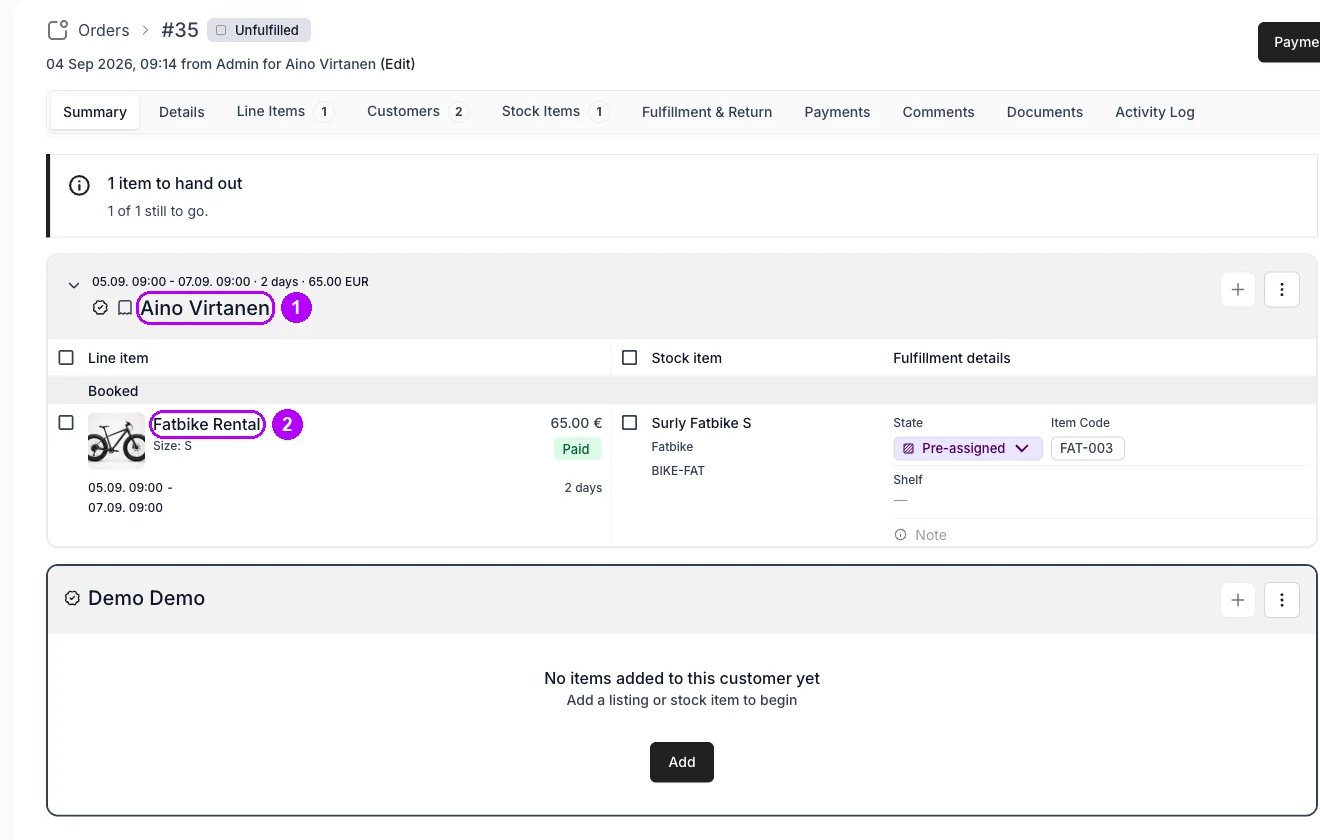
3
Choose the customer
Go to the Customer card near the bottom of the panel and open Assign to. The list has up to three parts: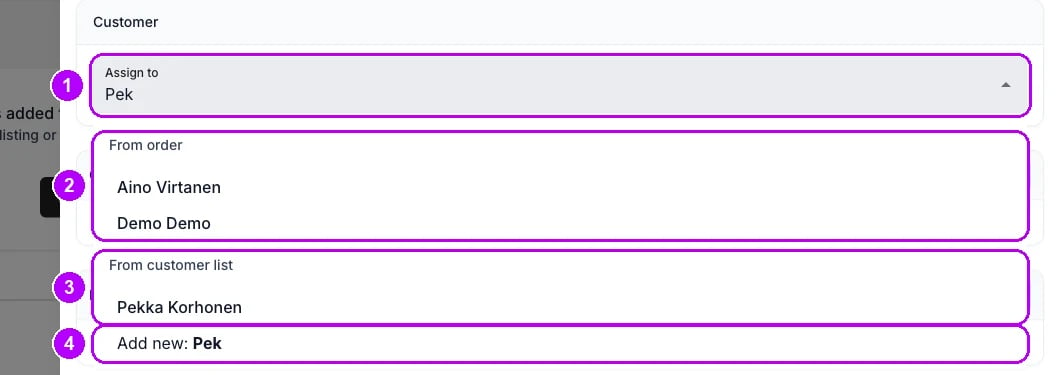
- From order: the customers already on this order.
- From customer list: your saved customers. Use at least three letters of the name to search.
- Add new: a new customer with the name you typed.
4
Save
Click Save at the bottom of the panel. The panel closes.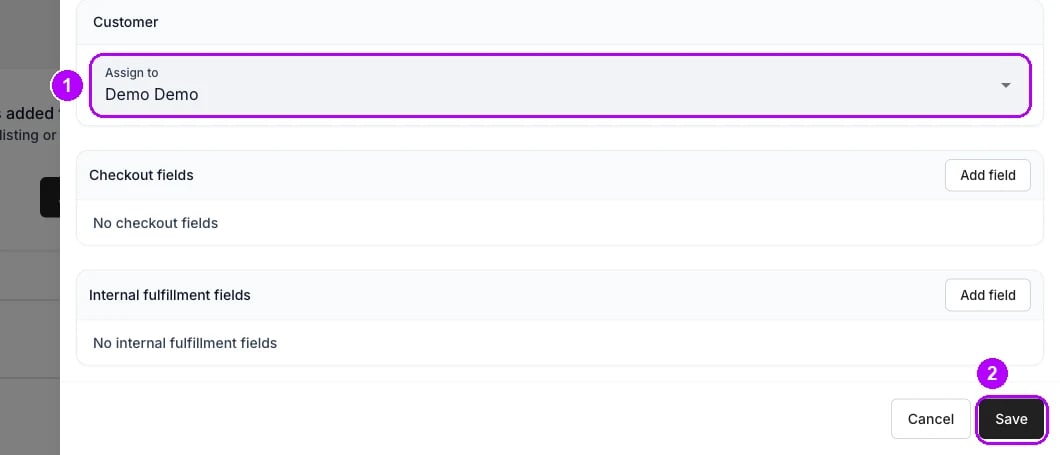
How do I know it worked?
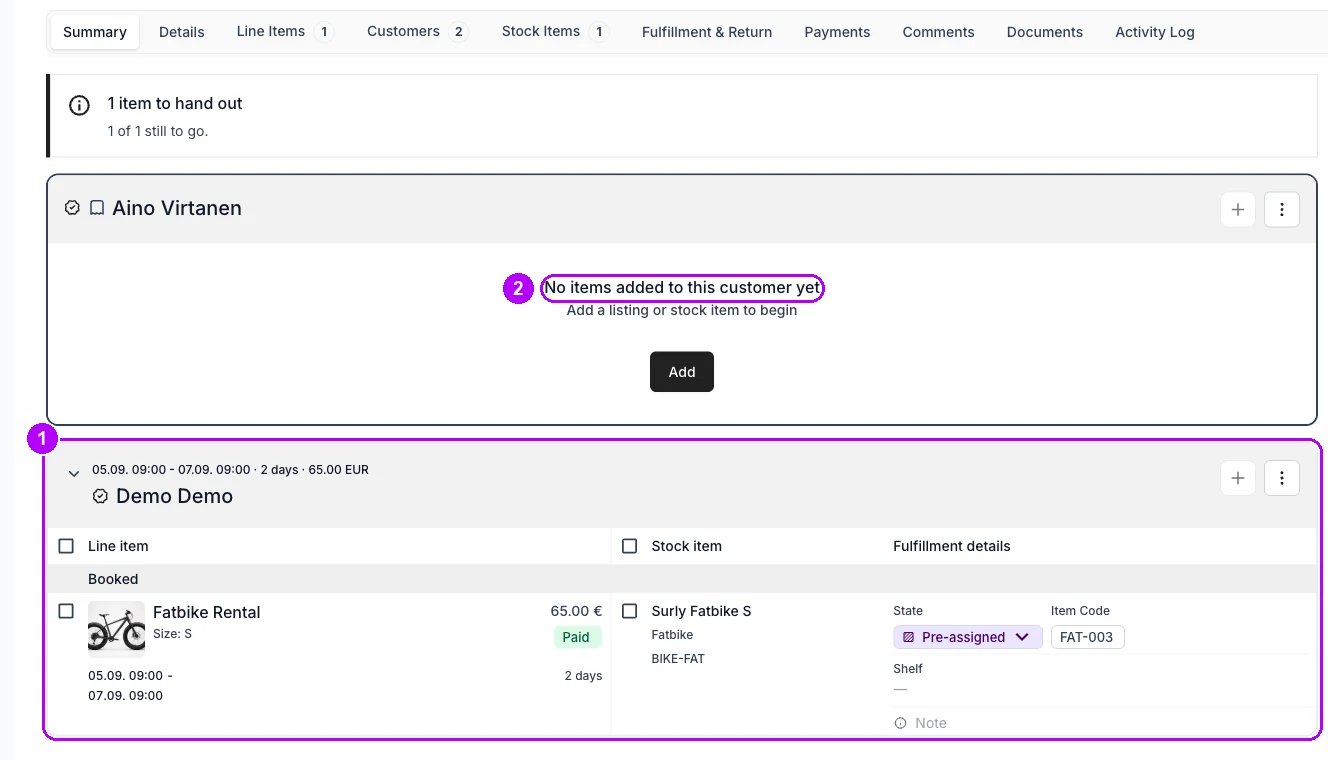
- Check the new customer’s card on the Summary tab. The item is listed there.
- Check the previous customer’s card. They stay on the order, and with nothing left the card reads “No items added to this customer yet”.
- Check the Customers tab count. It goes up by one when the new customer was not on the order before.
- Compare the item’s dates, price, payment status and stock item with what they were. None of them change.
Troubleshooting / common pitfalls
The order header still shows the previous customer
The order header still shows the previous customer
Cause: the name in the header is the order’s billing contact. Assigning a line item does not change who is billed.What to do: change the billing contact from the header if the new customer is also paying. See Order Customers tab.
The previous customer should not be on the order any more
The previous customer should not be on the order any more
Cause: assigning their last item away leaves them on the order with an empty card.What to do: open the ⋮ menu on their card and choose Remove customer. If they still have items, the dialog offers to assign those to another customer, which also moves several items at once.
The checkout answers on the line changed
The checkout answers on the line changed
Cause: checkout fields saved to a customer attribute follow the customer the line is assigned to.What to do: check the Checkout fields card in the panel before you save. Add what the new customer has not answered yet. See Listing checkout fields.
Related articles
Order Customers tab
Order customers and the billing contact, switching a customer, and removing one.
Edit an order
Every change to a live order, and what each one does to the stock and the money.
Create a customer profile
The order customer and the billing contact, and putting either on an order.