

Open in TWICE Admin
settings/archived-assets
Prerequisites
Have ready before you start:
- The order’s number or the customer’s name, to find the order among the archived ones.
The walkthrough
1
Open Archived assets
Open Settings → Archived assets. The page lists every kind of record you can archive, grouped by area.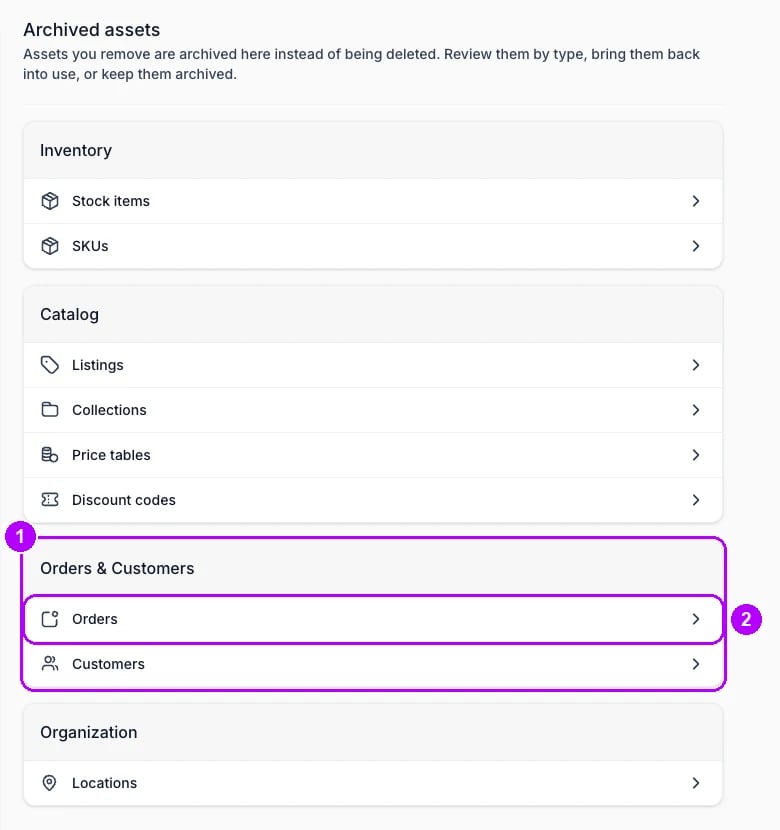
2
Open the archived orders
Click Orders under Orders & Customers. A table of archived orders opens.To unarchive several orders at once, select their rows and click Unarchive above the table, then Unarchive in the dialog.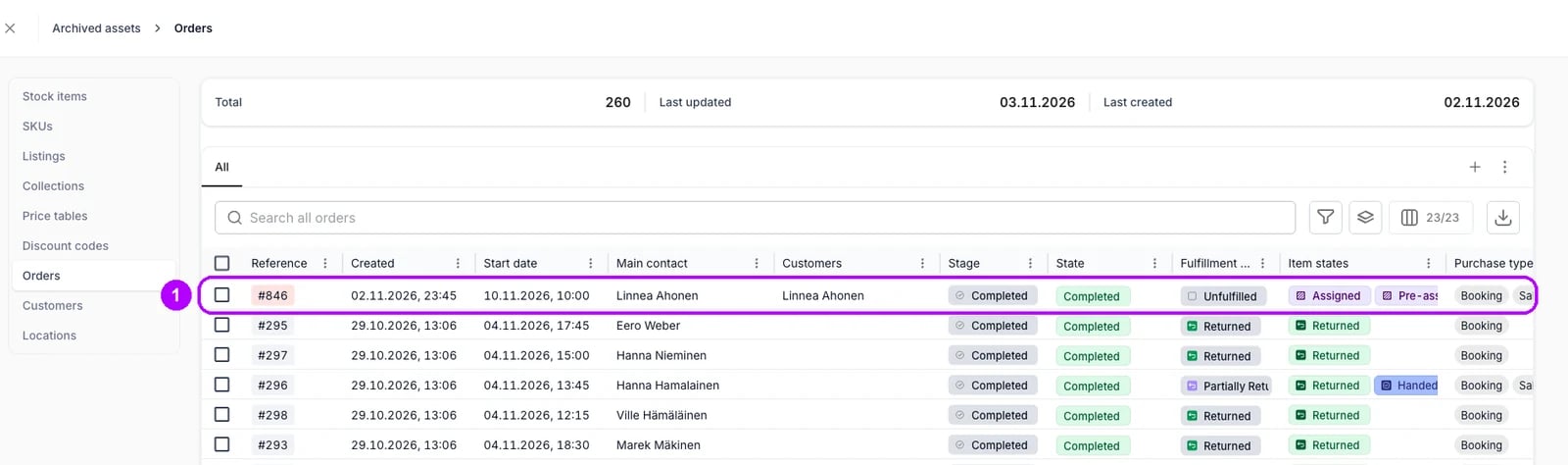
3
Open the order
Enter the order’s number or the customer’s name in Search all orders, then click the order’s row. The order opens, with This asset is archived at the top and Unarchive beside it.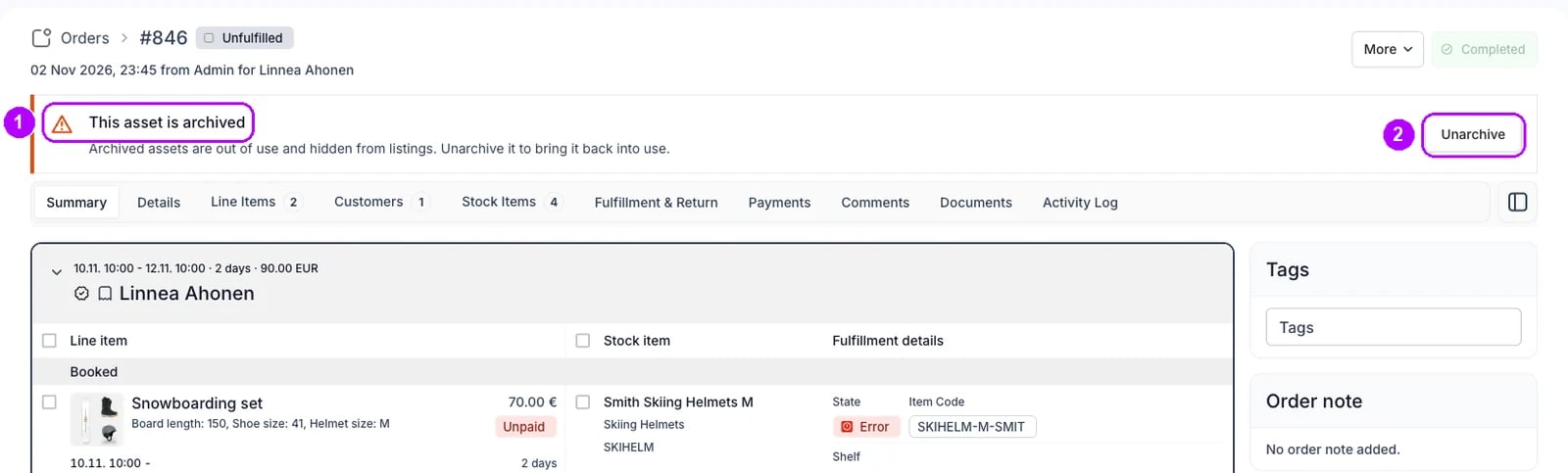
4
Unarchive it
Click Unarchive on the banner. The banner gives way to This order is closed, and the order is listed in the Orders table again.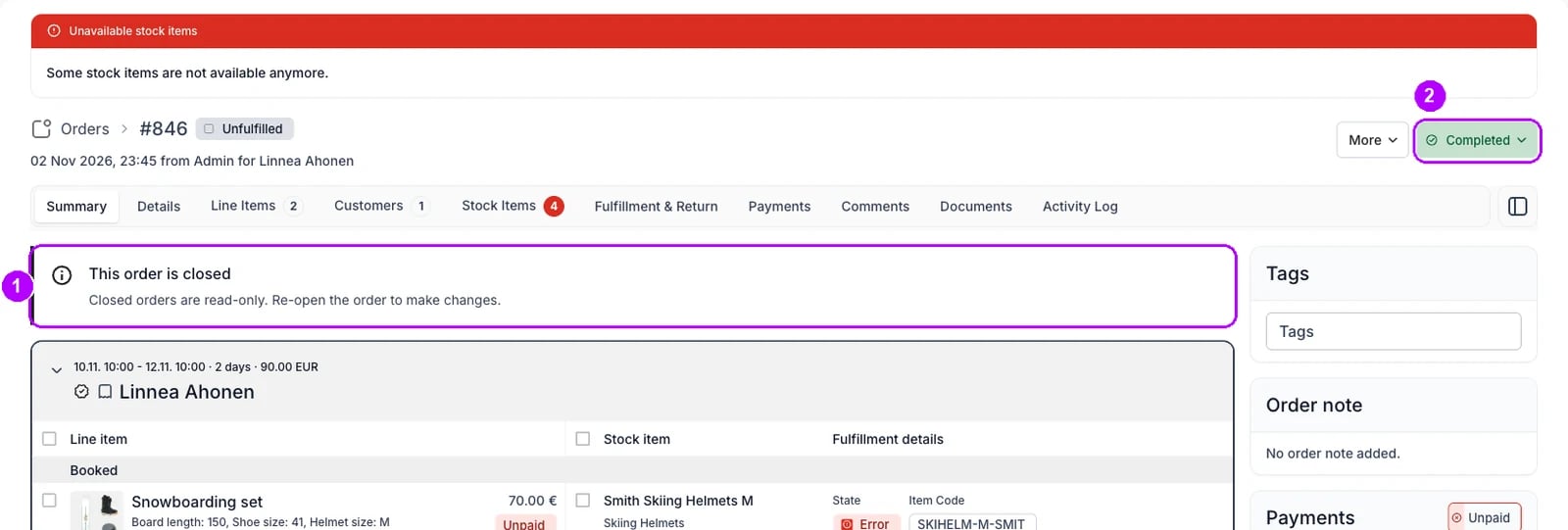
5
Check the stock it held
Check the top of the order. Where archiving released units the order was still holding, Unavailable stock items shows above it, and each of those units needs reassigning before the order can go ahead.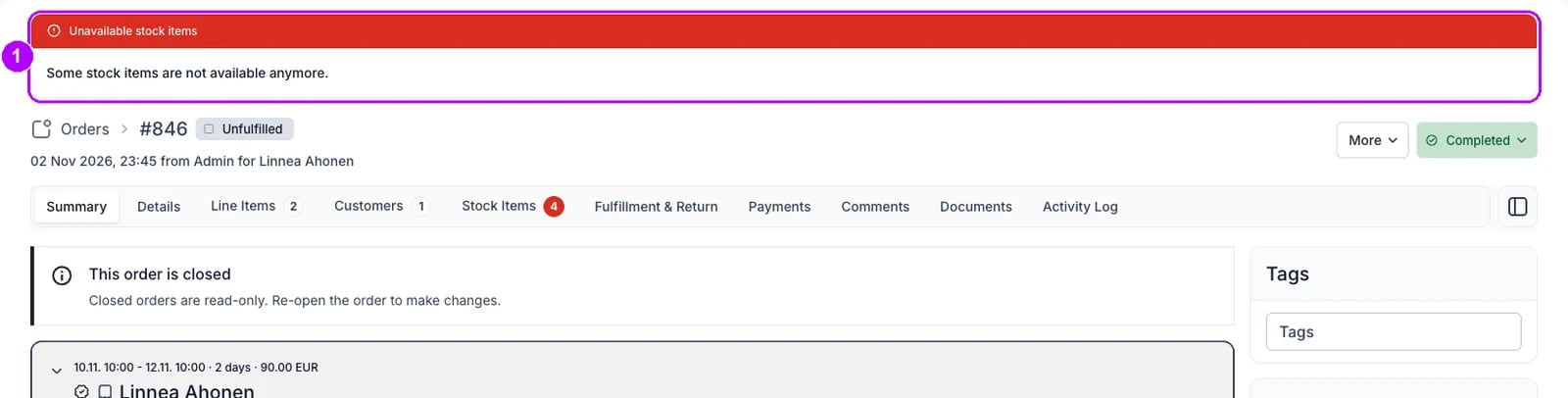
How do I know it worked?
- This order is closed shows at the top of the order, and the status chip reads Completed, or the closed state your account names.
- The order is listed in the Orders table again.
- Its checkout links still read Revoked on the Payments tab.
Troubleshooting / common pitfalls
The status chip does not open on the archived order
The status chip does not open on the archived order
An archived order is read-only. Unarchive it first, then reopen it. See Archiving and Deletion.
The customer's checkout link still does not work
The customer's checkout link still does not work
Revoking a link is one-way, so unarchiving does not bring it back. Reopen the order and send a new link. See Archiving and Deletion.
Related articles
Archiving and Deletion
What unarchiving brings back, and what it does not.
Cancelling an order
Every walkthrough for standing an order down.
Archive an order
Take an order out of the Orders table.
Reopen an order
Make a closed order editable again.
Resolve a stock item conflict
Put units back on lines that lost their hold.
Archived Assets
Everything archived, by type.