

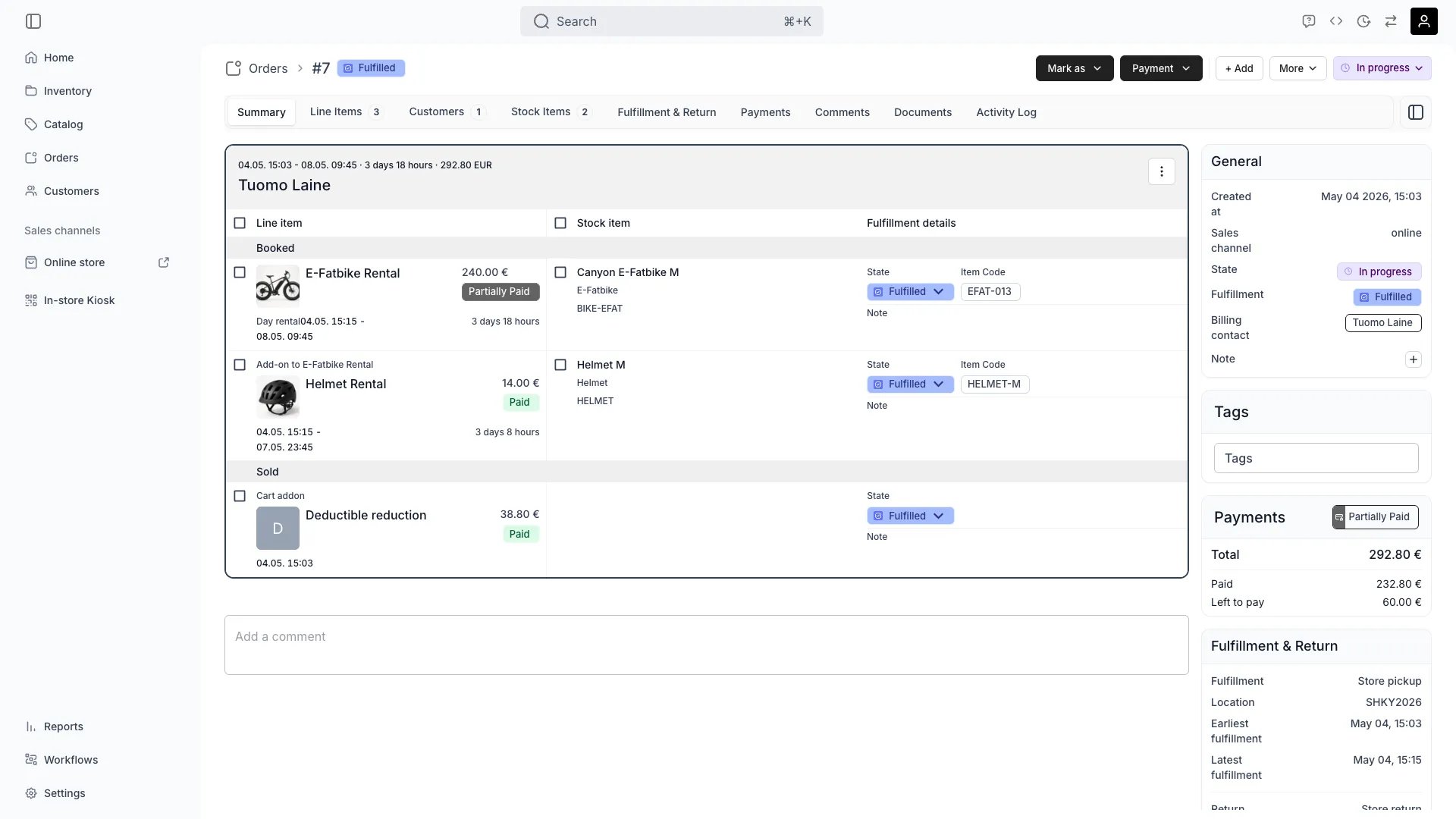
Orders > [order] > Summary
Open in TWICE Admin
orders
Prerequisites
Have ready before you start:
- The new end date and time the customer asked for.
- The customer’s email, to send the checkout link to.
- A payment provider connected for checkout links. See Payments settings.
The walkthrough
1
Open the order
Find the order in Orders. If your account has more than one location, check the location selector in the top-left corner first, because the table lists only the orders of the location it shows. Switch it to All locations if you are not sure where the order is.To go through the customer instead, open Customers, search for them, and open the order from their Orders tab.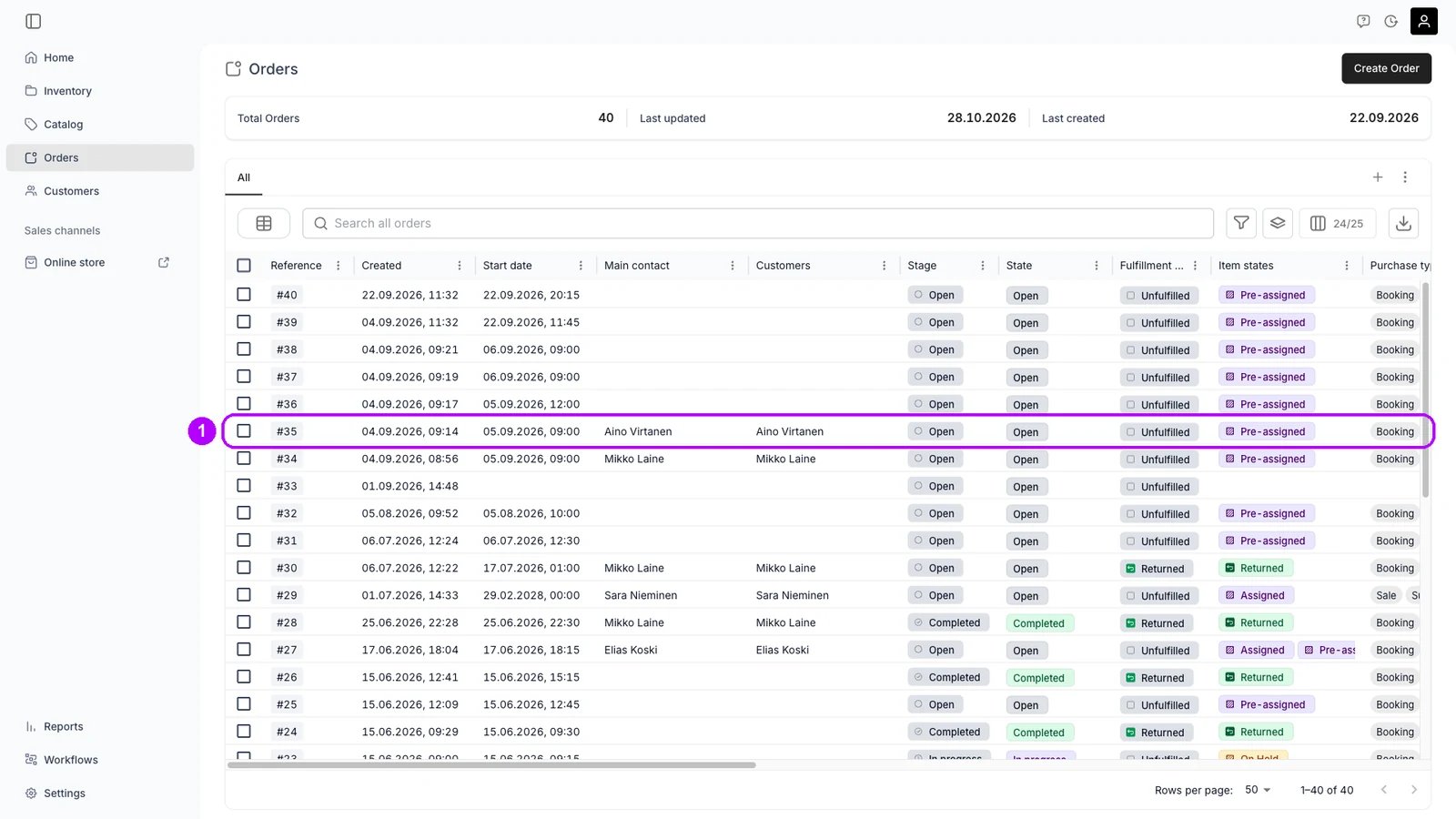
2
Open the line item
On the order’s Summary tab, click the name of the item you are extending. The Edit line item panel opens on the right with the line’s dates and price.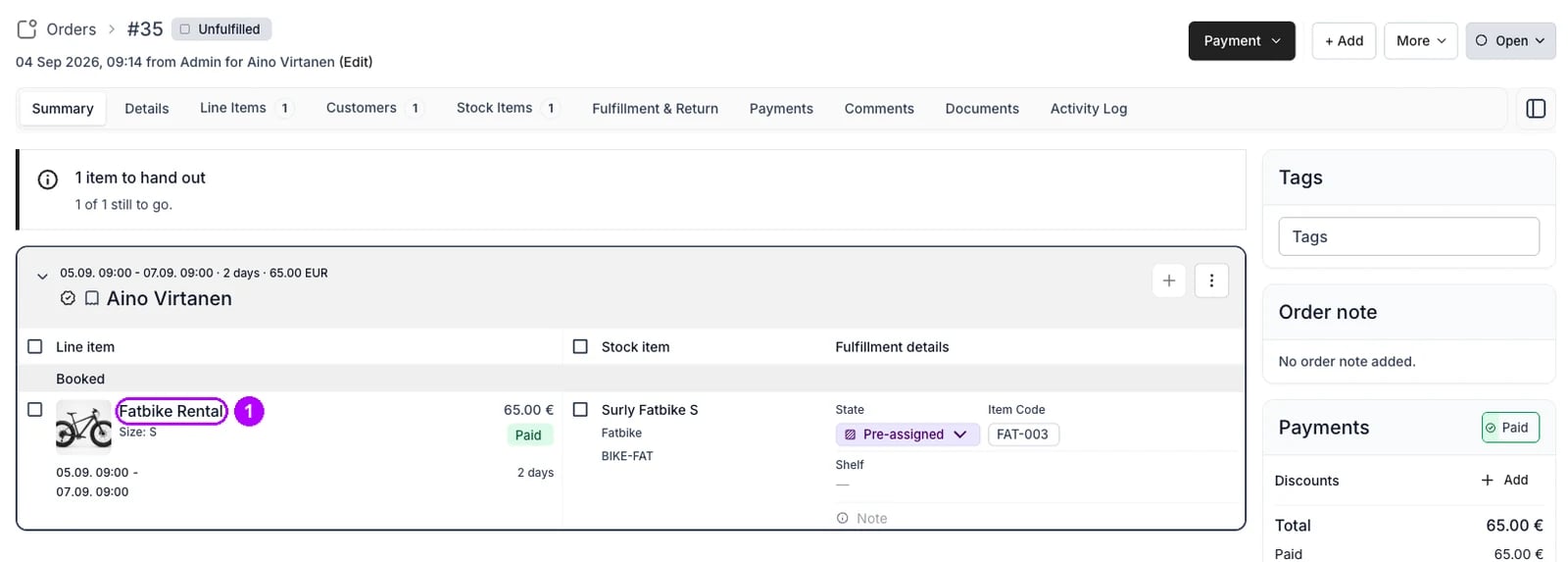
3
Pick the new end
Open End and pick the new date in the calendar, then the time in the list beside it.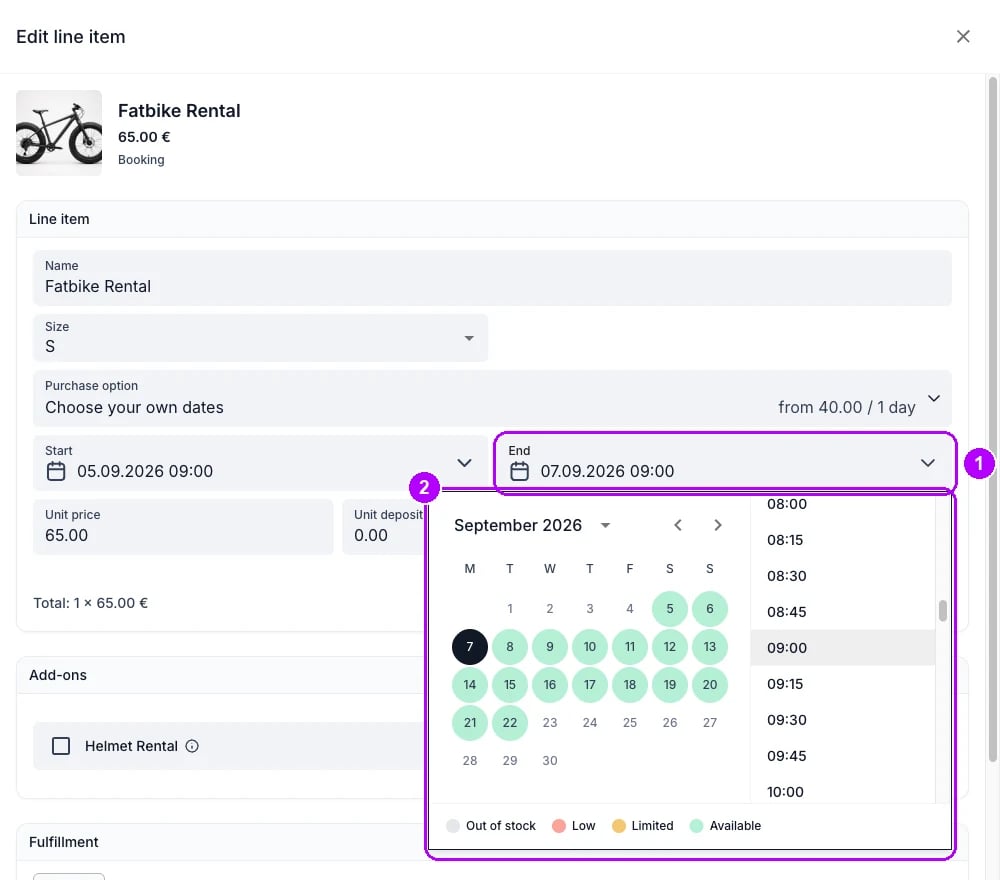
4
Charge the price for the new dates
Check Unit price. A line keeps its price when its dates change, so the field still shows the price for the old dates. Underneath it reads List price: with the catalog price for the new dates.Click Apply list price to charge for the extra time. Leave the price as it is to honour a price you quoted.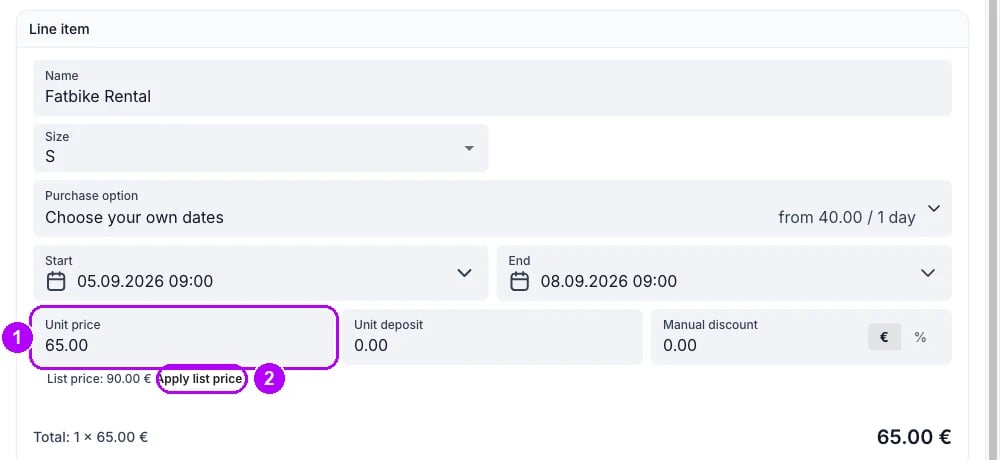
5
Save the change
Click Save at the bottom of the panel. The line shows its new end, and its payment chip changes to Partially Paid. The Payments card on the right of the order shows what is still unpaid.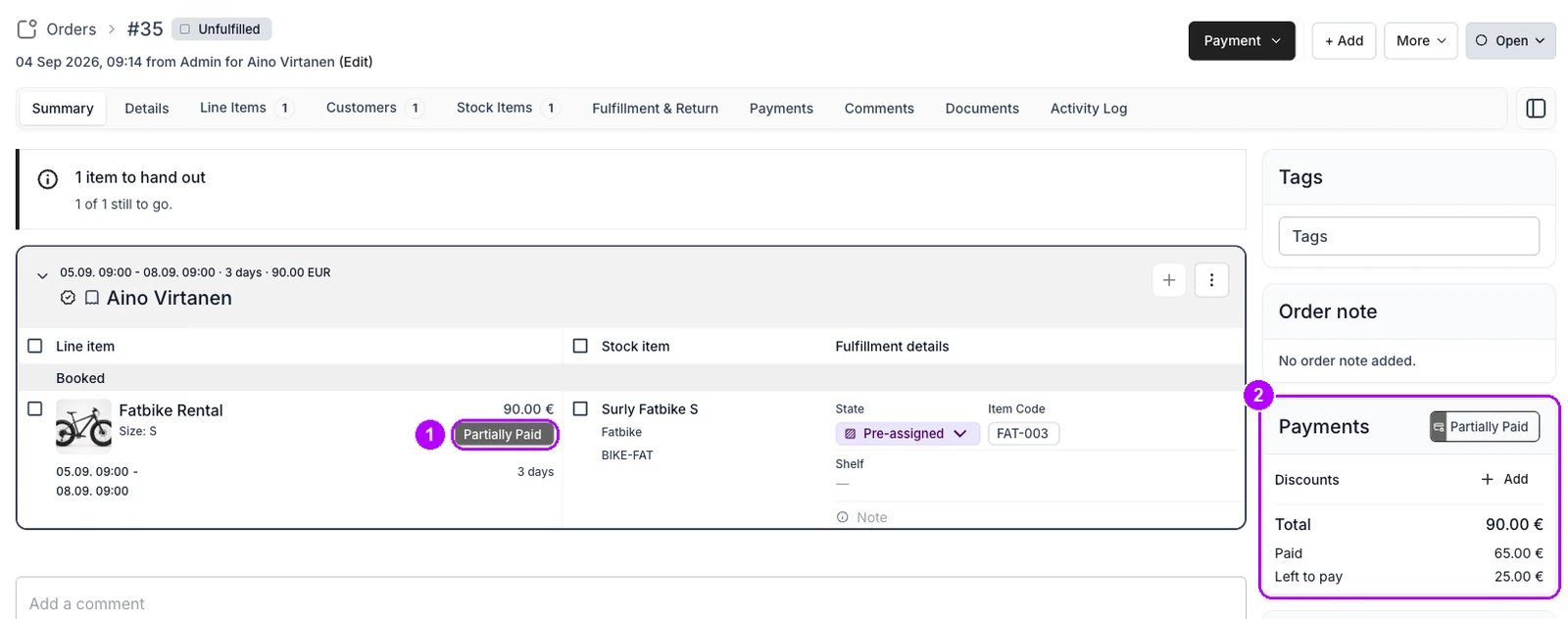
6
Open Send checkout link
Click Payment in the top-right corner of the order and choose Send checkout link.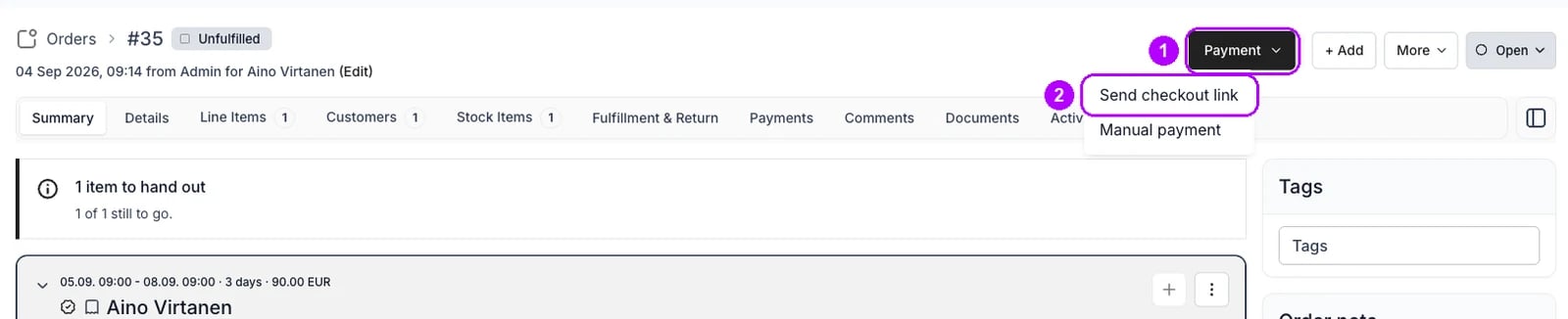
7
Check the email and the amount
Check Email under Contact details. It starts with the customer’s address. Leave it empty to create the link without sending it, and copy the link from the order afterwards.Check Amount to collect. It starts at what the order still owes, which after an extension is the price of the extra time.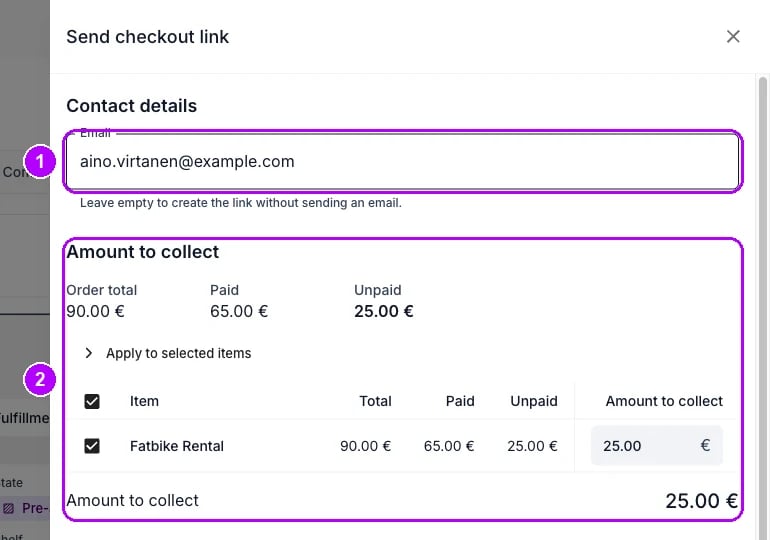
8
Send the link
Check that the online methods under Available payment methods are ticked, then click Send checkout link at the bottom of the panel. The button label ends in the amount to collect, for example 25.00 €. It reads Create checkout link when Email is empty.Checkout link created successfully confirms the link.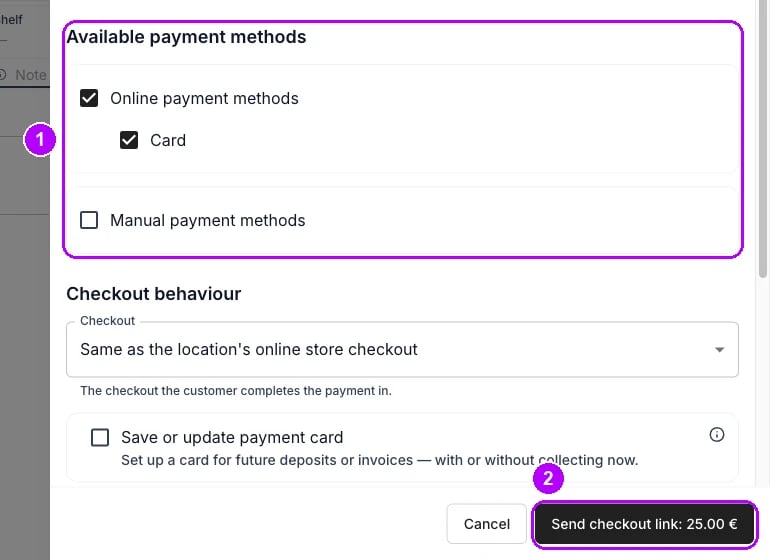
9
Follow the payment
Open the order’s Payments tab. The link is listed under Checkout links. When the customer pays, the payment appears on the tab and the line item’s chip changes to Paid.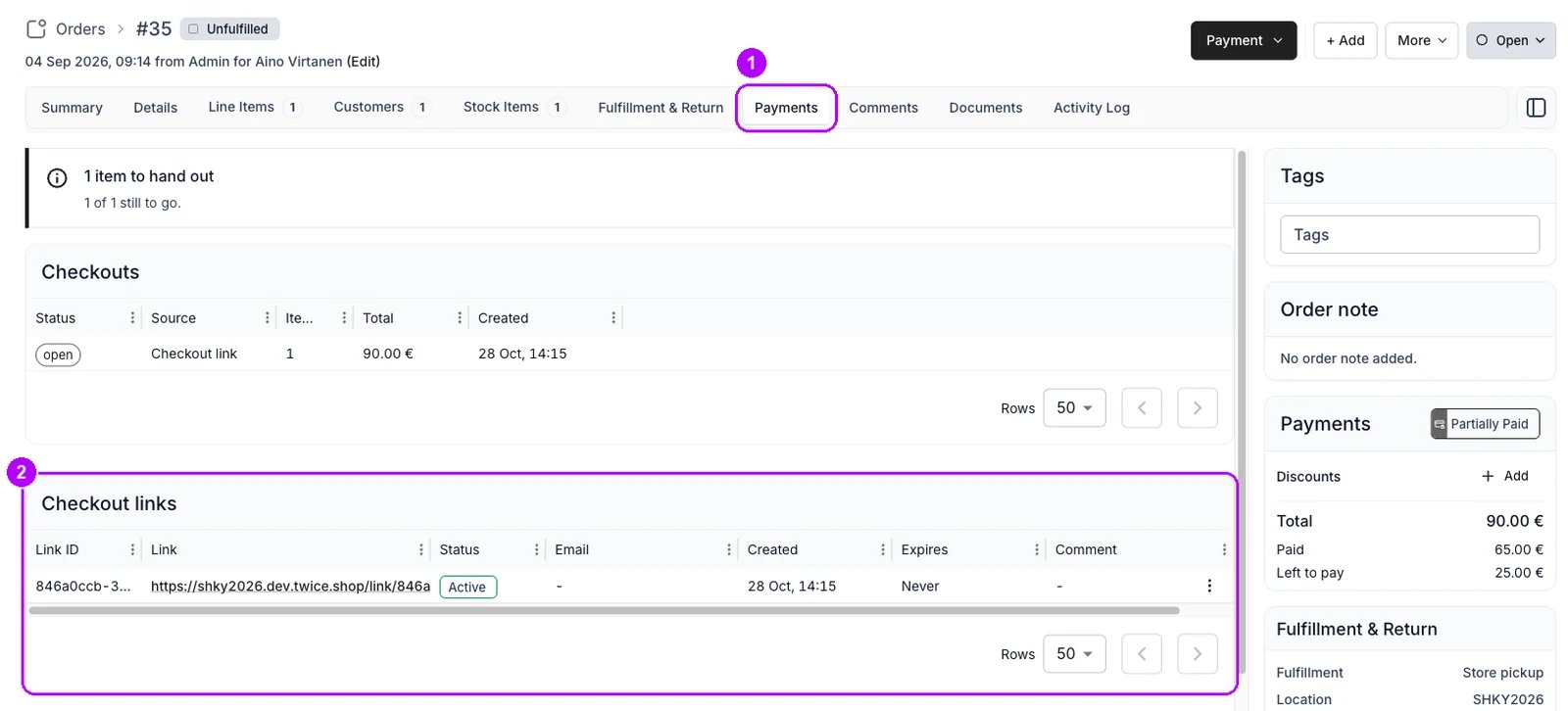
How do I know it worked?
- The line item shows the new end on the order’s Summary tab.
- The order total includes the extra time, at the list price if you applied it.
- A checkout link is listed under Checkout links on the Payments tab, with the customer’s email.
- The chip reads Paid once the customer has paid the link.
Troubleshooting / common pitfalls
The new end date is not available
The new end date is not available
Cause: the item is booked by another order from the dates you picked.What to do: pick an earlier end, or swap the line onto another stock item first. See Assign and swap stock items.
There is no Apply list price under Unit price
There is no Apply list price under Unit price
Cause: the unit price already matches the list price for the new dates, or the line is an add-on. An add-on’s price follows the item it is attached to.What to do: check the total under the line. If it is right, save.
A dialog asks which price to use when you save
A dialog asks which price to use when you save
Cause: the unit price and the list price for the new dates still differ, so Unit price differs from list price opens and asks which to keep.What to do: choose Apply list price to charge for the extra time, or Apply manual price to keep the old price. See Edit an order for what each choice does.
Related articles
Edit an order
Every change to a live order, and what each one does to the stock and the money.
Take payment and deposits
Checkout links in full, manual payments, and collecting part of a total.
Order Payments tab
The Payment menu and the Checkout links table, control by control.