

Open in TWICE Admin
orders
Prerequisites
Have ready before you start:
- The new dates and times the customer asked for.
- Which price to charge: the one the customer was quoted, or the list price for the new dates.
- An order that is not closed. Reopen a closed one first. See Reopen an order.
The walkthrough
1
Open the order
Open Orders and find the order. Check the location selector in the top-left corner first if your account has more than one location, because the table lists only the orders of the location it shows. The order opens on its Summary tab.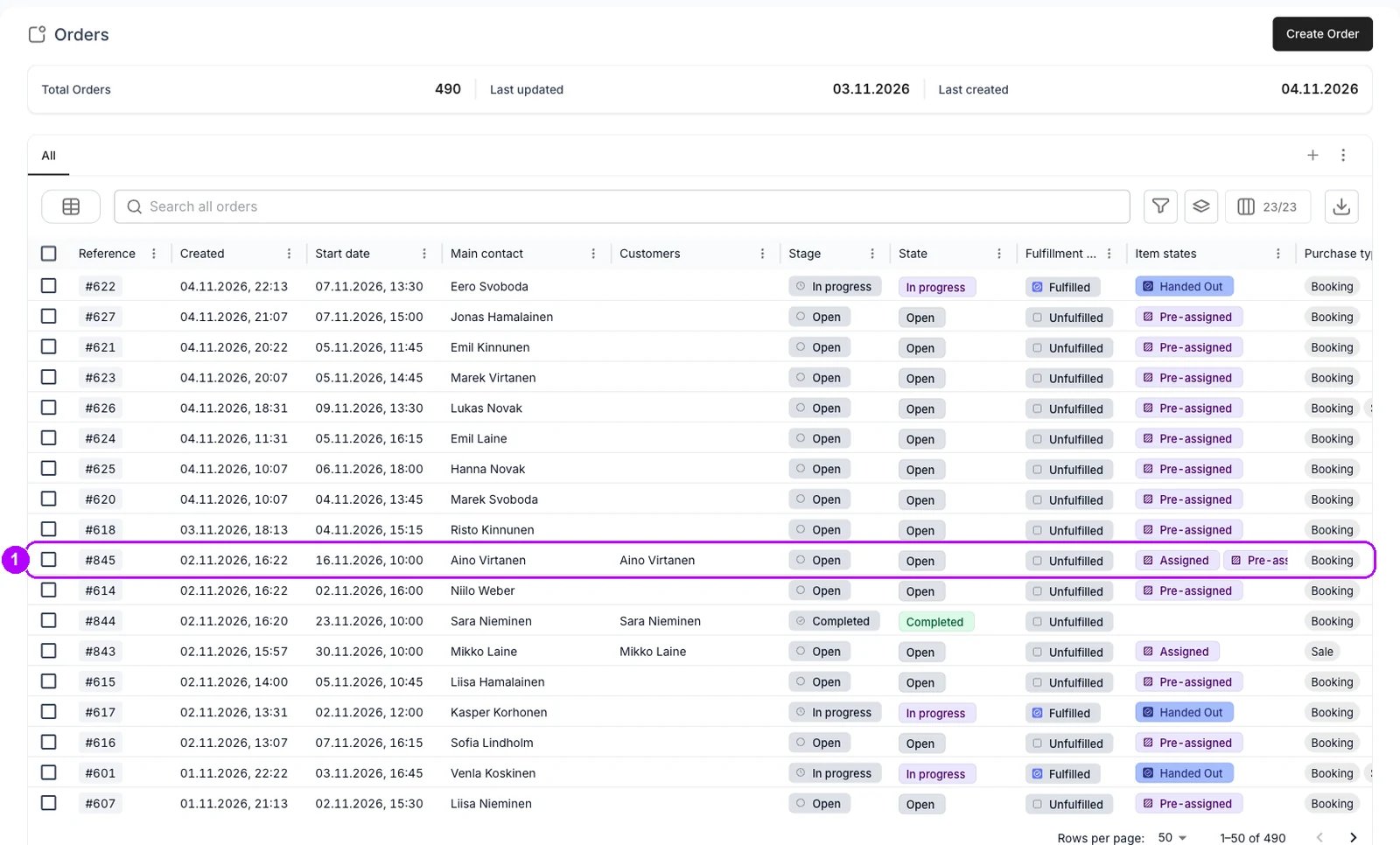
2
Open the line item
On the order’s Summary tab, click the name of the item whose dates change. The Edit line item panel opens on the right with the line’s dates and price.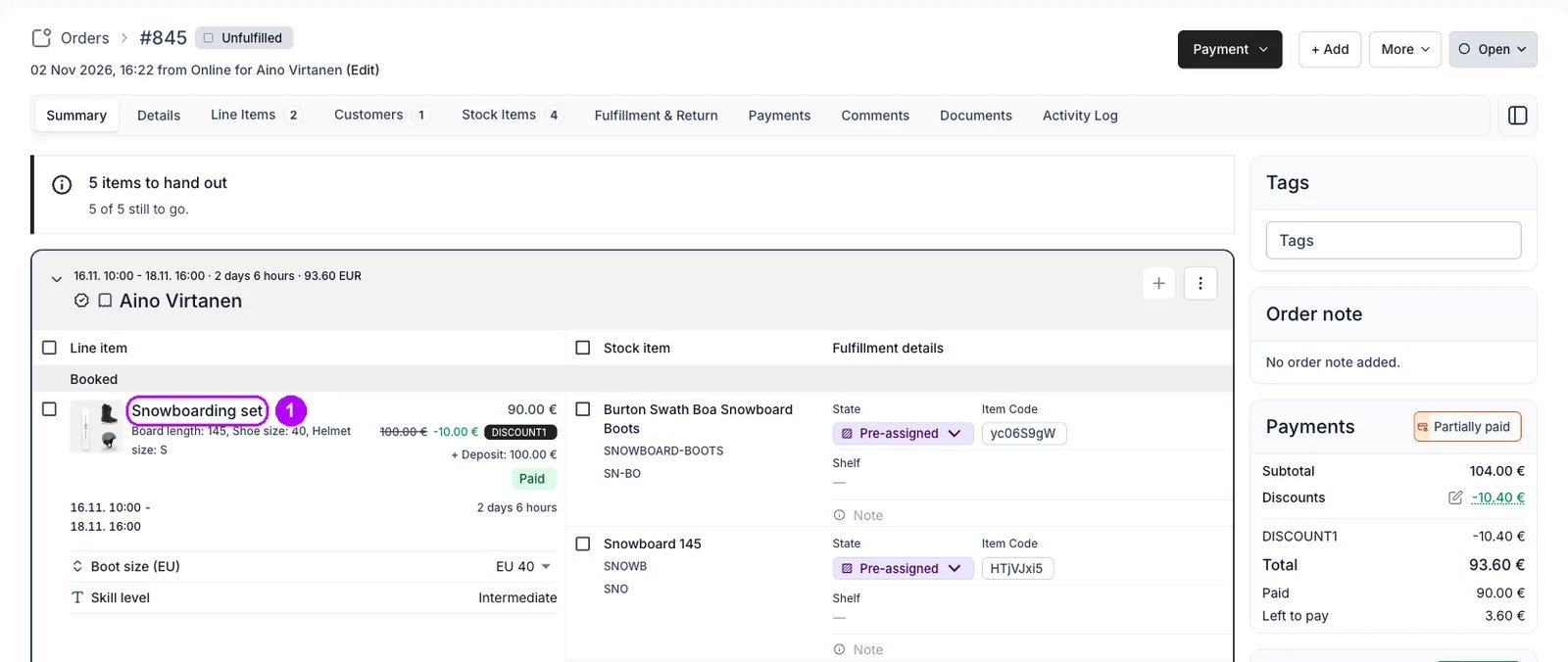
3
Pick the new start
Open Start and pick the new date in the calendar, then the time in the list beside it. On a sale, the field is Sales date. Past days stay selectable. When the line’s Purchase option has a fixed length, End moves with the start.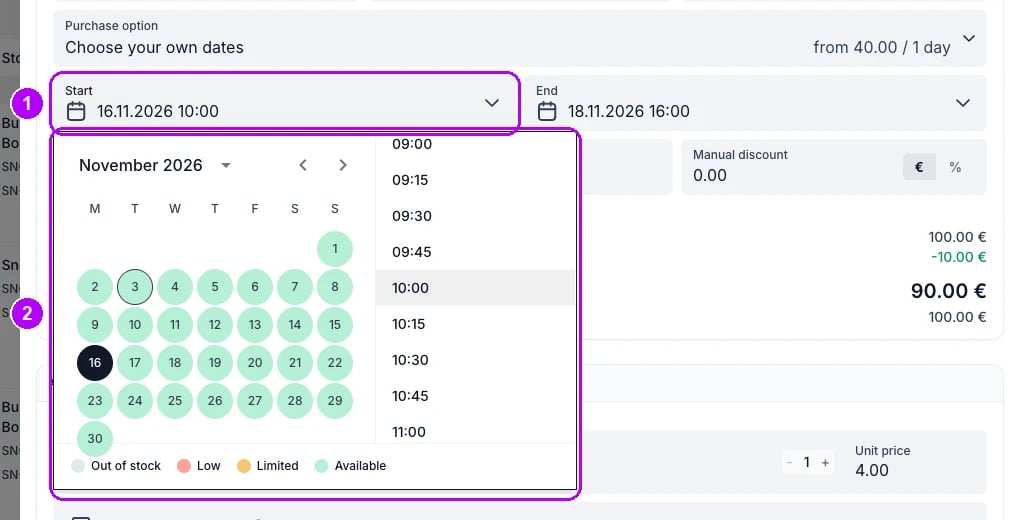
4
Pick the new end
Open End and pick the new date, then the time. Skip this on a sale, which has no end. A date that is not free turns the field red, and it reads “Selected end date is not available”.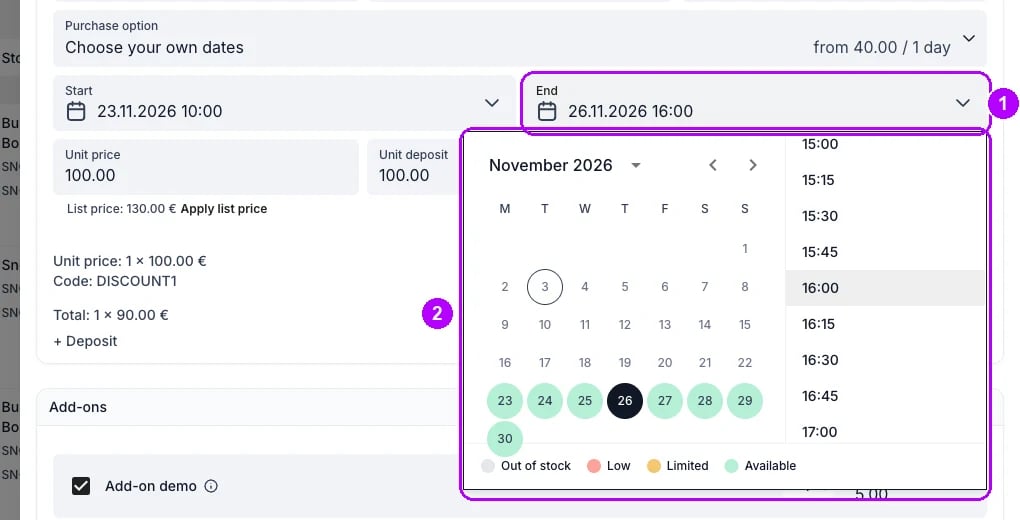
5
Save the change
Click Save at the bottom of the panel. When Unit price still matches the list price for the new dates, the panel closes and the change is saved. When the two differ, “Unit price differs from list price” opens with the Manual unit price and the “List price for selected dates”.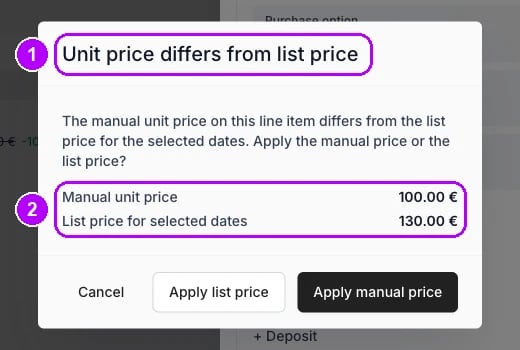
6
Choose the price
Click Apply list price to charge the catalog price for the new dates, or Apply manual price to keep the price the line had. Either one saves the change. Cancel takes you back to the panel with nothing saved.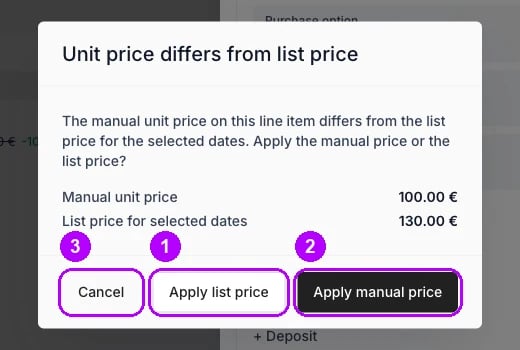
7
Check the line
Check the line on the Summary tab. It shows the new dates and the price you chose. When the price went up on a paid line, its payment chip reads Partially paid, and the Payments card on the right shows what is still unpaid.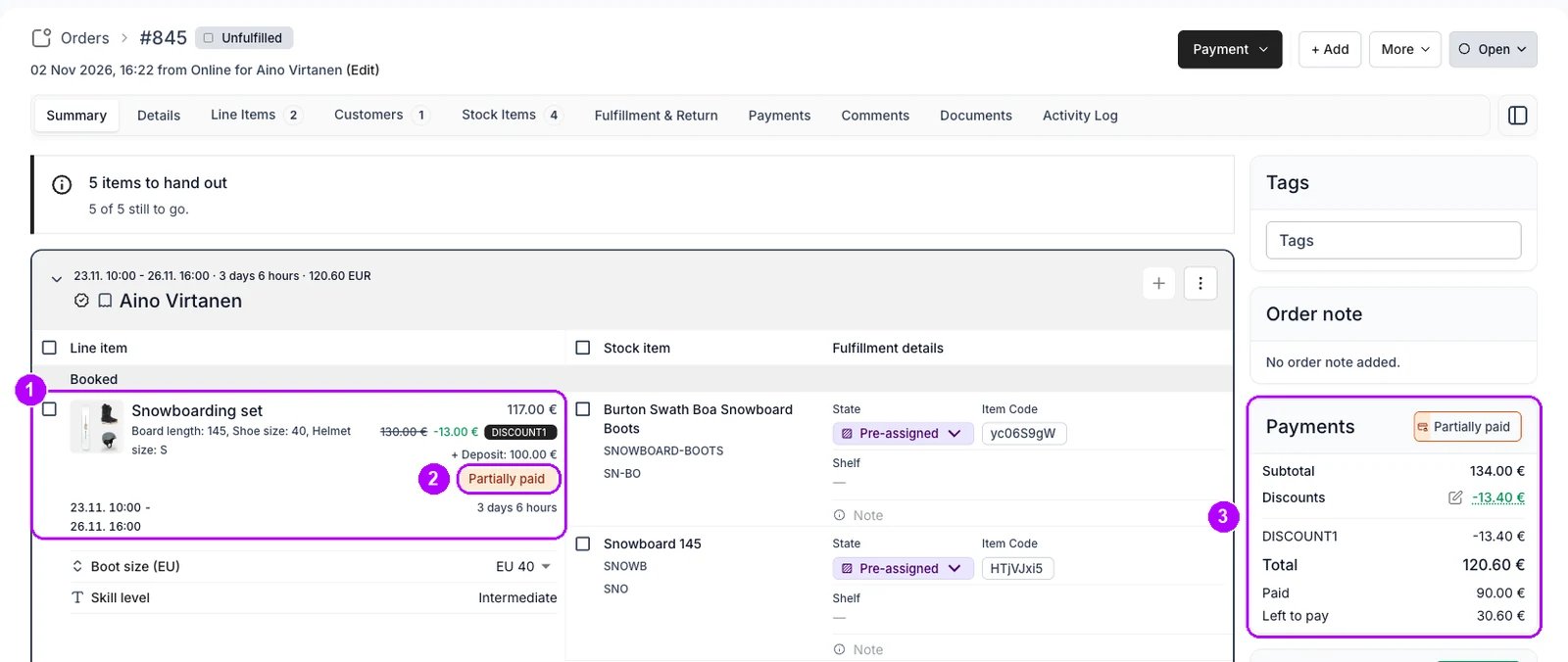
How do I know it worked?
- The line shows the new dates on the Summary tab.
- Its price is the one you chose: the old one with Apply manual price, or the list price for the new dates with Apply list price.
- The order total and the Payments card match what you mean to charge.
Troubleshooting / common pitfalls
Clicking the item's name opens nothing
Clicking the item's name opens nothing
The order is closed, and This order is closed shows at the top. Reopen it first, as Reopen an order shows.
The new dates are refused
The new dates are refused
Something else holds the item over the new dates: another order, a buffer, a reservation, or another line on this same order. The line’s own hold never blocks it. See Editing an existing line item, and Check availability to find what holds it.
The order reads Partially paid after the change
The order reads Partially paid after the change
The new price is higher than what the customer paid, and a change moves the total, not the payments. Collect the difference, or set Unit price back to the quoted price and save with Apply manual price. See Payments.
Related articles
Order Lifecycle
What each stage of an order lets you change.
Changing an order
Every walkthrough for changing an order a customer already has.
Extend an order
A later end on an order in progress, with a checkout link for the difference.
Order Line Items tab
Backdating, pickup times and the price dialog in full.
Listing Availability
What the check counts when you move a line’s dates.