

Open in TWICE Admin
orders
Prerequisites
Have ready before you start:
- The line to remove, and whether the add-ons under it go too.
- Whether the customer paid for it. Removing a line does not refund it. Refund it as well, as Refund an order shows.
The walkthrough
1
Open the order
Open Orders and find the order. Check the location selector in the top-left corner first if your account has more than one location, because the table lists only the orders of the location it shows.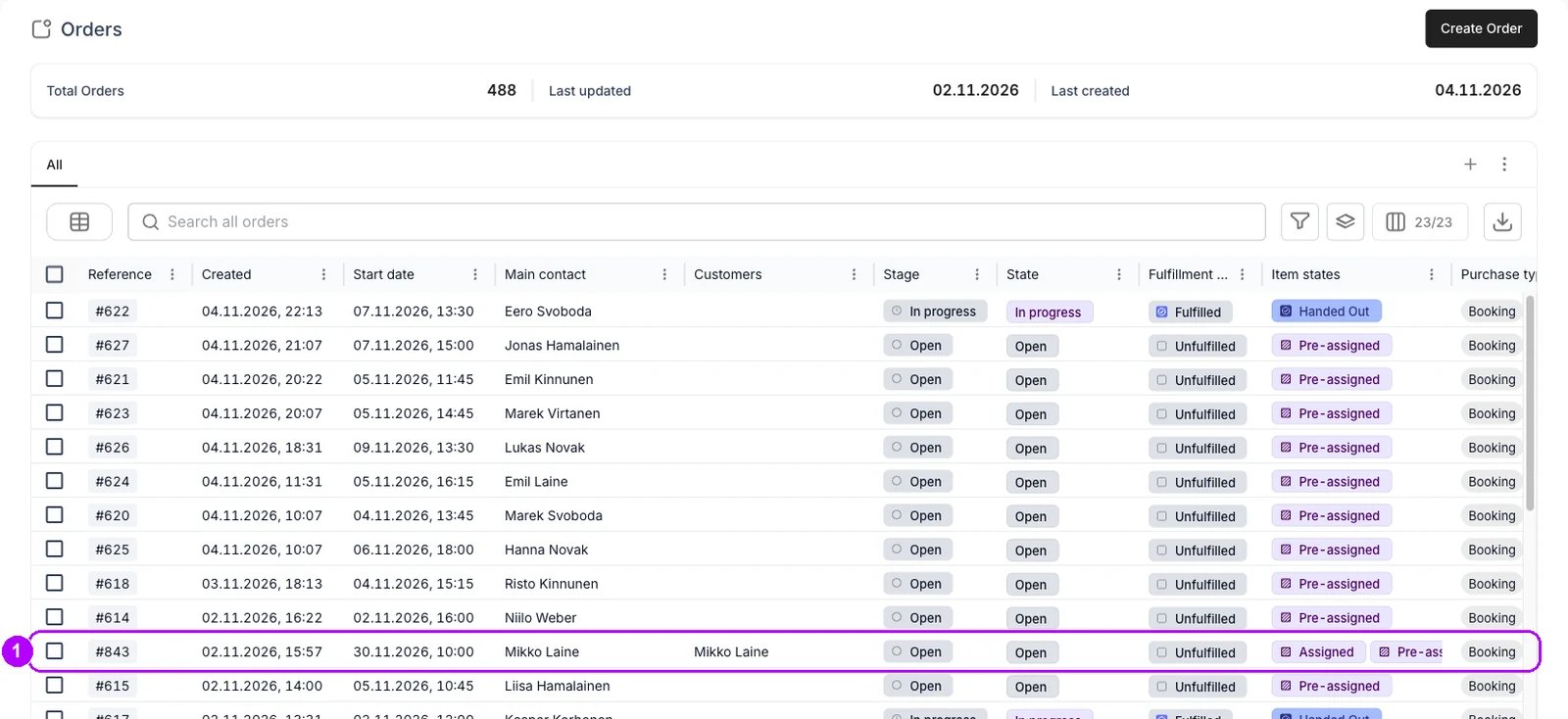
2
Tick the line
Select the line on the order’s Summary tab: tick the checkbox at the start of its row, left of its image and name. Leave the checkbox under Stock item alone, because it selects the unit and offers no removal.Buttons appear in the top-right corner of the order, starting with Remove 1 item.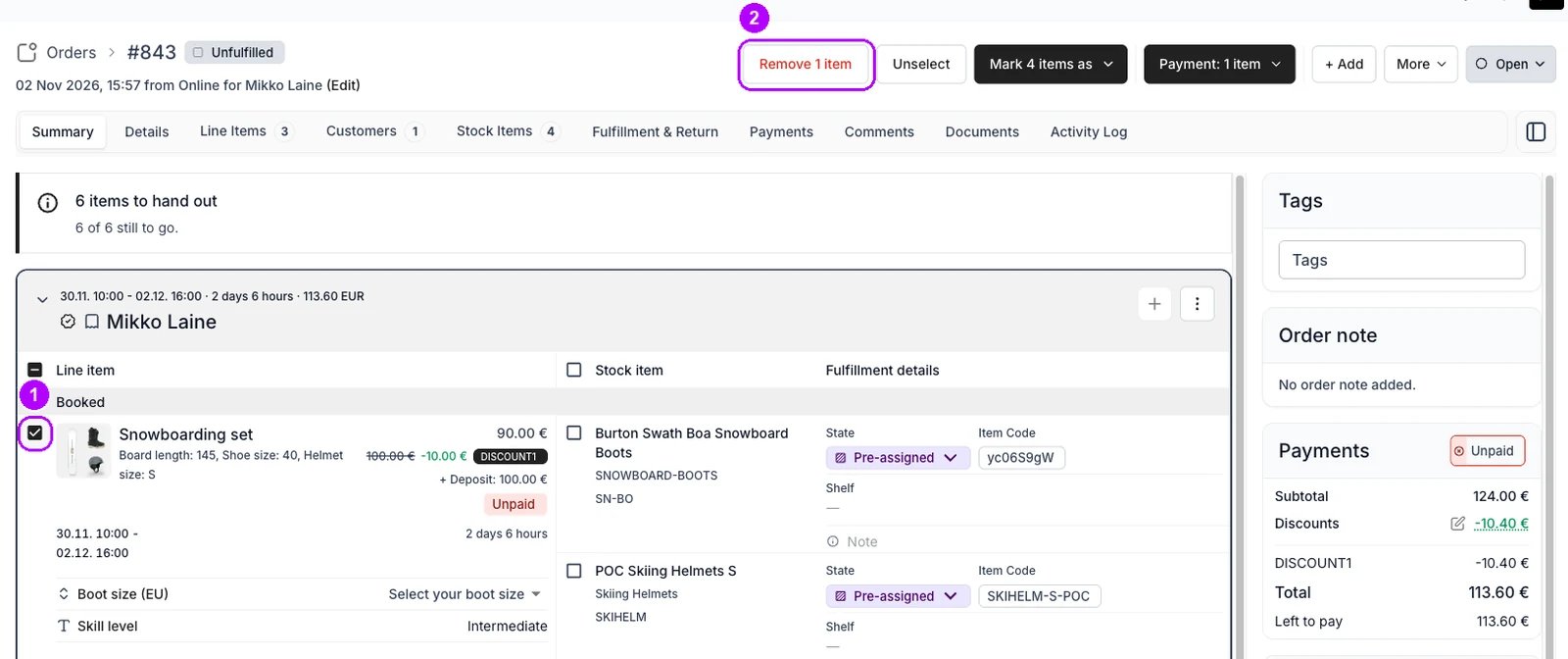
3
Open Remove 1 item
Click Remove 1 item. The Remove line items dialog opens, asking you to confirm and listing the name of each line it removes.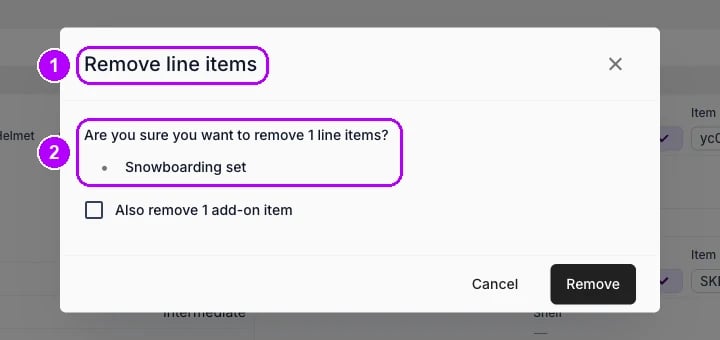
4
Decide on the add-ons
The dialog offers “Also remove 1 add-on item” when the line has add-ons under it, with the number of add-ons. It starts unticked.Select it to remove the add-ons with the line. Leave it unticked to keep them on the order as lines of their own, still priced and still holding their stock.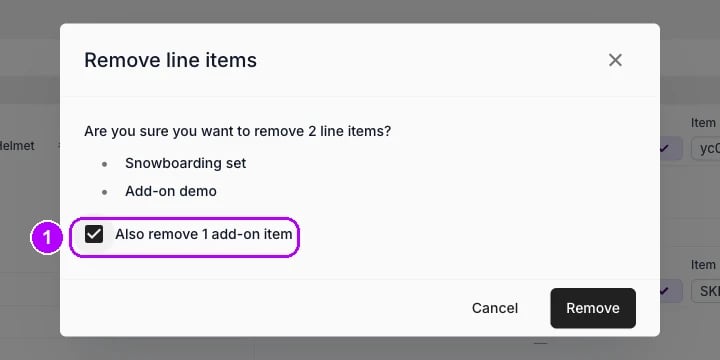
5
Remove the line
Click Remove at the bottom of the dialog. The dialog closes, and the Summary tab lists the lines left on the order, without the one you removed.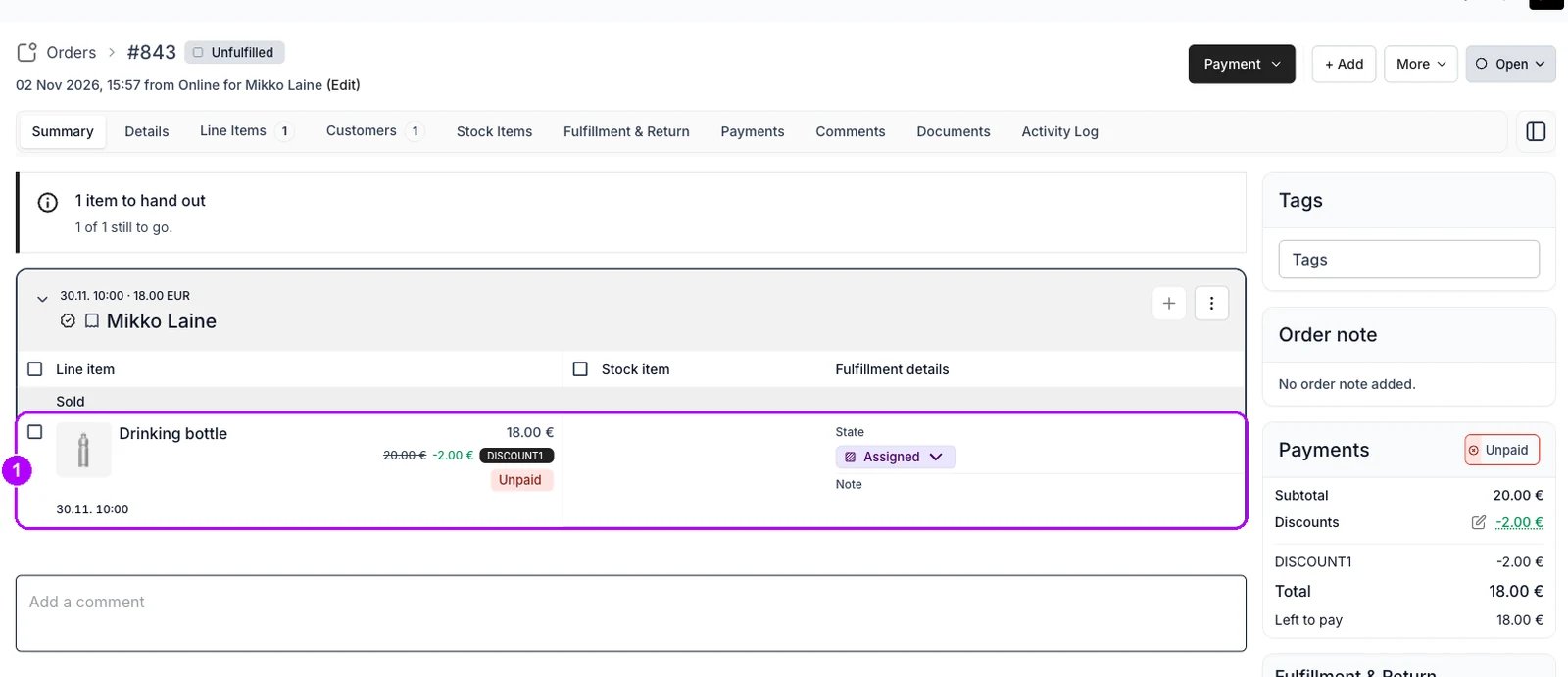
How do I know it worked?
- The line no longer appears on the Summary tab, and neither do the add-ons you removed with it.
- The order total covers only the lines left on the order.
- The stock items the line held are free for other orders over the same dates.
Troubleshooting / common pitfalls
The add-ons are still on the order
The add-ons are still on the order
The add-on checkbox in the dialog was left unticked, so the add-ons became lines of their own. Select them and remove them the same way. See Edit an order.
The item should have stayed on the record
The item should have stayed on the record
Use the excluded state instead: select the line and mark it as excluded. It stays on the order, struck through, and its stock is freed. See Cancel or archive an order for how the two compare.
Related articles
Order Lifecycle
What each stage of an order lets you change.
Edit an order
Every change to a live order, and what each one does to the stock and the money.
Refund an order
Send back what the customer paid for a line you removed.
Cancel an order
Mark every item excluded and close the order.