

Open in TWICE Admin
orders
Prerequisites
Have ready before you start:
- The code or name of the unit you want to hand over, to search for it.
- An open order. A closed order is read-only, so reopen it first. See Edit an order.
The walkthrough
1
Open the order
Find the order in Orders and open it. If your account has more than one location, check the location selector in the top-left corner first, because the table lists only the orders of the location it shows.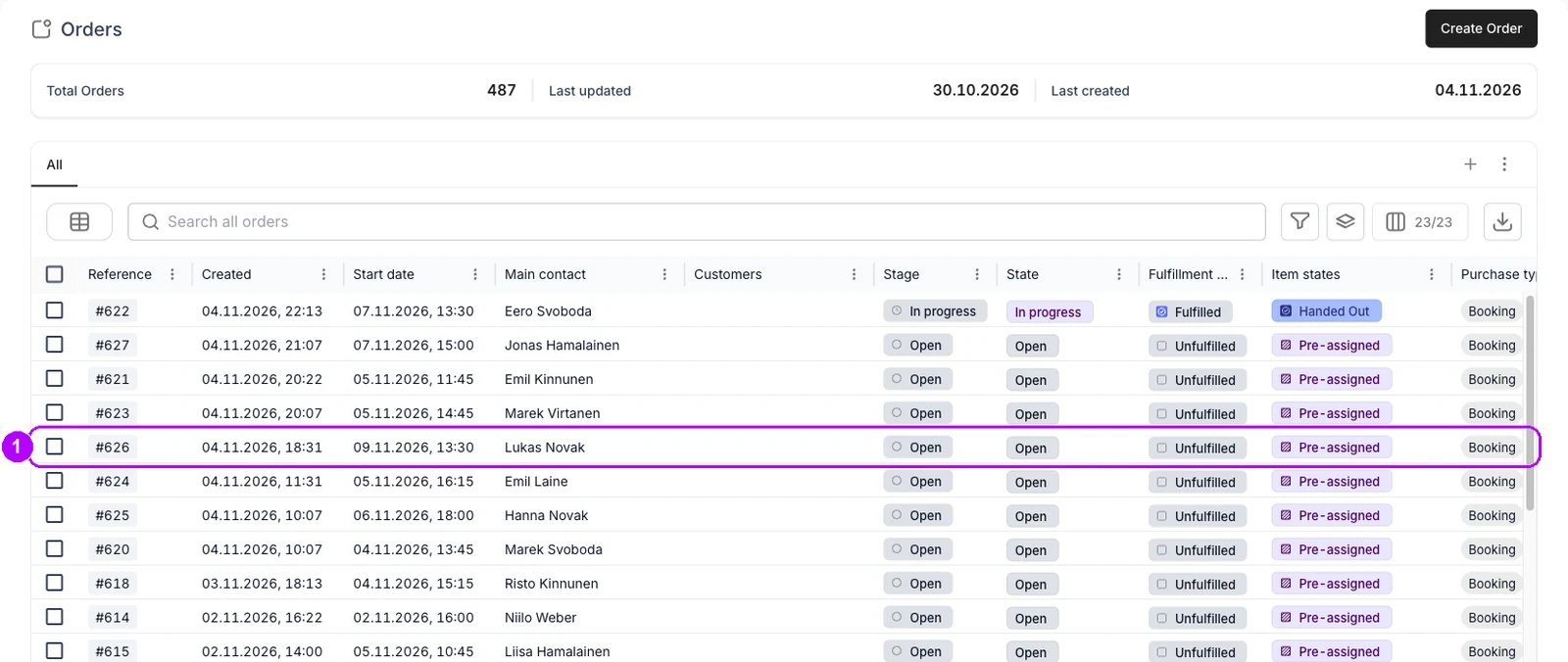
2
Open the unit on the line
On the order’s Summary tab, find the line and look in its Fulfillment details column. Click the code under Item Code. The stock item panel opens on the right.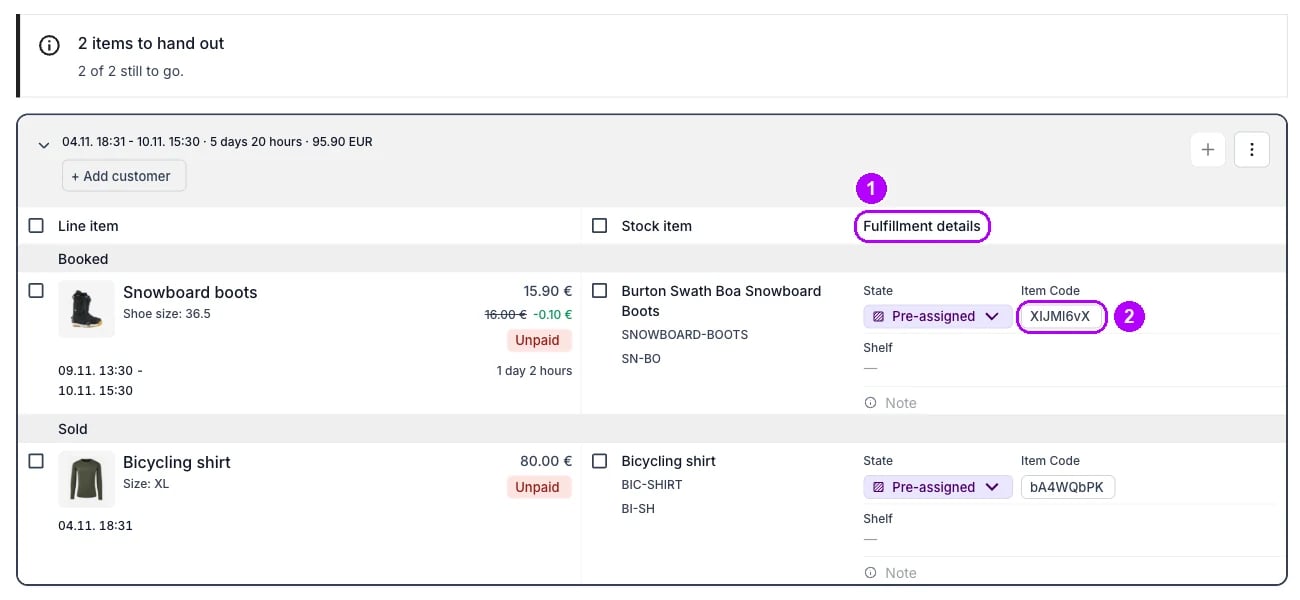
3
Find the unit to hand over
Under Change stock item, lower in the panel, the unit on the line is listed first, marked Current. Type the code or name of the unit you want in Search. Check its Availability: a Committed unit is held for something else over these dates and cannot be picked.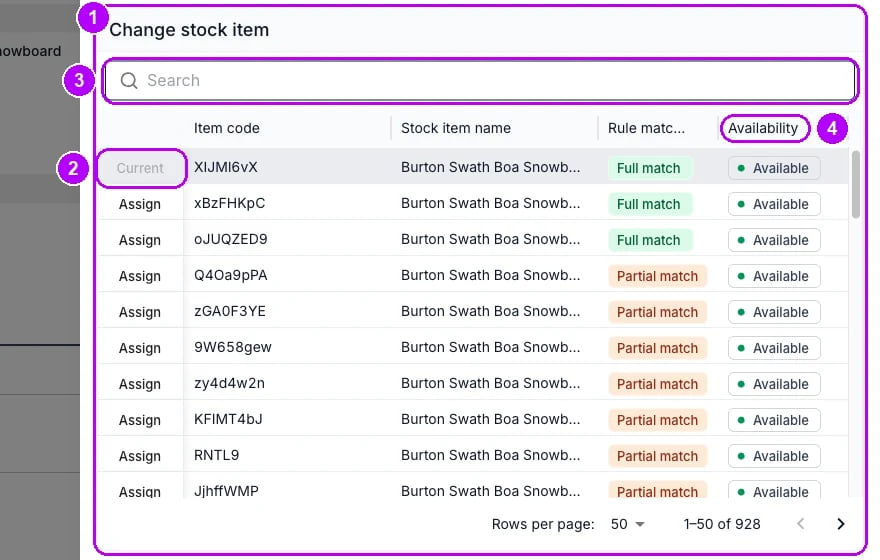
4
Assign the unit
Click Assign at the left of the unit’s row. That row’s button changes to Switch to →, and nothing is saved yet. A Pre-assigned unit can be picked too: saving moves the order that holds it onto another unit.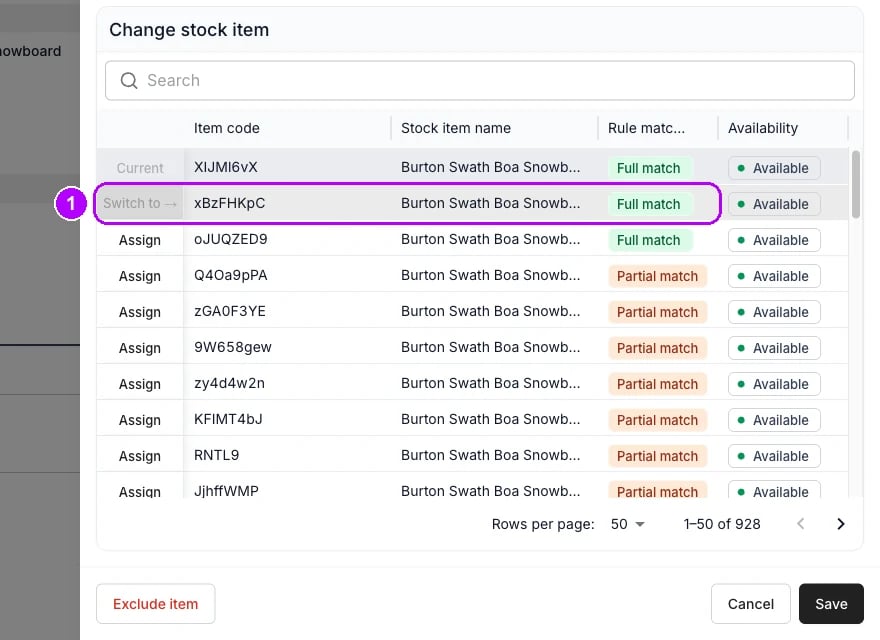
5
Save the swap
Click Save at the bottom of the panel. The panel closes, and the line’s Item Code shows the new unit’s code. With the default states, the line’s state reads Assigned.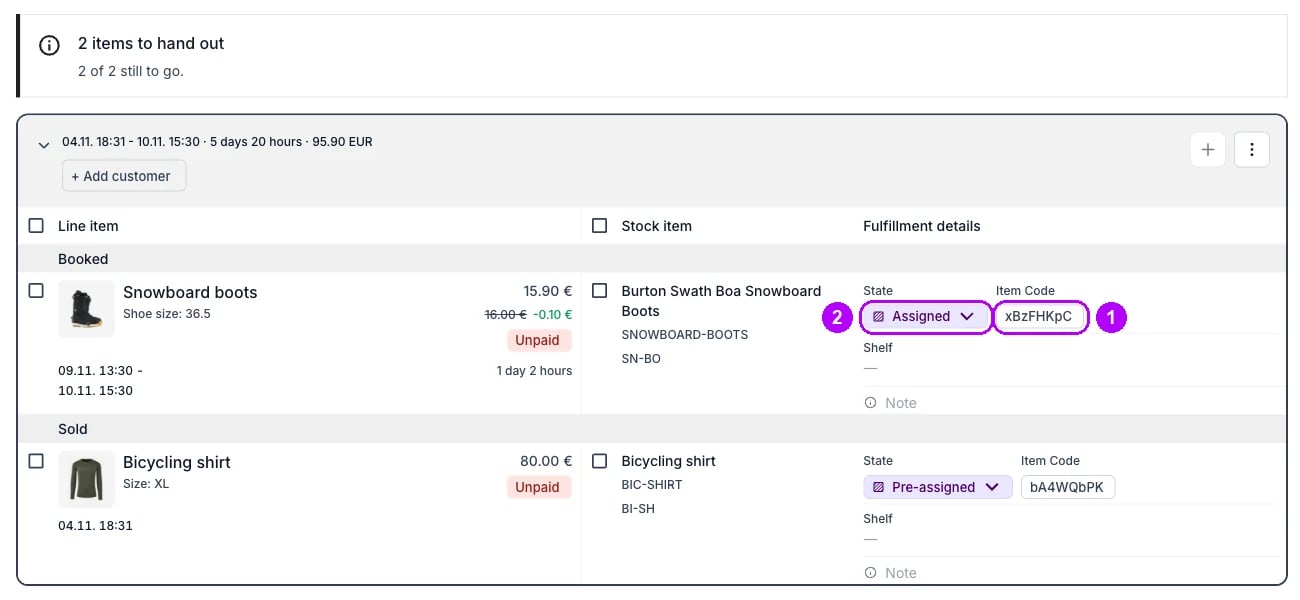
How do I know it worked?
- The line shows the new unit’s code under Item Code on the order’s Summary tab.
- The new unit is listed first under Change stock item when you open the code again, marked Current.
- The old unit is free again over the line’s dates, for another order to take.
Troubleshooting / common pitfalls
The line shows + Assign instead of a code
The line shows + Assign instead of a code
The item’s state hides the unit picked for it. Click + Assign, which opens the same panel and list. See Fulfillment lifecycle.
Every other unit is Committed
Every other unit is Committed
Nothing else that fits the line is free at the order’s location over its dates. See Work out what is available, and why something is not.
The panel stays open after saving a Pre-assigned unit
The panel stays open after saving a Pre-assigned unit
The order holding that unit had no other unit to move to, so the swap was refused and the list reloaded. Pick an Available unit instead. See Assign and swap stock items.
Related articles
Auto-Fulfillment
How the first unit is picked for a line.
Assign and swap stock items
The candidate list, rule matching and scanning in full.
Take a unit out for maintenance
Reserve a unit that needs repair and put another one on the order.
Resolve a stock item conflict
When the unit on a line has lost its reservation.