

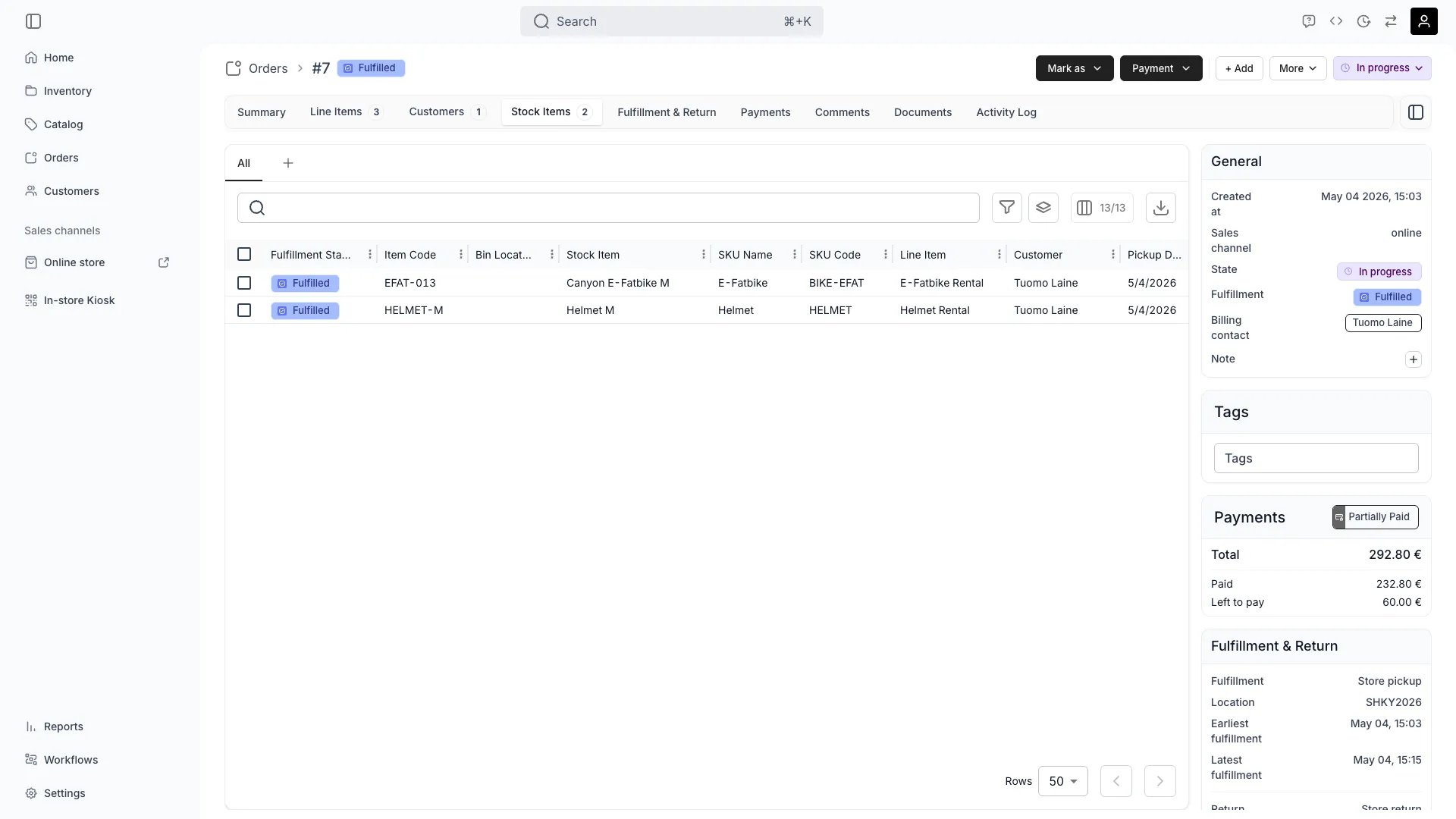
Orders > [order] > Stock Items
Open in TWICE Admin
orders
Prerequisites
Have ready before you start:
- Whether your states hide the picked unit. It decides whether you are confirming a choice TWICE made or making it yourself. See Fulfillment lifecycle.
- An editable order. Reopen a closed or archived order before you assign anything. See Edit an order.
- The code you will scan. Have it to hand if you intend to scan rather than click: a unit’s stock code, or a listing barcode to start a new line.
The walkthrough
1
Work out which mode you are in
Read the fulfilment chip on each item. The same underlying state renders two ways:
Orange is the resting state on an account that hides the pick, rather than a fault. Auto-assign never overbooks either way: where nothing was free for the period, the line waits for you.
2
Open the stock item
Open the row you are assigning or changing on the Stock Items tab. Read the drawer, which holds everything about that one unit-to-line pairing:
Use the state menu at the top of the drawer to set this one item’s fulfilment state independently of the rest of the order.
3
Read the candidate list
Open Change stock item to list the units that could fulfil this line. Read two chips per row before you pick:
Start at the top. The list puts the current unit first, marked Current, then Full match, then Partial, then No match. Search by name or code to narrow it.
4
Tell the hard gate from the advice
Treat Availability as a hard gate: a Committed row cannot be selected, because the unit is already held for something else. Treat Rule matching as advice. Assign a No match unit deliberately where you know better than the rule, and nothing stops you.
5
Swap or assign
Click an available row, or use Switch to → on it. On a line with nothing assigned yet, the action reads Assign instead.Expect the swap to take effect immediately. The old unit’s hold is released and a new hold is created for the one you picked. Do not look for a save button, because there is none.
6
Or scan the unit instead
Scan a stock item’s code while the order is open to put that unit on it. What happens depends on where the unit already stands.
Landing on a waiting line needs a Full match, so assign a No match unit by hand.
7
Know what else a scan on an order can be
Expect an order page to read four kinds of code. The order’s own scanner replaces the admin-wide one while you are here.
Another order’s number navigates there. A closed order, or one your role cannot edit, takes order numbers only.See Stock codes and barcodes for setting codes up.
8
Check what the assignment changed
Read the assignment as a reservation rather than a label. It holds that unit for these dates, which means:
Expect none of that on a line left unassigned. An unassigned line holds no stock, so nothing stops another order taking the last unit before your customer arrives.
How do I know it worked?
- Every line on the order carries a unit, and none of them shows an error badge on the Stock Items tab.
- The drawer’s Current row reads Available, not Committed, so the unit is genuinely held for this order.
- The unit’s own history shows the reservation, on its stock item record.
- The period is gone from general availability, and the unit no longer offers those dates to anything else.
Troubleshooting / common pitfalls
Every row in the candidate list is Committed
Every row in the candidate list is Committed
Cause: nothing that could fulfil this line is free for its dates. Treat it as a real availability problem rather than a display one.What to do: work out what is holding the units with Work out what is available, and why something is not. Expect an overlapping order, a buffer window, a maintenance reservation, or stock sitting at another location. Change the line’s dates instead, via Edit an order.
The list is empty, or nothing matches
The list is empty, or nothing matches
Cause: the listing’s fulfilment rules match no stock at all, so there are no candidates to offer.What to do: fix it on the listing rather than the order. See control what stock a listing draws from. A listing bound to nothing can be ordered and priced and will never be fulfillable.
Scanning a unit does not assign it
Scanning a unit does not assign it
Three reasons, in likelihood order:
- The unit does not match the line’s criteria. A scan needs a Full match to land on a waiting line; the drawer does not. Assign it by hand if you are sure.
- Every line already has its unit. The scan then opens Add with the unit filled in, offering it as a new line rather than doing nothing. Close the drawer to decline it.
- The unit is held over the line’s dates. The scan says who holds it and offers to take it, so read that dialog rather than rescanning.
I want to assign a unit the rules say does not match
I want to assign a unit the rules say does not match
Do it. Rule matching is guidance about how well a unit fits the line’s criteria, and only Availability gates the choice.When to do it: take an equivalent unit the rule does not know about, or give a customer a deliberate upgrade. Click the row in the drawer, because scanning will not do it.When not to: stop overriding the same rule repeatedly and fix the listing instead, because a rule you keep overriding is wrong.
The item shows Unassigned and I expected a unit to be picked
The item shows Unassigned and I expected a unit to be picked
Check three things:
- The item’s state hides the pick. A Preparing state with Hide the assigned unit on reads as Unassigned on purpose, and picking is your job. A unit may well be held behind it. See Fulfillment lifecycle.
- Nothing was available at order creation. Auto-assign never overbooks, so it leaves the line empty rather than double-committing a unit.
- The location’s rules do not cover this purchase type or channel. A location set to online orders only never fulfils an order taken in admin.
The current unit shows Committed
The current unit shows Committed
Treat that as a conflict rather than an ordinary swap. The line still points at the unit, but the hold that reserved it is gone and something else has taken it.What to do: replace the unit, and see Resolve a stock item conflict for finding every order in that state.
Related articles
Resolve a stock item conflict
When an assigned unit has lost its reservation.
Auto-Fulfillment
What decides whether a unit is picked for you.
Order Stock Items tab
The tab this all happens on.
Control what stock a listing draws from
The rules behind Full, Partial and No match.