

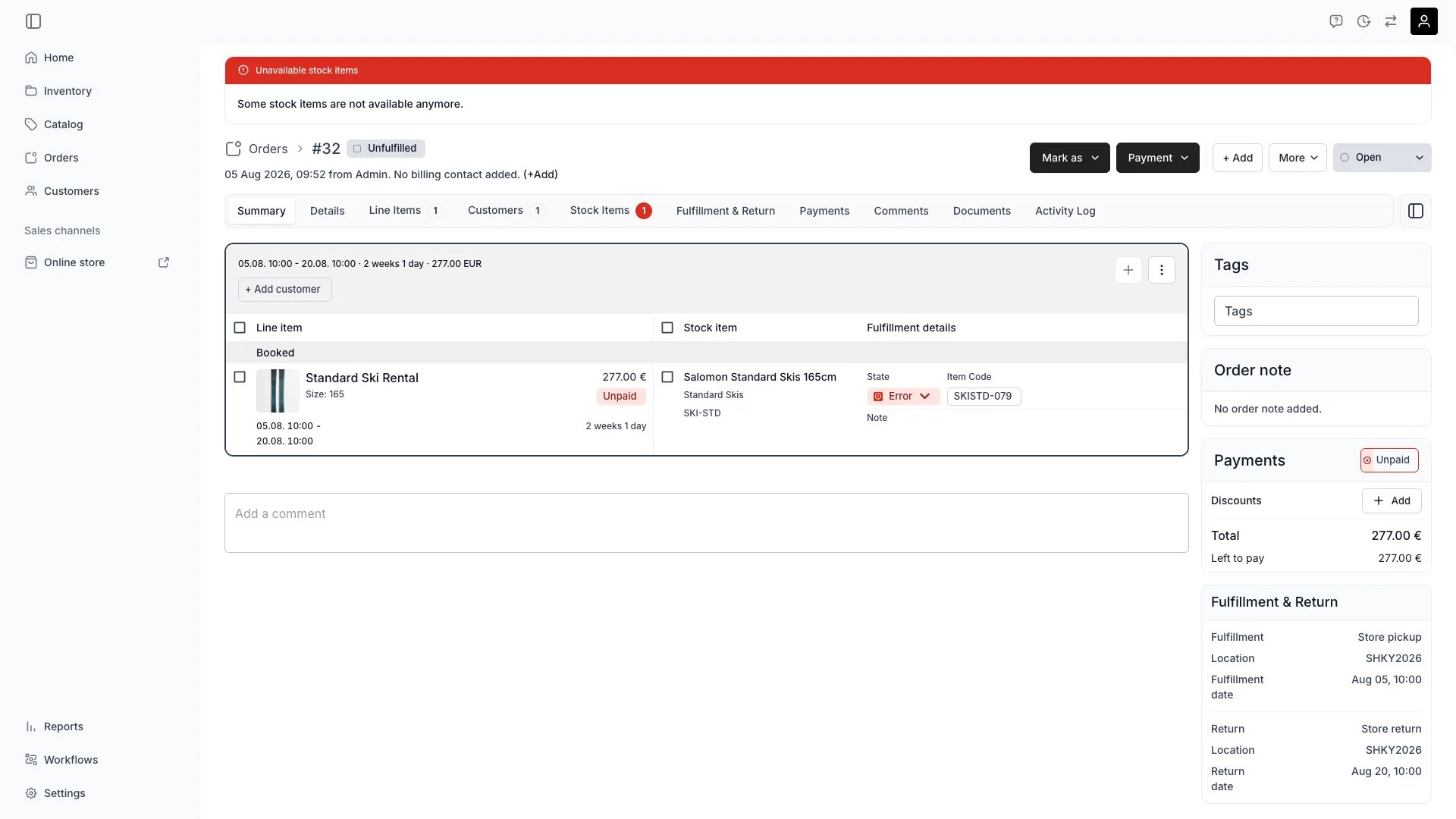
Orders > [order], the conflict banner
Open in TWICE Admin
orders
Prerequisites
Before you start:
- Check which locations you have selected. The conflict count and banner are scoped to your selected service locations, so a clean-looking table can hide conflicts at a site you are not currently viewing.
- Know your window. Treat conflicts on orders picking up today as urgent, and give one three weeks out a proper replacement.
The walkthrough
1
Find every affected order
Take any of three routes into the same set, on the Orders table:
Work from the filtered list rather than order by order. Expect conflicts in batches, because one archived unit takes every future booking that pointed at it with it.
2
Open the order and go to the units
Look for the red Unavailable stock items banner, which reads Some stock items are not available anymore. and puts an error badge on the Stock Items tab.Open that tab. The affected items are highlighted, and the rest of the order is untouched and needs nothing.
3
Tell the two kinds apart
Open the drawer for a flagged item and read the Current row’s Availability chip in Change stock item. Do not skip this diagnostic:
4
Trust the chip on a conflicted item
Trust the chip here specifically because the item is in conflict. Normally the current unit is shown as available-to-keep, discounting its own hold. On a conflicted item there is no hold to discount, so what you see is the real availability.
5
Put it on a clean unit
Pick a row in Change stock item that is both Available and, ideally, a Full match. Click it, or use Switch to →.Watch the flag clear, because the reservation is created as soon as you assign. Prefer a full match where one exists: choosing a Partial match or No match unit is allowed, since availability is the only hard gate, but you are already recovering from a surprise.Assign and swap stock items covers the candidate list in full.
6
When there is no clean unit, decide rather than defer
Pick one of four when every candidate is Committed, because the conflict does not go away on its own and the order will still be short at the counter:
Never leave it. The flag is the only warning the order will give you.
7
Confirm the order is clean
Check the order: the red banner is gone and the Stock Items tab badge is back to normal. Check the Orders table too, where Has conflicts now reads No and the reference chip is no longer highlighted.Then re-check the filtered list. Watch the count drop as you clear each order, and the banner disappear when the last one at your selected locations is done.
How do I know it worked?
- No banner on the order, and no error badge on its Stock Items tab.
- Every unit’s Current row reads Available in its drawer, so each one holds a real reservation again.
- Has conflicts is No for the order on the Orders table.
- The conflicts banner is gone from the top of the table, for your selected locations.
Troubleshooting / common pitfalls
Dozens of conflicts appeared at once
Dozens of conflicts appeared at once
Cause: almost always an archive. Archiving a stock item, or a SKU, which takes its items with it, releases that unit’s future holds while the orders pointing at it stay live.What to do: work the filtered list, because each affected booking needs its own replacement unit. Read the archive confirmation, which counts the affected bookings before you confirm. See Archive stock items.
I unarchived an order and the conflicts came back
I unarchived an order and the conflicts came back
Expect that. Archiving released the order’s holds deliberately, because it was not being fulfilled and the capacity returned to the pool. Its items were then in the same shape as a conflict, suppressed only because the order was not live.What to do: reassign every item. Unarchiving makes the order live again without recreating the holds, so the order is not restored to the state it was archived in.
The current unit shows Committed and I cannot select anything
The current unit shows Committed and I cannot select anything
Cause: a real double-booking with no spare capacity. Two commitments exist for one unit and only one can be honoured.What to do: move dates, pull from another location, substitute, or talk to the customer. Deciding which order keeps the unit is a business call the admin will not make for you.
Can I ignore it until the pickup date?
Can I ignore it until the pickup date?
Do not. Conflicts block nothing, so you can, but the item may not be there when the customer arrives and by then every alternative is worse.A conflict found three weeks out is a swap. The same conflict found at the counter is a refund.
Does resolving it ever happen automatically?
Does resolving it ever happen automatically?
No. A conflict clears when you reassign the unit, when the order reaches a terminal state, or when the order is archived. TWICE detects them and keeps showing them, and it does not repair them.Note that assignment itself is handled gracefully where capacity allows: an existing booking may be moved to another physical unit to free the slot you need. Expect that as part of the assignment you make rather than instead of it.
Related articles
Stock Item Conflicts
What raises a conflict, and the conditions behind the flag.
Assign and swap stock items
The candidate list, rule matching, and scanning.
Work out what is available
When every candidate comes back committed.
Edit an order
Moving the dates when no unit can be freed.