

Open in TWICE Admin
orders
Prerequisites
Have ready before you start:
- A title and the reason, such as Repair and what is broken.
- When the unit is back in service, or that you do not know yet.
- A replacement unit of the same kind, free over the order’s dates at its location.
The walkthrough
1
Open the order
Find the order in Orders and open it. If your account has more than one location, check the location selector in the top-left corner first, because the table lists only the orders of the location it shows.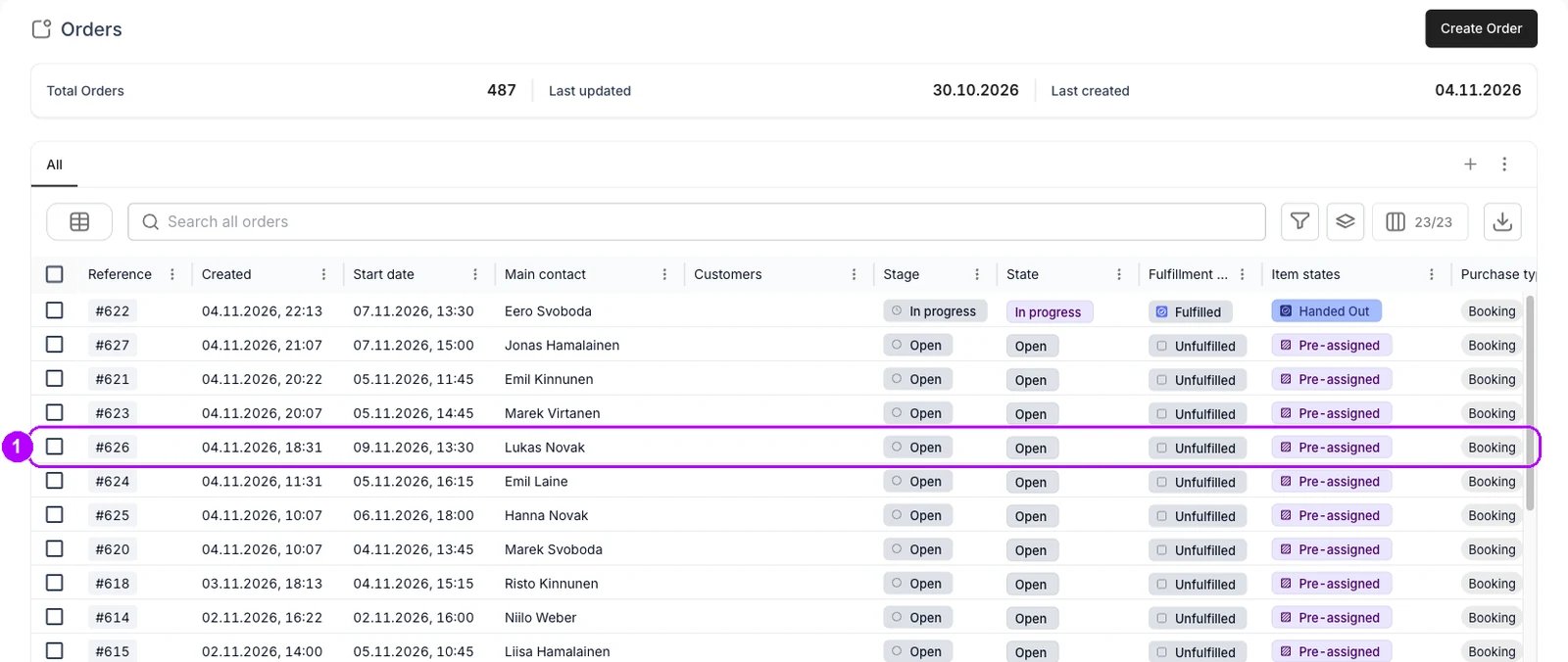
2
Open the unit on the line
On the order’s Summary tab, find the line and look in its Fulfillment details column. Click the code under Item Code. The stock item panel opens on the right.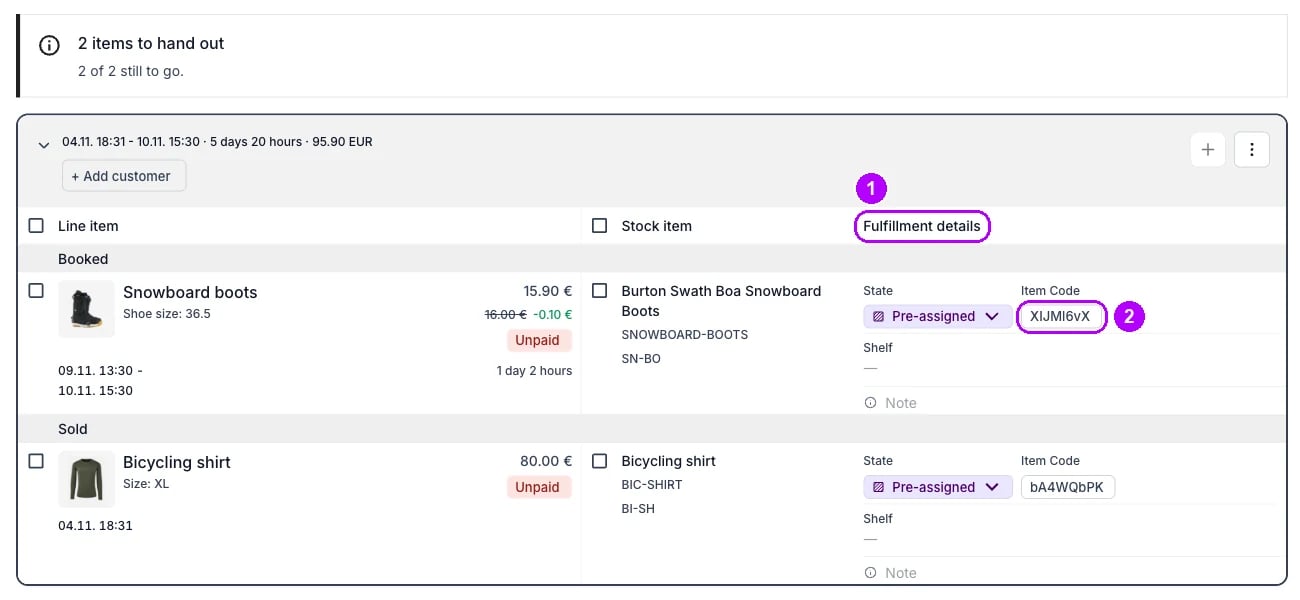
3
Choose Create reservation
Click Actions in the top-right corner of the panel and choose Create reservation. The Reserve 1 item dialog opens.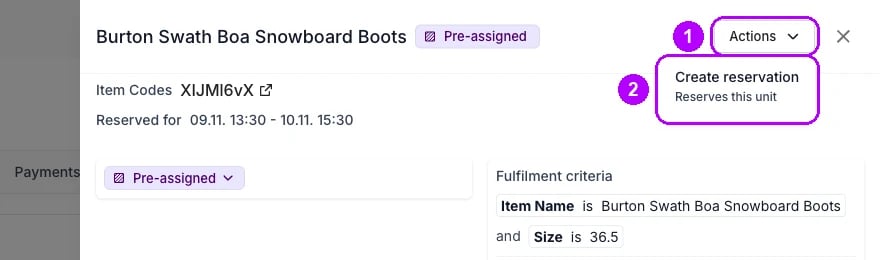
4
Name the reservation
Enter a Title, for example Repair, and the reason in Comment, for example what is broken. The dialog does not reserve without a title.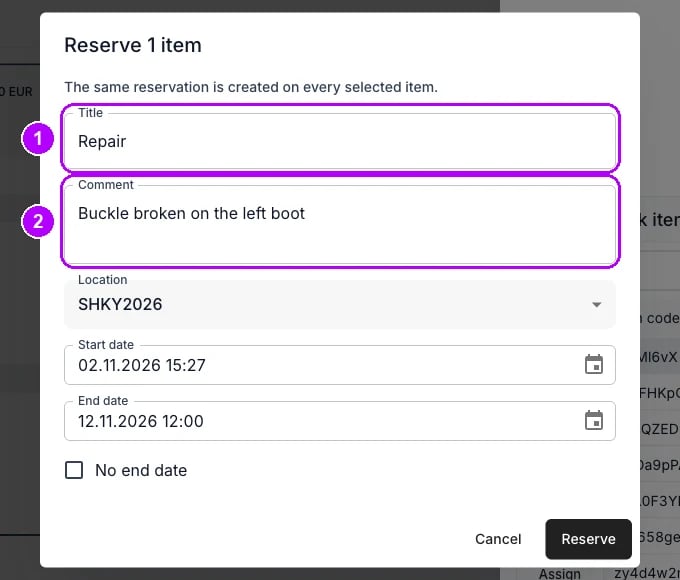
5
Set when the unit is back
Leave Location and Start date as they open: where the unit is held, and now. Set End date to when the unit is back in service, or tick No end date if you do not know yet.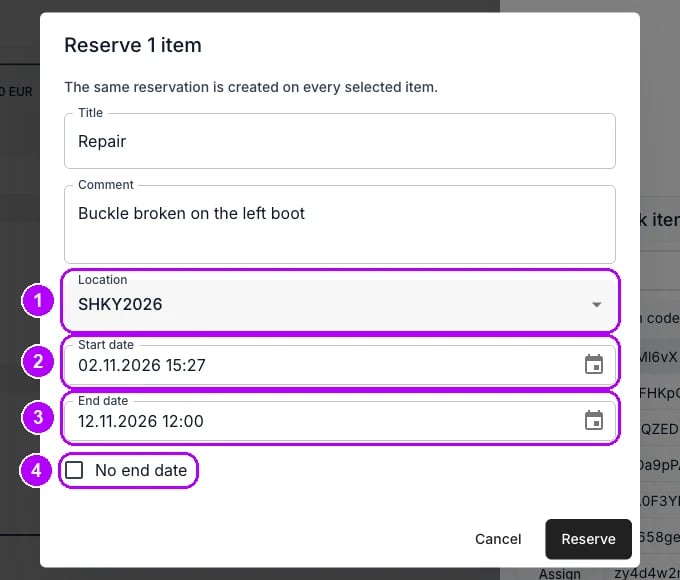
6
Reserve the unit
Click Reserve at the bottom of the dialog. A second dialog, “Existing orders and reservations will be affected”, lists this order and every other order or reservation that holds the unit over those dates. Each of them loses its hold on the unit.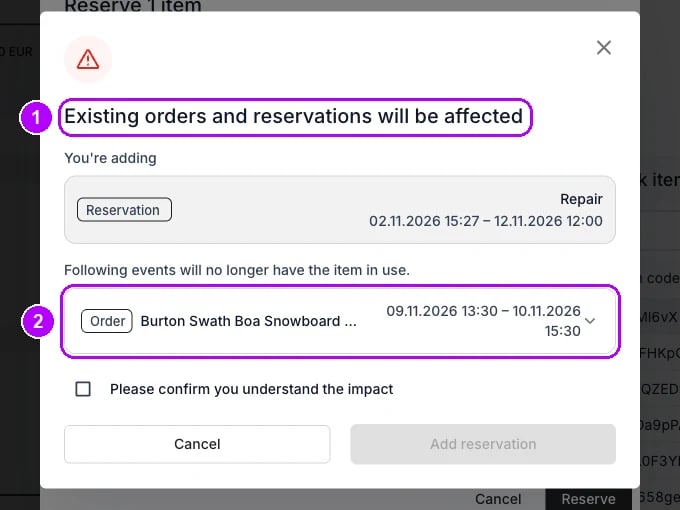
7
Confirm the impact
Tick “Please confirm you understand the impact” under the list, then click Add reservation. 1 item reserved confirms it. The stock item panel stays open and reads “This unit is no longer reserved for this item over its dates.”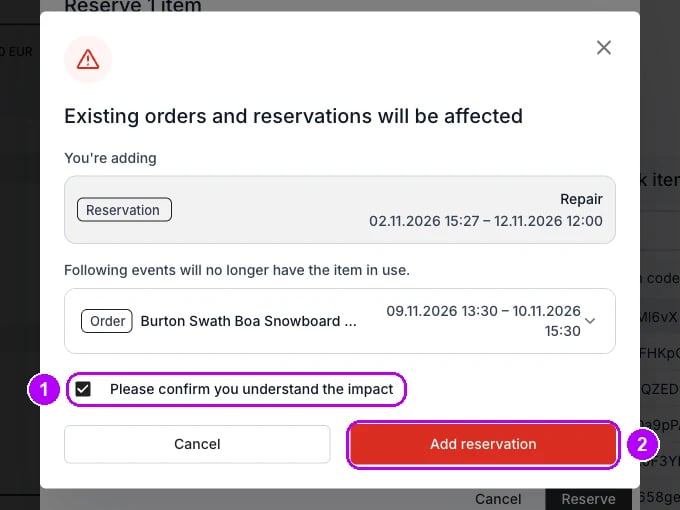
8
Pick a replacement unit
Under Change stock item, the reserved unit is still listed first, now Committed. Click Assign at the left of an Available unit’s row. That row’s button changes to Switch to →.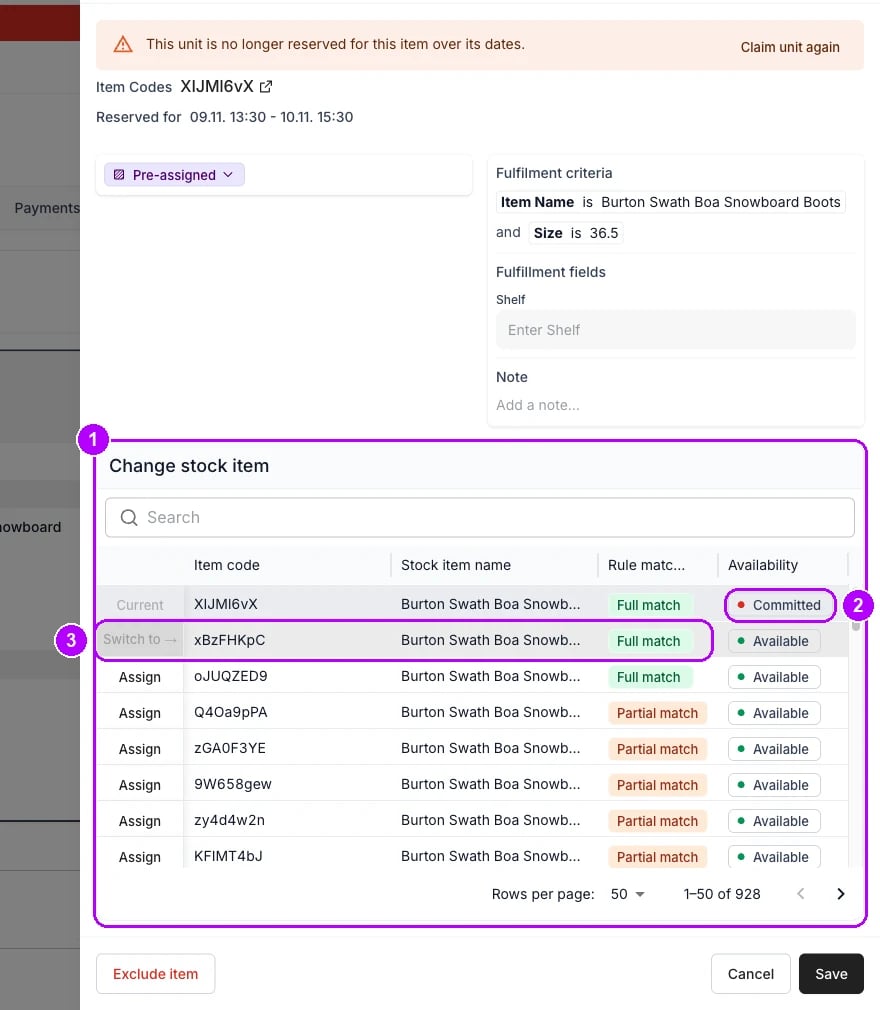
9
Save the replacement
Click Save at the bottom of the panel. The panel closes, and the line’s Item Code shows the replacement’s code. The order no longer shows the Unavailable stock items banner, and with the default states the line’s state reads Assigned.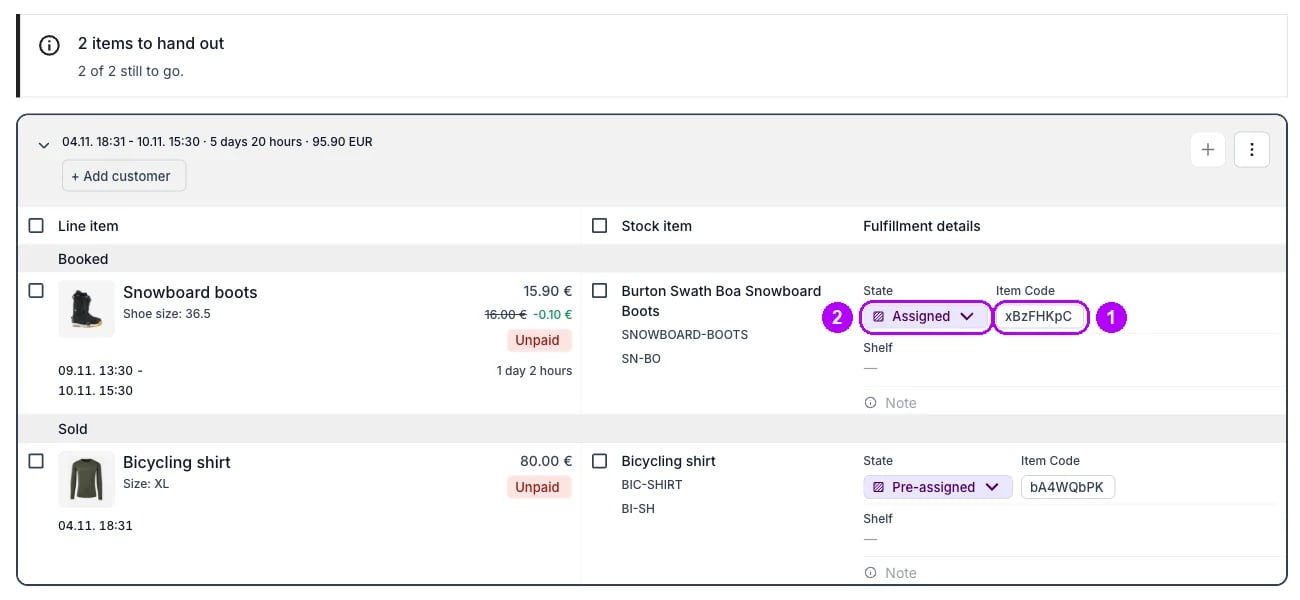
How do I know it worked?
- The line shows the replacement’s code under Item Code on the order’s Summary tab, and the order has no Unavailable stock items banner.
- The reservation is on the reserved unit. Open the unit under Inventory → Stock items, and its Events tab lists the reservation under your title.
- Every other order the dialog listed shows Unavailable stock items until you put another unit on it. See Resolve a stock item conflict.
Troubleshooting / common pitfalls
No dialog asked you to confirm, and the line kept its unit
No dialog asked you to confirm, and the line kept its unit
The reservation found room without this order’s hold: it ends before the order’s dates begin, or the stock item has another unit free. See Reservation priority.
Every other unit is Committed
Every other unit is Committed
Nothing else that fits the line is free at the order’s location over its dates, so the line stays in conflict. See Resolve a stock item conflict for what to do next.
Related articles
Stock Item Events
How a reservation takes a unit from the orders holding it.
Stock Item Conflicts
What an order shows once its unit is reserved away.
Reserve a stock item
Reservations from the unit’s own Events tab, and changing or ending one.
Swap a stock item
Put a different unit on a line without reserving the old one.
Run a maintenance programme
A queue of units due for service, built on attributes and reservations.