

Open in TWICE Admin
orders
Prerequisites
Have ready before you start:
- The add-on and the line it goes with, for example the helmet and the customer’s bike.
- An order that is not closed. A closed order shows no + Add until you reopen it. See Reopen an order.
- The customer’s email, to send the checkout link to.
- A payment provider connected, for the online payment methods the link offers. See Payments settings.
The walkthrough
1
Open the order
Open Orders and find the order. Check the location selector in the top-left corner first if your account has more than one location, because the table lists only that location’s orders. The order opens on its Summary tab.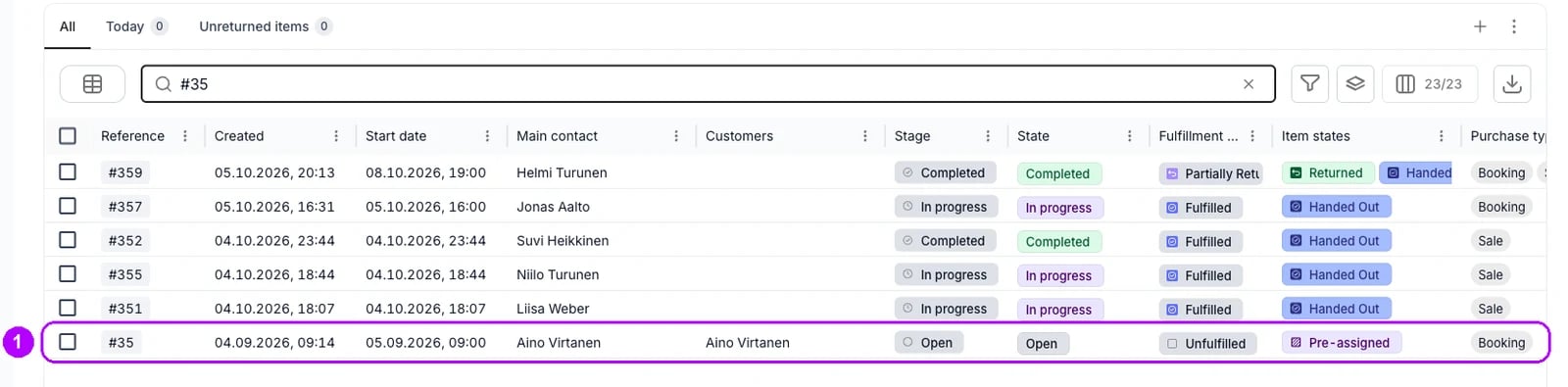
2
Open the Add-ons tab
Click + Add in the top-right corner of the order, then the Add-ons tab at the top of the Add panel that opens. The tab lists the add-ons recommended for this order: the ones attached to its listings, and the ones offered at checkout.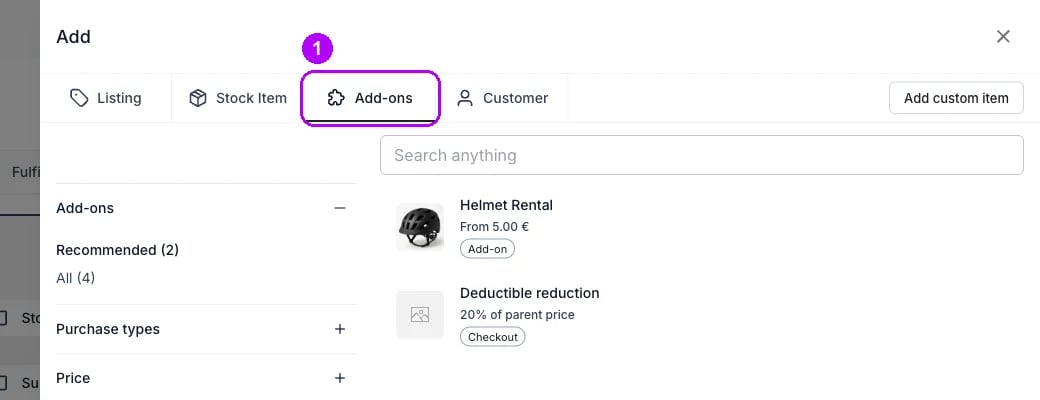
3
Pick the add-on
Enter the add-on’s name in Search anything at the top. If it is not listed, choose All under Add-ons on the left. Each row shows the add-on’s price, such as From 10.00 € or 10% of parent price. Click the add-on’s row.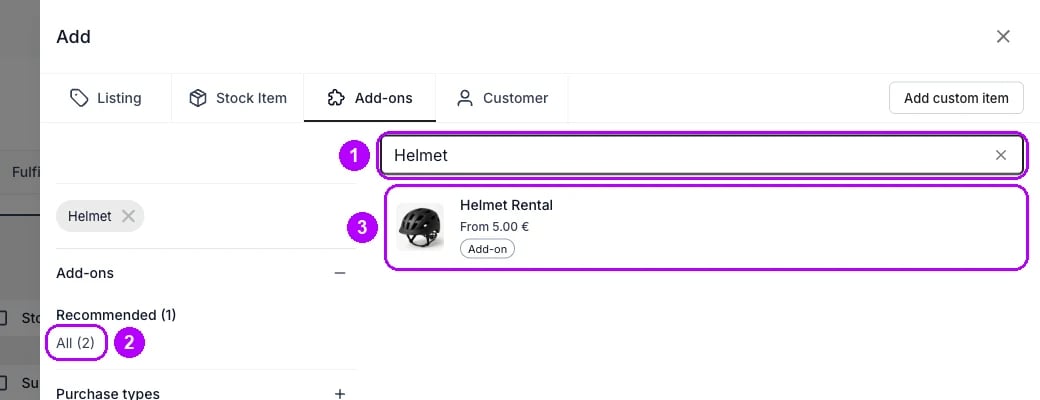
4
Choose the line it goes with
Under “Select which item this is an add-on to:”, click the line the add-on goes with. Lines are listed under their customer’s name, each with its dates. Pass over Whole order and the customer rows above them. The Add Line Item panel opens with the add-on.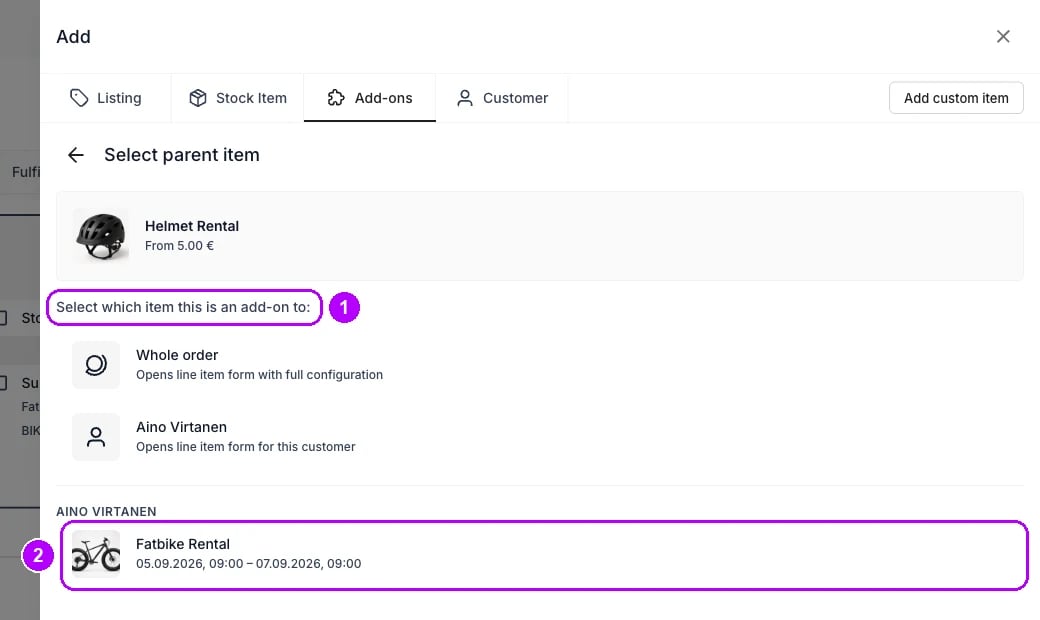
5
Check the dates and the price
Check Start and End, copied from the line you chose; a sale add-on shows Sales date. Unit price starts at the add-on’s price for that line. Enter another to change it. Choose the add-on’s option, such as a size, if it has one: until then the card reads Please select all options and Add is greyed out.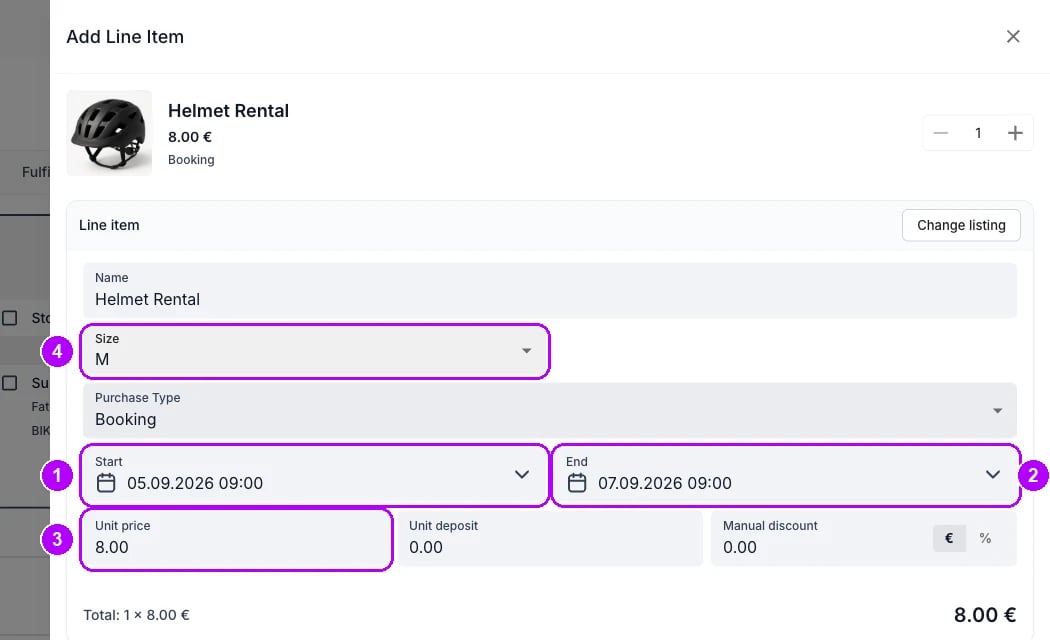
6
Add the add-on
Click Add at the bottom of the panel. The panel closes, and the Summary tab lists the add-on, with Add-on to and its line’s name above its own name. Its chip reads Unpaid, and the Payments card on the right of the order reads Partially paid.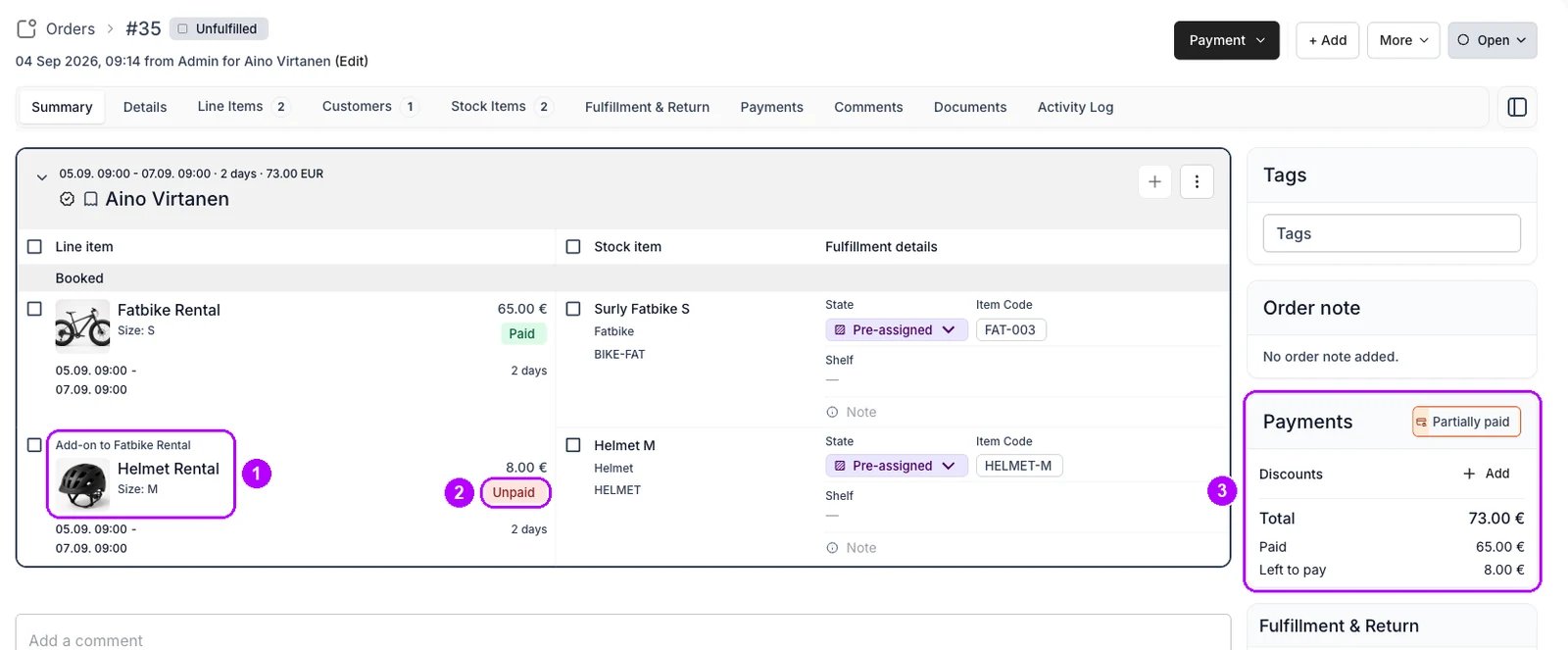
7
Open Send checkout link
Click Payment in the top-right corner of the order and choose Send checkout link. The Send checkout link panel opens on the right.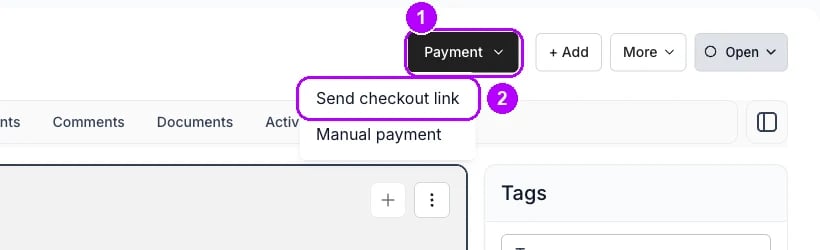
8
Check the email and what the link collects
Check Email under Contact details. It starts with the email of the order’s main customer. Check the rows under Amount to collect: every line that still owes money is ticked at what it owes. On an order that was paid in full, that is the add-on alone. Untick any other row.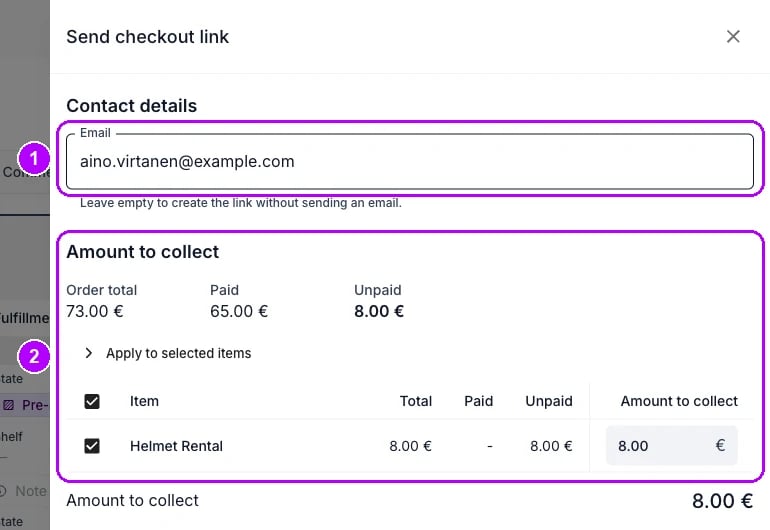
9
Send the link
Check that the online methods under Available payment methods are ticked, then click Send checkout link at the bottom of the panel. The button ends in the amount, for example 10.00 €. Checkout link created successfully confirms it, and the panel closes.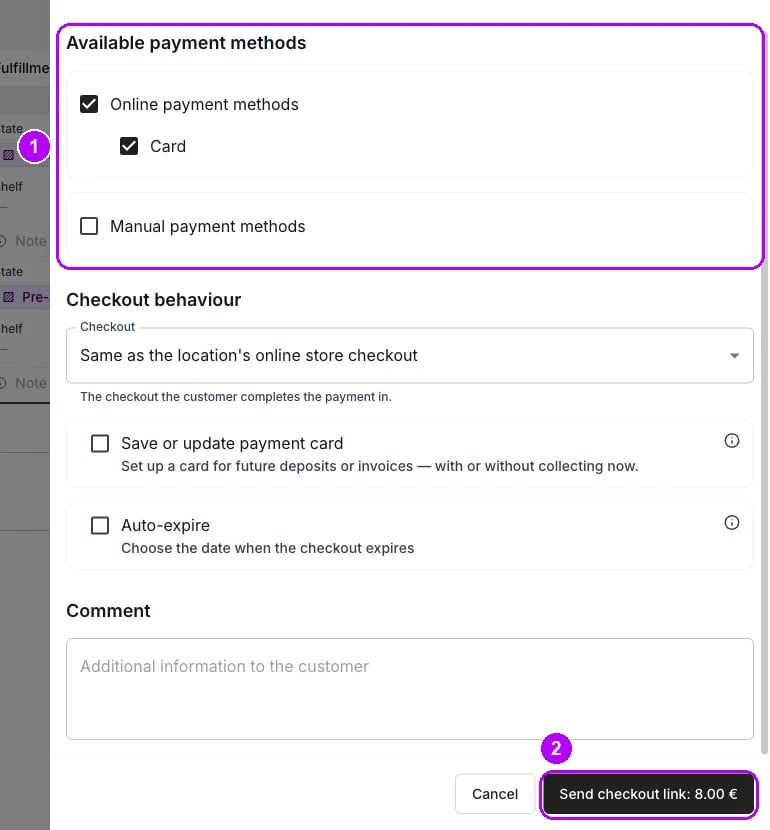
10
Follow the payment
Open the order’s Payments tab. The link is listed under Checkout links as Active. When the customer pays, it reads Used, and the add-on’s chip on the Summary tab reads Paid.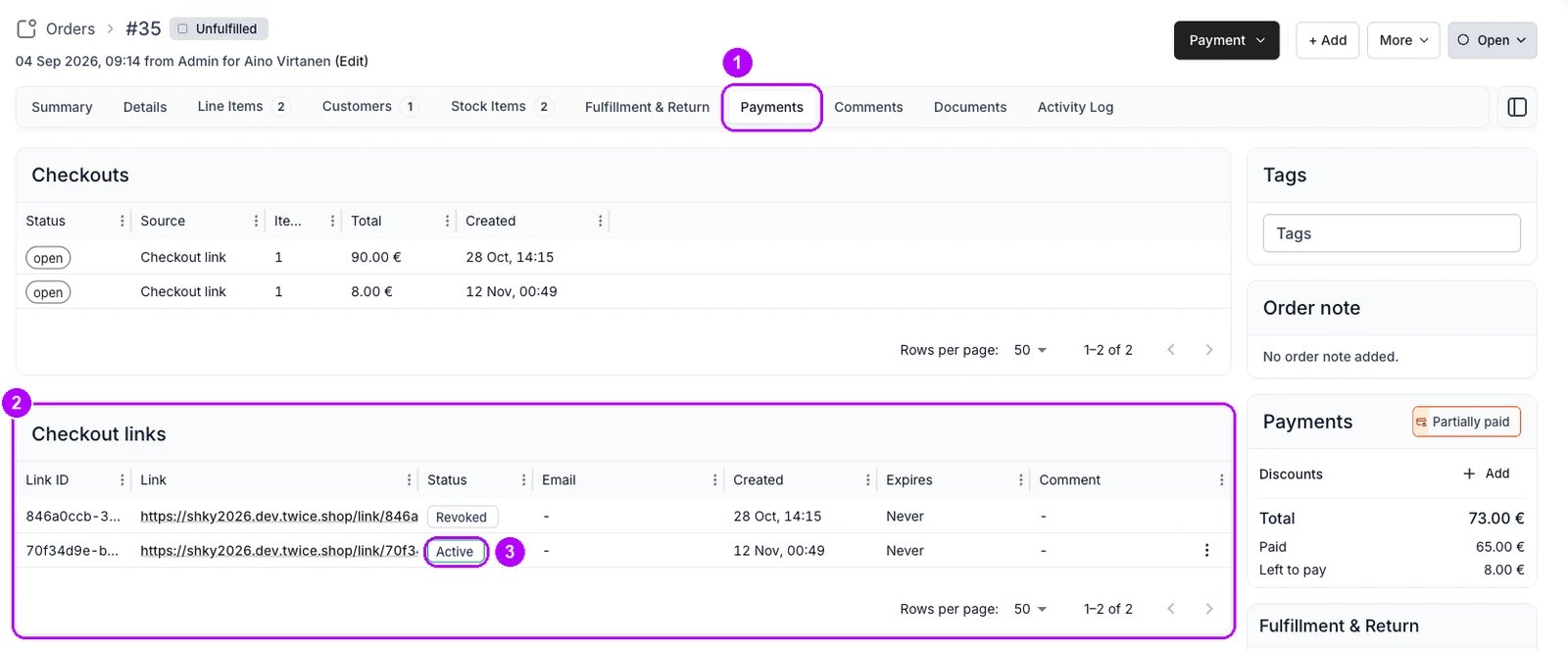
How do I know it worked?
- The add-on is on the Summary tab with Add-on to and the name of the line you picked.
- The order total includes it, at the price you left or entered.
- The link is listed under Checkout links on the Payments tab, and the add-on’s chip reads Paid once the customer pays.
Troubleshooting / common pitfalls
The add-on is not in the list
The add-on is not in the list
Recommended lists only the add-ons attached to the listings on the order and the ones offered at checkout. Choose All to see every add-on offered at the order’s location. An add-on missing there too is not set up as an add-on for that location. See Add-on settings.
The line you want is not offered
The line you want is not offered
An add-on attached to listings is offered only for the lines of those listings. One offered only at checkout goes on the whole order or a customer, never a line. A line that is itself an add-on is never offered. Check which listings carry the add-on in Add-on settings.
There is no + Add, or no Add-ons tab
There is no + Add, or no Add-ons tab
With no + Add, the order is closed. Reopen it as Reopen an order shows. With + Add but no Add-ons tab, your role hides the tab. See UI visibility.
Related articles
Line Items
How add-on lines attach to their parent and how they are priced.
Changing an order
Every walkthrough for changing an order a customer already has.
Add an item
Put another listing on the order at the dates the customer wants.
Send a checkout link
Collect what an order owes, in full or in part.
Add-on settings
Which listings carry an add-on, and how its price is set.