

Open in TWICE Admin
orders
Prerequisites
Have ready before you start:
- The new end date and time: the day the customer returned the items, or the day they asked to end.
- An order that is not closed. Shorten it before you complete it, because a completed order is read-only. Reopen a closed one first. See Reopen an order.
The walkthrough
1
Open the order
Find the order in Orders. With more than one location, check the location selector in the top-left corner first: the table lists only that location’s orders. Choose All locations if you are not sure.Or open Customers, search for the customer, and open the order from their Orders tab.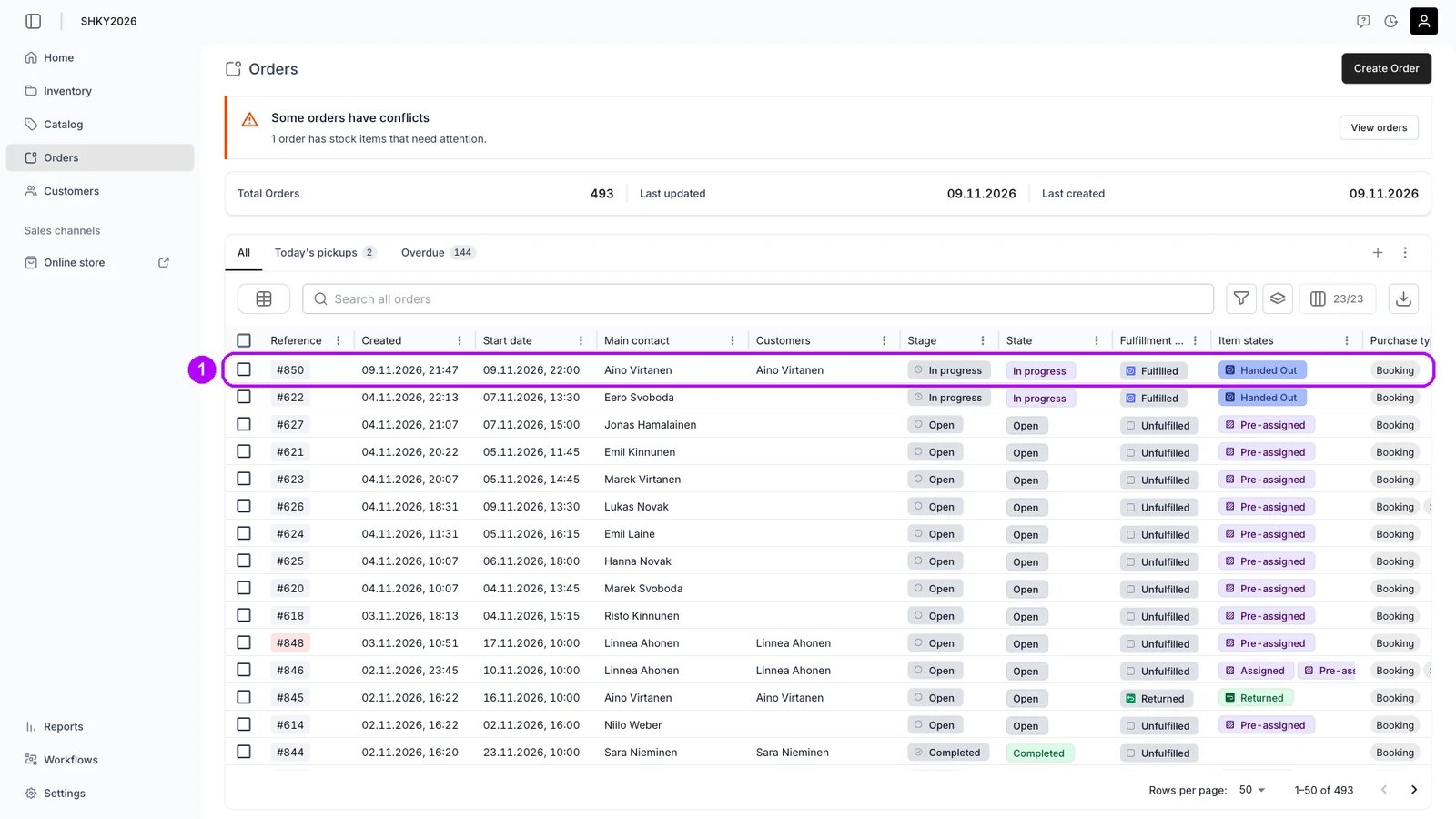
2
Open the line item
On the order’s Summary tab, click the name of the item that ends sooner. The Edit line item panel opens on the right with the line’s dates and price.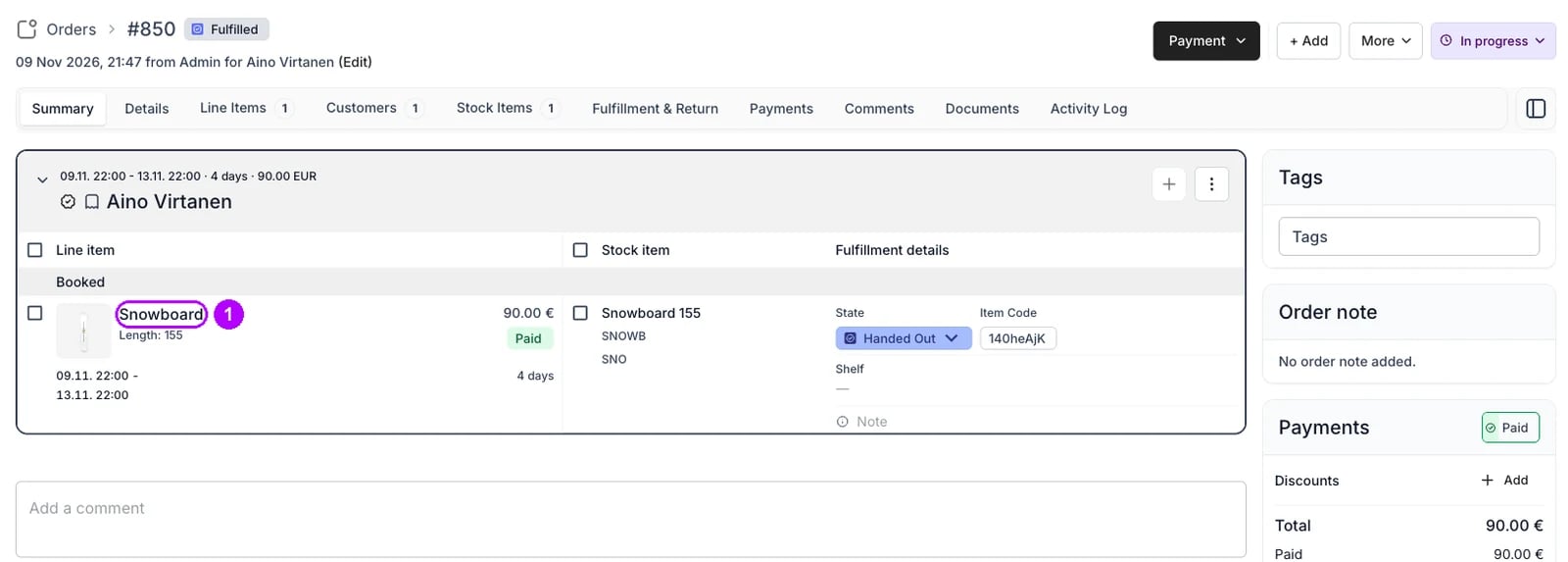
3
Pick the earlier end
Open End and pick the new date in the calendar, then the time in the list beside it. Past days stay selectable, so you can end the line on the day the items came back.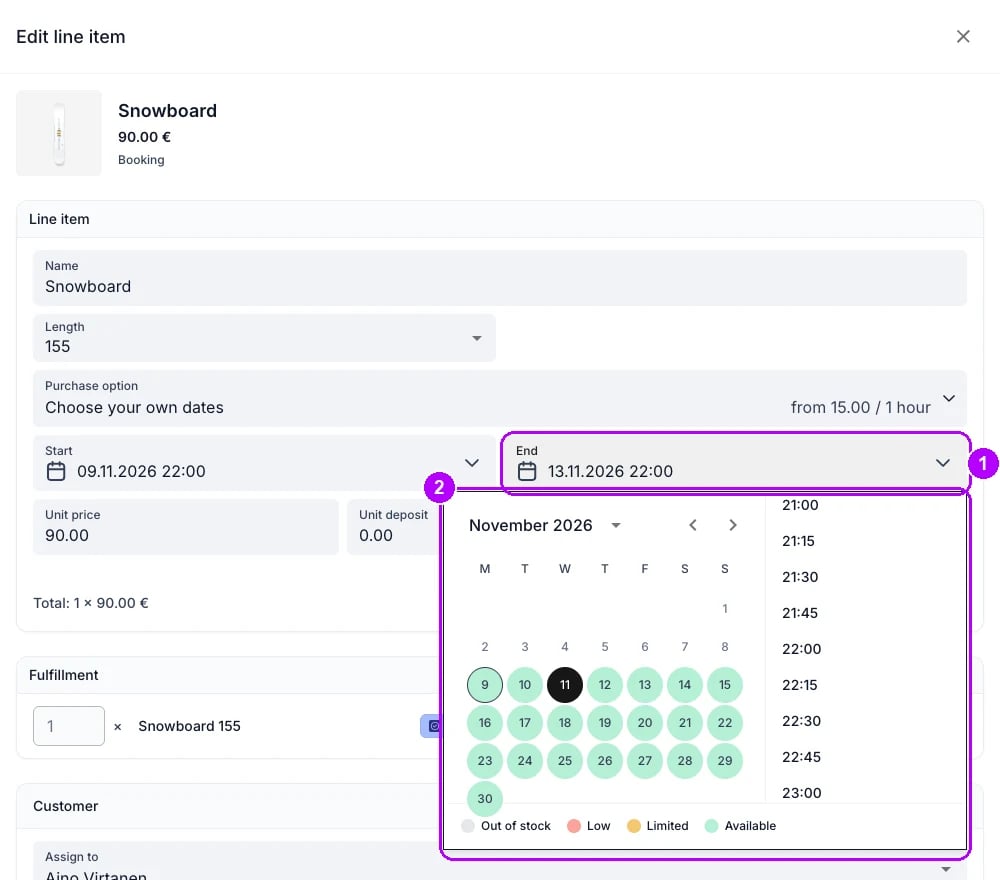
4
Charge the price for the shorter dates
Check Unit price. It still shows the price for the old dates, and List price: under it shows the price for the shorter dates. Note the Total line at the bottom of the panel, then click Apply list price. The drop in Total is the amount to refund.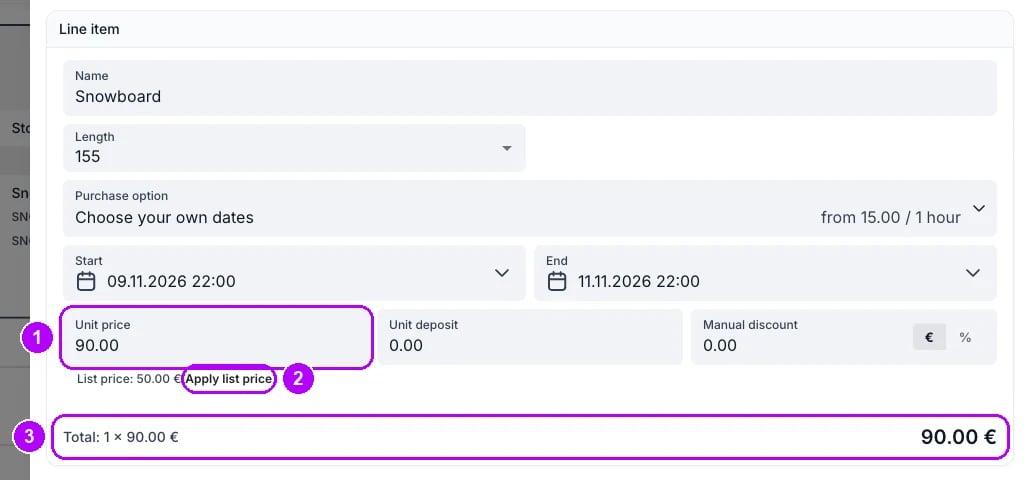
5
Save the change
Click Save at the bottom of the panel. The line shows its new end, and its chip still reads Paid. In the Payments card on the right of the order, Total is now lower than Paid. Nothing on the order flags the difference, so refund it next.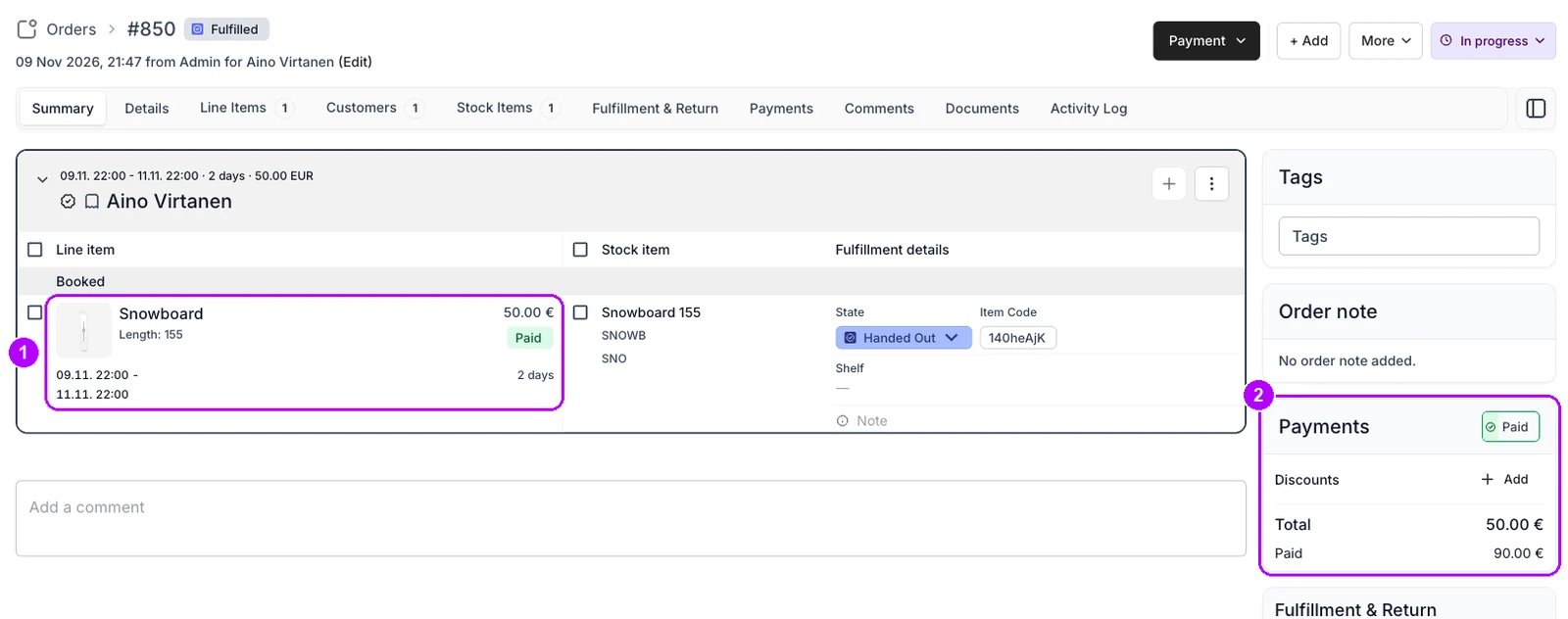
6
Open Refund on the payment
Click the Payments tab at the top of the order. In the Payments table, find the row of type Payment, click the three-dot menu at the end of it and choose Refund. The Refund payment window opens with Charged and Remaining refundable at the top.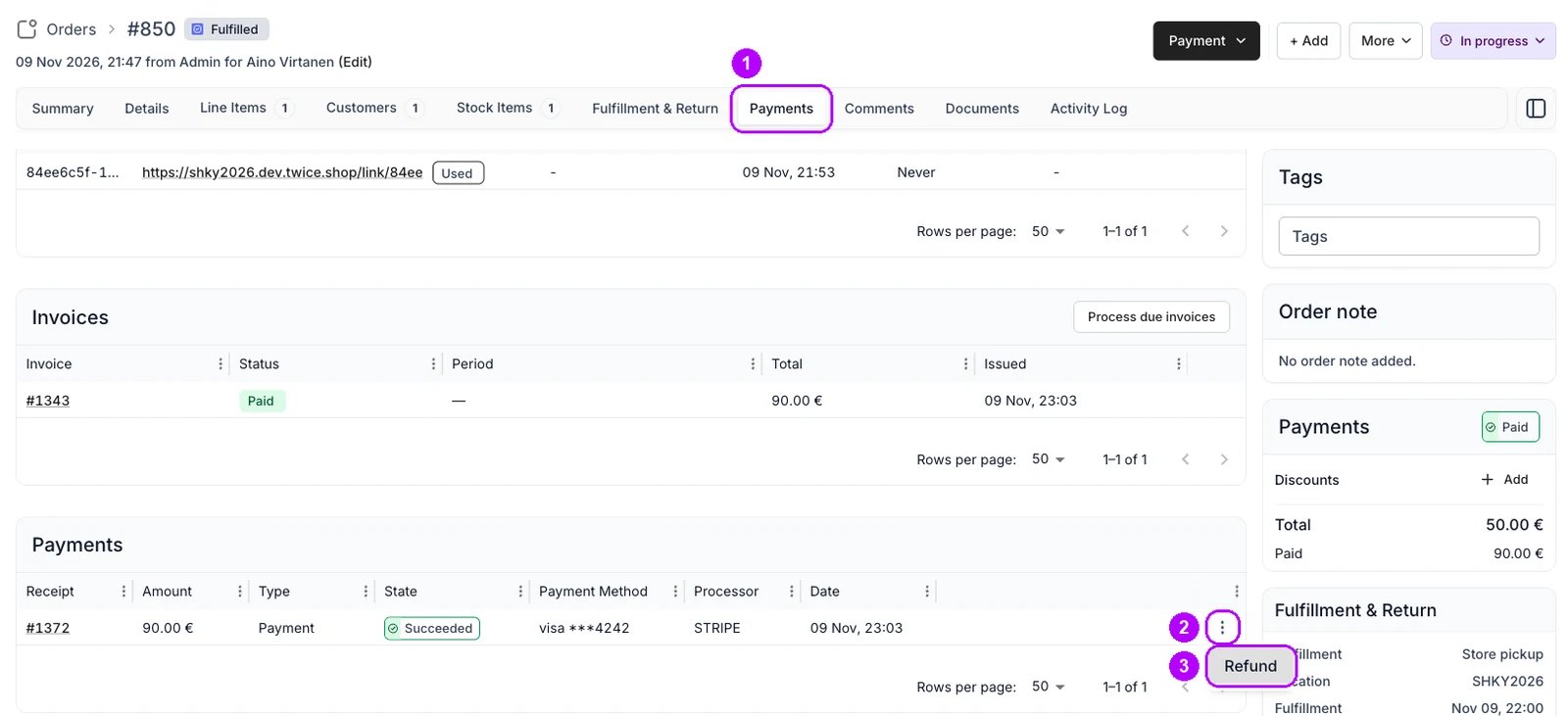
7
Clear the line selection
Select line items is open, with every line ticked at its full refundable amount. Click the checkbox in the header of the line table to untick them all. Amount to refund at the bottom of the window drops to zero, and a notice reads “Select at least one line to refund.” until the next step ticks a line.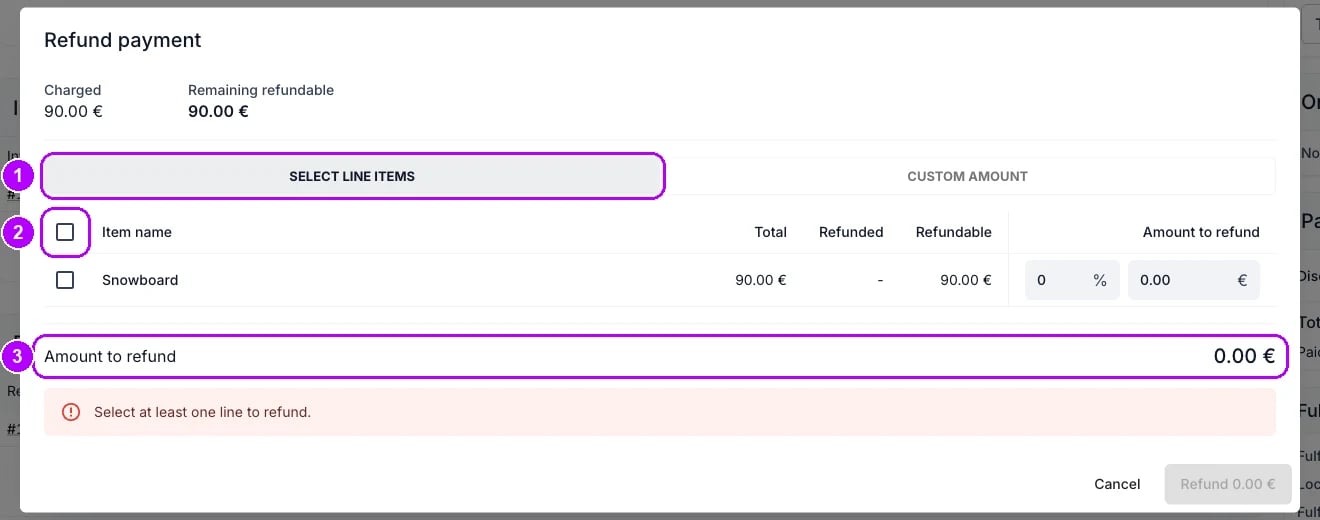
8
Enter the difference on the shortened line
Find the line you shortened under Item name. Type the drop in Total you noted into that line’s currency field under Amount to refund. The line ticks itself, and its % field shows the same amount as a share of the line.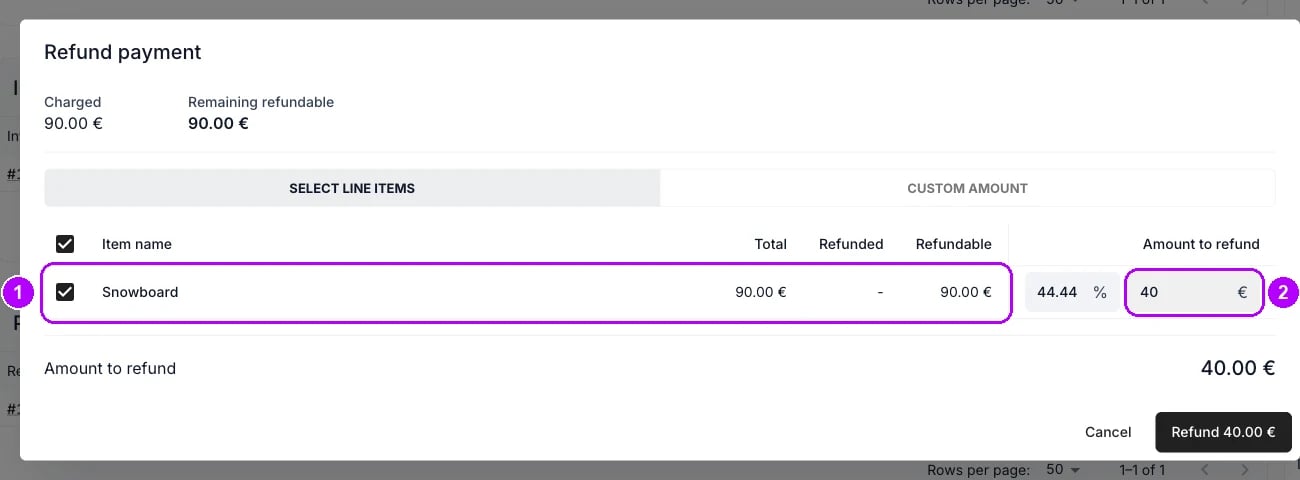
9
Confirm the refund
Check Amount to refund at the bottom of the window. Click the button in the bottom-right corner, which reads Refund and the amount, for example Refund 40.00 €. The window closes, and Refunded 40.00 € confirms it.On a manual payment, a notice at the top of the window says no payment is processed. Hand the money back yourself.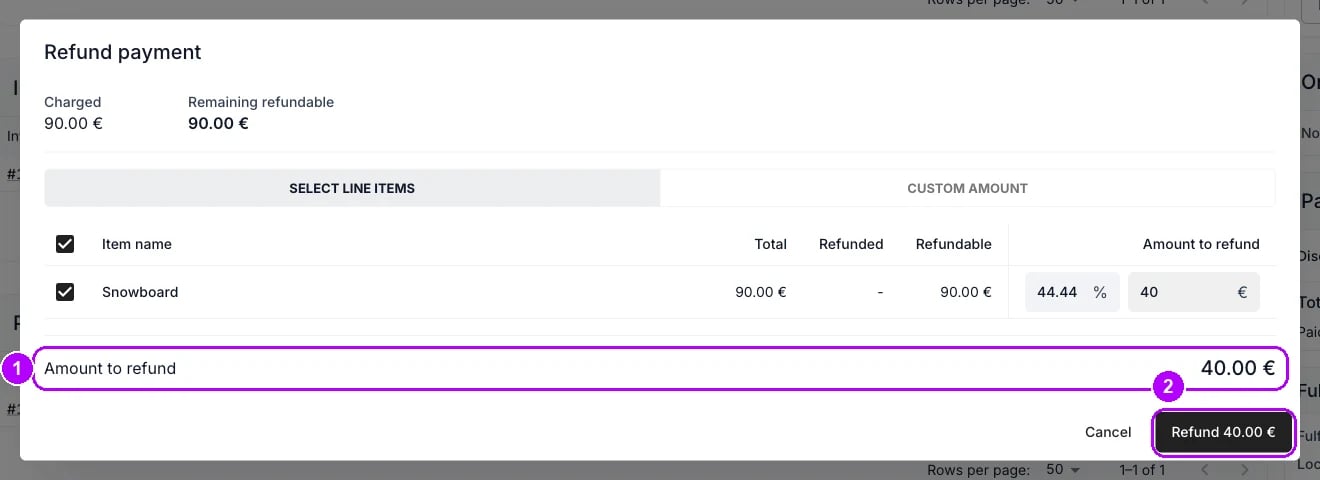
10
Check the refund row
Check the Payments table for a new row of type Refund for the difference. Once that row reads Succeeded, it carries its own receipt number, and the payment you refunded reads Partially Refunded, still at its original amount. In the Payments card on the right, Paid now matches Total.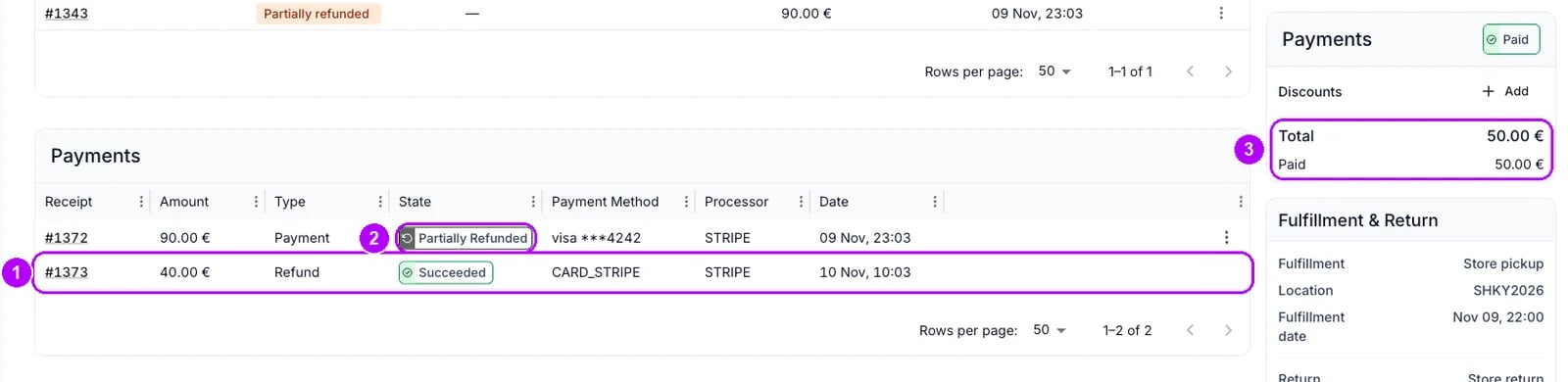
How do I know it worked?
- The line item shows the new end on the order’s Summary tab.
- The order total is the price for the shorter dates, at the list price if you applied it.
- A Refund row for the difference reads Succeeded on the Payments tab, with its own receipt number.
- The refunded payment reads Partially Refunded, still at its original amount.
- Paid matches Total in the order’s Payments card.
Troubleshooting / common pitfalls
Clicking the item's name opens nothing
Clicking the item's name opens nothing
The order is closed, and This order is closed shows at the top. Reopen it first, as Reopen an order shows. Refunds still work on a completed order, but its dates do not change.
There is no Apply list price under Unit price
There is no Apply list price under Unit price
The unit price already matches the list price for the shorter dates, or the line is an add-on, whose price follows the item it is attached to. When the price is the same, there is no difference to refund. See Order Line Items tab.
The window says the refund amount cannot exceed a figure
The window says the refund amount cannot exceed a figure
The order was paid in more than one payment, and this one has less left to refund than the difference. Refund the rest from the order’s other payment. See How payments work.
Related articles
How payments work
What a refund is, what caps it, and what it leaves unchanged.
Order Lifecycle
What each stage of an order lets you change.
Changing an order
Every walkthrough for changing an order a customer already has.
Extend an order
A later end on an order in progress, with a checkout link for the difference.
Refund an order
Refunds for chosen line items or a custom amount, and the refund’s receipt.