

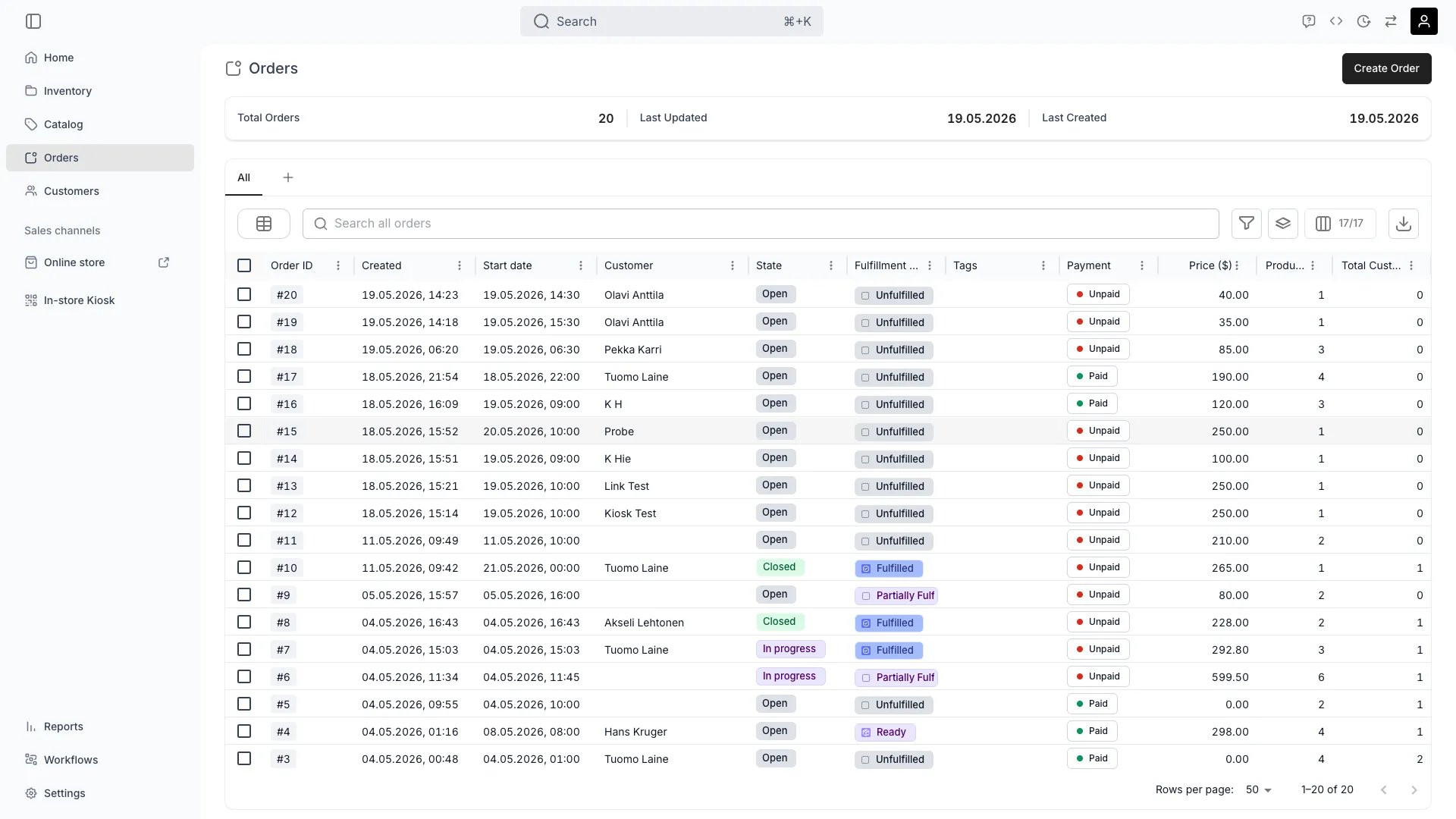
Orders
Open in TWICE Admin
orders
Prerequisites
Before you start:
- Check your selected locations. Select only the site you are working, because the table is scoped to your selection and the day’s list otherwise includes other people’s work.
- Know your timezone is the merchant’s. Date filters resolve against your account’s timezone rather than the browser’s, so “today” means the same thing for everyone on the team.
The walkthrough
1
Build today's pickups
Filter Start date to today. Use the relative-day operators, which need no date picker and keep meaning “today” tomorrow, which a hard date would not.Add Fulfillment state to see what is prepared. Sort or group by it to split the list into what still needs picking and what is bagged and waiting.Show these columns: Reference, Customer, Start date, Fulfillment state, Payment, and Listings, so you can see what to fetch without opening each order.
2
Build today's returns
Repeat the move on End date. Work the other half of the day from this list.Swap the columns for this one. Show Stock items and Fulfillment state rather than Listings, because the question is which units are coming back rather than what was ordered.
3
Build views by stage, not only by date
Filter Stage, which answers how far an order has got rather than when it is due. It carries three fixed values:
Group by Stage instead of filtering to split the whole table three ways at once, which is the fastest read of the week’s shape.
4
Filter your own states where you have defined them
Use the State column for the lifecycle you have named yourself, which is a separate column from Stage. A fresh account seeds one state per stage, and you rename those or add your own under Order lifecycle.
5
Give the other working columns a view each
Give a view of its own to Payment filtered to Unpaid (money to chase), to Has conflicts filtered to Yes (stock that needs reassigning), and to Fulfillment state to find what is prepared but not handed over.
6
Build the overdue list, because nothing else will
Combine the two axes: set Stage to Open or In progress, and End date to before today. An order that has not been closed while its return date has passed is one nobody has brought back.Narrow it with Fulfillment state to see only the items still recorded as out rather than Returned.Build this one first. Nothing flags a late return: no overdue badge, no notification and no automatic fee, so an order whose end date passed last week looks exactly like any other.
7
Save each one, and put them in order
Save each filter as a view so tomorrow is one click. Views appear as tabs on the table’s tab row, and the three-dot button at the right of that row opens a panel to search, reorder and hide them.Expect two things of that panel before you rely on it. Reordering and hiding are per user and per browser, so dragging a shared view does not move it for a colleague, and a different device starts from the default row.A view saved now, or shared with you since you last dragged anything, lands at the end of the row.
8
Put the tabs in the order the day runs
Order the three tabs as the day runs: pickups, returns, overdue. Hide the tabs you never use. See Tables for the full set of view and column controls.
9
Switch to the calendar when the shape of the day matters
Use the Layout control to the left of the search box to swap the grid for a calendar of pickups and returns. Switch to it when you need to see when rather than what, such as a morning rush against a quiet afternoon.Pick the range you need. It opens on Grid Week, and Grid Day and List Day are the ones for a single day’s work. Move the range with Today and the arrows beside it.Read the arrows: pickups carry a purple up arrow and returns a blue down arrow. Click an event to list one row per order, each row a link into the order.
10
Plan around the calendar's two limits
Remember that the calendar plots only the orders currently loaded in the table, so your filters and page decide what appears on it. Clear the grouping to switch layout, because the calendar is disabled while the table is grouped.
11
Work the list
Open an order from the view and act on it in place:
Then re-open the view. Watch the order drop off it as its state changes, which is what makes the list a worklist rather than a report.
How do I know it worked?
- Three saved views, pickups, returns and overdue, sit on the tab row in the order you work them.
- Each empties as the day goes on, because the filters key off stage rather than a date you typed.
- The overdue view is empty, or every row on it is one you know about and are chasing.
- No order on today’s list is still Unassigned by the time the customer arrives.
Troubleshooting / common pitfalls
The day's list includes other sites' orders
The day's list includes other sites' orders
Cause: more than one location is selected. The table is scoped to your selection rather than to where you are standing.What to do: select only the location you are working. This also scopes the conflicts banner and count, so it makes the whole page truthful for your site at once.
I saved a view with today's date and now it is wrong
I saved a view with today's date and now it is wrong
Cause: you filtered on a specific date rather than a relative one, so the view faithfully shows the day you saved.What to do: rebuild it with the relative-day operators, “today” and “before today”, which re-resolve every time the view is opened. That is the difference between a saved view that works forever and one that works once.
Nothing tells me an order is overdue
Nothing tells me an order is overdue
Cause: there is no overdue detection at all. No flag, no badge, no notification, no late fee.What to do: build the overdue view and open it daily. It is the only thing standing between you and a unit nobody has noticed is missing.
The calendar is missing orders I can see in the grid
The calendar is missing orders I can see in the grid
Cause: the calendar plots only what the table has currently loaded, so your filters and the page you are on decide its contents.What to do: widen the filter or move through the pages. Check you have not filtered a day out of the grid first, if the calendar is empty of a day you know has work.
The Layout control is greyed out
The Layout control is greyed out
Cause: the table is grouped, and layouts and grouping are mutually exclusive.What to do: clear the grouping, then switch layout. Keep two views if you want both, because grouping by Fulfillment state is genuinely useful on a pickup list.
My colleague cannot see the view order I set up
My colleague cannot see the view order I set up
Cause: hiding and reordering view tabs is stored per user and per browser, so sharing a view shares the view rather than your arrangement of the row.What to do: share the views and let each person arrange their own tabs. Tell them the tabs will be at the end of their row until they drag them.
Related articles
Handle a return
The late, damaged and partial cases the overdue view finds.
Tables
Filters, saved views, column and tab controls in full.
Take an order in admin
Where the orders on today’s list came from.
Orders overview
Every column and layout the table offers.